


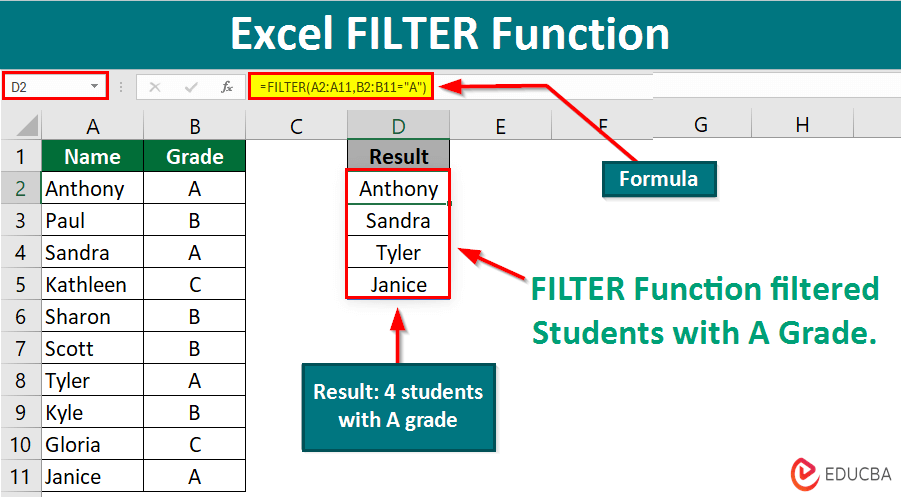
What is an Excel FILTER Function?
We can use the Excel FILTER function to display specific data from a table or array of data by defining certain criteria.
For example, imagine you are organizing an event and have a guest list with 100+ names, and you only want to see the names of guests who have confirmed their attendance (RSVP). You can simply use Excel’s FILTER function for this.
Are you wondering why you need the FILTER function when there is the Auto Filter option? Here’s why.
Imagine you apply Auto Filter to your data and later decide to make some changes. You make some changes, but to your disappointment, the new data is not filtering properly. Why? Because Auto Filter does not automatically update when you modify your data. It means you will have to go through the hassle of cleaning up and reapplying the filter.
So, the solution lies in the Excel FILTER function. Unlike Auto Filter, it effortlessly adjusts to any changes you make to your data. So, no more manual updates or headaches – just smooth, automatic filtering every time you modify your dataset.
Table of Contents
Excel FILTER Function Syntax
This is the syntax for Excel’s FILTER function:
=FILTER(array, include, [if_empty])
- You must add the range of the cells from which you want to filter in the “array”
- The “include” argument represents the criteria or conditions that help the function find the data that you are looking for.
- [If_empty] is an optional argument where you can specify the value to return if no results meet the filtering criteria. If omitted, Excel returns #CALC!
How to Use Excel FILTER Function?
You can follow the given steps to use the FILTER function:
- Select the cell where you want the filtered data to appear.
- Enter the FILTER function:
- Formula: =FILTER(array, include, [if_empty])
- Example: =FILTER(A1:B6, B1:B6=”Gold Medal”, “No Medal Won”)
- Press Enter to apply the FILTER function and display the filtered results.
Here is a simple example to illustrate how to use the FILTER function:
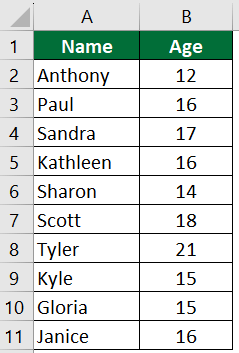
Suppose you have a dataset with names in column A and corresponding ages in column B. You want to filter out the names of people older than 18.
Given:
Here are the steps to achieve this:
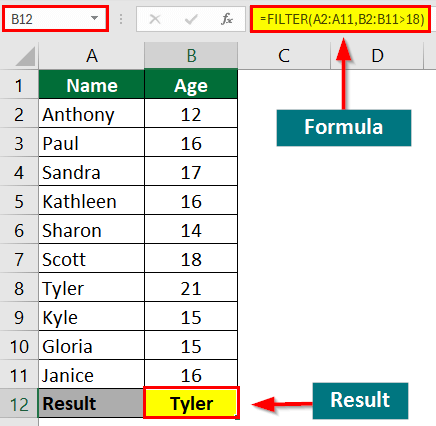
Step 1: Select a cell to display the result. In our example, we choose cell B12.
Step 2: Enter the below FILTER function in cell B12 and hit “Enter”: =FILTER(A2:A11,B2:B11>18)
Result: Here’s how the formula works:
This formula returns the names from column A (A2:A11) where the corresponding age in column B (B2:B11) is greater than 18 (>18).
In this example, Tyler’s age is more than 18.
Excel FILTER Function Examples
Here are some Excel FILTER function examples.
Example #1: Basic Filtering
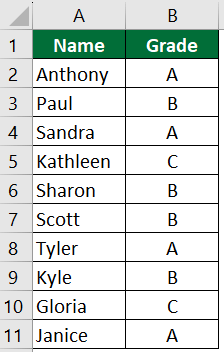
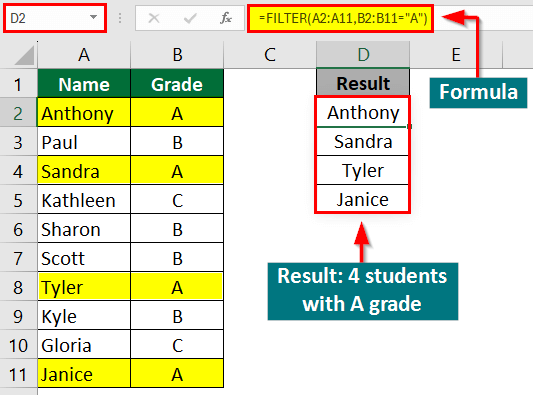
Suppose you add 10 names in the A column and their corresponding grades in column B. You want to filter only the rows where students have scored an A grade.
Given:
Solution:
Step 1: Select the cell “D2” where you want the filtered result to appear.
Step 2: Enter the FILTER function in cell “D2” and hit “Enter”:
=FILTER(A2:A11,B2:B11=”A”)
Result:
Anthony, Sandra, Tyler, and Janice scored an “A” grade.
Note: Here is how the formula works:
- A2:B11 specifies the range of data to filter. It includes both columns A and B, where column A contains names and column B contains grades.
- B2:B11=”A” is the criteria or condition to filter the data. It checks if the grade in each row (in column B) is equal to “A”. If it is, the corresponding row will show in the filtered results.
- So, the FILTER function returns only the names from column A for which the corresponding grade in column B is “A.” It effectively filters out all other rows where the condition is not true.
Example #2: Filtering with Multiple Criteria
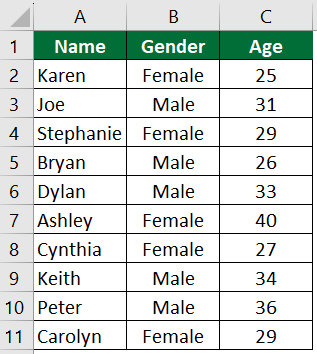
Suppose you want to identify females who are over 30 years old. Let us find out how to find that using the Excel FILTER function.
Solution:
Step 1: Select the cell “E2” where you want the result to appear.
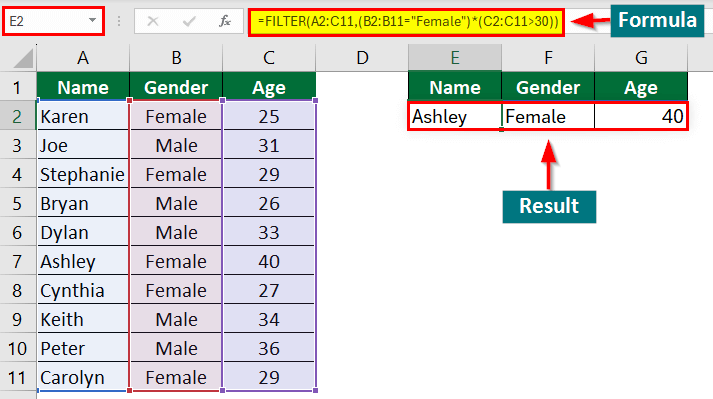
Step 2: Enter the FILTER function in cell “E2” and hit “Enter”:
=FILTER(A2:C11,(B2:B11=”Female”)*(C2:C11>30))
Result:
This filters the dataset to extract only the rows where the individual is female and over 30 years old.
As a result, Ashley is the only female over 30 years old.
Note: Let us understand how this formula works:
- A2:C11 is the range of data that you want to filter. It includes the columns containing individuals’ names, genders, and ages.
- (B2:B11=”Female”) is the first criteria. It checks whether the gender in cells B2 to B11 equals “Female”.
- (C2:C11>30) is the second criteria. It checks whether the age in cells C2 to C11 is greater than 30.
- The asterisk * between the two criteria represents the logical AND operator. It means that the filtered result includes a row only if both criteria are true for it.
Example #3: Filtering Multiple Criteria with OR Logic
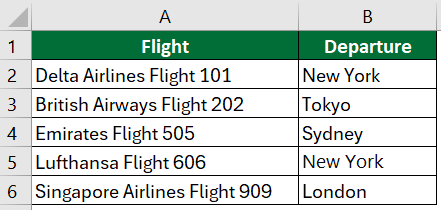
Suppose you have a flight dataset containing flight names and departure locations. You want to filter out flights that either depart from “New York” or from “London”. Here is how you can do it.
Given:
Solution:
Step 1: Select the cell “D2” where you want the result to appear.
Step 2: Enter the below FILTER function in cell “D2” and hit “Enter”:
=FILTER(A2:B6,(B2:B6=”New York”)+(B2:B6=”London”))
Result:
There are 3 flights that depart from either “New York” or “London”.
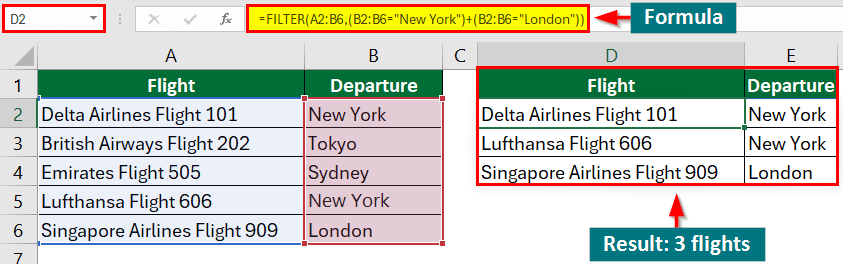
Note: Let’s see how the formula works:
- A2:B6: This is the range of data you want to filter, which includes the flight names and departure locations.
- (B2:B6=”New York”) + (B2:B6=”London”): This is the criteria or condition you want to apply. It’s using the logical OR operator (+) to combine two conditions:
- (B2:B6=”New York”): This checks if the departure location in each row is equal to “New York”.
- (B2:B6=”London”): This checks if the departure location in each row is equal to “London”.
- The + operator between the two conditions acts as the logical OR, meaning it returns TRUE if either condition is TRUE.
Example #4: Filtering Based on Date Ranges
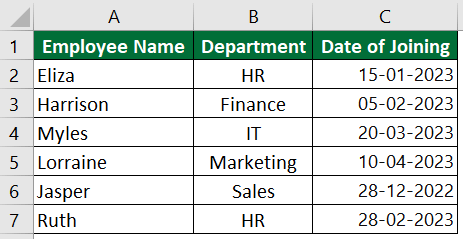
Suppose you have a dataset containing employee names, departments, and their respective joining dates. You need to identify individuals who joined between January 1, 2023, and March 31, 2023. Let’s see how to find them using the Excel FILTER function.
Given:
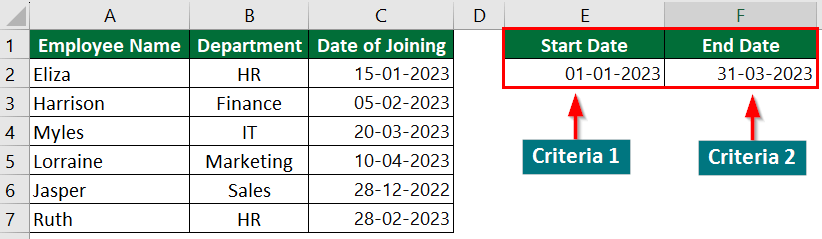
We will create another table for our criteria. We will set the start date in “E2” (criteria 1) and the end date in “F2”(criteria 2).
Solution:
Add the headings for the filtered data, i.e., Employee Name, Department, and Date of Joining.
Step 1: Select the cell “E5” where you want the result to appear.
Step 2: Enter the FILTER function in cell “E5” and hit “Enter”:
=FILTER(A2:C7,(C2:C7>=E2)*(C2:C7<=F2))
Result:
We can see that 4 employees joined between January 1, 2023, and March 31, 2023, i.e., Eliza, Harrison, Myles, and Ruth.
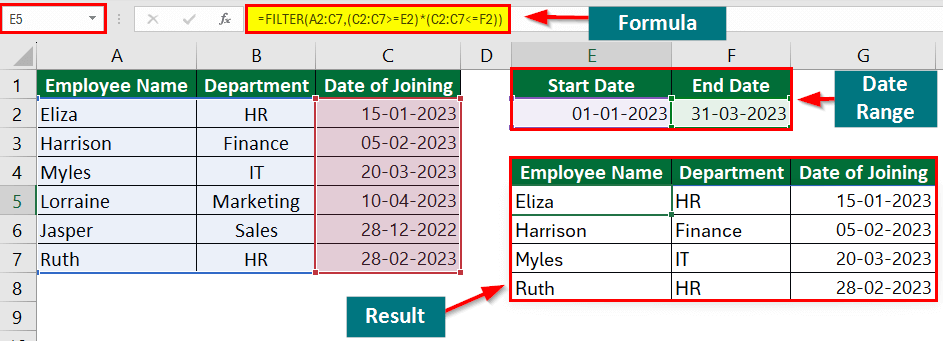
Note: Here is how the formula filters the data:
- A2:C7: This specifies the range of data you want to filter, containing employee names, departments, and joining dates.
- (C2:C7>=E2)*(C2:C7<=F2): This is the criteria you’re applying to filter the joining dates. (C2:C7>=E2) checks if the joining date is greater than or equal to January 1, 2023 (cell E2), and (C2:C7<=F2) checks if the joining date is less than or equal to March 31, 2023 (cell F2).
Example #5: Filtering Based on Text Criteria
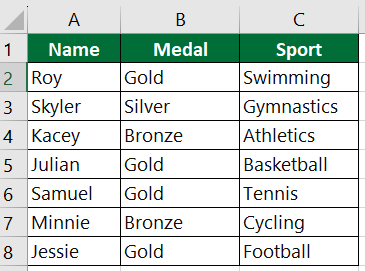
Suppose you have a sports dataset in Excel that includes athlete names, the medals they received, and the sports in which they obtained those medals.
You want to filter the data to show only rows where the text in column B contains the word “Gold.” Let’s see how to do that using the Excel FILTER function.
Given:
Solution:
Step 1: Select the cell “E2” where you want the result to appear.
Step 2: Enter the below FILTER function in cell “E2” and hit “Enter”:
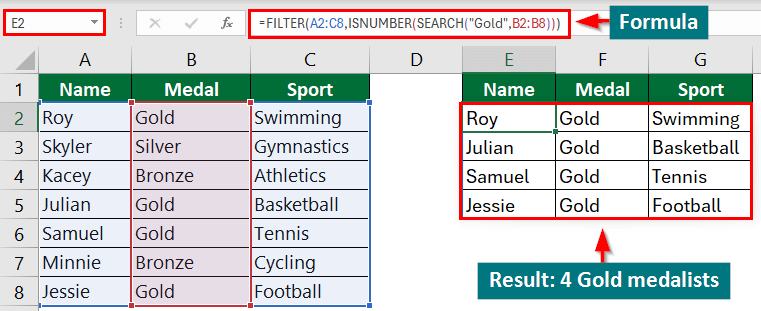
=FILTER(A2:C8,ISNUMBER(SEARCH(“Gold”,B2:B8)))
Result:
We can see that there are 4 gold medalists from the list.
Note: Explanation for how the formula works:
- A2:C8: This is the range of data you want to filter. It includes columns A, B, and C, and rows 2 to 8.
- ISNUMBER(SEARCH(“Gold”, B2:B8)): The filtered result includes rows based on the criteria. It consists of two functions:
- SEARCH: This function searches for a specified text (“Gold” in this case) within another text (range B2:B8). If it can’t find the text, it returns the position of the first occurrence of the specified text or an error.
- ISNUMBER: This function checks if a value is a number. In this case, it checks the result of the SEARCH function. If the search finds “Gold” in any cell in range B2:B8, it returns a number (the position of “Gold”), which is considered true by the ISNUMBER function. Otherwise, it returns false.
Here, the SEARCH function checks if “Gold” is present in each cell of column B, and the ISNUMBER function converts the search result to a logical value.
Example #6: Filtering Out Blanks
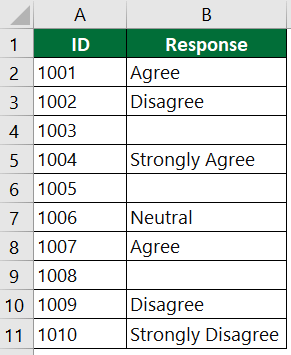
Suppose you have a survey dataset comprising the ID numbers of some individuals and their corresponding responses. A blank response indicates that the individual has not completed the survey. We want to extract only the IDs of those who have responded to the survey. Let’s see how to do that.
Given:
Solution:
Step 1: Select the cell “D3” where you want the result to appear.
Step 2: Enter the FILTER function in cell “D3” and hit “Enter”:
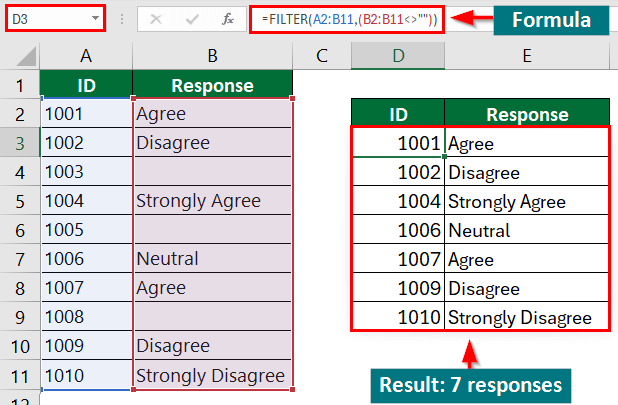
=FILTER(A2:B11,(B2:B11<>””))
Result:
We can see that we have received 7 responses out of 10.
Note: Explanation for how the formula filters the data:
- A2:B11: This specifies the range of data to filter. It includes both the ID numbers (column A) and the corresponding responses (column B).
- (B2:B11<>””): This is the criteria used for filtering. It checks if the cells in column B from row 2 to row 11 are not blank. The expression (B2:B11<>””) evaluates to TRUE for non-blank cells and FALSE for blank cells.
Excel FILTER Function Errors
If your Excel FILTER function results in an error, it could be due to several reasons. Here are some common errors you might encounter:
1. #VALUE! Error
Excel will return this error if you try to filter a range, but one of the criteria is a text string instead of a number.
To solve this: Double-check the arguments you provide to the FILTER function. For example, ensure that the criteria for numbers are indeed numerical values and that the criteria for text are strings.
2. #SPILL! Error
The FILTER function requires available space to add data into, meaning it needs enough empty cells below and to the right to display all the filtered results. If there is not enough space, Excel will return this error.
To solve this: Ensure there are enough empty cells where you enter the FILTER function. If necessary, adjust the layout of your worksheet to allow for more space.
3. #CALC! Error
This error occurs when Excel cannot complete the calculation due to reasons such as circular references (formulas that directly or indirectly refer to their own cell), insufficient memory, or other calculation-related issues.
To solve this: Check for circular references within your spreadsheet and resolve them or enable “Iterative calculations”. If the error persists, try breaking down your formula into smaller parts to identify where the calculation issue lies.
4. #REF! Error
Excel will return this error if the array or range specified contains errors or is invalid.
To solve this: Check the range or array you specified to ensure it contains valid data. Look for any cells within the range that might contain errors and correct them if necessary.
5. #NAME? Error
This error occurs when Excel cannot recognize one of the functions or names within the FILTER function. It could be a misspelling or a function that does not exist in your version of Excel.
To solve this: Double-check the spelling of all functions and named ranges within the function. Ensure that your version of Excel supports the functions you are using.
6. #N/A error
This error can occur if Excel cannot find any data that matches the filtering conditions.
To solve this: Review and adjust the filtering criteria if necessary to find matches within your dataset. Also, check the data range to see any inconsistencies or issues causing the lack of matching results.
Frequently Asked Questions (FAQs)
Q1. What type of criteria can I use with the FILTER function?
Answer: You can use various types of criteria with the FILTER function, including numerical comparisons (>, <, =), text comparisons (contains, begins with, ends with), logical conditions (AND, OR, NOT), and more.
Q2. Can I use the FILTER function with Excel tables?
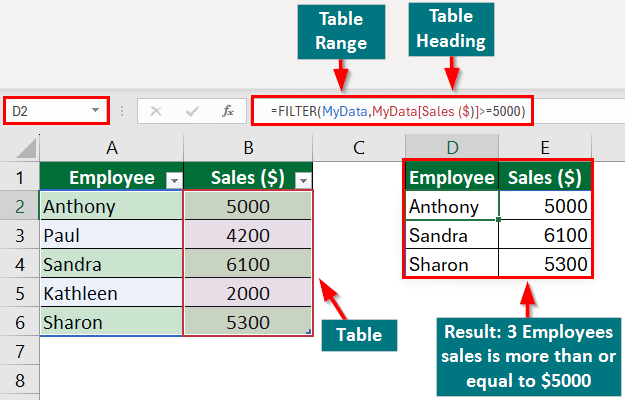
Answer: Yes, you can use the FILTER function with Excel tables. When using a table as the data range, you can refer to the table columns by their headers in the formula.
Q3. In which version of Excel is the FILTER function available?
Answer: Excel introduced the FILTER function in Excel 365, followed by inclusion in Excel 2019 and Excel 2016 for Office 365 subscribers. Earlier versions of Excel, like Excel 2013 and prior, do not support this function.
Q4. Can I nest the FILTER function within other functions?
Answer: Yes, we can nest the FILTER function within other functions to perform more complex filtering and calculations. For instance, you might use it within functions like SUM, AVERAGE, MAX, MIN, and others to operate on the filtered data set.
Recommended Articles
This article is a guide to the Excel FILTER function, where we discuss how to use the FILTER function in Excel using several examples and provide a downloadable template, too. To learn about more Excel functions, read our suggested articles,

