


Updated July 5, 2023
Excel Quick Access Toolbar (Table of Contents)
Quick Access Toolbar in Excel
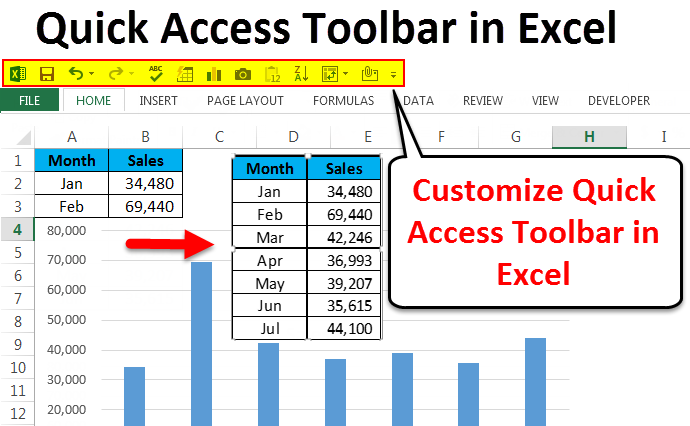
Quick Access Toolbar in Excel is a list of all the category and inbuilt tools available in Excel. There are 2 ways to access the Quick Access Toolbar.
In the first way, go to the File menu’s Excel Option, and from there, we can find the Quick Access Toolbar, and another way is accessing this from the title bar’s customized quick access toolbar. If we select More Commands, it will directly take us to the Quick Access Toolbar. Now, if we see, it has all the list of tools available in Excel. And we can see some of the names of the tools on the right side of the list. If we want to get the quick access option of any tool we use more frequently, we add those tools from the available list to the customized list. This will be seen in the title bar.
Customize Quick Access Toolbar in Excel
We can add our own feature to Quick Access Toolbar in Excel. Adding those features easily than the other complicated things in excel. To add features, follow the below steps.
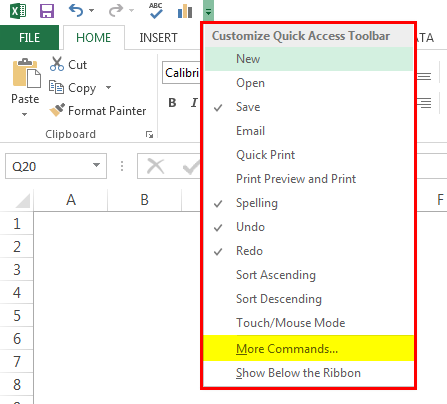
Step 1: On the top right corner, click on the down arrow, here we can see few features on the go like Email, Print Preview & Print, Quick Print, Spelling Check, Sorting, and many more, as shown in the below image.
To add other features click on More Commands…
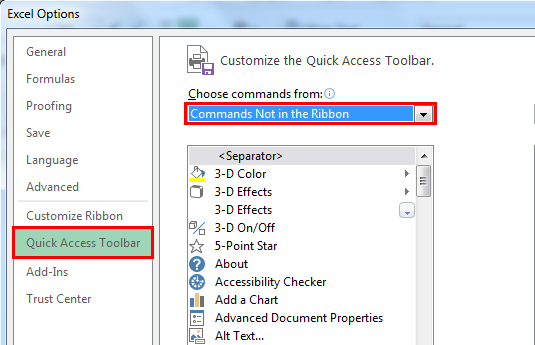
Step 2: In the below window from the drop-down list, select Commands Not in the Ribbon.
Step 3: This will show up all the features that are not there in the QAT currently.
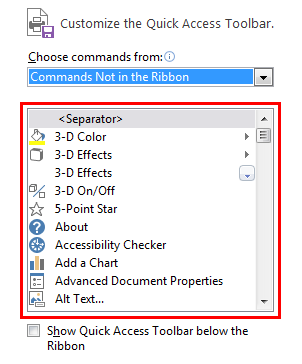
Step 4: In order to add the feature to the QAT, select the feature that you want to use and click on Add.
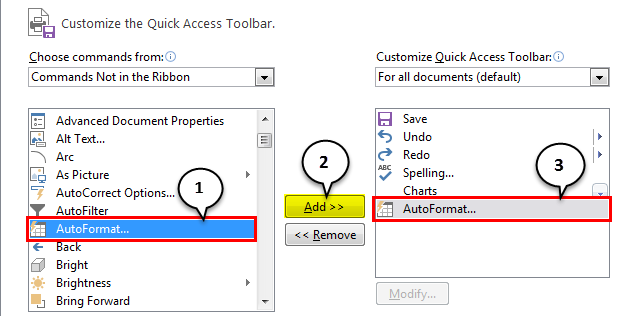
Like this, I have selected some of the important features of the QAT. Then, I will discuss each of them one by one.
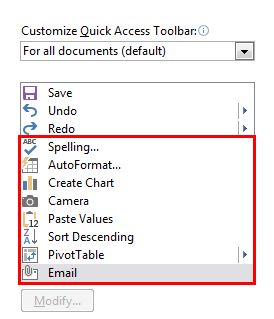
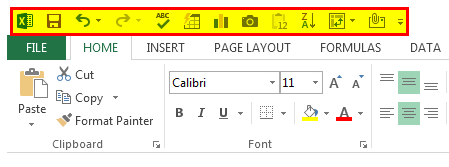
Now we can see all these enabled features in QAT.
AutoFormat
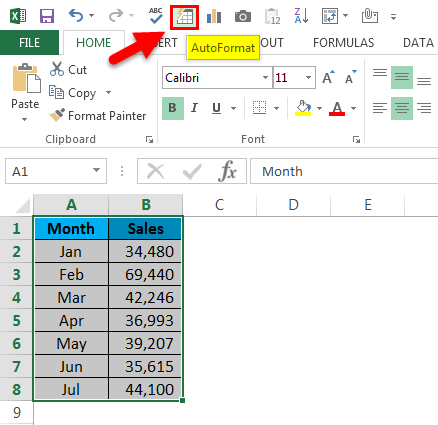
Designing our table is very important. Designing will take some of our productive time. Using AutoFormat QAT, we can do this in just a blink of an eye. I have simple data to format.
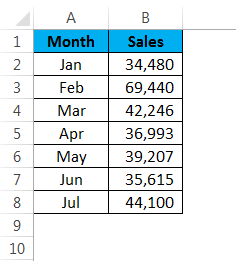
Place a cursor inside the table and click on AutoFormat from QAT.
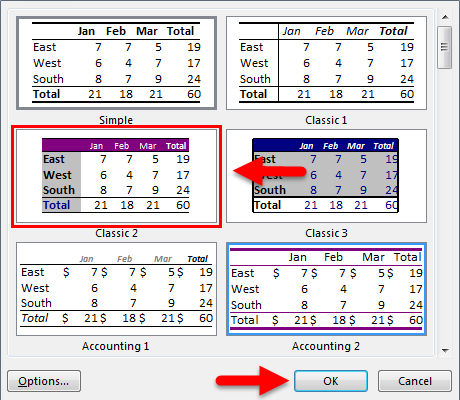
From the below window, you can select any one of the auto format tables.
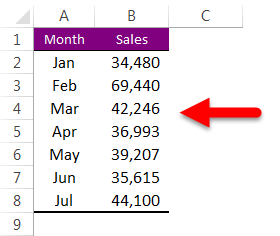
Now my data looks like this.
Camera Tool
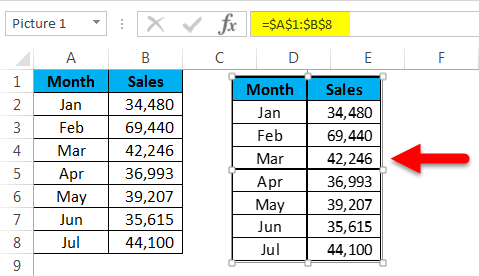
The camera tool works exactly the same way how it works on our mobile phones. We can capture live images of the excel data. In order to capture a live picture, select the data you want to capture and click on Camera.
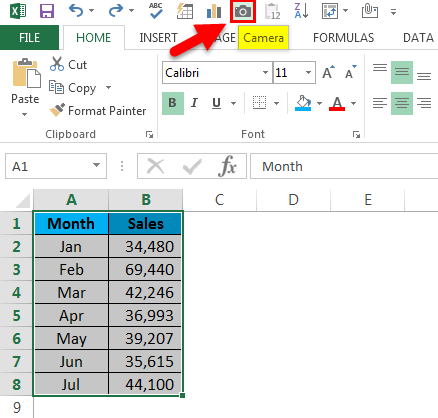
As soon as you click on the camera, it will copy the range, but you need not paste; rather, you need to draw the picture where you want to show it. Then, it will paste the picture as a linked picture; if any changes happen, it will update the picture automatically.
How to Insert Chart Quickly?
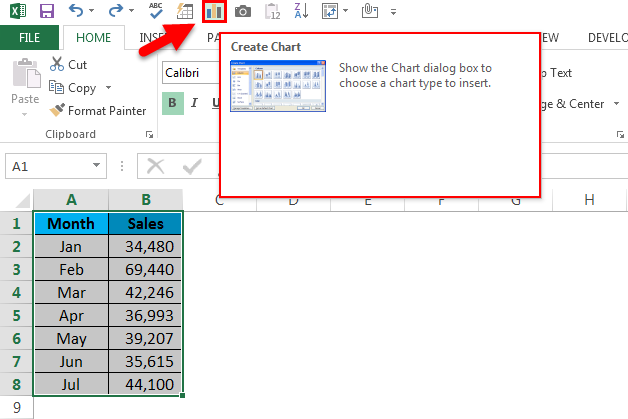
Inserting a simple chart will take some of our time. By using QAT, we can insert the chart instantly. Select the data and click on the Chart icon in the QAT.
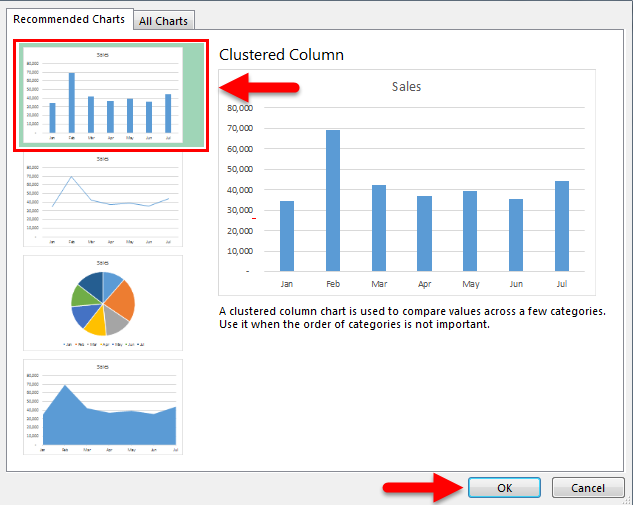
Now it will ask you to select a suitable chart for you. You can select any one of the available charts.
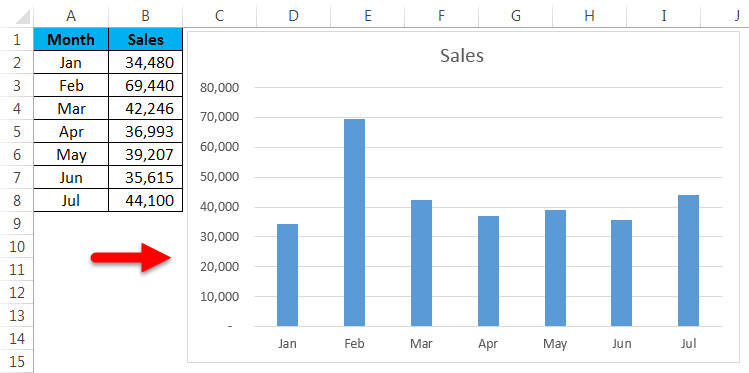
Based on the selection you make, it will insert the chart for you.
Sort Ascending & Descending
Sort is pretty much a regular job for all the excel users. Using this Quick Access Toolbar, we can sort the data according to your requirement, either Ascending or Descending.
Spell Check
After spending a considerable amount of time building the report, we need to write the executive summary for our report; we need to write some of the key findings. Then, we need to recommend some of the insights and maybe more things to be written. As human beings, we tend to make typing mistakes.
In order to do the spell check, press the spell check icon on the QAT; it will do the spell check in the entire worksheet and recommend the changes. Refer to our article on Spell check for more information.
Insert Pivot Table Quickly
We all use a pivot table for our analysis purpose. Inserting the pivot table is super quick now; we just need to select the data and click on the Insert Pivot Table icon on the Quick Access Toolbar.
Send File as Email Attachment
In order to send the current workbook as an email attachment, you need to configure your system to Outlook. Once the outlook is configured, click on the Email icon on the QAT.
Things to Remember About Quick Access Toolbar in Excel
- Based on the requirement of the user, we can customize the QAT.
- We can add Excel Add-Ins to QAT.
- In order to send an email system should be configured as an outlook email.
- Most of the QAT features have shortcut keys.
Recommended Articles
This has been a guide to Quick Access Toolbar in Excel. Here we discuss how to use the Quick Access Toolbar in Excel along with practical steps and a downloadable excel template. You can also go through our other suggested articles –

