

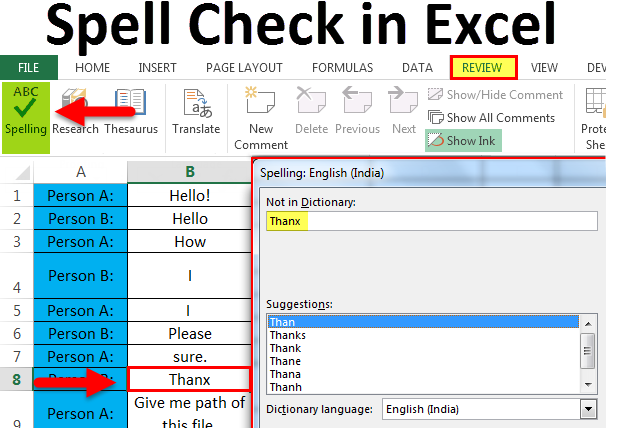
Spell Check in Excel (Table of Contents)
- Introduction
- Why Use Spell Check in Excel?
- How to Use Spell Check in Excel?
- How Excel Checks Cells?
- Examples of Spell Check in Excel
- Features of the Spell Check Dialog Box
- Change Spell Check Settings in Excel
- Default Spell Check Behavior
- Limitations of Spell Check in Excel
- Tips for Better Spell Checking
- Common Errors and Solutions
- Things to Remember
Introduction to Spell Check in Excel
Spell Check in Excel is a built-in proofreading feature that helps identify spelling mistakes in worksheets containing text. Although Excel is primarily used for calculations and data analysis, many spreadsheets also include reports, comments, labels, product names, invoices, and other text entries. Running a spell check before sharing a workbook helps improve accuracy and professionalism.
Excel allows users to check spelling manually through the Review tab or instantly using the F7 keyboard shortcut. During the review, Excel suggests corrections and provides options to ignore, change, or add words to the custom dictionary.
Applies to: Excel for Microsoft 365, Excel 2024, Excel 2021, Excel 2019, Excel 2016, and Excel for Mac.
Why Use Spell Check in Excel?
Spell Check is useful whenever your worksheet contains text that needs to be accurate and error-free. It helps identify spelling mistakes, typing errors, and repeated words before a workbook is shared with colleagues, clients, or management.
Some common uses include:
- Proofreading reports and dashboards
- Checking invoices, quotations, and financial statements
- Verifying product names and customer information
- Reviewing comments, notes, and text labels in charts
- Improving the overall professionalism of spreadsheets
- Reducing manual proofreading time.
Although Spell Check cannot identify grammar mistakes, it significantly reduces spelling errors and improves document quality.
How to Use Spell Check in Excel?
Excel offers two easy methods to run Spell Check.
Method 1: Using the Review Tab
Follow these steps:
Step 1: Select the starting cell
Click the cell from which you want Excel to begin checking spelling.
Step 2: Open the Review tab
Go to the Review tab on the Excel ribbon.
Step 3: Click Spelling
In the Proofing group, click Spelling.
Step 4: Review suggestions
Excel scans the worksheet and displays any detected spelling mistakes in the Spelling dialog box.
Select the appropriate action for each suggestion.
Step 5: Complete the review
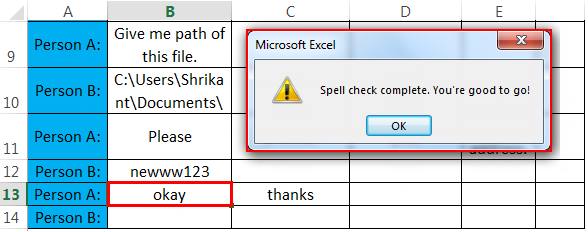
Continue until Excel displays the message:
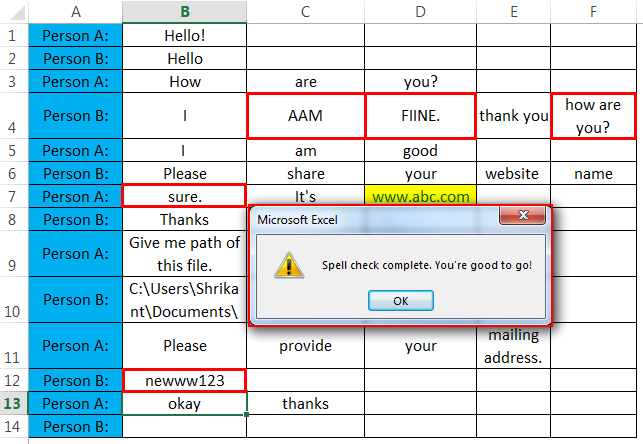
“Spell check complete. You’re good to go!”
Method 2: Using the Keyboard Shortcut
A quicker way to launch Spell Check is by pressing:
Shortcut Key: F7
After selecting a cell, press F7, and Excel immediately begins checking spelling from that location.
How Excel Checks Cells?
The starting cell determines the order in which Excel checks your worksheet.
For example:
- If you start at A1, Excel checks every populated cell, row by row, from left to right.
- If you begin from D5, Excel first checks the remaining cells from D5 to the end of the worksheet.
- After reaching the last used cell, Excel asks whether you want to continue checking from the beginning of the worksheet.
This ensures every populated cell can be reviewed.
Examples of Spell Check in Excel
Consider the worksheet below containing a conversation with several spelling mistakes.
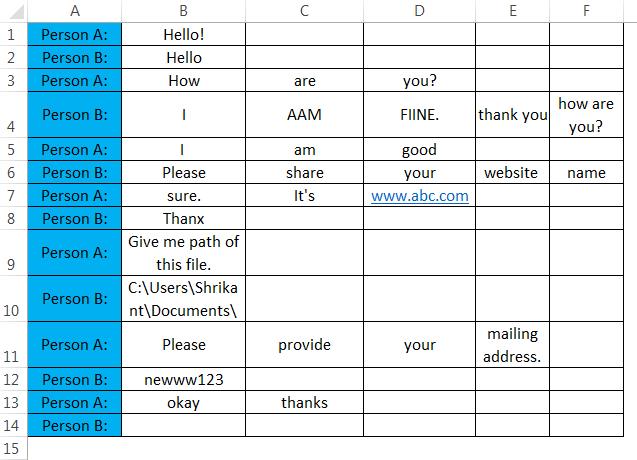
Example 1: Running Spell Check from Cell A1
Suppose cell A1 is selected before starting Spell Check.
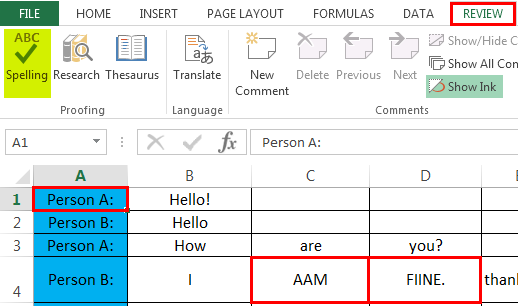
Press F7 or click Review → Spelling.
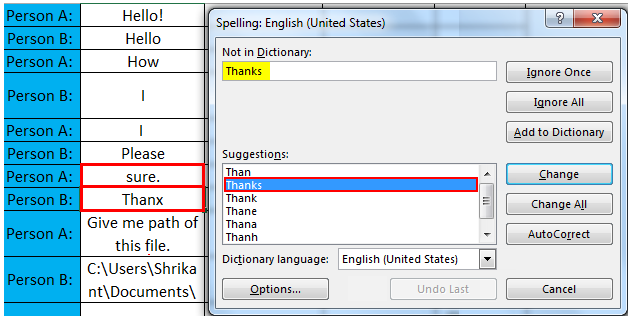
Excel scans:
- Row 1 from left to right
- Row 2 from left to right
- Row 3
- And so on until the last populated cell
Whenever Excel detects a spelling mistake, it displays suggested corrections.
For each detected word, you can:
- Ignore the suggestion
- Replace the word
- Add the word to the custom dictionary
- Enable AutoCorrect.
Example 2: Starting from the Middle of the Worksheet
Now, suppose you select cell B13 before pressing F7.
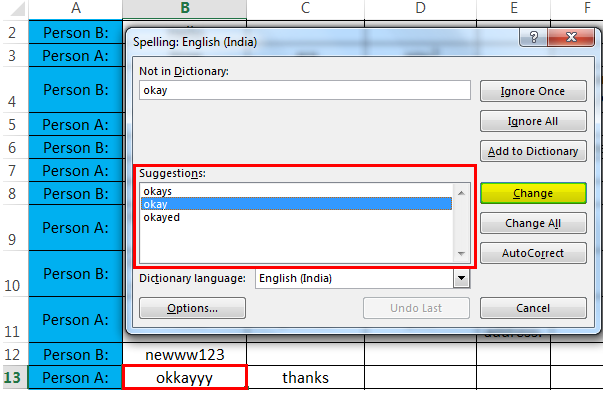
Excel checks:
- The remaining cells in Row 13.
- All rows below Row 13.
After reaching the last populated cell, Excel displays a prompt asking whether you want to continue checking from the beginning of the worksheet.
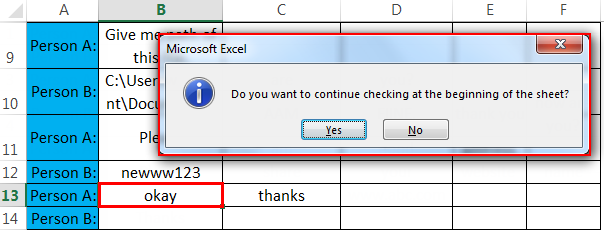
If you click Yes, Excel checks the remaining cells above B13 until the entire worksheet has been reviewed.
This feature ensures that no populated cells are skipped.
Features of the Spell Check Dialog Box
When Spell Check finds a spelling mistake, it opens the Spelling dialog box with several useful options.
1. Ignore Once
Ignores the selected spelling suggestion only for the current occurrence. Use this when the word is intentionally written that way.
2. Ignore All
Ignores every occurrence of the same word throughout the active worksheet. This option is useful for abbreviations, technical terms, or project-specific words.
3. Add to Dictionary
Adds the selected word to Excel’s custom dictionary. Once added, Excel no longer flags the word as a spelling mistake in future workbooks.
This is particularly useful for:
- Company names
- Product names
- Employee names
- Industry-specific terminology
- Acronyms.
4. Change
Replaces only the currently selected misspelled word with the highlighted suggestion.
5. Change All
Replaces every occurrence of the same misspelled word throughout the active worksheet. This saves time when the same mistake occurs repeatedly.
6. AutoCorrect
Automatically replaces the misspelled word with the selected correction and stores it in Excel’s AutoCorrect list. The next time you type the same incorrect spelling, Excel automatically corrects it as you type.
7. Dictionary Language
Allows you to choose a different proofing language. This is useful when working with multilingual spreadsheets.
8. Options
Opens Excel’s Proofing settings, where you can customize how Spell Check behaves.
From here, you can modify settings such as:
- Ignore words in UPPERCASE
- Ignore words containing numbers
- Ignore the internet and file addresses
- Manage AutoCorrect options
- Edit custom dictionaries.
These settings allow you to tailor Spell Check to your specific needs.
Change Spell Check Settings in Excel
Excel allows you to customize how Spell Check works by modifying its proofing settings. For example, you can choose whether Excel should ignore words written in uppercase, words containing numbers, or internet addresses.
Steps to Change Spell Check Settings
1 Step: Click the File tab.
2 Step: Select Options.
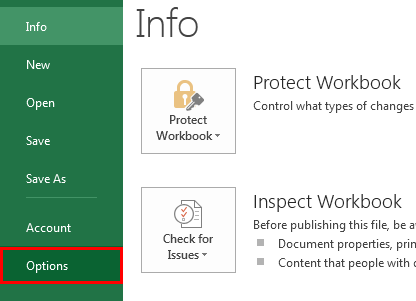
3 Step: In the Excel Options window, click Proofing.
4 Step: Under When correcting spelling in Microsoft Office programs, customize the available options.
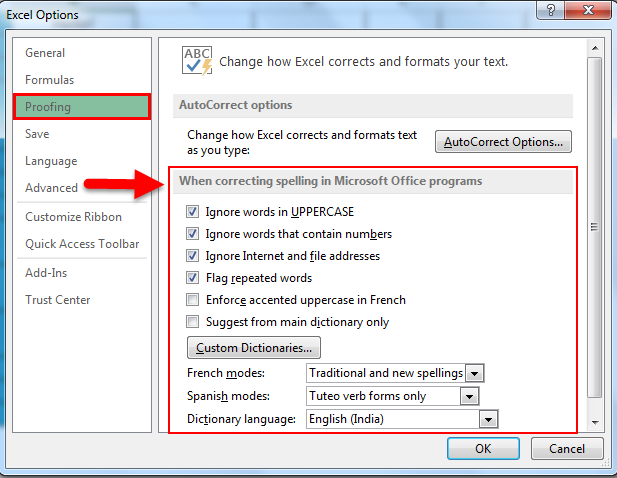
5 Step: Click OK to save your changes.
These settings apply to all future spell checks unless you change them again.
Default Spell Check Behavior
By default, Excel ignores certain types of text during a spell check. Understanding these settings helps explain why some words are not flagged as errors.
1. Words in UPPERCASE
Excel ignores words written entirely in uppercase.
Example:
- EDUCBA
- MICROSOFT
- EXCEL
These words are not treated as spelling mistakes by default.
2. Words Containing Numbers
Words that include numbers are skipped during spell checking.
Example:
- Product123
- ABC2024
- Item001
Since these often represent product codes or identifiers, Excel does not flag them.
3. Internet and File Addresses
Excel ignores URLs, email addresses, and file paths.
Examples:
- https://www.example.com
- [email protected]
- C:\Users\Documents\Report.xlsx
These entries are intentionally excluded from spelling checks.
4. Custom Dictionary Words
Words that you add to Excel’s custom dictionary are never flagged as spelling errors in future workbooks.
This is useful for:
- Company names
- Brand names
- Technical terminology
- Employee names
- Industry-specific abbreviations.
Limitations of Spell Check in Excel
Although Spell Check is useful, it has some limitations that users should be aware of.
- It checks spelling only, not grammar.
- It cannot correctly identify words spelled correctly but used in the wrong context (for example, there instead of their).
- It does not check formulas.
- Hidden worksheets are not checked automatically.
- It reviews only the active worksheet.
- It does not automatically check spelling while you type, unlike Microsoft Word.
- It cannot detect formatting inconsistencies.
Because of these limitations, it is a good practice to manually review important spreadsheets after running Spell Check.
Tips for Better Spell Checking
Follow these simple tips to improve the accuracy of your Excel worksheets:
- Run Spell Check Before Sharing: Check spelling before sending reports or spreadsheets.
- Start from Cell A1: Begin at the first cell to review the entire worksheet.
- Use AutoCorrect: Automatically fix commonly misspelled words while typing.
- Add Words to the Dictionary: Save frequently used names, abbreviations, and technical terms.
- Check Every Worksheet: Run Spell Check separately for each worksheet in the workbook.
- Review Comments and Notes: Proofread comments and notes to ensure all text is error-free.
Common Errors and Solutions
| Problem | Possible Cause | Solution |
| Spell Check is not working | Cell is in Edit mode | Press Enter or Esc, then run Spell Check again. |
| Some words are skipped | Words are uppercase, contain numbers, or are URLs | Modify the Proofing settings in Excel Options. |
| Wrong language suggestions | Incorrect proofing language is selected | Change the dictionary language from the Review tab or Proofing settings. |
| Spell Check starts from the middle of the worksheet | Another cell was selected | Select A1 before starting the spell check. |
| Excel does not check formulas | Spell Check reviews text only | Verify formulas manually. |
Things to Remember
- Press F7 to launch Spell Check quickly.
- Spell Check begins from the currently selected cell.
- Excel checks only the active worksheet.
- By default, Excel ignores:
- Words written entirely in uppercase.
- Words containing numbers.
- Internet addresses and file paths.
- Frequently used words can be added to the custom dictionary.
- Use File → Options → Proofing to customize Spell Check settings.
- Spell Check detects repeated words and offers options to remove or ignore them.
- Running Spell Check before sharing a workbook improves professionalism and reduces errors.
Final Thoughts
Spell Check in Excel is a simple yet powerful proofreading tool that helps eliminate spelling mistakes in worksheets before they are shared. Whether you use the F7 shortcut or the Review tab, regularly checking spelling improves the accuracy, readability, and professionalism of reports, dashboards, invoices, and other business documents. By understanding its features, customizing proofing settings, and following best practices, users can produce cleaner and more reliable spreadsheets with minimal effort.
Frequently Asked Questions (FAQs)
Q1. What is the shortcut key for Spell Check in Excel?
Answer: The keyboard shortcut is F7. Press F7 after selecting a cell to start checking spelling.
Q2. Does Excel check grammar?
Answer: No. Excel checks spelling only. It does not identify grammar or punctuation errors.
Q3. Can Spell Check review formulas?
Answer: No. Spell Check examines only text entries, comments, notes, and labels. It does not validate formulas.
Q4. Why does Excel ignore some spelling mistakes?
Answer: By default, Excel ignores:
- Words written in uppercase
- Words containing numbers
- URLs and file paths
- Words added to the custom dictionary.
You can modify these settings through File → Options → Proofing.
Q5. Can I change the Spell Check language?
Answer: Yes. You can change the proofing language using the Review tab or by updating the proofing settings in Excel Options.
Q6. Does Spell Check work on multiple worksheets at once?
Answer: No. Spell Check checks only the active worksheet. You need to run it separately for each worksheet in the workbook.
Q7. Can I undo a spelling correction?
Answer: Yes. If you accidentally replace a word, press Ctrl + Z immediately to undo the change.
Recommended Articles
We hope this guide to Spell Check in Excel helped you understand how to identify and correct spelling errors in worksheets, resulting in more accurate and professional spreadsheets. Explore these recommended articles to learn more about Excel formulas, data validation, formatting techniques, productivity shortcuts, and advanced spreadsheet functions.

