

Updated February 28, 2023

Introduction to Context Filter in Tableau
Filtering is used to access all the data in data source independently. Filtering will help the users to give an insight into the data and provide the search independently. For example – if we want to filter the department according to the employee, at that time we can filter out employees belonging to a different department. This will be helpful for the small database. If we have a data of multinational companies and who has more than 20k employee, then Context Filter in Tableau is the right choice to use in the tableau. We need to add a context filter to the respective dimension. We can create and remove the context filter from the tableau.
How to Create the Context Filter in Tableau?
We are going to create a context filter for the category of the order table.
- We are going to add a sample superstore database. (we can add different database from tableau site)
- Open sample superstore into tableau public or
- Drag orders table into the tableau datasheet.
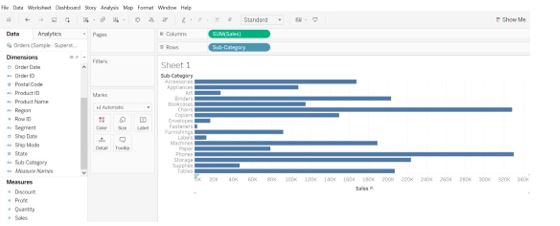
- Drag sales measure to columns and sub-category dimension to
As we can see in the below image Bar chart is created because tableau by default creates the bar chart.
- We will add the filter to the sub-category (Will filter out Top 10 or 20 as per the sales).
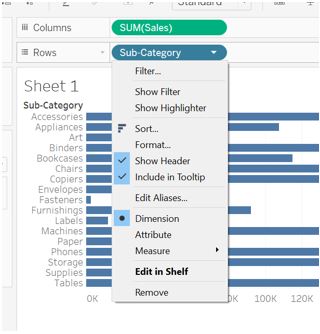
- Click on down arrow of the sub-category, Filter window will get
- Click on
You can see in the below image, there are more options for the filter. Show filter will display various types of filters available in the tableau such as condition or TOP. If we click on the remove sub-category will be removed from the rows.
When we click on the filter, the filter window will get open. Look at the image below.
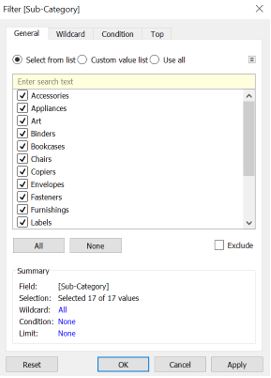
We have four options available to the Filter, such as given below with meaning.
- General – we can select all the list or select one or two of our choice, here comes with we can custom the
- Wildcard – we can match the values from given datasets such as contains, starts with, ends with and exactly. It contains within the dataset. starts with for example – starts with a, b or etc. ends with for example – ends with a, b, etc. exactly for example- exactly as power or any
- Condition – we can define condition means statement with min and max
- Top – Top 10 or 20, etc value and Bottom value 10 or 20, etc. we will have this with Min, Max,
After clicking on the filter -> go to Top and select Top value.
1. Top by 10 and sales as SUM.
2. Sub-category will be displayed by the top 10 sales and it gets added to filter.
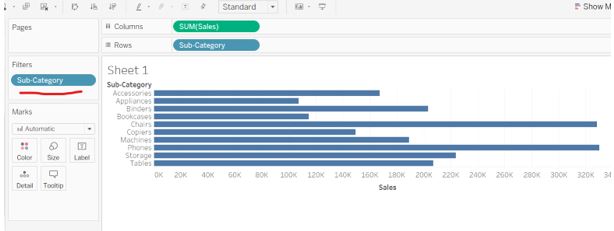
3. We have a drag category dimension to Filters shelf.
(when we drag category to filters shelf, a new window will open, and we can select all the category or category of our choice from given choices)
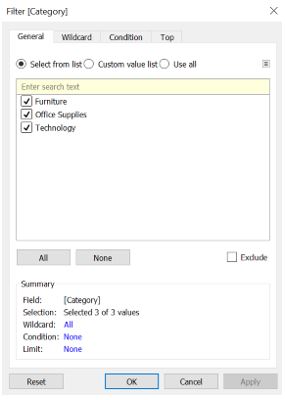
4. We have selected category as Furniture and Technology.
You can see that only 7 records got displayed because furniture and technology product has only 7 sub-categories present. The first sub-category filter applied and values are fetched by TOP 10 sales and sub-category gets displayed as per the furniture and technology category.
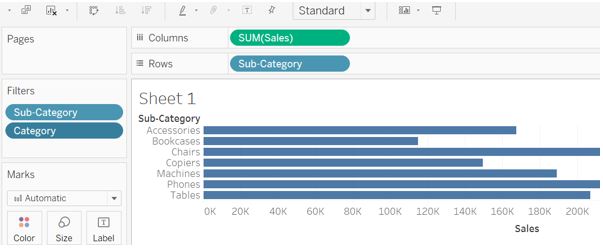
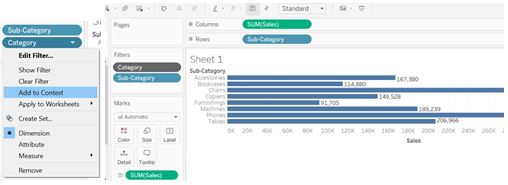
5. Click on the category name and select Add to context.
The category filter name is gets changed to context filter. You can observe now first context filter gets applied then the result is shown y TOP 10 value as per the sub- category.
How to remove the context filter from the tableau?
Removing context is an easy task to do but remember that once you remove the context filter, data will be shown as it was before. Data will be shown by the TOP 10 sub-category.
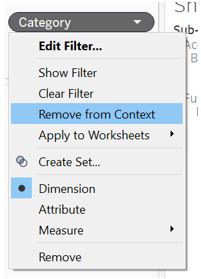
- Click on the context filter in the Filters shelf (you can see the grey color dimension is context filter)
- Click on remove from
Conclusion
We have learned about filters and context filters. Filters will help users will filter out the dataset as per our choice and when it comes to context filter, it will show us the filtering based on the large database and will provide more accurate result and this will avoid repetitive work. When we apply the context filter, it gets executed in the tableau then the rest of the filters if present in the tableau will get executed. The data source is accessed simultaneously.
Recommended Articles
This is a guide to Context Filter in Tableau. Here we discuss introduction to Context Filter in Tableau, how to create it with explanation. You can also go through our other related articles to learn more –

