
Updated May 30, 2023
Introduction to VI Command in Unix
In Unix Shell Scripting, the VI editor is one of the most used and very useful text editors. It is the default editor that is installed in Unix OS. The most usage of vi editors is to create a new file, edit an existing one, or just read one. In this topic, we will learn about VI Command in Unix.
Few reasons make VI editors mostly use the editor
- This editor is default present in all Linux or Unix OS.
- The most usage of vi editors is to create a new file, edit an existing one, or just read one.
- The editor is user-friendly and flexible to use. So, users prefer using this editor for their needs.
Syntax:
Below is the syntax for the vi command:
vi filenameHow does vi command work in Unix?
With the up-gradations of versions, there is also an advanced version of vi editors, which is VIM(Vi Improved).
Few reasons make VI editors mostly use the editor
- This editor is default present in all Linux or Unix OS.
- The most usage of vi editors is to create a new file, edit an existing one, or just read one.
- The editor is user-friendly and flexible to use. So, users prefer using this editor for their needs.
Operating modes in vi editors
- Command Mode: By default, command mode is on as soon as vi is started. This command mode helps users to copy, paste, delete, or move text. We should press the [Esc] key to go to command mode when in other modes.
- Insert mode: Whenever we try to open vi editors, it will go to command mode by default. We must go to insert mode to write the contents in the file. Press ‘I’ to go to insert mode. If we want to go back to command mode, press the [Esc] key.
- Last Line Mode or Escape Mode: when the vi editor is in command mode, press [Esc] and colon[:] to go to Escape mode. This mode helps users to save files, store the data in the file, and many more.
The syntax for vi commands:
- The general syntax for the vi command is:
vi filename- To read an existing file, the syntax is as follows:
vi -R filename- To open an existing file, the syntax is as follows:
view filenameSteps to create a file and write contents in the file
Here are the following steps mentioned below
Step #1
Create a new file:
To create a new file, you can use the below syntax:
Syntax:
vi filename.txtCommand:
vi new_file.txt
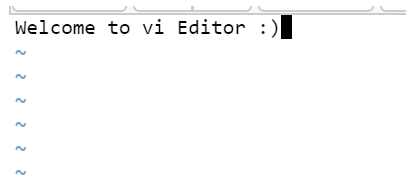
Command Mode:
The below screenshot is taken when the vi editors were in command mode.

Step #2
Go to Insert Mode:
Press’ I’ from the keyboard to switch from command mode to insert mode. At the bottom of the editor, you can see’ INSERT’ written as shown below:

Step #3
Write the content:
Once the editor is in insert mode, you can start writing the content in the file.
Step #4
Save the file and exit from the editor:
Press the [Esc] key and the ‘:wq’ to save and exit the file.
Syntax:
[Esc] + :wq
Step #5
Check whether the data has been created successfully or not:
To view the content in the file, you can use the cat command in Unix.
Syntax:
cat filename.txtCommand:
cat new_file.txt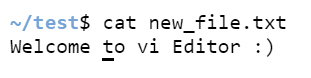
Vi Editing commands
Below are the editing commands used in vi editors to edit either the data or modify the content:
.i – Go to insert mode
- a – To Write after the cursor
- A – To Write the data at the end of the line
- ESC – Closes insert mode and goes to command mode
- u – Undo the changes
- U – Undo all changes in the line
- o – Start a new line
- dd – Delete a complete line
- 3dd – To Delete 3 lines consecutively.
- D – To Delete the data of the line next to the cursor
- dw – Delete a word in the file
- 4dw – To Delete 4 words in the file
- cw – To Change a word to the other
- x – To Delete a character at the beginning of the cursor
- r – To Replace a character in the file
- R – To Overwrite characters present in the file
- s – Substitute a char
- ~ – To Change the case of an individual character
Process to save and close a file in vi editors
- Shift + zz: To save a file and exit
- Esc +:w – Save the file but do not exit.
- Esc +:q – To quit from the file without saving
- Esc +:wq – To save the file and exit from it.
Conclusion – VI Command in Unix
In Unix Shell Scripting, the VI editor is one of the most used and very useful text editors. It is the default editor that is installed in Unix OS. The most usage of vi editors is to create a new file, edit an existing one, or just read one. This editor is default present in all Linux or Unix OS. The most usage of vi editors is to create a new file, edit an existing one, or just read one. The editor is user-friendly and flexible to use. So, users prefer using this editor for their needs.
Recommended Articles
We hope that this EDUCBA information on “VI Command in Unix” was beneficial to you. You can view EDUCBA’s recommended articles for more information.

