


Updated August 16, 2023
Excel Delete Pivot Table (Table of Contents)
Delete Pivot Table in Excel
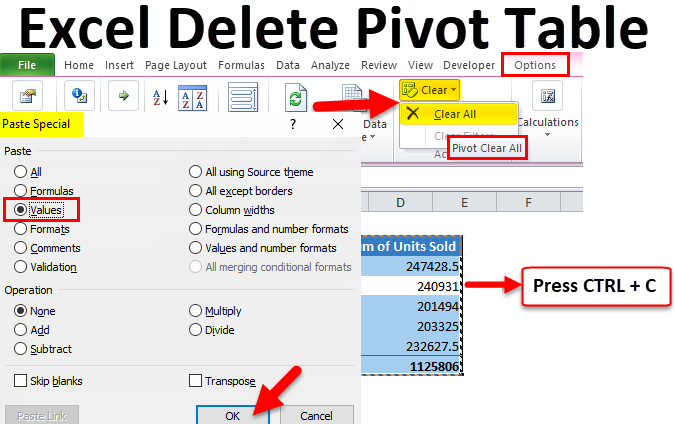
To delete any pivot table in Excel, select the pivot table first. This will activate the Design and Analyze menu tabs. Go to Analyze menu tab; from the drop-down of the Select option, select Entire Pivot Table. This will select the entire pivot table data, whereas if you press Ctrl + A, which will not work on Pivot Table. Now simply press Delete or select Delete from the right-click menu list to delete the pivot table.
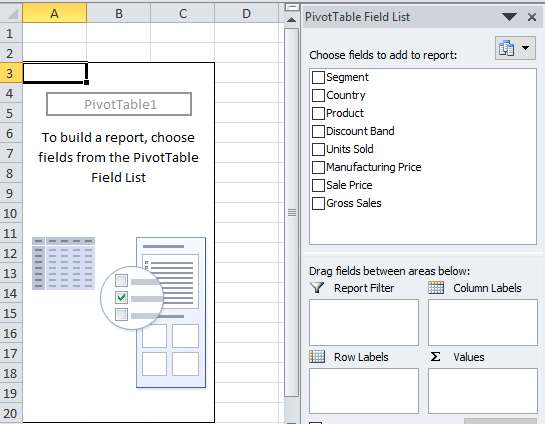
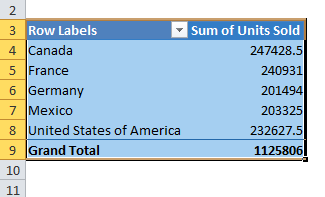
We usually see the default pivot table, as shown in the below image.
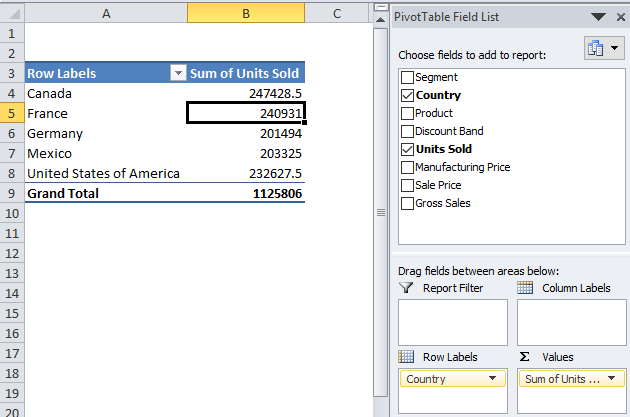
According to our wish, a typical pivot table includes Pivot Table Fields to drag and drop the data headings to our fields. Typically, we can remove the Excel pivot table from the worksheet in two ways. Follow this article to learn one by one.
I will start by applying the pivot table. You can download this workbook to practice along with me to get practical experience on the go. I have sales data country-wise, which includes many other fields, but I am considering only two columns, i.e., Country and Units Sold.
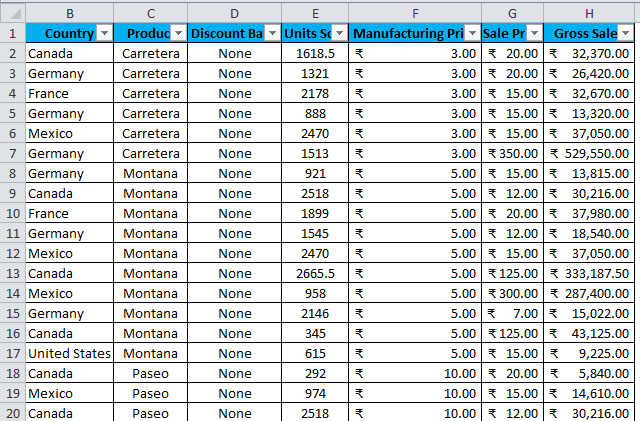
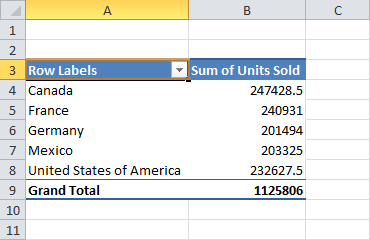
Data is there from the range A1 to H701. I need to summarise the data, what are the total units sold by country-wise. Let us start the process of applying a pivot table.
- Select the entire data to the range, i.e., A1:H701.
- Go to Insert and click on the Pivot Table.
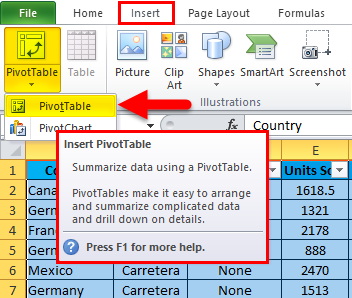
- Once you click on this, it will insert a new worksheet.
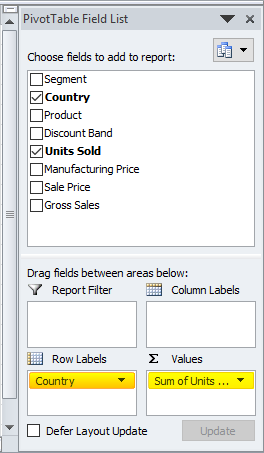
- Drag and drop Country heading to ROWS and Units sold to VALUES.
- Now your summary should be like this.
How to Delete a Pivot Table in Excel?
It is very simple and easy to use. Let us understand the working of Deleting the Pivot Table in Excel by some Methods.
Method #1 – Remove the Pivot table by copying and Pasting as Values
Now I can remove or delete the Excel pivot table in two ways.
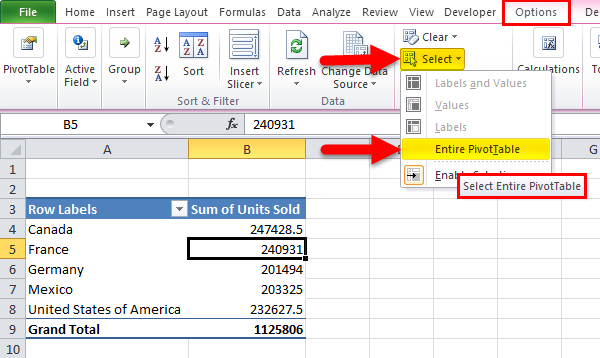
Step 1: Select the pivot table range.
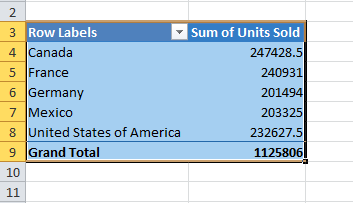
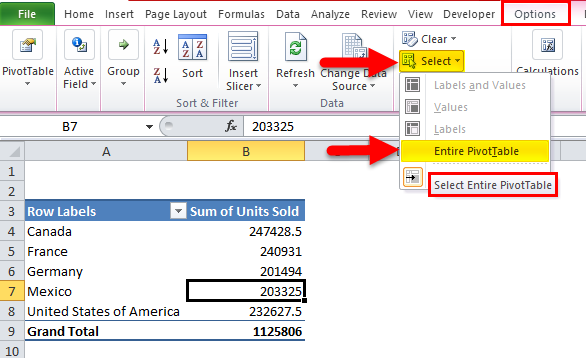
Step 1.1: We can select the pivot table like this also. Place a cursor inside the pivot table > Go to Options > Select > Entire Pivot Table.
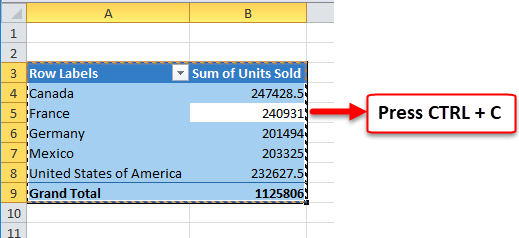
Step 2: Press Ctrl + C to copy the data once the pivot table is selected.
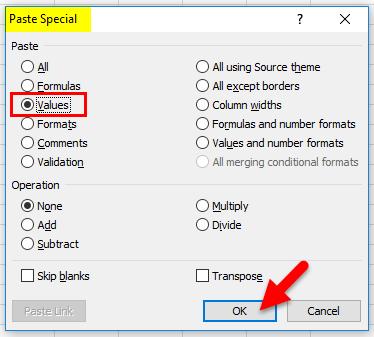
Step 3: Do not change your cursor once you copy the pivot table. Press ALT + E + S; this would instantly open up the Paste Special dialogue box. Select Values from here and Click Ok.
Step 4: Now, pivot table data is pasted as values. An Excel pivot table is removed.
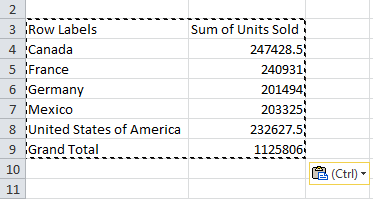
If you observe all the formatting like background color, font style, font name, and even the pivot table fields are removed from the list in Excel.
Method #2 – Remove the pivot table by using Clear Option
Step 1: Select the pivot table range.
Step 1.1: We can select the pivot table like this also. Place a cursor inside the pivot table > Go to Options> Select > Entire Pivot Table.
Step 2: Once you have selected the pivot table range, click the delete option to delete or remove the Excel pivot table.
Step 2.1: Once you have selected the pivot table range, go to Options > Clear > Clear All.
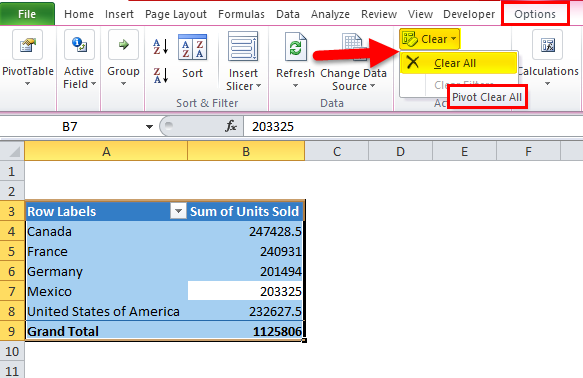
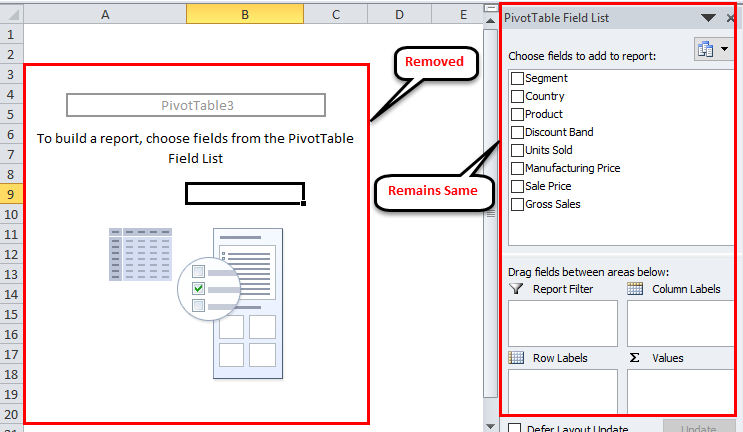
This will remove only the existing pivot table fields, but the sheet with pivot table options to drag and drop remains the same.
Ok, we can remove the Excel pivot table in these two methods.
Method #3 – Delete All Pivot Tables in One Shot
We have learned the easy way of removing or deleting the pivot table in Excel. But the problem is deleting many pivot tables in a workbook is not that easy.
We need the VBA code to remove the pivot table. I have already written the VBA code to delete all the existing pivot tables in the workbook.
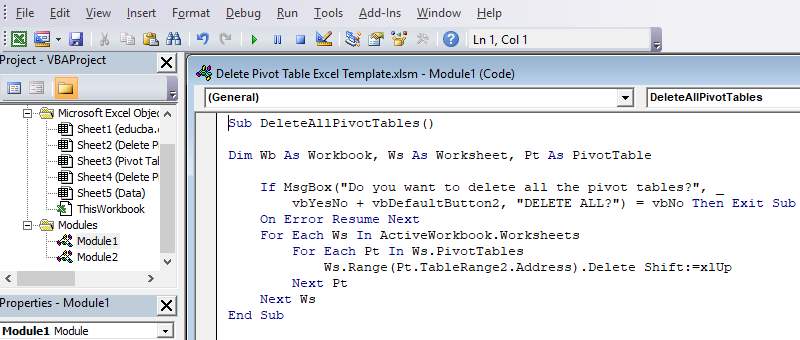
Copy and paste the below code to your VBA module and save the workbook as a macro-enabled workbook.
Sub DeleteAllPivotTables()
Dim Wb As Workbook, Ws As Worksheet, Pt As PivotTable
If MsgBox(“Do you want to delete all the pivot tables?”, _
vbYesNo + vbDefaultButton2, “DELETE ALL?”) = vbNo Then Exit Sub
On Error Resume Next
For Each Ws In ActiveWorkbook.Worksheets
For Each Pt In Ws.PivotTables
Ws.Range(Pt.TableRange2.Address).Delete Shift:=xlUp
Next Pt
Next Ws
End Sub
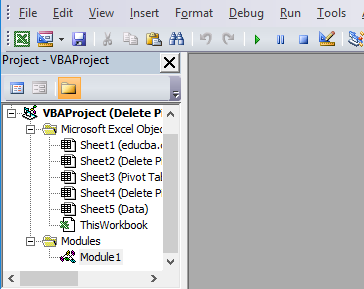
Step 1: Open the VBA editor by pressing ALT + F11.
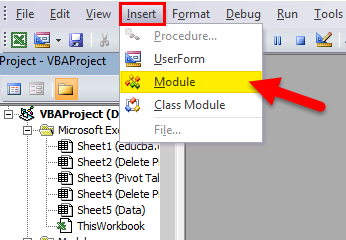
Step 2: Go to Insert > Module.
Step 3: Once the module is inserted, copy and paste the above code and save the workbook as a macro-enabled workbook.
Things to Remember
- We can remove the Excel pivot table and pivot worksheet as well.
- Once the Excel pivot table is removed using VBA code, we cannot undo the action, so it is safe to have a backup copy.
- Once the Excel pivot table is removed, any changes in the database will not reflect on the removed field.
Recommended Articles
This has been a guide to Delete Pivot Table in Excel. Here we discuss how to Delete or Remove the Pivot Table in Excel with three different Methods and a downloadable Excel template. You can also go through our other suggested articles –

