


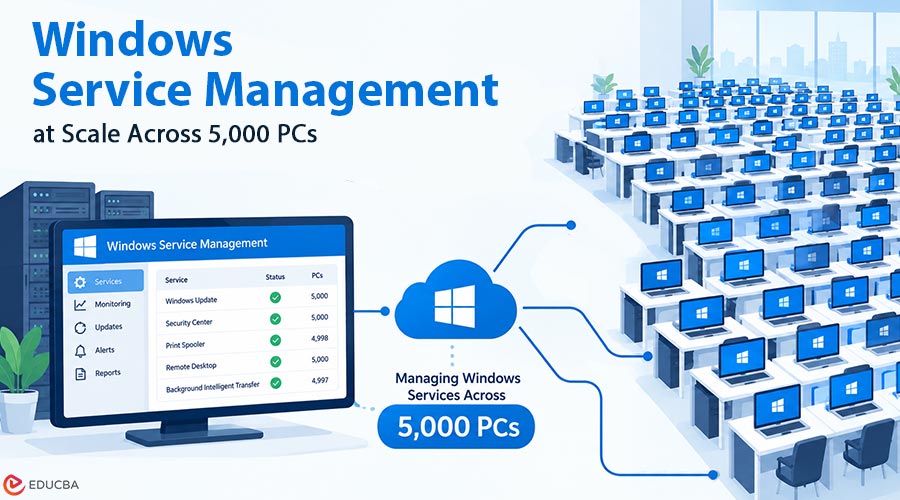
Restarting a stuck Windows service on one laptop takes a technician about thirty seconds. They open the Services console or a PowerShell prompt, run Restart-Service, confirm the status reads Running, and close the ticket. Repeat that action on 5,000 machines, and almost every assumption behind those thirty seconds breaks. The command is identical, but the problem is not. Windows Service Management at Scale requires careful planning because thousands of devices introduce challenges involving connectivity, service dependencies, automation, and verification.
The Challenges of Managing Windows Services at Scale
At scale, the restart itself is rarely what goes wrong. The real challenges involve everything the single-machine approach takes for granted: the computer is online, the service has no dependents, nobody else is changing the same machine, and someone is monitoring the result. Each assumption might hold for one PC on a desk. Across a fleet, however, some devices will inevitably behave differently. A 2% failure rate across 5,000 endpoints leaves 100 machines in an unknown state.
Handling Offline Devices and Delayed Responses
A fleet is never fully online. Laptops are closed in bags, remote workers are on hotel Wi-Fi behind captive portals, and some desktops have been off since the last holiday. A one-shot remote command reaches the devices connected at that moment and silently misses the rest.
Managing services across thousands of PCs requires a reliable way to track offline devices, retry pending actions, and confirm every restart’s outcome.
That is why the delivery model matters as much as the fix itself. Real-Time Endpoint IT Resolution addresses this challenge by treating each machine as a target that remains pending until it checks in, rather than a device that was attempted once and forgotten. An endpoint agent can execute the action locally, capture the outcome, and report it back. The console can then distinguish between machines that were fixed, machines where the action failed, and devices that have not checked in yet. Without this distinction, IT teams may assume that a service is running on a machine they never actually reached.
The long tail also needs a deadline. Teams should decide how long a pending device stays in the queue and what happens when it reconnects after the incident closes. These rules prevent an outdated fix from running weeks later on a machine that no longer needs it.
Managing Service Dependencies Safely
Windows services rarely operate independently. Many depend on other services, while others support applications that rely on them. Stopping one service can therefore affect several related components. On a single machine, a technician might see a warning and make a judgment call. An automated script follows only the rules someone has programmed into it.
PowerShell provides ways to inspect these relationships. The Get-Service cmdlet returns service objects with properties such as DependentServices and ServicesDependedOn. The first identifies services that depend on the selected service, while the second identifies services on which it depends. The Get-Service cmdlet helps administrators understand service dependencies and manage relationships between Windows services.
Checking these relationships before execution helps IT teams determine whether a restart could interrupt other services. It also supports better decisions about execution order, particularly when several related services require attention.
Making Repeated Actions Safe with Idempotency
Fleet-wide actions often need to be rerun after a timeout, a partial failure, or a change to the target list. Ideally, an action should be safe to execute more than once without causing unnecessary disruption. This is the principle of idempotency.
PowerShell’s Start-Service and Stop-Service cmdlets generally avoid repeating the requested state change when a service is already in the target state. This guide explains how these cmdlets work and discusses changes to remote service management in newer PowerShell versions. In PowerShell 7, these cmdlets no longer support the older ComputerName parameter, so administrators typically use remoting methods such as Invoke-Command when appropriate.
Restarting a service presents a different challenge. A restart stops and starts the service, even if it was already healthy. Running the same command again can unnecessarily interrupt an application.
A safer approach checks the service state and the original symptom before deciding whether to restart it. The script should also handle timeouts, record failures, and verify the final state. This makes repeated execution more predictable across a large fleet.
Preventing Conflicts with Other System Operations
A fleet is rarely quiet. Patch cycles, software deployments, antivirus scans, and login scripts operate on their own schedules. Any of these processes can interfere with a service restart.
On one PC, a technician might notice that Windows Update is installing updates and decide to wait. An automated task running across thousands of machines may encounter the same situation on several endpoints. Forcing a restart could stop a service, interrupt an installation, or create additional troubleshooting work.
Two practices can reduce these conflicts. First, check for pending reboots and in-progress installations before executing the action. Skip or defer devices that are undergoing conflicting operations. Second, log the reason for every skipped action so administrators can distinguish deliberate deferrals from failed commands.
These safeguards help teams coordinate service maintenance with other endpoint operations instead of treating every device as an isolated target.
Controlling Rollouts, Maintenance Windows, and Risk
No team should push a potentially disruptive change to 5,000 machines simultaneously without a clear reason and suitable safeguards. Rollout rings help limit the impact of a failure. A typical sequence starts with IT staff devices, moves to a small group of ordinary users, and expands to larger groups only after each stage meets its success criteria.
If the initial rollout reveals that a restart breaks a business application, the impact remains limited to the first group. Administrators can investigate the problem before expanding the deployment.
Change windows provide another layer of control. Restarting a print spooler during a finance team’s month-end close differs from doing the same task before the workday begins. Mapping devices to business functions and scheduling rollouts around operational requirements can prevent routine maintenance from becoming an incident.
Teams should also define the acceptable blast radius before execution. A limit such as 50 affected devices provides a measurable boundary. A general intention to monitor the rollout does not establish the same level of control.
Verifying Service Recovery and Planning Rollbacks
A restart that returns no error does not necessarily mean the underlying problem is fixed. The service may start and crash a minute later, or it may run while the dependent application remains broken.
Verification should therefore check both the service state and the original symptom. For example, administrators might confirm that a print queue drains successfully or that a synchronization client reconnects after the restart. These checks provide stronger evidence of recovery than a simple status reading.
Rollback planning matters as well. In his discussion of automated endpoint management, Brien Posey explains why organizations need policies that constrain automation and procedures for rolling back unwanted changes. For a service restart, the recovery plan might include preserving the previous configuration, documenting the original settings, and testing the reversal procedure before the first rollout begins.
A defined recovery process helps teams respond when a restart causes unexpected behavior. It also ensures that automation remains subject to operational controls rather than running without clear limits.
Why Fleet-Wide Service Restarts Require More Than a Command
Restarting a Windows service on one computer is straightforward. Performing the same action across 5,000 PCs introduces a different set of engineering challenges. Some devices may never receive the command, dependent services may be affected, and repeated attempts may interrupt machines that are already working correctly.
Successful Windows Service Management at Scale depends on more than executing commands quickly. IT teams need reliable device tracking, dependency checks, safe execution rules, staged rollouts, and meaningful verification. Planning these controls before the first restart helps reduce disruption and makes failures easier to identify.
The goal is not simply to restart services faster. The goal is to ensure the right action reaches the right device, produces the intended result, and leaves the IT team with a clear record of what happened.
Final Thoughts
Managing Windows services across thousands of PCs requires more than executing a restart command. IT teams must account for offline devices, service dependencies, competing operations, and potential failures. A structured approach that includes staged rollouts, automated checks, and reliable verification helps minimize disruptions and maintain system stability.
By applying the right Windows Service Management at Scale practices, organizations can resolve service issues more efficiently and maintain better control over endpoint operations. Focus on consistent results, reduced downtime, and verified outcomes for every action.
Recommended Articles
Explore our recommended articles to learn more about Windows Service Management at Scale, PowerShell automation, remote endpoint management, and Windows troubleshooting. Discover practical strategies to manage service dependencies, automate IT operations, reduce downtime, and improve endpoint reliability.