


What is Google Sheets?
Google Sheets is an online spreadsheet application that Google developed in 2006. It is similar to Microsoft Excel, where you can create and edit spreadsheets. In addition to basic spreadsheet functions, it also supports automation and customization through tools like how to use apps script in google sheets, which allows users to build custom functions, automate tasks, and integrate with other Google services.
Google started it as an experiment to see if they could create an application where multiple users could work on a document or spreadsheet at the same time. Soon, it became a beta feature that was available to all Google account holders. Eventually, in the same year, it was launched as a proper online application.
Table of Contents
How is Google Sheets Different from Microsoft Excel?
Apart from its basic similarities with Microsoft Excel, here are the differences between Google Sheets and Excel.
| Google Sheets | Excel | |
| Collaboration | Allows up to 100 users to edit the file simultaneously. | Only one user can edit and access the file at a time. |
| Accessibility | Users can access it from anywhere with a Google account login. | Accessing it from another device or location requires file sharing via email, pendrive, etc. |
| Costs | Free application for all Google account holders. | Requires purchase as a part of Microsoft Office Suite. |
| Storage | Stored directly in the respective Google Drive with 15 GB free space. | Files are stored in local drives on the user’s computer. |
| Complexity | It is simpler to use but lacks features like statistical tests, analysis tools, etc. | Using Excel can be difficult, but it provides complex features that make data analysis easier. |
| Offline Access Limitation | After syncing the sheet, you can edit it offline, but you will still need the internet to at least create/open the sheet. | It is an offline application; thus, you can access it easily without an internet connection. |
Basic Terminologies of Google Sheets
Following are some basic terminologies you should know about Google Sheets.
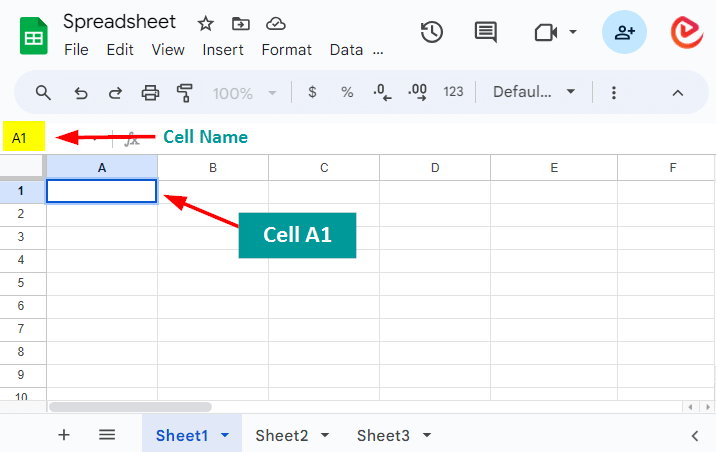
1. Cell: The smallest unit in a spreadsheet where you can input, edit, and store data. It’s the intersection of a row and a column, identified by a unique address, such as A1.
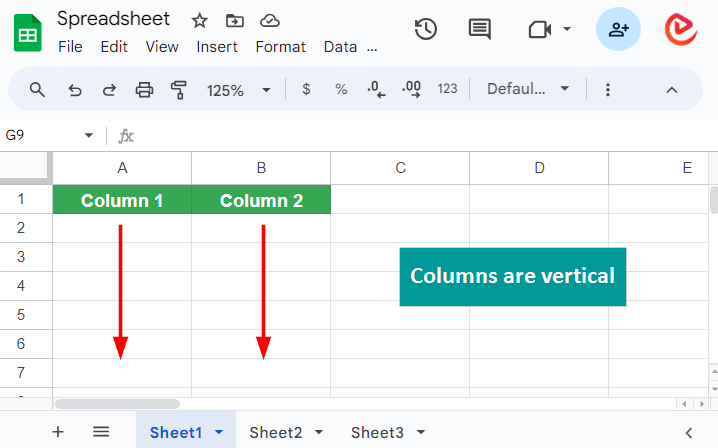
2. Column: A vertical series of cells running from top to bottom in a spreadsheet. Columns are labeled with letters (A, B, C, etc.) that help to organize and categorize data vertically.
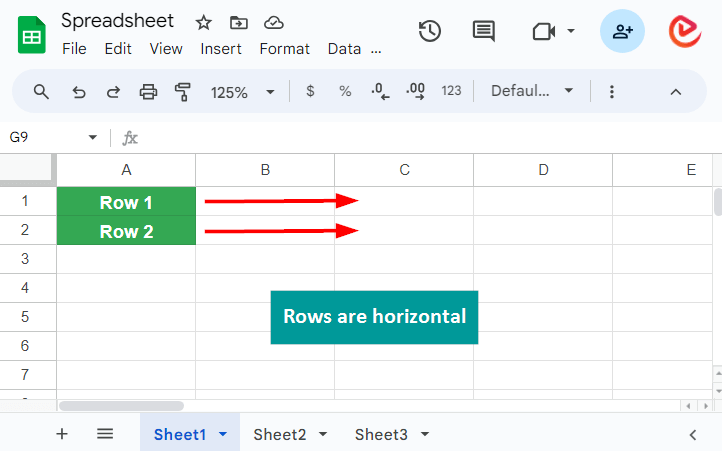
3. Row: A horizontal series of cells running from left to right in a spreadsheet. Rows are numbered (1, 2, 3, etc.) that help group and organize data horizontally.
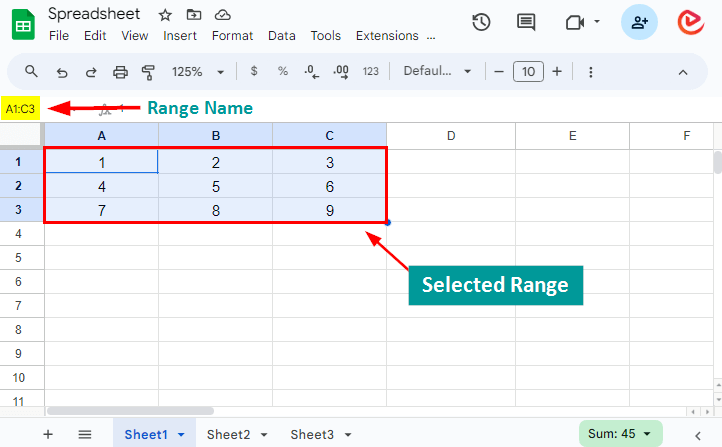
4. Range: A selection of cells that can encompass multiple rows and columns. We can use ranges to apply actions, calculations, or formatting to a specific set of cells within a spreadsheet.
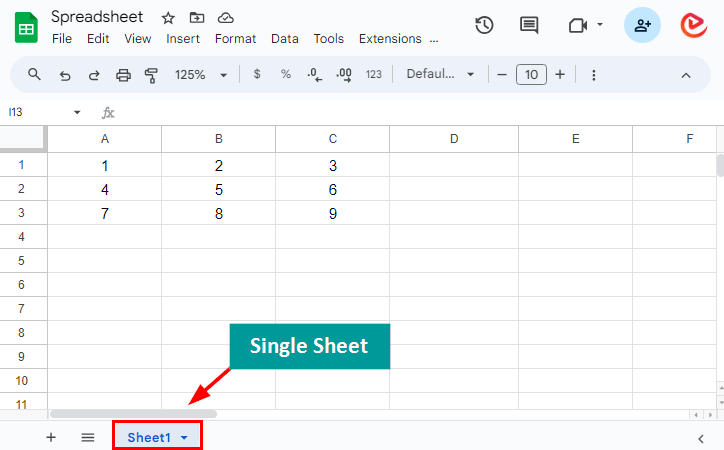
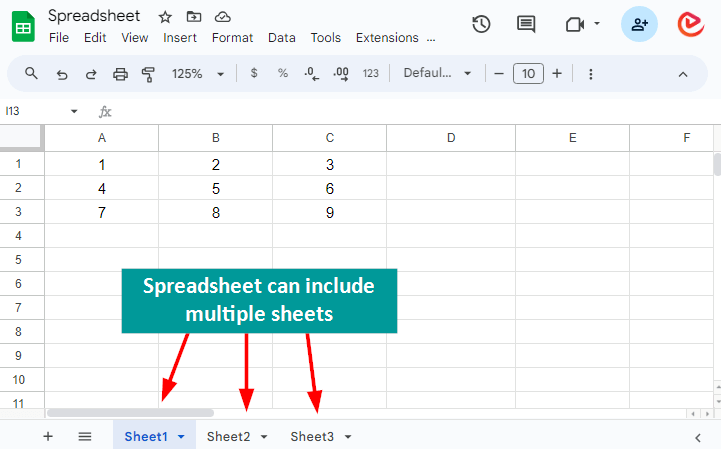
5. Worksheet (Sheet): A single tab or page within a spreadsheet where you can enter and organize data. Spreadsheets can have multiple sheets, each serving a different purpose or containing specific data.
6. Spreadsheet: A “spreadsheet” is the entire document or file created in software like Microsoft Excel or Google Sheets. It can contain multiple “worksheets” or “sheets” within it.
Google Sheets Interface
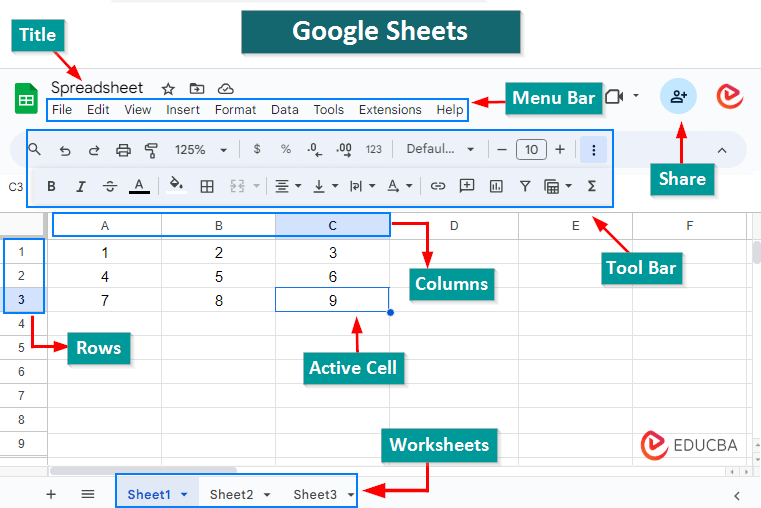
Google Sheets doesn’t have a “ribbon” in the same way that Microsoft Excel does. Instead, Google Sheets uses a toolbar.

Here are its key elements:
⇒Title
⇒Menu Bar
⇒Toolbar
⇒Formula Bar
⇒Sheet Tabs
⇒Column and Row Headers
⇒Additional Features
1. Title
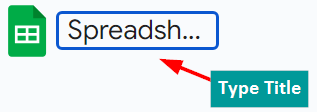
It helps identify, organize, and share the document. To change the title, click on the current title, change it, and press Enter.
2. Menu Bar
It has the following options:

You can access various functions and settings through these menus. Let’s look at each of them in detail:
A) File
It provides a range of options for managing your spreadsheets, from creating new documents to exporting or printing your work.
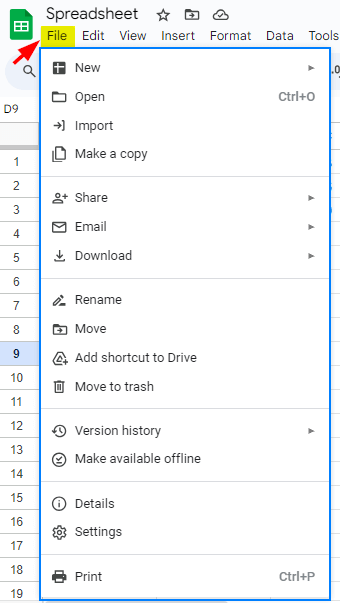
Here’s an explanation of the key functions you’ll find under the “File” menu:
| Function | Use it to: |
| New | Create a new blank sheet or one with a predefined format. |
| Open | Open an existing spreadsheet. |
| Import | Add data from other sheets, files, or external sources to your sheet |
| Make a copy | Create a duplicate of the current spreadsheet. You can rename it and choose whether to copy comments and suggestions. |
| Share | Share the sheet with others or publish it on the web. |
| Directly send the spreadsheet as an email attachment. | |
| Download | Download the spreadsheet in various formats (XLSX, PDF, TSV). |
| Rename | Change or rename your spreadsheet. |
| Move | Move your spreadsheet to a specific folder within your Drive. |
| Add Shortcut to Drive | Create a shortcut for the file or folder in your Google Drive. |
| Move to trash | Delete the spreadsheet and move it to the trash. |
| Version History | View changes made to the document over time.
Also, review and restore previous versions. |
| Make Available Offline | Make documents available offline to use even without the internet. |
| Details | Display all information about the document. |
| Settings | Customize the behavior of your spreadsheet, like language, time zone, etc. |
| Print the current spreadsheet. |
B) Edit
In Google Sheets, the “Edit” menu provides various options for making changes and editing the content of your spreadsheet.
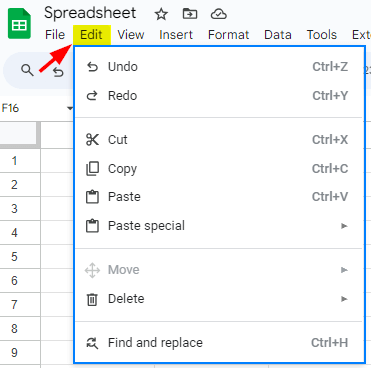
Here is how you can use the key functions available under the “Edit” menu:
| Function | Use it to: |
| Undo | Reverse the last action you performed. |
| Redo | Redo the changes that were undone using the “Undo” function. |
| Cut | Cut the selected cell’s content to your clipboard for pasting elsewhere. |
| Copy | Copy the selected cell’s content to your clipboard without removing it from the current location. |
| Paste | Paste the content from your clipboard into the selected cells. |
| Paste special | Use advanced pasting options to specifically paste values, formatting, data validation, and more. |
| Move | Change the location of a spreadsheet within your Google Drive. |
| Delete | Remove selected cells, rows, columns, or specific content. |
| Find and replace | Search specific content within your spreadsheet and replace it with other content. |
C) View
In Google Sheets, the “View” menu allows you to adjust how data is displayed.
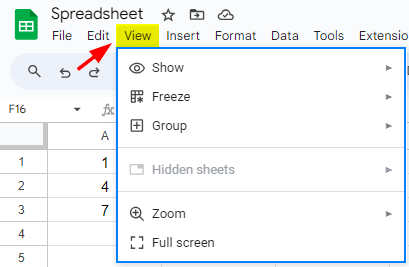
Here’s an explanation of the key functions you will find under the “View” menu:
| Function | Use it to: |
| Show | Display gridlines, formulas, notes, or charts. |
| Freeze | Freeze rows or columns. |
| Group | Group rows or columns together. |
| Zoom | Adjust the zoom level to make the data appear larger or smaller. |
| Hidden Sheets | View hidden sheets that are not currently displayed. |
| Full Screen | Expand the Google Sheets interface to fill the entire screen. |
D) Insert
In Google Sheets, the “Insert” menu provides options to add various elements to your spreadsheet, such as cells, rows, columns, charts, images, and more.
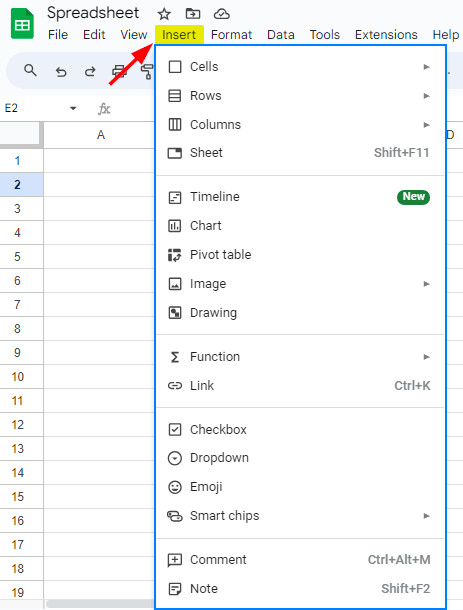
Here is an explanation of the key functions you’ll find under the “Insert” menu:
| Function | Use it to: |
| Cell | Insert a new cell by shifting existing cells or overwriting them. |
| Row | Insert a new row above the selected cell or row. |
| Column | Insert a new column to the left of the selected cell or column. |
| Sheet | Add a new sheet to your spreadsheet. |
| Timeline | Add a timeline chart to visualize events and dates. |
| Chart | Insert various types of charts like bar, pie, or line charts. |
| Pivot Table | Add a pivot table for summarizing and analyzing data. |
| Image | Insert an image from your computer, Google Drive, or the web. |
| Drawing | Add a drawing or freeform shape to your spreadsheet. |
| Function | Insert a function (e.g., SUM, AVERAGE) into a cell. |
| Link | Insert hyperlinks to web pages or other documents. |
| Checkbox | Add checkboxes for creating to-do lists or making selections. |
| Dropdown | Create a dropdown list for cell input. |
| Emoji | Insert emojis to add visual elements to your spreadsheet. |
| Smart Chips | Insert dynamic content, like contact information or dates. |
| Comment | Add a comment to a cell. |
| Note | Insert a note in a cell for additional information or context. |
E) Format
In Google Sheets, the “Format” menu provides options for formatting and customizing the appearance of your spreadsheet, cells, text, and data.
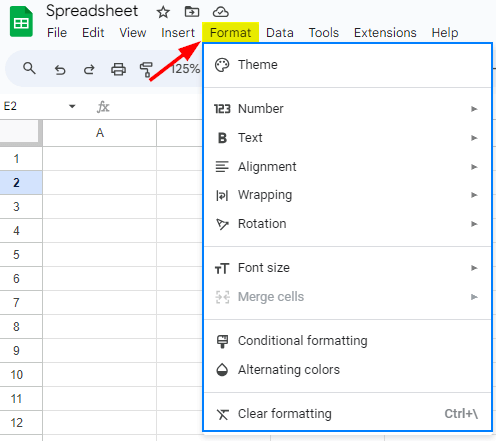
Here’s an explanation of the key functions you’ll find under the “Format” menu:
| Function | Use it to: |
| Theme | Apply predefined themes to your spreadsheet. |
| Number | Customize the display format of numbers, such as currency, percentages, or dates. |
| Text | Adjust text formatting, including font style, bold, italics, and underlining. |
| Alignment | Modify text alignment within cells, such as left, center, right, or vertically. |
| Wrapping | Control text wrapping within cells, allowing text to wrap to fit the cell’s size automatically. |
| Rotation | Rotate text within cells to a specific angle. |
| Font Size | Change the text size in cells, making it larger or smaller. |
| Merge | Merge multiple cells into one, creating a single, larger cell. |
| Conditional Formatting | Set rules for cell formatting based on specified conditions, making it easier to spot trends and anomalies in data. |
| Alternating Colors | Apply alternating background colors to rows or columns for improved data visibility. |
| Clear Formatting | Remove any applied formatting, returning selected cells or text to the default formatting. |
F) Data
In Google Sheets, the “Data” menu provides various tools and functions for working with data, including importing, analyzing, and managing it.
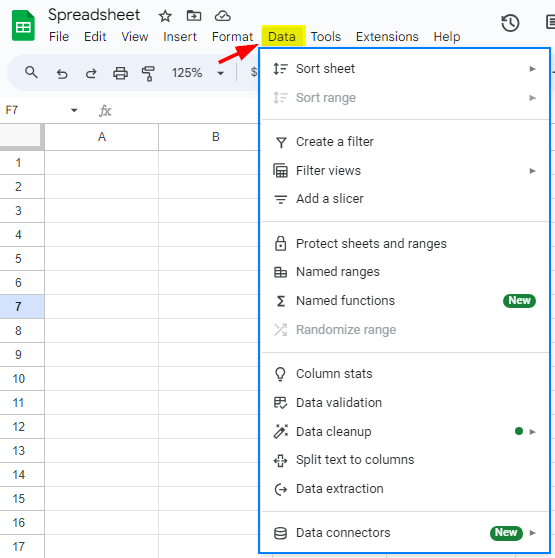
Here’s an explanation of the key functions you’ll find under the “Data” menu:
| Function | Use it to: |
| Sort Sheet | Sort the entire sheet based on a chosen column, arranging rows in ascending or descending order. |
| Sort Range | Sort a selected range of cells within a sheet, similar to “Sort Sheet,” but applied only to specific data. |
| Create a Filter | Add a filter to the sheet to display data based on specific criteria. |
| Filter Views | Create, manage, and switch between multiple filter views. |
| Add a Slicer | Add a slicer to control pivot tables. |
| Protect Sheets and Ranges | Control who can edit or view the sheet by adding restrictions. |
| Named Ranges | Name a range of cells. Named ranges make it easier to reference specific data within formulas and functions. |
| Named Functions | Name a range of functions (similar to named ranges). |
| Randomize Range | Shuffle the order of rows in a selected range to create randomized data. |
| Column Stats | Learn quick statistics for numerical columns. |
| Data Validation | Set criteria to restrict what a user can enter into a cell. |
| Data Cleanup | Clean up inconsistent or duplicate data in a selected range. |
| Split Text to Columns | Split a cell’s content into multiple columns based on a chosen delimiter. |
| Data Extraction | Extract specific information from a text cell. |
| Data Connectors | Connect your spreadsheet to external data sources or databases. |
G) Tools
In Google Sheets, the “Tools” menu assists with various tasks related to data analysis, document management, and collaboration.
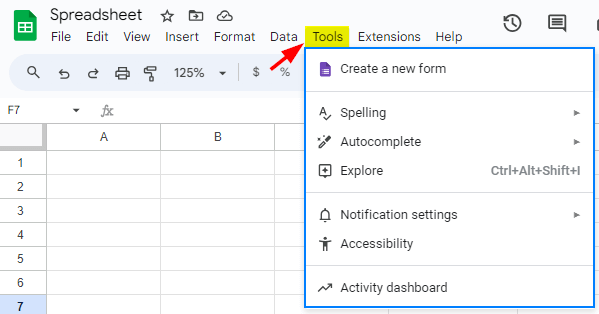
Here’s an explanation of the key functions you’ll find under the “Tools” menu:
| Function | Use it to: |
| Create a New Form | Create a new Google Form (a separate application to collect data) based on the data in the sheet. |
| Spelling | Check the spelling of text in your spreadsheet, highlighting misspelled words and offering suggestions for corrections. |
| AutoComplete | Automatically completes text as you type. |
| Explore | Generate visualizations from your data, creating charts, graphs, and summaries to help you understand your data better. |
| Notification Settings | Manage how and when you receive notifications about changes or comments in your spreadsheet. |
| Accessibility | Improve the accessibility of your spreadsheet by including tools for screen readers, keyboard shortcuts, and more. |
| Activity Dashboard | View the recent activity on the document, showing who made changes and when. |
H) Extensions
The “Extensions” menu in Google Sheets provides options and integrations to extend the functionality of Google Sheets.
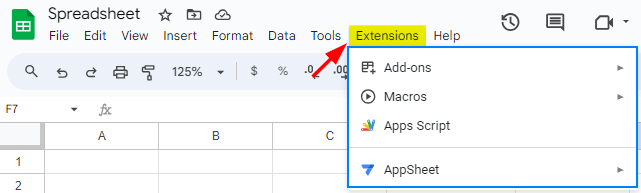
Here’s an explanation of each of the “Extensions” options:
| Function | Use it to: |
| Add-ons | Enhance Google Sheets’ capabilities, including data analysis, reporting, and chart creation using third-party applications. |
| Macros | Automate repetitive tasks by recording and replaying sequences of actions. |
| Apps Script | Use JavaScript to create custom functions, automate workflows, and extend Google Sheets’ functionality. |
| AppSheet | Create mobile and web applications directly from Google Sheets data with a no-code development platform. |
I) Help
The “Help” menu in Google Sheets provides access to various resources and assistance to help you understand and use the application effectively.
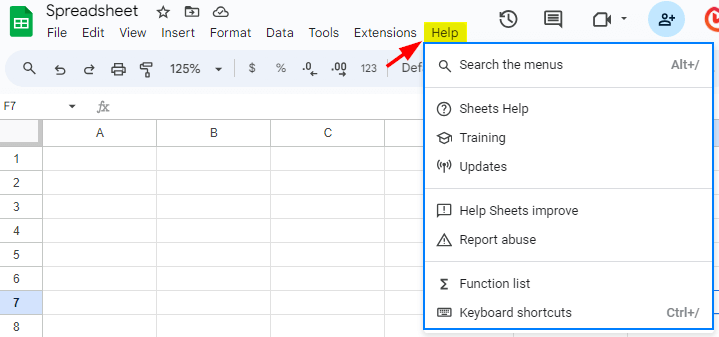
Here’s an explanation of the key functions you’ll find under the “Help” menu:
| Function | Use it to: |
| Search the Menus | Search for specific functions and options within Google Sheets menus to quickly find features you may not be familiar with. |
| Sheets Help | Access Google Sheets’ official help and support resources. |
| Training | Access interactive training modules to improve your Google Sheets skills. |
| Updates | View recent updates and changes to Google Sheets. |
| Help Sheets Improve | Provide feedback and suggestions to Google to improve Google Sheets. |
| Report Abuse | Report abusive or inappropriate content within Google Sheets. |
| Function List | Access a list of available functions and formulas in Google Sheets. |
| Keyboard Shortcuts | View a list of keyboard shortcuts to navigate efficiently. |
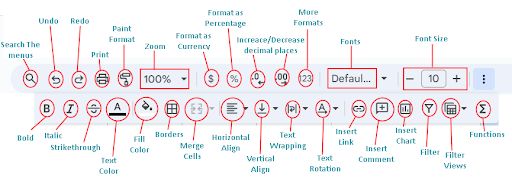
2. Toolbar
The toolbar, located directly below the menu bar, contains icons for common actions like formatting, inserting charts, and more.
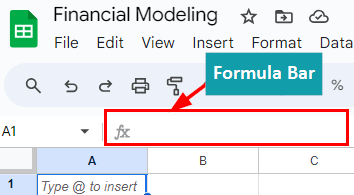
3. Formula Bar
The formula bar is where you can enter and edit formulas and functions. It’s located just below the toolbar.
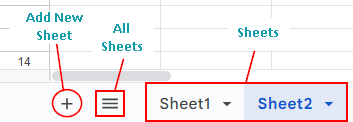
4. Sheet Tabs
At the bottom of the Google Sheets interface, you will find tabs representing different sheets in your spreadsheet. You can click on these tabs to switch between sheets. You can also add a new sheet by clicking on “+”. The three lines represent “All Sheets.”
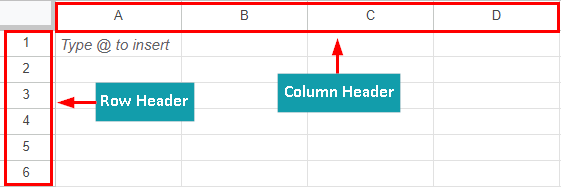
5. Column and Row Headers
The letters at the top (A, B, C, etc.) represent columns, and the numbers on the left (1, 2, 3, etc.) represent rows. You can click on these to select entire columns or rows.
6. Additional Features

| Function | Use it to: |
| Star | Mark a document as important. It will appear in your “Starred” section for easy access. |
| Move | Move a spreadsheet to a specific folder within your Google Drive. |
| See Document Status | View information like when the document was last edited, who made the last edit, and who is currently viewing the document. |
| Last Edit | See information about the most recent edit made to the document. |
| Comment History | Review the history of comments, including when they were added and by whom. |
| Join a Call | Quickly join a video or audio call to discuss the document. |
| Share | Share a document by entering the email addresses of the people you want to share it with. |
Frequently Asked Questions (FAQs)
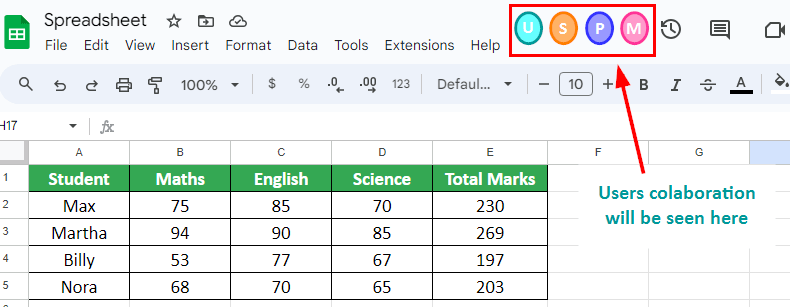
Q1. Can multiple users collaborate on the same Google Sheet?
Answer: Yes, multiple users can collaborate in real time on a Google Sheet. Changes are automatically saved and synced for all collaborators.
Q2. Is there a mobile app for Google Sheets?
Answer: Yes, you can download the Google Sheets app for both Android and iOS devices to work on your spreadsheets while on the go.
Q3. How to use a Google Sheet?
Answer: You can easily create, edit, and format Google spreadsheets using various tools. Visit this to learn how to use Google Sheets.
Recommended Articles
We wish that this article on What is Google Sheet resolves all your queries regarding the subject. For similar articles, refer to the following recommendations,

