
Updated August 28, 2023
Introduction to Transparent Background in After Effects
- Adobe After Effects is a software program for generating special effects and motion graphics utilized in illustrations, online content, and videos. Transparent Background in After Effects is compatible with both Windows and Mac OS systems. After Effects is utilized broadly in TV and movie post-production, the generation of special effects, and animation. After Effects is a specially designed software and is predominantly utilized by artists, video editors, graphic designers, digital media designers, social media, motion graphics designers, video producers, and people working in animation. A technical and creative software with the help of which you can devise, produce and stylize 2-dimensional footage in a 3-dimensional space.
- Based on your role, the capabilities of the software may vary. It can outline titles, produce 2-dimensional cartoon characters, etc. In spite of performing all these things, it is not the same as a video editing program. This software is best utilized to register effects after editing the footage. After Effects forms the part of the Adobe Creative Cloud; in any video project at some point, you will need to produce an easy video clip or a motion graphics text with animation which will have a Transparent Background which in turn can be used in another video.
How to Create a Transparent Background in After Effects?
- Firstly to create a Transparent Background on your After Effects project or any video, you require an alpha channel. An alpha channel can be defined as a colored image with three standard channels red, green, blue, and the fourth channel is the alpha which permits you to manage the transparency or opacity.
- The degree of transparency of a color (red, green and blue channels) can be represented by the alpha channel, which is a color component. It is utilized to decide how a pixel is rendered when combined with another. The alpha channel manages the opacity or transparency of a color. The real value, an integer, or a percentage can represent its values. Complete transparency is 0.0, 0% or 0, whereas complete opacity is 1.0, 100% or 255, respectively.
- When a color, which is the source, is combined with another color, the background, for example, when a picture is overspread onto another picture, the alpha value of the source color is utilized to decide the color outcome. If the alpha value is grimy, the source color overrides the destination color; if transparent, the source color is not visible, permitting the background color to reveal itself. If the value is in between, the color that will come out has a different degree of opacity/transparency, which produces a pellucid effect. The alpha channel is utilized essentially in alpha combining and alpha compositing.
Steps to Create a Transparent Background
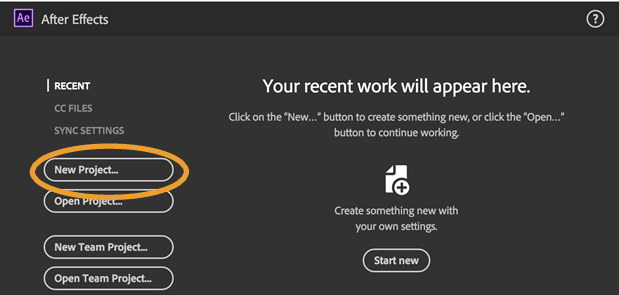
Step 1: Launch Adobe After Effects and create a New Project.
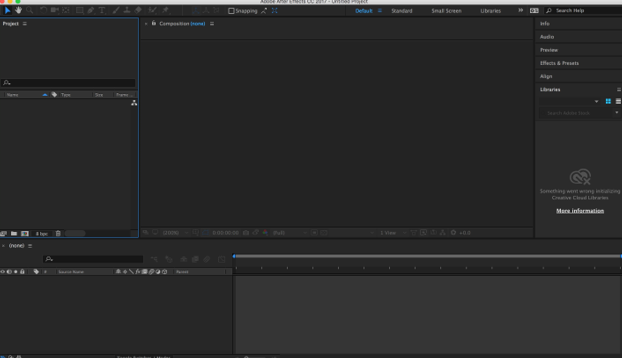
Step 2: New project opens with After Effect Interface.
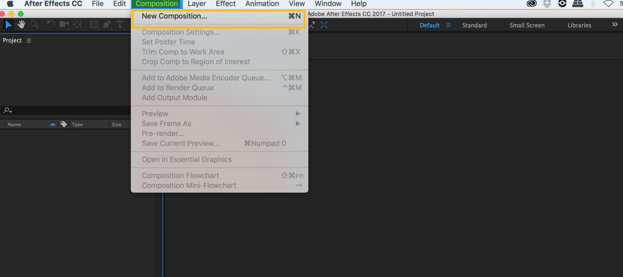
Step 3: Create a New Composition by clicking on the Composition present in the Menu bar at the top.
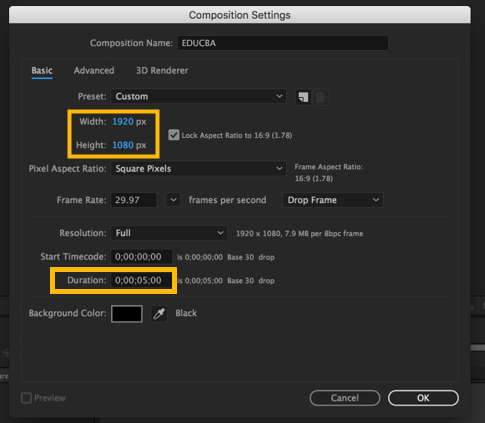
Step 4: You will get a popup after clicking on New Composition. In the popup, keep the width as 1920 px and height as 1080 px, which is standard. Keep duration as 5 seconds and background color as black. You can keep preset as custom. The frame rate can be 29.97 or 30, and keep the resolution as full.
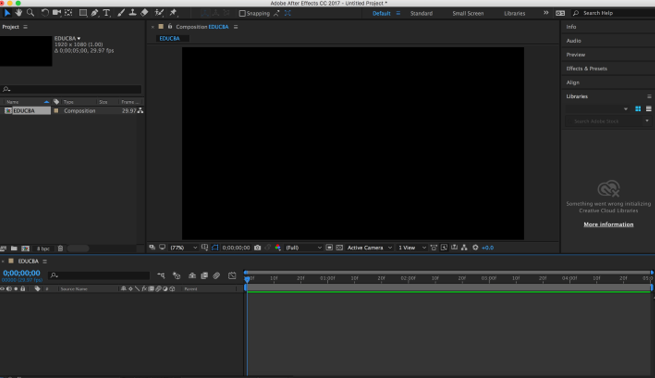
Step 5: The Composition Interface.
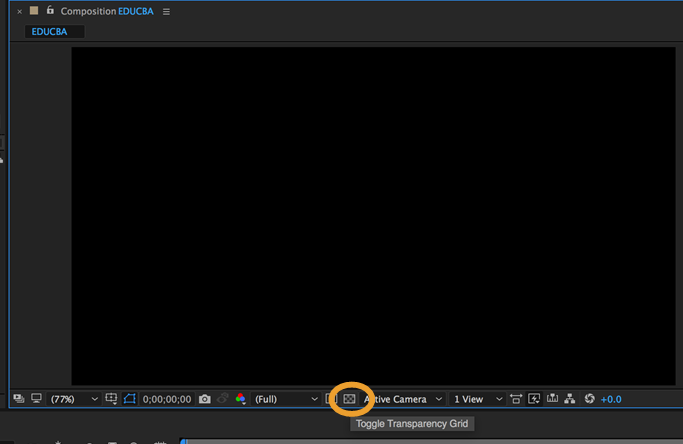
Step 6: To get the transparency grid, you just need to click on the Toggle Transparency Grid, which is present beside the active camera dropdown as shown below.
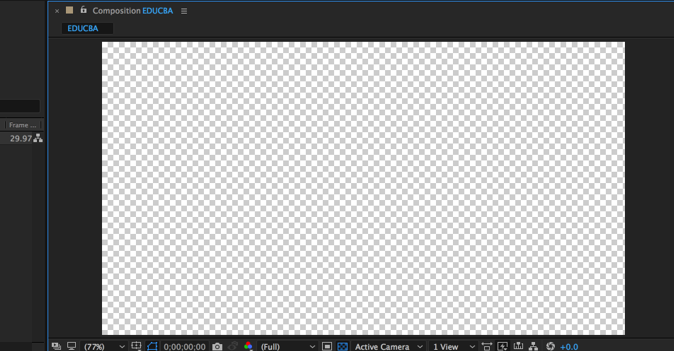
Step 7: Click once, and you will get the transparency grid. If you click, again you will get the solid black color back again. In this way, you can get the Transparency Grid on your composition.
Step 8: Now, create a Text and Place it in the center using the Selection tool. This video with the text will be used in another video to show how Transparent Background works in After Effects.
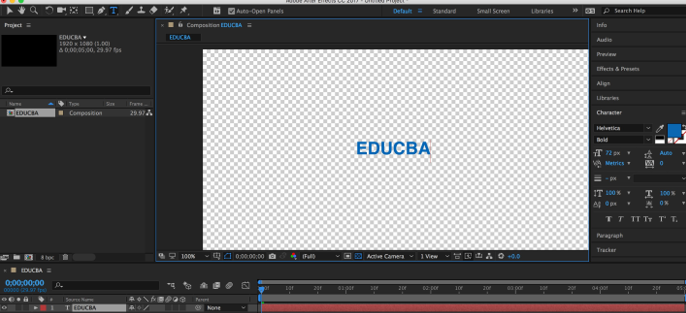
Step 9: Next, we will Animate the Text. After animating the text, you need to Position it as shown in the below image.
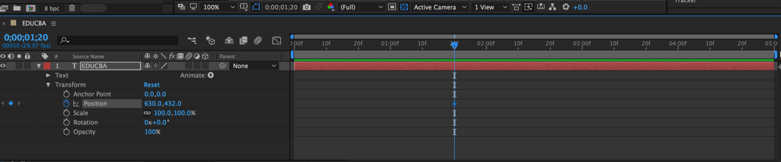
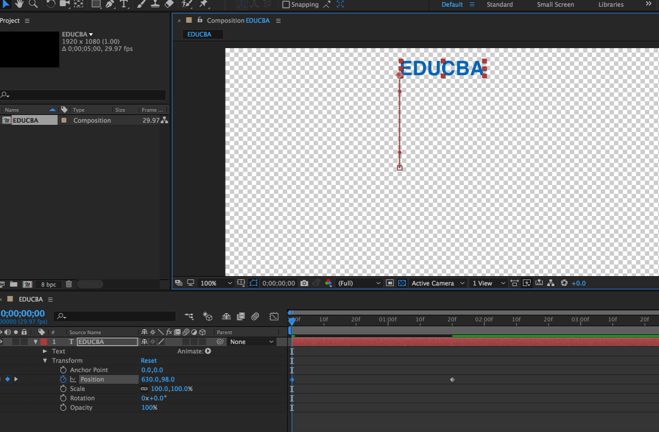
Step 10: Drag the text up and down using the Current Time Indicator to animate it to move up and down.
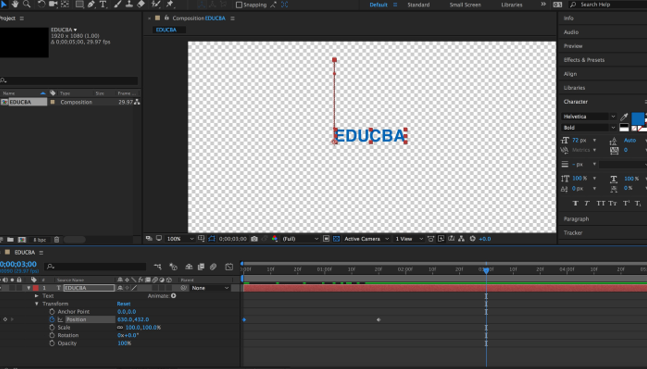
Step 11: The animation is complete for the text in this video.
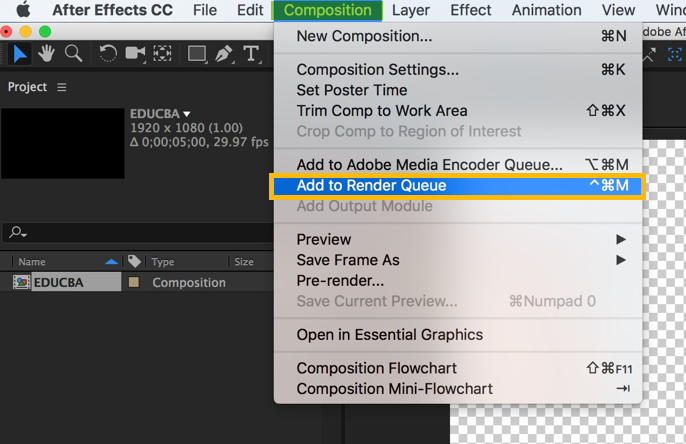
Step 12: The next step is to add your composition to the Render Queue Window. See to it that the composition is open or chosen in the project window. Click on Composition and Add to Render Queue.
Step 13: Render Queue Tab will open.
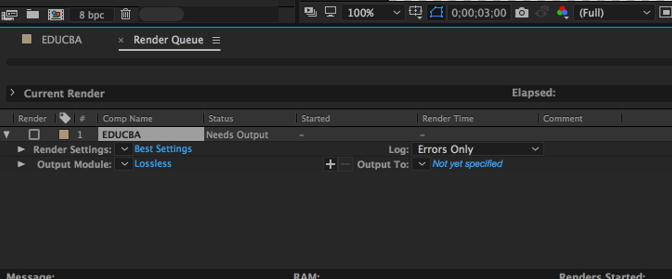
Step 14: Set the Render Queue in the Best settings.
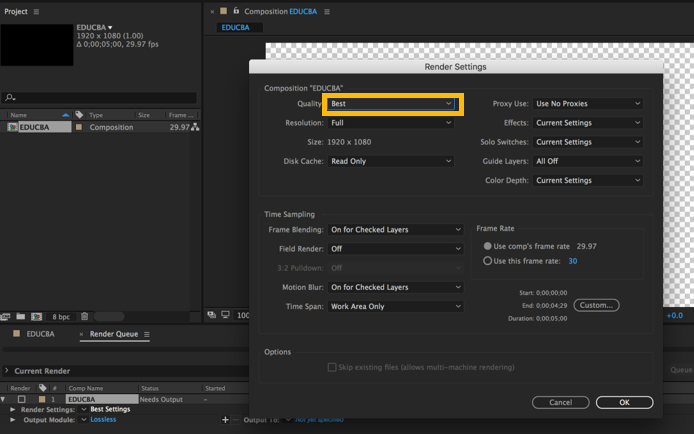
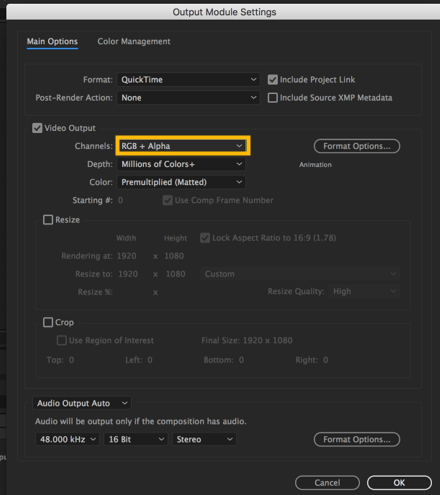
Step 15: Select render settings as best settings with resolution full and disk cache as reading only. In the output, the module makes sure it is lossless. Open the settings by clicking on lossless. You will get a popup window. You can choose any format that you wish. Select channels as RGB + Alpha in the video output section.
Step 16: Now bounce your video and save it on the desktop and click on the render button.
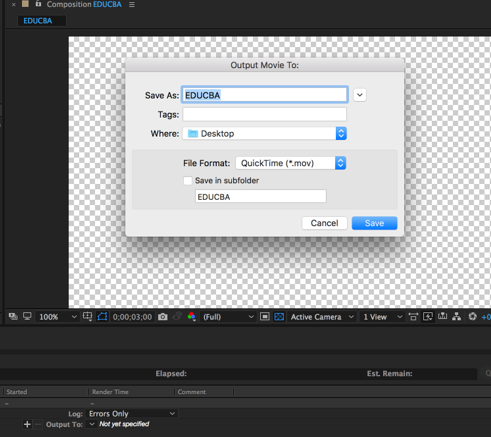
Your video with a Transparent Background and text is ready.
Step 17: Now drag any video to the project dashboard as shown below.
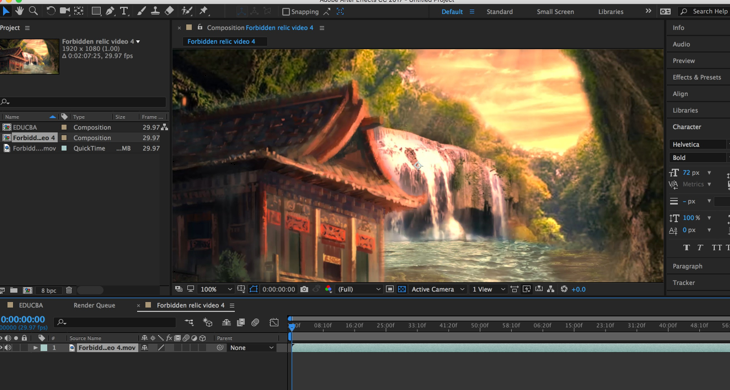
Step 18: After dragging the video, import the video file with the text that we saved before and then drag and drop it to this video.
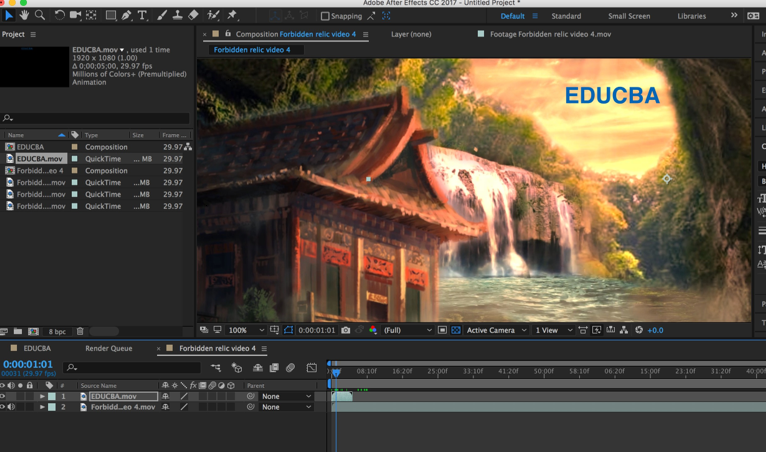
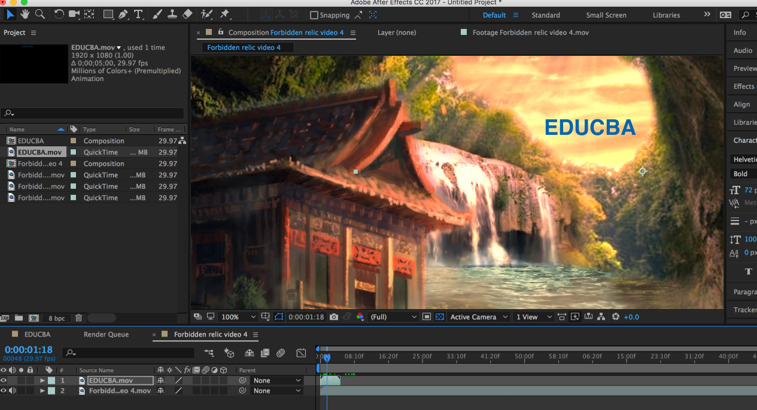
Step 19: Once you do this, you will see the text with the Transparent Background in this video, and when you move the Current Time Indicator, you can see the animation we did with the text too.
Conclusion
With the steps mentioned above, it is possible to render a video with a background that is transparent in Adobe After Effects. With respect to animation and video, the files that can be imported and exported are Animated GIF (GIF), 3GPP (3GP, 3G2, AMC), Open Media Framework (OMF), DV, Video for Windows (AVI) and QuickTime (MOV).
The video files that can only be imported are Adobe Flash Video (FLV, F4V), Adobe Flash Player (SWF), Media eXchange Format (MXF), AVCHD (M2TS), MPEG-1 (MPG, MPE, MPA, MPV, MOD), MPEG-4 (MP4, M4V), MPEG-2 (MPG, M2P, M2V, M2A, M2T), XDCAM HD/XDCAM EX(MXF, MP4), and Windows Media (WMV, WMA). While After Effects can work in 16 and 32 bits per channel, quite a number of animation and video file codecs and formats support only 8 bits per channel.
Recommended Articles
This is a guide to Transparent Background in After Effects. Here we discussed an overview and steps to create a transparent background. You can also go through our other related articles to learn more –

