

Updated March 28, 2023
What is Tkinter Messagebox?
Tkinter Messagebox is a module in python which provides a different set of dialogues that are used to display message boxes, showing errors or warnings, widgets to select files or change colors which is a pop-up box with a relevant message being displayed along with a title based on the requirement in python applications with an icon and interrupts the user flow to take input from the user is called Tkinter Messagebox and has different functions that are used to display the relevant messages based on the application requirements like info message, warning message, error message, or taking input from the user.
Syntax:
import  tkinter
from tkinter import messagebox
messagebox.functionname(title, message [,options])
Explanation: In the above syntax, we have imported the Tkinter library, and from that, we imported the messagebox module using which we can call different functions and display the relevant messages along with title based on the application requirement.
Attributes of Tkinter Messagebox
In the previous section, we have discussed the syntax of the Tkinter messagebox. Now we will discuss in detail the parameters or attributes being used in the syntax. There are four attributes in the syntax: function name, title, message, and options.
- Function name: The function name represents the proper name for the message box function.
- Title: Title is a message which will be displayed in the dialogue box of the message in the title bar.
- Message: Messages is a text used to display a message to the appropriate function name.
- Options: Options are like a choice by which we can customize the message box, which is standard. Some of the options are default and parent. The default option is used to mention default operations or message boxes buttons such as ABORT, IGNORE or RETRY in the message box. Parent option is used to mention a parental window on top of which message box will be displayed.
Methods of Tkinter Messagebox
Let’s have a look at different functions available with Tkinter messagebox such as showinfo(), showwarning(), showerror(), askquestion(), askokcancel(), askyesno(), and, askretrycancel(). The above functions used to show appropriate message boxes, and all the functions have the same kind of syntax but with different functionalities. All the functions which we are going to discuss are with python3 and above.
1. showinfo()
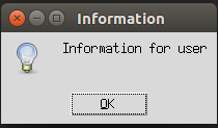
We use this messagebox function when we want to show some related or relevant information to the user. Let us try to create an information message box with an example below.
Code:
import tkinter
from tkinter import messagebox
top =  tkinter.Tk()
top.geometry("150x150")
messagebox.showinfo("Information","Information for user")
top.mainloop()
Explanation: In the above example, we created a Tkinter object top using tkinter.Tk() and used messagebox with showinfo() function to display the information message.
Output:
2. showwarning()
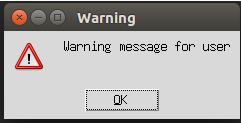
We use this messagebox function when we want to display a warning message to the user. Let us create a warning message to the user by using an example as below:
Code:
import tkinter
from tkinter import messagebox
top =  tkinter.Tk()
top.geometry("150x150")
messagebox.showwarning("Warning","Warning message for user")
top.mainloop()
Explanation: In the above example, we created a Tkinter object top using tkinter.Tk() and used a messagebox with a showwarning() function to display the user’s warning message.
Output:
3. showerror()
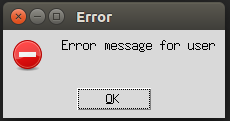
We use this messagebox function when we want to display an error message to the user. Let us create an error message to the user by using an example as below:
Code:
import tkinter
from tkinter import messagebox
top =  tkinter.Tk()
top.geometry("150x150")
messagebox.showerror("Error","Error message for user")
top.mainloop()
Explanation: In the above example, we created a Tkinter object top using tkinter.Tk() and used a messagebox with showerror() function to display the user’s warning message.
Output:
4. askquestion()
We use this messagebox function when we want to ask the user some questions, which can be answered by using yes or no. Let us create a program to ask the user a question whether the user wants to confirm it or not by using an example as below:
Code:
import tkinter
from tkinter import messagebox
top =  tkinter.Tk()
top.geometry("150x150")
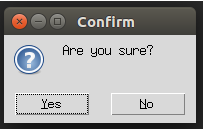
messagebox.askquestion("Confirm","Are you sure?")
top.mainloop()
Explanation: In the above example, we created a Tkinter object top using tkinter.Tk() and used messagebox with askquestion() function to ask the user a question Confirm with a message Are you sure?
Output:
5. askokcancel()
We use this messagebox function when we want to confirm the user’s responses regarding the application behavior or activity. Let us create a program to confirm users response regarding an application by using an example as below:
Code:
import tkinter
from tkinter import messagebox
top =  tkinter.Tk()
top.geometry("150x150")
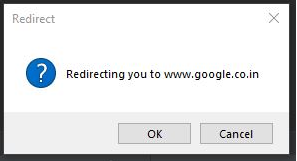
messagebox.askokcancel("Redirect","Redirecting you to www.google.co.in")
top.mainloop()
Explanation: In the above example, we created a Tkinter object top using Tkinter.Tk() and used a messagebox with the askokcancel() function to get the user’s response regarding the application activity.
Output:
6. askyesno()
We use this messagebox function when we want to ask the user regarding some question that can be answered by using yes or no. Let us create a program to ask user regarding some question, and the user will answer by saying yes or no by using an example as below:
Code:
import tkinter
from tkinter import messagebox
top =  tkinter.Tk()
top.geometry("150x150")
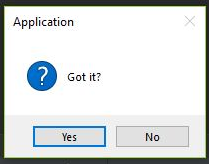
messagebox.askyesno("Application","Got it?")
top.mainloop()
Explanation: In the above example, we created a Tkinter object top using tkinter.Tk() and used messagebox with askyesno() function to ask the user regarding some question with a message Got it?
Output:
Examples to Implement Tkinter Messagebox
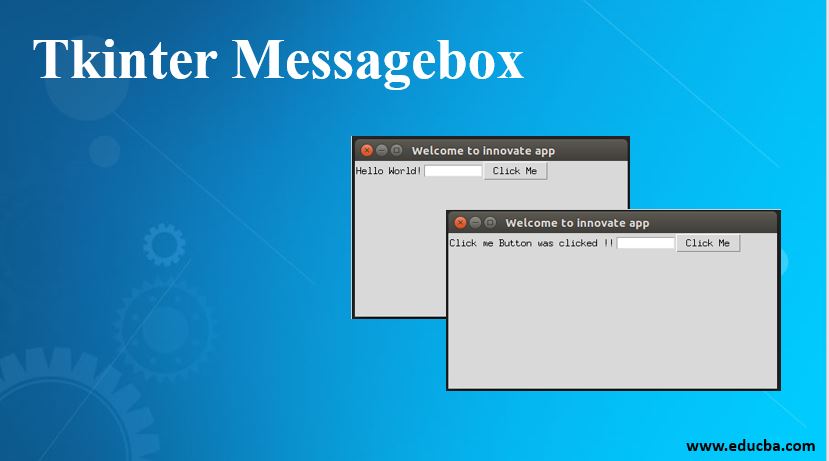
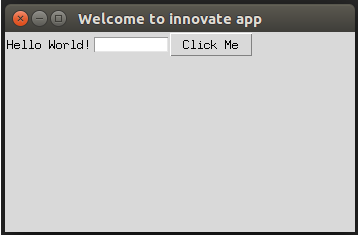
Let us create an application using labels, grid, and Entry class to take input from it and apply the action after a button click as the below example.
Code:
import tkinter
from tkinter import *
top = tkinter.Tk()
top.title("Welcome to innovate app")
top.geometry("350x200")
labl = Label(top, text=”Hello World!”)
labl.grid(column=0, row=0)
txt = Entry(top, width=10)
txt.grid(column=1, row=0)
def click():
	labl.configure(text="Click me Button was clicked ! !")
btn = Button(top, text ="Click Me", command=click)
btn.grid(column=2, row=0)
top.mainloop()
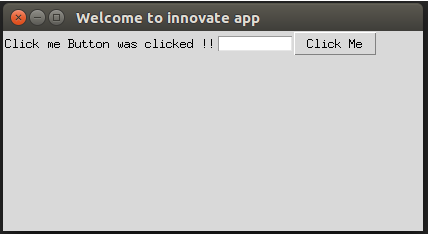
Explanation: In the above example, we have created a Tkinter object top using tkinter.Tk() and the function click() where we are configuring the label with the text “Click me Button was clicked!!” and we have created a title to the Tkinter object, created a grid to display the output as below:
Output:
Conclusion
Finally, it’s an overview of the Tkinter messagebox module in python. So far, we have discussed what messagebox, its syntax, its attributes, and functions supported in the module, describing functions in detail, and finally explaining with an example using showinfo() function using the pack() method. I hope after reading this article, you will have a good understanding of the Tkinter messagebox module, its functions, and how to use them based on the application requirement.
Recommended Articles
This is a guide to Tkinter Messagebox. Here we discuss Syntax, the attributes, different methods and examples to implement with appropriate syntax and sample code. You can also go through our other related articles to learn more –

