


Updated August 11, 2023
Radio Button in Excel
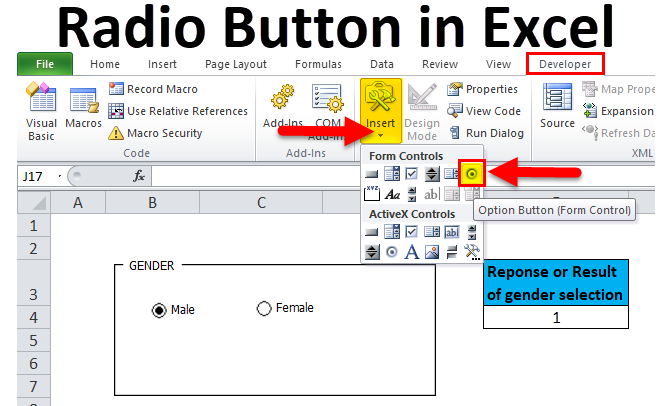
Excel and VBA Macro both support using the radio button. Radio Button in Excel, also known as Option Button in Excel, is available in the Developer menu tab in the Insert option. The radio Button is used when we have multiple options to select, and out of them, selecting one option is allowed. This is quite used while filling online forms when we have a list of options, and only one can be selected carrying 100% weightage.
For radio buttons to work, it needs to connect or link with a cell in the worksheet; then only you can record the response.
Radio buttons do not allow you to select multiple selections. i.e., When there are multiple radio buttons in a group, then only one of the radio buttons in that group can be selected at a time.
How to Add Developer Tab containing Radio Button Option in Excel Ribbon?
If you don’t find Develop tab in Excel, you can enable or add the Developer tab by the below-mentioned instructions:
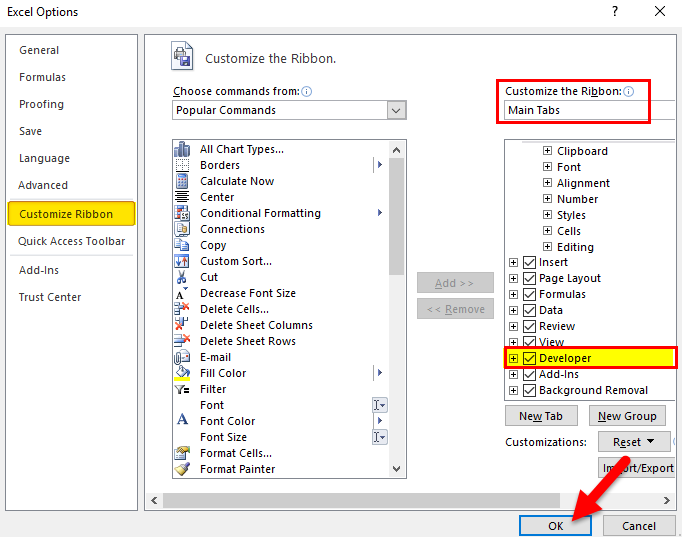
You can enter right-click on any of the existing tabs in the ribbon, where options appear; in that, select Customize the Ribbon.
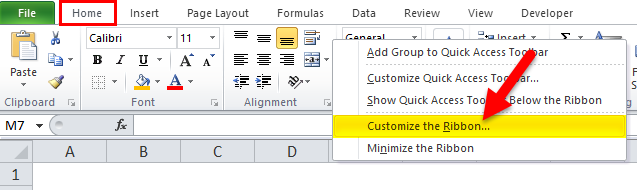
It opens the Excel Options dialogue box, in that, under the customize ribbon main tab option, select the developer tab. Click OK to apply changes.
Now developer tab appears as one of the tabs in the ribbon.
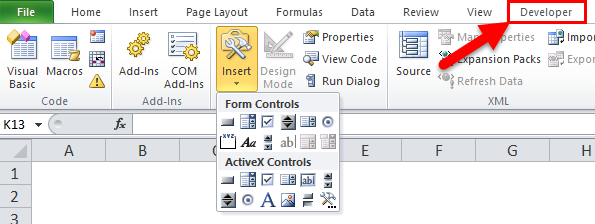
Apart from the radio or option button, Various other interactive control tools can be seen in the developer tab.
How to Insert Radio Button or Option Button in Excel?
Radio Button in Excel is very simple and easy to create. Let”s understand the working of Radio Button in Excel with Some Examples.
Step 1: Addition of a Group Box through the Form control option.
Group boxes are rectangular objects with optional labels, where you can update the title based on your choice. The main purpose of adding a group box is to visually organize related items on a form. It connects a set of Option Buttons and encloses them in a Group Box control on the worksheet.
Group Box can add to the sheet by the below-mentioned steps:
On the Excel Ribbon, click on the Developer tab and click Insert; a drop-down list appears; in the Form Controls, select the Group Box command to activate that tool.
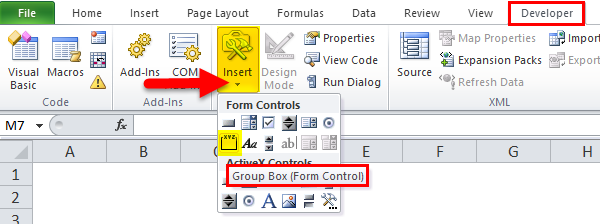
Click on the Excel worksheet where the + symbol appears & a group Box is created with the default name of Group Box 1.
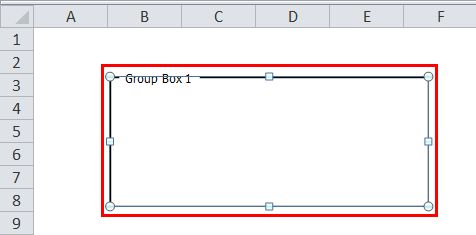
Drag over the Caption text in a group box to select it and type a new Caption of your choice for the Group Box name. Here I changed it to “Gender”. After formatting text and removal of grid lines, it appears as below mentioned.
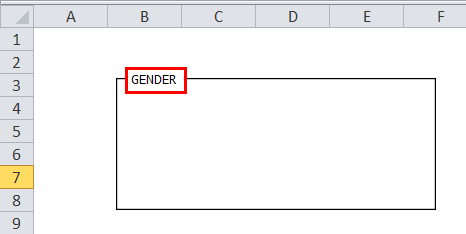
You can change the Group Box size from square to rectangular shape based on your choice by dragging the corners in or out.
Step 2: Addition of a radio or option button.
Now, you can add the radio or option buttons inside the group box by the below-mentioned steps:
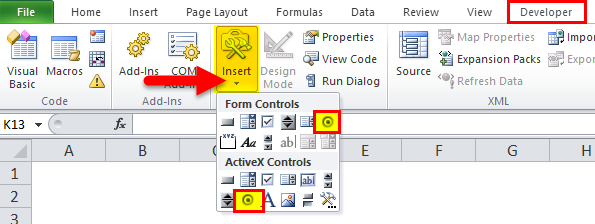
In the Excel developer tab, click Insert. The form Controls section and Active X control toolbox appear in the drop-down under the insert option; in that form Controls section, select the Option Button command to activate that tool.
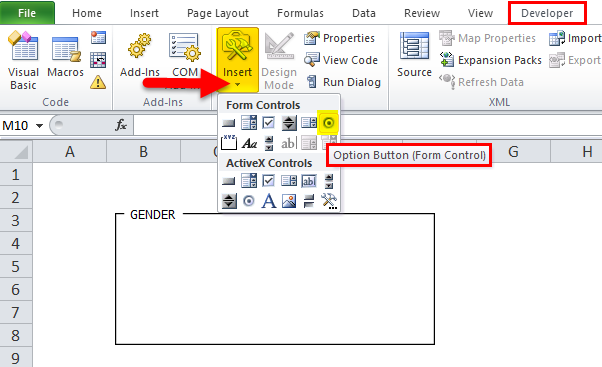
Once you select the Option Button command, your mouse cursor changes to a crosshatch, and Move the mouse to the cell where you want the radio button to be inserted; you can apply the Option Button anywhere in the gender group box based on your choice and the number of options you want to add in the gender group box.
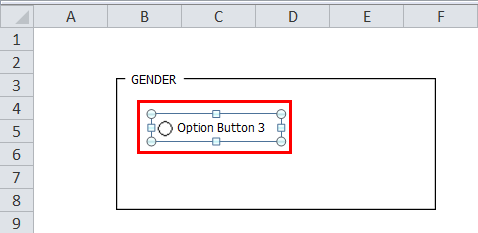
You can now modify or update the text name for each radio button by right-clicking on the cell and selecting the “Edit Text” option from the context menu.
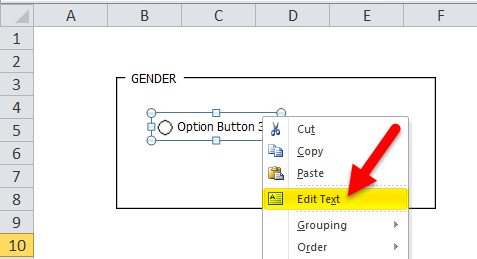
A Text is Edit as Gender.
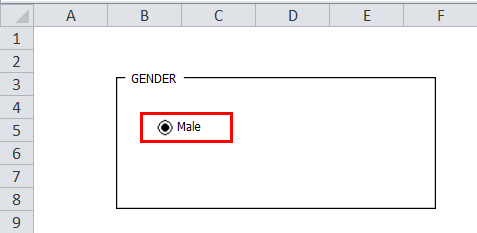
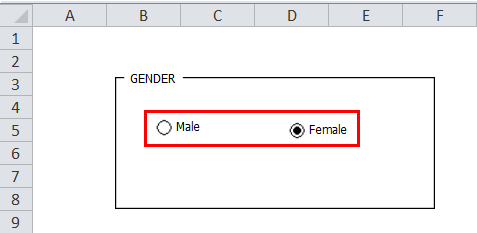
Options button, as the name itself suggests or indicates, to create more options or radio buttons in Excel so that we can choose one of the various options. That is why only one option button in Excel is not enough. We can create more options buttons using a ( Ctrl+d) key or Copy-Paste ( Ctrl+C and Ctrl+V ) option.
Here I created two radio buttons under the gender section, i.e., Male & female.
Step 3: Link the option box to a cell.
The Options Button in Excel automatically deselects other options when we select one.
Now the question is, how can we know which one is selected? Moreover, I should be able to record the response or result of a selection between two options.
For this to happen, we need to link the options buttons with a specific cell depending on your choice, where the sequence number of the options button or the result of the option in Excel is shown. We can use this number as a response or result of selection.
To link the Option Button with the cell, right-click the male option button and go to Format Control.
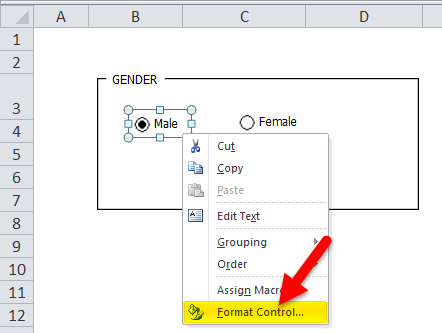
In the ‘Format Control’ Dialog box, under the ‘Control’ tab, write the address of the cell based on your choice, select the cell link, and click OK.
In the screenshot below, the male option Box is linked to cell “F4” in the same sheet.
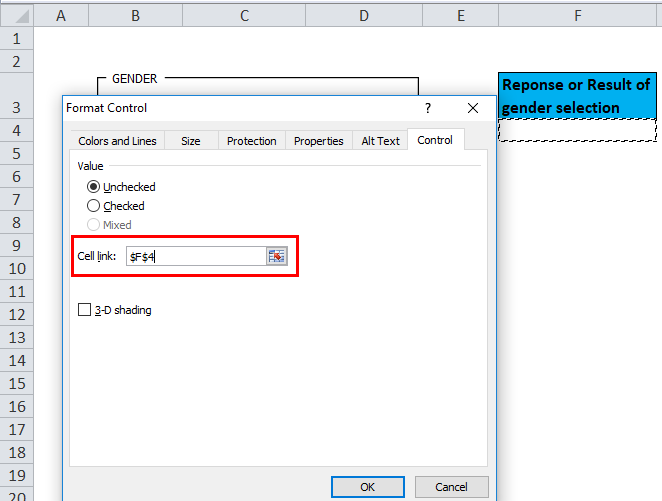
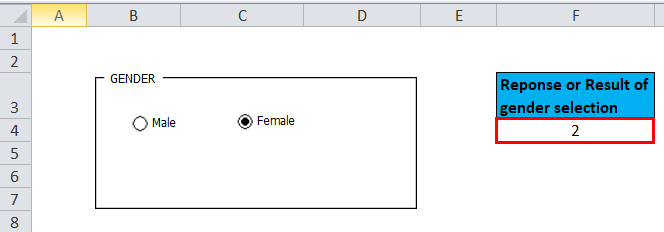
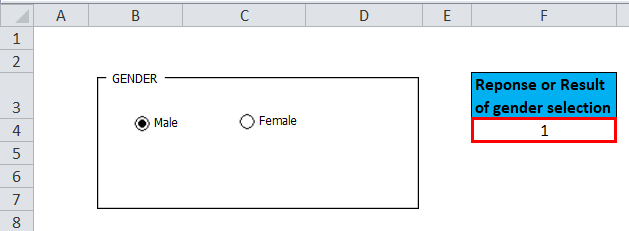
Now the “F4” cell value’s value gets changed to 1 or 2, according to or based on the options button selection in Excel.
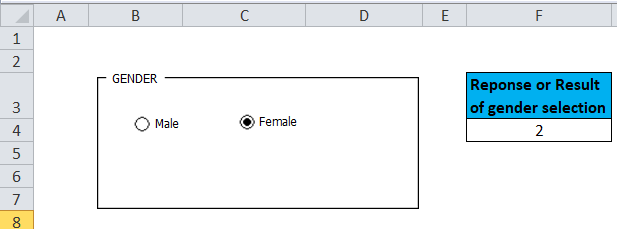
You can observe in the below-mentioned screenshot when you click on one of the Options Box, i.e., Female in the Group Box, the Options Box’s number will appear in the linked cell. i.e., 2 in the cell “F4”.
Similarly, if you select a male option, the value of the “F4” cell changes to 1.
Like this, you can create multiple questions with the help of a group box and Option Buttons.
Things to Remembers
- It is specified under the category of Excel interactive controls.it is simple to use and does not require any expertise in Excel.
- Option or radio buttons are also used to Create a Dynamic Chart.
- Option Buttons in Excel help easily create your surveyor multiple-choice questionnaire.
Recommended Articles
This has been a guide to a Radio Button in Excel. Here we discuss its uses and how to use Radio Button in Excel with Excel examples and downloadable Excel templates. You may also look at these useful functions in Excel –

