


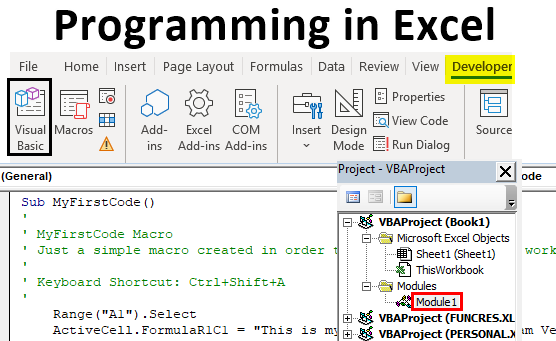
Table of Contents
What is Programming in Excel?
Programming in Excel refers to using VBA (Visual Basic for Applications), Excel’s own programming language, that can help you automate tasks and create customized solutions.
When users need to perform repetitive tasks, create complex calculations, or build interactive tools that may be beyond the standard Excel functionality. This is where programming in Excel comes into play.
How to do Programming in Excel?
Here is a detailed step-by-step tutorial on how you can use Excel programming.
Step 1: Enable the Developer Tab
- Click on File in the top left corner.
- Choose Options at the bottom of the left-hand menu.
- A new window will pop up. Click on Customize Ribbon on the left.
- In the right-hand panel, you will see Developer with a checkbox. Check it.
- Click OK at the bottom of the window.
Now, you should see the Developer tab on the Excel ribbon.

Step 2: Record a Macro in Excel
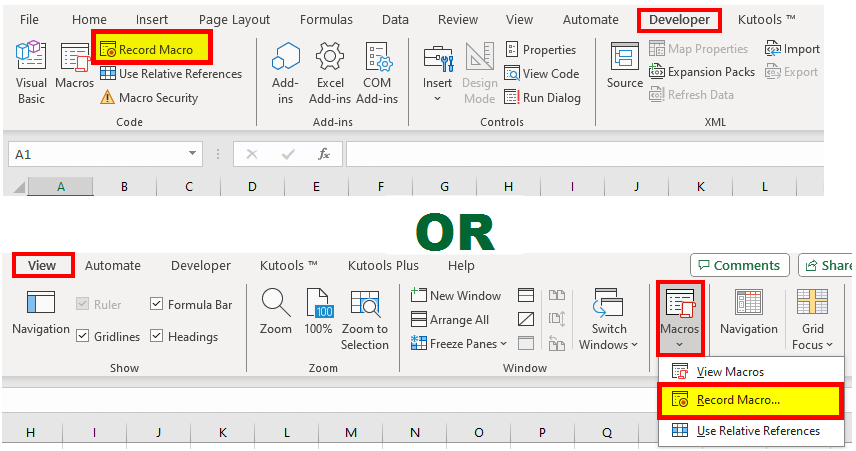
1. You can record a macro in three ways:
- Go to the Developer tab and select Record Macro in the Code groups.
- Click the View tab and choose Macros.
- Use the shortcut “Alt+F8“.
2. Enter Required Information to Start Recording
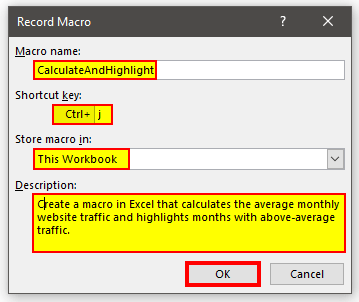
- Macro Name: Enter a name for your macro (no spaces or special characters).
- Shortcut key (optional): Assign a keyboard shortcut (e.g., Ctrl+j) to run the macro.
- Description (optional): Add a description to help you remember what the macro does.
- Store macro in: Choose where to store the macro from the dropdown menu (e.g., “This Workbook” for the current workbook).
Click OK.
3. Perform the Actions
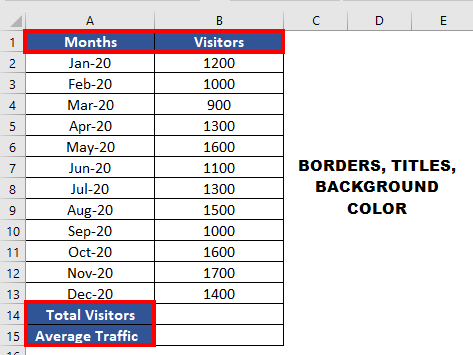
In this macro, we are capturing steps to calculate average monthly traffic and highlight above-average months. Here’s what we will do:
- Format the table:
Enhance the table’s appearance by customizing titles, borders, and background colors and adjusting column width and font size.
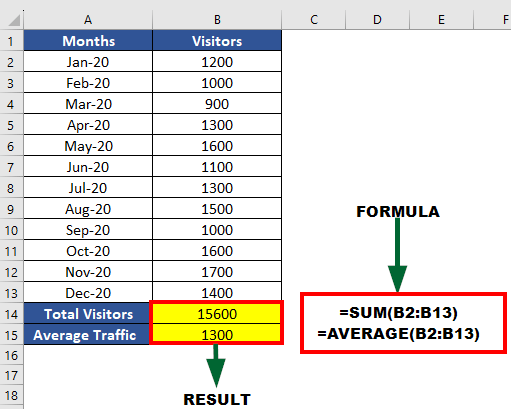
- Perform Calculations:
Input formulas for total and average in cells B14 and B15, using SUM and AVERAGE functions, respectively.
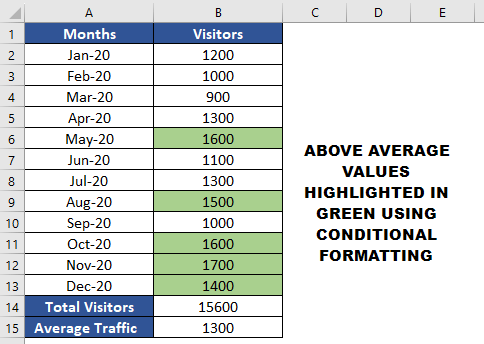
- Highlight Cells with Above-Average Traffic:
Use conditional formatting to identify values above the average. In this example, we have highlighted them in green color.
4. Stop Recording
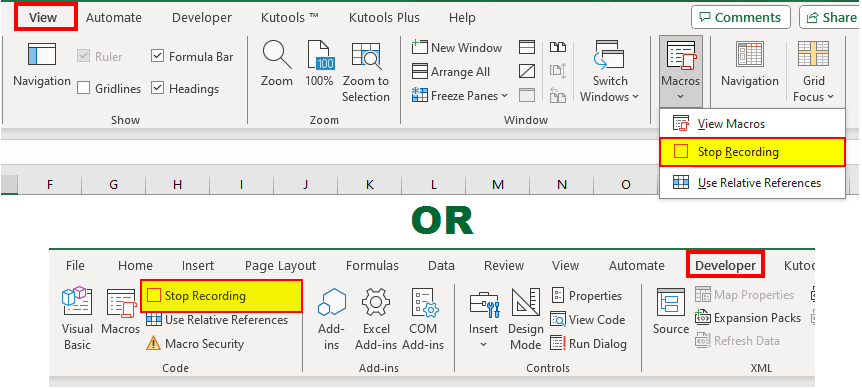
To stop recording, click Stop Recording in the View tab or in the Developer tab under Macros.
Step 3: View the VBA Code
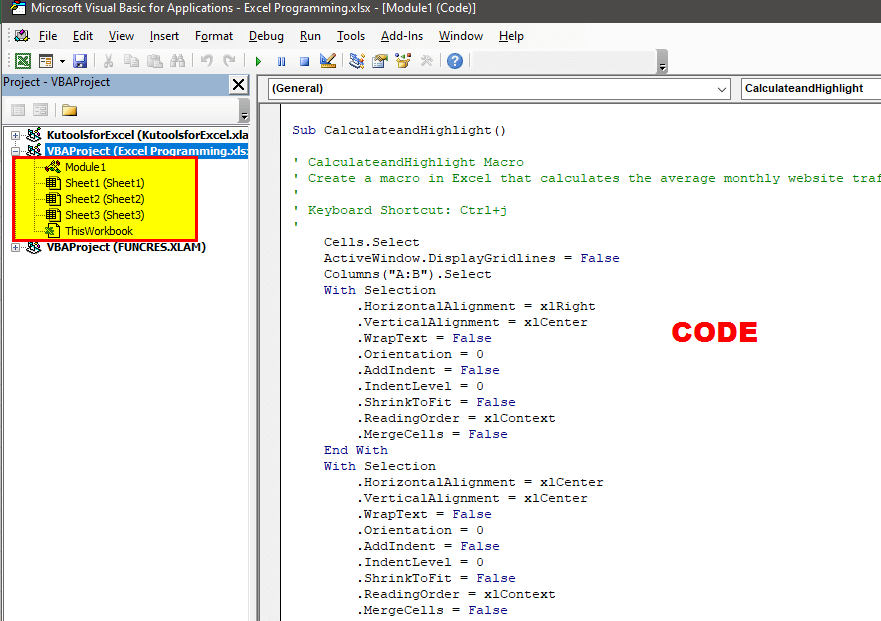
When you record a macro, Excel automatically creates a VBA code for the performed actions. To view or edit the VBA code, follow these steps:
- To open the VBA Editor, use the shortcut (Alt + F11) or go to the Developer tab > Visual Basic.
- In the project window, find your workbook (usually named VBAProject – YourWorkbookName).
- Expand Modules to find your recorded macro.
- Double-click the module to view the VBA code.
Step 4: Run the Macro
To run the macro, you can use either one of the three methods:
- Use the keyboard shortcut you assigned (Ctrl+j).
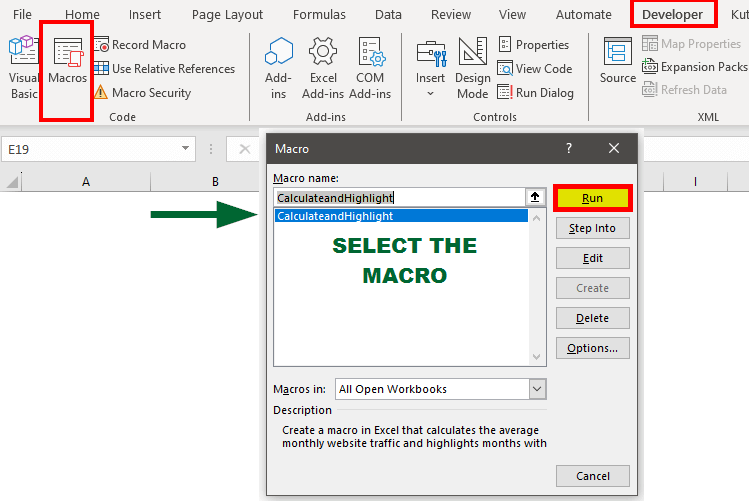
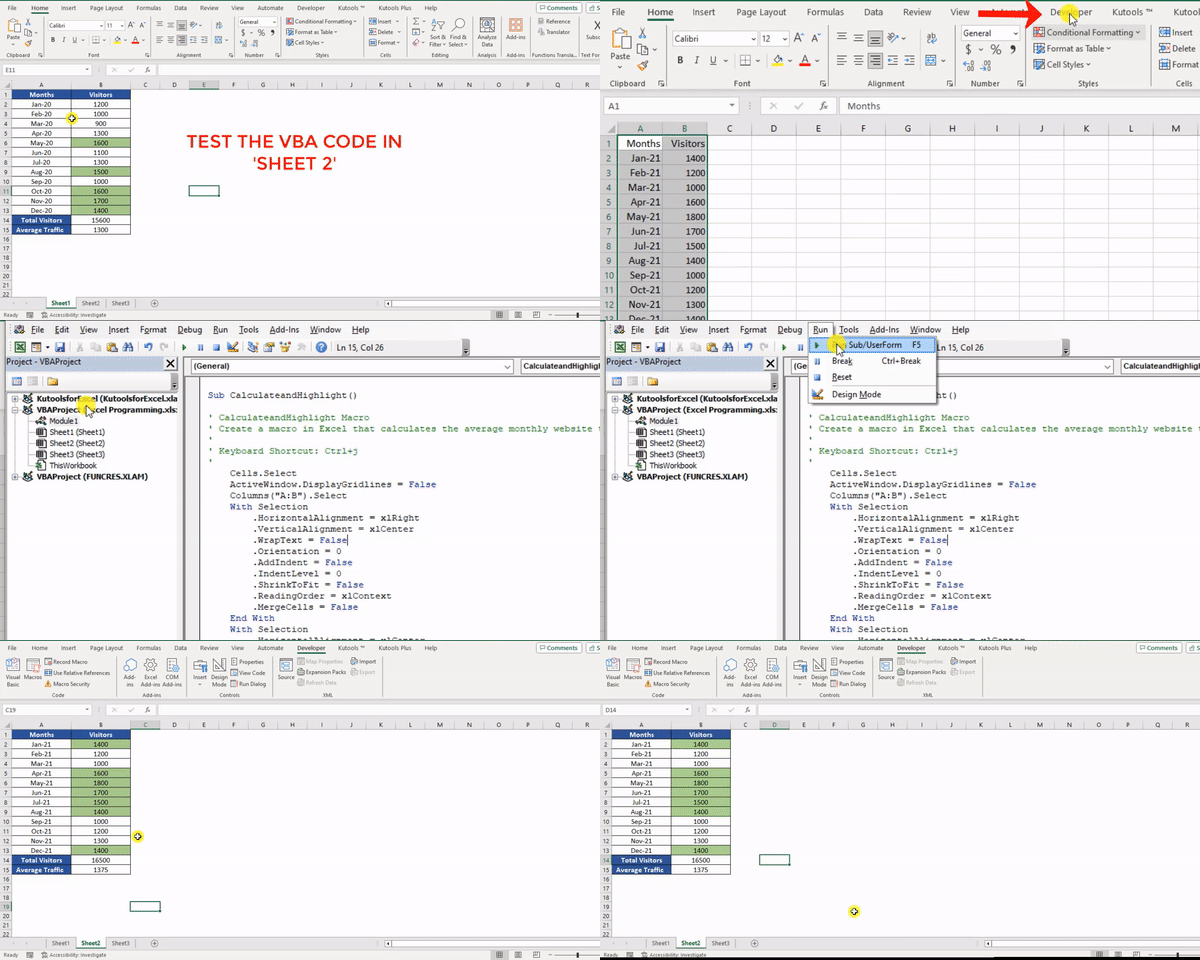
- Go to the Developer tab, click on Macros, select your macro, and click Run.
- Open VBA Editor > Click on Run > Select Run Sub/UserForm.
Excel will now run the macro and perform the exact steps you performed while recording the macro.
Step 5: Save the File
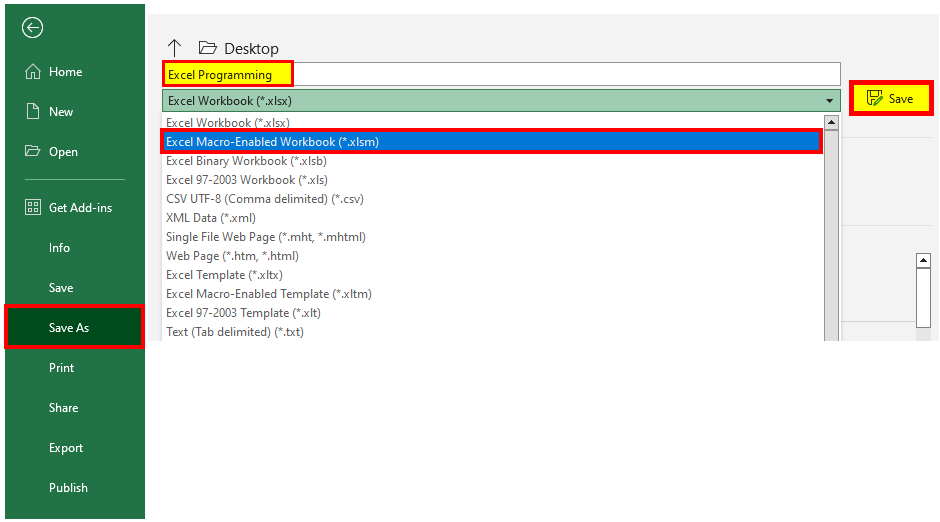
- Click File > Save As in Excel.
- Choose the Excel macro-enabled workbook format, name your file, and click Save.
Why to use “.xlsm”?
The “.xlsm” extension is a special tag telling Excel your workbook has a macro. If you save it as a regular “.xlsx” file, Excel won’t save the macro, and you might lose the code you recorded.
Assigning a Macro to a Command Button
If you want to remove the extra steps of running the macro, you can assign a macro to a command button and automate tasks with a single click. For instance, in our previous example, instead of using the macro directly, we can make a button called “Run.” When you click that button, it will activate the macro.
Here’s a step-by-step process to assign a macro to a command button:
Step 1: Insert a Command Button
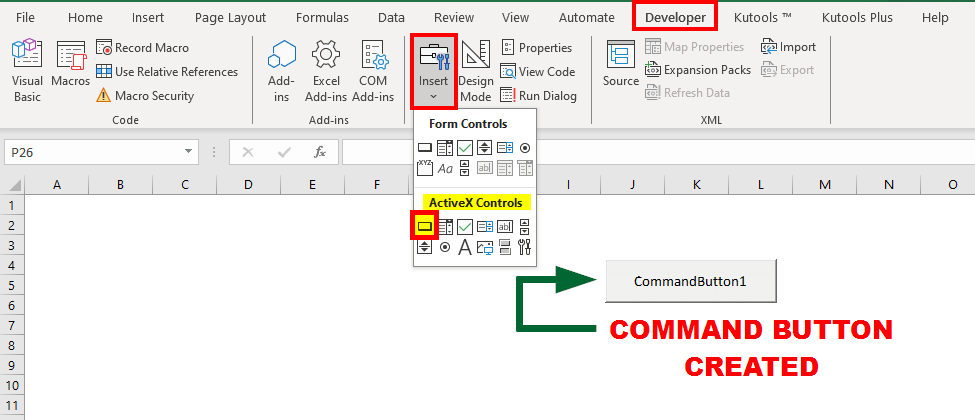
- Click the Developer tab.
- Click the Insert button in the Controls groups.
- From the ActiveX Controls section, select Command Button (it looks like a button icon).
- Click on your Excel worksheet where you want to place the command button. This will add the button.
Step 2: Assign a Macro to the Command Button
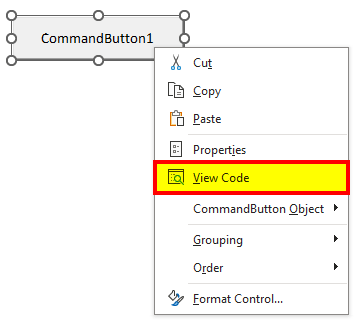
- Right-click on the newly inserted command button and select View Code. This will open the VBA Editor.
- Add the code you want to the VBA Editor. We are adding the following:
Private Sub CommandButton1_Click()
Range("A1").Value = "Welcome to EDUCBA Family"
Range("A2").Value = " We're glad to have you"
End Sub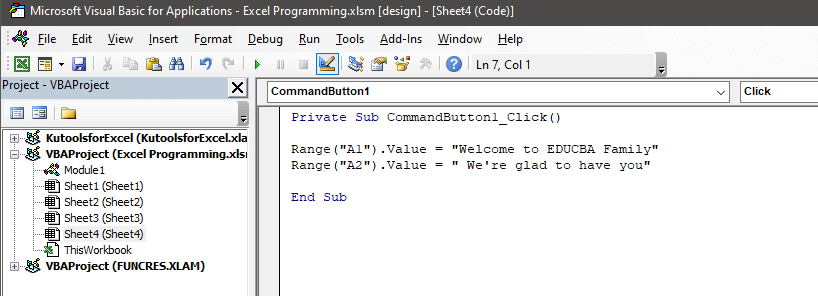
Step 3: Use the Command Button
- Close the Editor and come back to Excel.
- Click the Design Mode button in the Developer tab to switch it off.
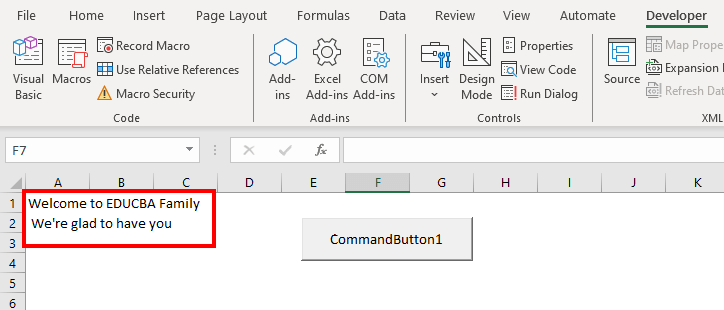
- Click the command button you inserted. It should execute the macro you assigned, in this case, displaying the message box.
Frequently Asked Questions (FAQs)
Q1. When can I use VBA and macros?
Answer: You can use VBA to,
- Automate tasks like report generation, data entry, and complex calculations.
- Customize Office apps with menus, dialog boxes, and forms for a better user experience.
- For data manipulation and analysis, especially in Excel.
- Integrate Office apps and automate data transfers.
Q2. Can I use VBA without knowing how to code?
Answer: Yes, you can easily use VBA without actually knowing how to write VBA code. As we saw in the earlier section, “Step 3: View the Code”, Excel automatically generates VBA code. You only have to record the macro’s actions and create macros without writing complex code. However, you can change the VBA code if any changes are required. Thus, this approach is user-friendly and requires minimal programming expertise.
Q3. Is VBA a hard language?
Answer: VBA is not a very difficult language. However, learning VBA depends on prior programming experience and specific requirements. You can easily learn VBA by reading this article or taking a course.
Recommended Articles
We hope this article on programming in Excel taught you what you were looking for. For more VBA-related articles, check the following:

