

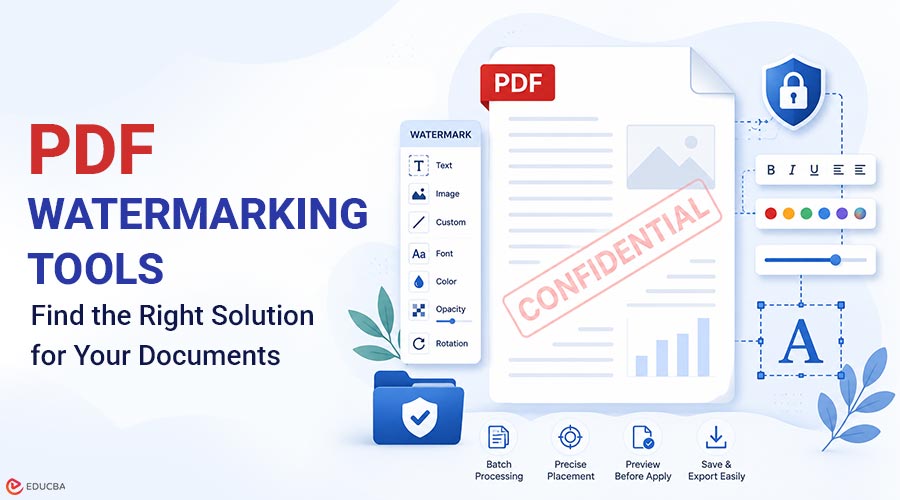
PDF watermarking tools are software applications that help users add text, logos, symbols, or images to PDF documents. A watermark can appear in the background, across the page, or in a corner of the document. It is commonly used to indicate ownership, mark a file as confidential, identify a draft, or add brand information. PDF files are widely used for contracts, invoices, reports, certificates, training materials, portfolios, and academic documents. Since these files are easy to share, download, and forward, watermarking becomes an important step for protecting and organizing them.
With the right PDF watermarking tool, users can add professional-looking marks without redesigning the original document. For students, educators, and trainers, PDFs can also serve as learning resources. Tools that convert a PDF to quiz format help transform study materials, textbooks, lecture notes, and training documents into interactive quizzes, making learning more engaging and improving knowledge retention. In this article, we will learn why PDF watermarks are useful, what features to look for, and which tools are best for different types of users.
Why Use Watermarks in PDF Files?
Watermarks make PDF documents easier to identify, protect, and manage. They do not stop every possible misuse, but they add a visible layer of ownership and control. Here are the main reasons to use watermarks in PDF files:
- Protect document ownership: A watermark can display the document owner’s name, logo, website, or copyright notice. This is useful for businesses, teachers, designers, consultants, photographers, and content creators who share digital materials.
- Mark confidential documents: Companies often use words like “Confidential,” “Internal Use Only,” or “Private” on financial reports, legal files, employee documents, and client proposals. This helps readers understand how to handle the file.
- Identify draft and sample files: Watermarks such as “Draft,” “Sample,” “Preview,” or “Not for Distribution” are useful when a document is not final. They reduce confusion and prevent unfinished files from being treated as approved versions.
- Improve branding: A logo or brand name can make reports, brochures, guides, and presentations look more professional. This is especially helpful when sharing PDFs with clients, students, or business partners.
- Discourage unauthorized copying: A visible watermark helps prevent unauthorized reuse of a PDF by clearly identifying its source. For stronger protection, users can combine watermarking with password protection, editing restrictions, or secure file-sharing settings.
Key Features of PDF Watermarking Tools
Different tools offer different levels of control. A basic tool may only add simple text, while an advanced tool may support batch processing, page range selection, image watermarks, templates, and cloud imports. Important features include:
- Text watermark support: Adds words such as “Confidential,” “Draft,” company names, copyright notices, or contact information.
- Image and logo support: Allows users to upload a logo, signature, seal, or graphic as a watermark.
- Opacity control: Makes the watermark transparent or semi-transparent, keeping the document readable.
- Position settings: Places the watermark in the center, a corner, the header, the footer, or a custom location.
- Rotation and size control: Helps create diagonal, horizontal, or subtle background watermarks.
- Page range selection: Applies the watermark to all pages or only selected pages.
- Layer options: Places the watermark above or behind the PDF content.
- Batch processing: Adds the same watermark to several PDF files at once.
- Preview option: Let users check the result before exporting the final PDF.
- Privacy and file handling: Important for sensitive documents such as contracts, financial records, or client files.
- Ease of use: A good tool should be easy for beginners to use while still offering enough flexibility for regular users.
Best PDF Watermarking Tools
Here are some of the best tools for adding, customizing, and managing watermarks with ease:
1. Watermarkly
Watermarkly is one of the best options for users looking for a simple online tool to add watermarks to PDFs. It works in the browser, so users do not need to install software. It supports text and logo watermarks, page range settings, opacity control, rotation, resizing, and batch watermarking. One useful feature is that users can watermark one or more PDF files in a single step. This is helpful for small businesses, teachers, freelancers, and teams that often prepare many documents at once.
Watermarkly also lets users adjust the watermark on different pages and preview the result before saving. Another important advantage is privacy. Watermarkly states that PDF files are processed on the user’s device, which is useful for business documents, contracts, and personal files. It also works across Windows, Mac, Linux, iOS, and Android through a browser. Watermarkly is a strong choice for users who need an easy, fast, and practical PDF watermarking tool without having to learn a complex PDF editor.
2. Adobe Acrobat
Adobe Acrobat is a professional PDF editor with advanced watermarking features. Users can add text or image watermarks, adjust opacity, choose page ranges, set position, and apply watermarks to multiple files. It is suitable for corporate teams, legal departments, designers, and users who already work with Adobe tools.
The main advantage of Adobe Acrobat is its complete PDF editing environment. In addition to watermarking, it supports editing, signing, converting, protecting, and organizing PDFs. However, it may feel more complex for users who only need a quick watermarking task.
3. iLovePDF
iLovePDF is an online PDF toolset that includes a watermark feature. It lets users add text or image watermarks, choose fonts, adjust transparency, select page ranges, and position the watermark above or below the PDF content.
It is a good choice for users who want many PDF tools in one place, such as merging, compressing, converting, and editing PDFs. Its interface is beginner-friendly, making it suitable for students, office users, and everyday document tasks.
4. Sejda
Sejda offers both online and desktop PDF tools. Its watermark tool supports text and image watermarks, custom placement, opacity, font options, rotation, and templates. Users can also watermark multiple PDF files, which is helpful for repeated workflows.
The desktop version is useful for people who prefer working offline or do not want to upload files to an online service. Sejda is a practical option for users who need more control than a very basic tool but do not want a full professional PDF suite.
5. Visual Watermark
Visual Watermark is an online tool for adding watermarks to PDF files. It allows users to add text, logos, or image watermarks and customize their appearance. Users can adjust the size, position, transparency, rotation, and style of the watermark before applying it to the document. This tool is useful for people who want to protect business documents, reports, forms, certificates, teaching materials, or client files. It is also suitable for branding PDFs with a company logo or website name.
Since it runs online, users can watermark PDFs without installing additional software. Visual Watermark is a good option for users who need a simple PDF watermarking tool with visual customization settings. It is especially helpful for small businesses, freelancers, educators, and content creators who regularly share PDF documents online.
How to Choose the Right Tool?
The best PDF watermarking tool depends on how often you work with PDFs, what type of files you handle, and how much control you need. Consider the following points before choosing:
- For quick online watermarking: Choose browser-based tools like Watermarkly or Visual Watermark if you want to add a watermark quickly without installing software. They are especially useful for text or logo watermarks, batch processing, and simple visual controls.
- For professional PDF workflows: Choose Adobe Acrobat if watermarking is only one part of your work and you also need editing, signing, security, file conversion, and enterprise-level PDF features.
- For everyday PDF tasks: Choose iLovePDF if you need watermarking along with common PDF tools like merge, split, compress, and convert.
- For offline work: Choose Sejda Desktop or another desktop-based PDF editor if you handle sensitive files and prefer not to use an online tool.
- For branding: Make sure the tool supports image watermarks, transparent logos, custom placement, and opacity settings.
- For large document batches: Use a tool with batch watermarking. This saves time when working with invoices, certificates, reports, worksheets, or client files.
- For sensitive documents: Check how the tool processes and stores files. If privacy is important, choose a tool that processes files locally or offers offline use.
Final Thoughts
PDF watermarking tools help users protect, organize, and brand digital documents. A watermark can show ownership, mark a file as confidential, identify a draft, or make shared documents look more professional. For users who need a fast, simple online solution, Watermarkly and Visual Watermark are among the strongest choices. They support text and logo watermarks, batch processing, page-range control, opacity adjustment, and browser-based access across different devices.
Adobe Acrobat is better for advanced professional workflows, while iLovePDF and Sejda are useful alternatives for everyday PDF tasks. Choosing the right tool depends on your needs—simple online tools for speed and ease, or full PDF editors for advanced control and security. Either way, PDF watermarking helps protect and identify documents.
Recommended Articles
We hope this guide to PDF watermarking tools helps you protect and manage your documents more effectively. Check out these recommended articles for additional tips and PDF management insights.