

How to Restrict Apps on a Kiosk Device?
Walking into a café and ordering through a self-service tablet. Everyone is familiar with this scenario. You tap, pay, and walk away with your latte, never once thinking about what else that device can do. That is the skill of kiosk mode. It conceals the multifaceted, versatile nature of a phone or tablet and transforms it into a single-purpose device. But here is the twist, unless someone carefully restricts access, that “digital menu” could just as easily become a TikTok machine, a YouTube binge screen, or worse, a security risk. That is why knowing how kiosk mode app restriction works is such a valuable skill, whether you are managing one tablet in a store or a thousand across a school district.
This blog is here to help. We will examine what kiosk mode truly means, how it operates differently across various platforms, and which strategies actually prove effective in the real world. And do not worry, we will keep things light and practical. No jargon overload. Just the good stuff.
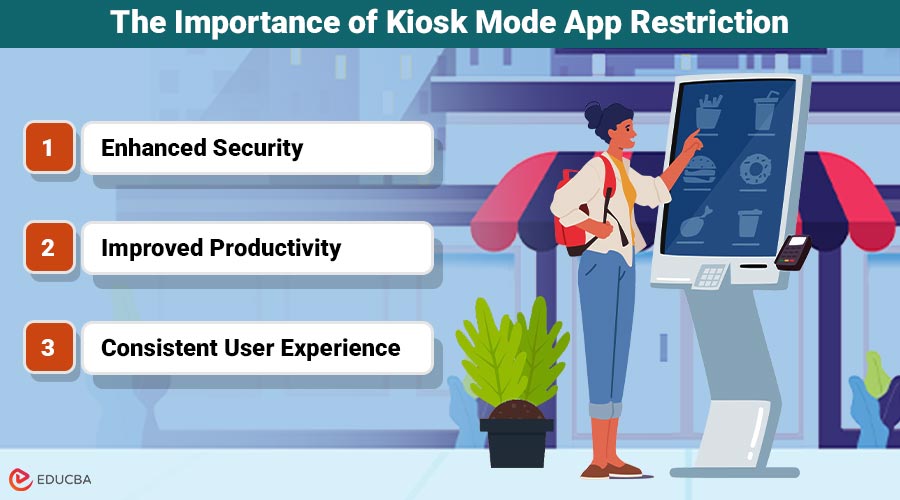
The Importance of Kiosk Mode App Restriction
Definition and core purpose
Kiosk mode is a device configuration that restricts users to a predefined set of applications or a single app. The primary goal is to block unauthorized access, minimize distractions, and make sure the device is used only for its intended function, such as point-of-sale, digital signage, or exam monitoring. By locking down the interface, the kiosk mode app restriction minimizes user errors and protects sensitive data.
The benefits are obvious once you see them in action:
- Enhanced security: Limiting access to selected apps prevents users from installing malicious software or accessing restricted content.
- Improved productivity: Employees or students focus solely on the task at hand without distractions.
- Consistent user experience: A controlled interface ensures the device performs consistently, reducing training needs and support calls.
Single-app vs. Multi-app
When people hear the term “kiosk mode,” they often think it means locking a device into one app permanently. That is true sometimes, but not always.
- Single-App Mode is like putting blinders on a horse. The device is laser-focused on just one task. Think flight check-in kiosks or digital signage. Users do not need options; they need to complete one action.
- Multi-App Mode gives more breathing room. You allow a short list of approved apps, nothing more. This is perfect for situations like schools, where students might need access to a learning app, a secure browser, and a reading app, but not Instagram.
Choosing between these modes depends on your scenario. Too restrictive, and you frustrate users. Too loose, and you risk losing control. That is where the kiosk mode app restriction strikes the right balance..
Kiosk Mode App Restriction on Different Devices
Restricting access to apps is not a universal process. Each operating system has its own tricks, strengths, and quirks.
- Android: At the most basic level, there is Screen Pinning, which lets you “pin” one app until someone enters a password. For stronger control, kiosk apps and custom launchers—combined with kiosk mode app restriction via MDM tools—can trap users inside a secure environment.
- Windows: Features like Assigned Access lock a user account to one app. With device management, you can also create multi-app kiosks with strict app restrictions.
- iOS & iPadOS: Guided Access locks into a single app. For supervised devices, Single App Mode enforces stricter app restriction policies.
- Chrome OS & Linux: Chromebooks launch directly into apps or websites, while Linux offers endless customization for advanced kiosk mode app restrictions.
Why do MDM tools make life easier?
If you are managing only one kiosk, doing it manually is acceptable. But scale up to 50, 100, or 1,000 devices, and you will quickly lose your mind without a proper system.
That is where MDM solutions shine. With MDM, you can:
- Decide which apps are whitelisted or blacklisted through the kiosk mode app restriction.
- Push updates remotely
- Monitor device health without touching the hardware.
- Lock or wipe a device if it is lost.
Consider being able to roll out a new app to every device in your company without leaving your desk. That is the kind of control device management solutions deliver.
Advanced Kiosk Mode App Restriction
Restricting apps is just the beginning. Advanced kiosk setups go deeper.
- Hide the UI: No status bar, no notifications, no home button. Users can not escape the kiosk bubble.
- Whitelist vs. Blacklist: Either allow only a few apps or block the bad ones specifically.
- PIN Protection: Only admins with the code can exit kiosk mode.
These features are what keep kiosks reliable in busy environments. Because let’s face it, if there is a way out, someone will find it.
Best Practices for App Restriction
From IT admins and business owners, a few key tips keep coming up:
- Test before you deploy, ensure that the kiosk mode app restriction works in real-world conditions.
- Update with caution; automatic updates can break setups.
- Always have a back door. Admins need a way to override restrictions if something goes wrong.
Use Cases of Kiosk Mode App Restriction
It is one thing to talk theory, but kiosk restrictions are everywhere once you start noticing them.
- Retail: Those POS tablets at checkout counters? Locked down to prevent staff from browsing social media during shifts.
- Education: Student devices are locked down with a kiosk mode app restriction for learning apps.
- Healthcare: Patient check-in kiosks that protect sensitive medical records by limiting access to unauthorized apps.
- Hospitality: Hotel lobby tablets that serve as digital concierges—no accidental Netflix binges allowed.
Common Challenges in App Restriction
Kiosk management is not perfect. Dependencies, sync delays, or app crashes can cause issues. That is why kiosk mode app restriction, combined with UEM/MDM solutions like Scalefusion, makes management smoother. Smart kiosk setups plan for these hiccups: auto-restart apps if they fail, include all required dependencies in your whitelist, and have a manual override ready for admins.
Fortunately, Unified Endpoint Management (UEM) or Mobile Device Management (MDM) tools like Scalefusion can greatly reduce these challenges by providing centralized oversight and proactive device management.
Final Thoughts
Kiosk mode app restriction is essential for keeping devices secure, focused, and reliable. By limiting access only to approved apps, organizations can reduce risks, improve productivity, and create a consistent user experience across retail, education, healthcare, and more.
With the help of MDM or UEM tools, managing restrictions at scale becomes far easier. The result is simple: devices that serve their exact purpose without distraction or vulnerability, making kiosk mode a smart, practical solution for any business.
Recommended Articles
We hope this guide on kiosk mode app restriction was helpful. Explore related articles on mobile device management (MDM), best practices for securing business devices, and advanced kiosk solutions to gain deeper insights into managing and protecting your digital infrastructure effectively.