

Updated March 17, 2023

How to Install MongoDB?
The following article provides an outline for How To Install MongoDB. We all have heard about this emerging hero in the World of Database Management Systems. MongoDB is a database management system. It uses a document-oriented database model and supports various forms of data. It is a non-relational database technology used for big data applications where the data is unstructured. Instead of tables and rows, the architecture uses collections and documents. Hence, MongoDB’s data is essential ‘schema-less,’ making MongoDB a speedy and scalable application. MongoDB is written in C++, which makes it faster than most of the other competitors. MongoDB has numerous advantages when compared to traditional Management Systems. Hence, a lot of companies are employing a MongoDB database.
Following are the tasks that MongoDB can perform better than other Database Management Systems:

- Bills/Invoices: MongoDB can efficiently perform concurrency and can track the changes as the bill moves through the system.
- Games: MongoDB ensures that the speed is never slowed down and gives an enriched user experience.
- Geospatial Data: With specific geospatial features, MongoDB is very reliable when calculating geospecific information.
- Profiles of People: There’s always new data to add to your database. What can be better than having scalability and provision of storing unstructured data?
Real-world applications of MongoDB (if not entirely, at least an addition to their existing databases)
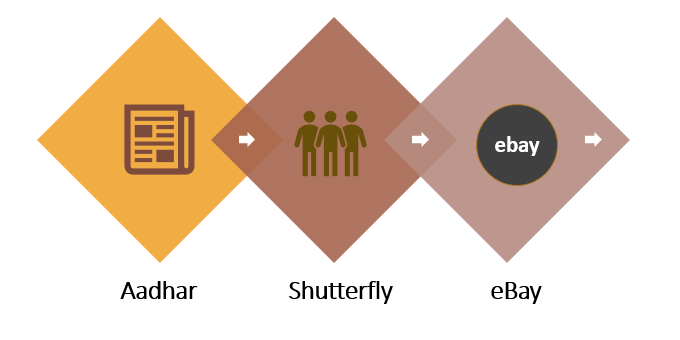
- Aadhar: Adhar is the most relevant application of MongoDB. Let’s look at MongoDB’s role in Aadhar. Aadhar is a biometrics database that is considered to be the biggest in the world. This system is employed for demographic and biometric data of a huge population of about 1.2 billion. Aadhar uses MongoDB as one of its databases to store this huge amount of data and images.
- Shutterfly: Shutterfly is a photo-sharing and personal publishing company. It manages a database of more than 6 billion images, and the transaction rate is up to 10,000 actions per second. Shutterfly is one of the companies that transitioned from Oracle to MongoDB for improving programmer’s productivity in terms of performance and scalability. Shutterfly has installed MongoDB for metadata associated with uploaded photos; for other transactional operations, the traditional RDBMS is still used.
- eBay: eBay is an American worldwide web purchaser to shopper company headquartered in San Jose. eBay uses MongoDB for various projects for search suggestions, metadata storage, cloud management, and merchandising categorization.
Steps to Install MongoDB
MongoDB is an open-source system. A few correct steps and you can start using MongoDB on your PC.
Step 1: Know your system
Note down the windows version and the system type of your PC. If you don’t know it already, here’s how to do it:
Right click on start >> System >> About
Step 2: Download MongoDB
Go to your browser, and go to the link (https://www.mongodb.com/download-center/community). Download MongoDB Community Server.
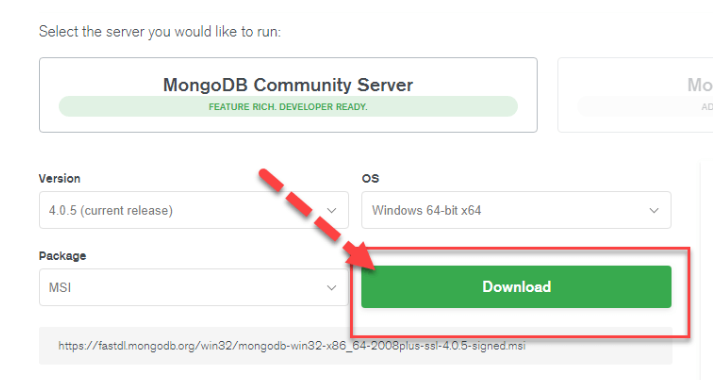
Step 3: Install MongoDB
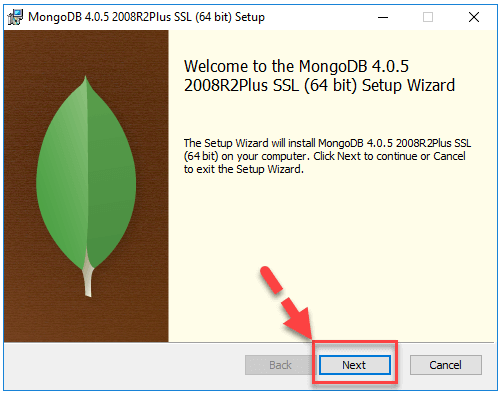
Once the download is done, open the msi file. You will see an installation wizard. Click NEXT.to install MongoDB.
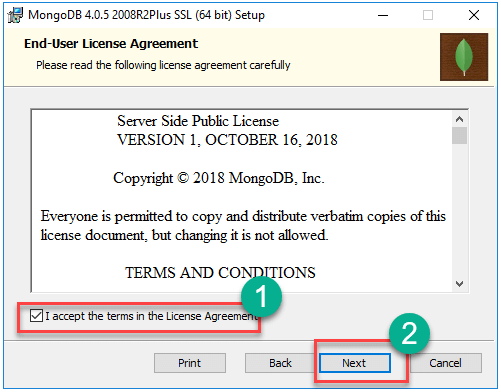
Accept the End-user license agreement (Ignore it, click accept ;)). Click completely to finish the installation.
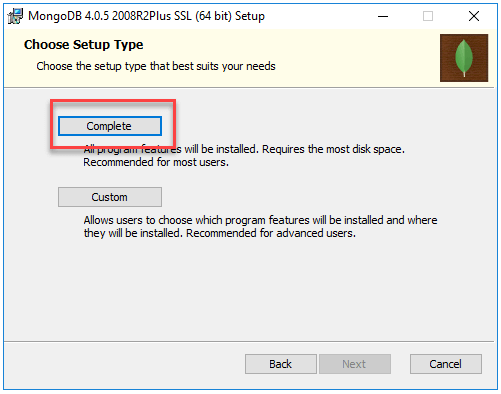
Continue using the default settings.

Click on Finish and Install all the components. If you get errors, it is probably because of the absence of the db directory. You can create one on the path C: >> data >> db.
Step 4: Run MongoDB
Once the MongoDB server is installed successfully, we need to run the MongoDB command. To run this, open the command prompt. (Right-click on windows >> Command Prompt). Change the directory to the bin file of MongoDB, where all the executable files are accessible. Use the command: cd C:\Program Files\MongoDB\Server\4.0\bin; once you’re in the bin directory, give the command: mongod. This command starts the Mongo demon.
Step 5: Run MongoDB
Now open another terminal and change the directory to the bin. Now run the command: mongo. This will open the mongo shell. To start working on MongoDB, we need to create a new database. We use the command: show DBS. This command displays all the databases available on the computer.


Now create a database using the command: use mylib. This database will still not be recognized by the ‘show dbs’ command because it is empty.
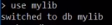
To add data to the database mylib, use the following command.

Now that some data is inserted, we can use the show dbs command, and it will return us the following.

Now that we have added a collection, we can use the following commands to display them.

Recommended Articles
This has been a guide to How To Install MongoDB. Here we have discussed the basic concepts, applications, and different steps to install MongoDB. You may also look at the following articles to learn more –

