


Table of Contents
- Inserting Calendar in Excel – Introduction
- How to Insert Calendar in Excel? (4 Methods)
- Things to Remember
Inserting Calendar in Excel – Introduction
A calendar in Excel is a proper arrangement of dates in a monthly or yearly format to help businesses and individuals track deadlines. You can insert calendar in Excel when you need to plan, track, or visualize dates, events, appointments, or schedules for various purposes.
The various purposes include project management, appointments, personal planning, work shifts, vacations, budgeting, marketing, school, and health tracking. The timing and duration of the calendar can depend on your specific needs.
How to Insert Calendar in Excel?
There are four simple methods for adding calendar to Excel:
- Insert Inbuilt Calendars
- Date and Time Picker
- Insert Calendar using Adds-in
- Create a Manual Calendar
Method #1: Insert Inbuilt Calendar
This is the easiest way to insert calendar in Excel. There are pre-existing, inbuilt calendars available in many designs, from which you can choose any as per your requirements.
Follow these steps to insert an inbuilt calendar in Excel:
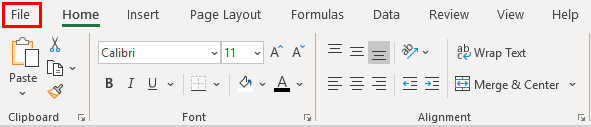
1. Go to the File menu.
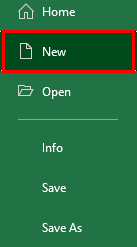
2. A file menu screen will appear. Select the “New” option from the list.
3. Click on “Calendars,” which is located just below the search bar.

4. Select any of the inbuilt calendar templates as per your needs. For instance, you can select “Academic calendar,” as shown below.
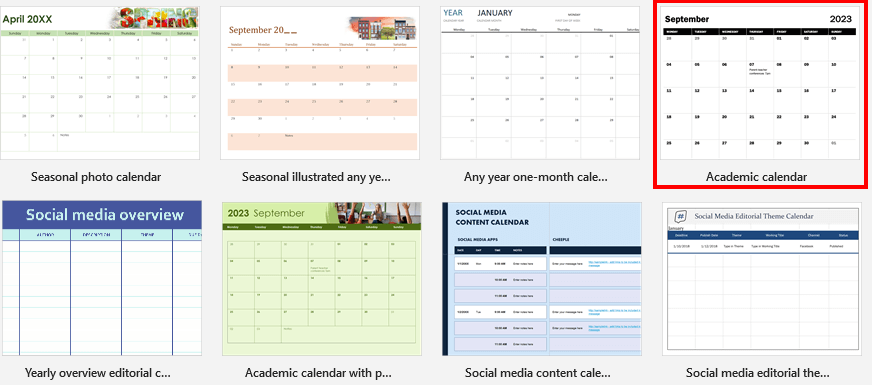
5. You will get a preview of the selected template. Once you are okay with the design, click on the “Create” icon.
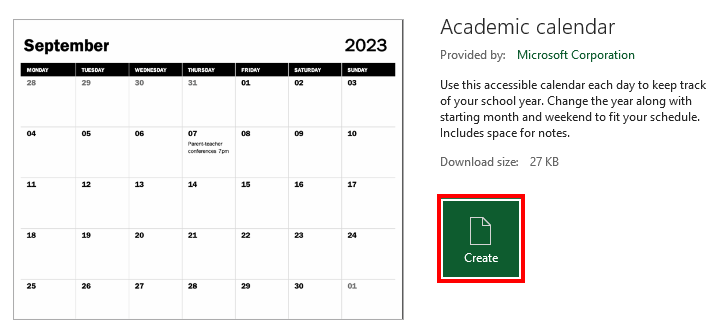
The selected template will be downloaded and opened in a new workbook.
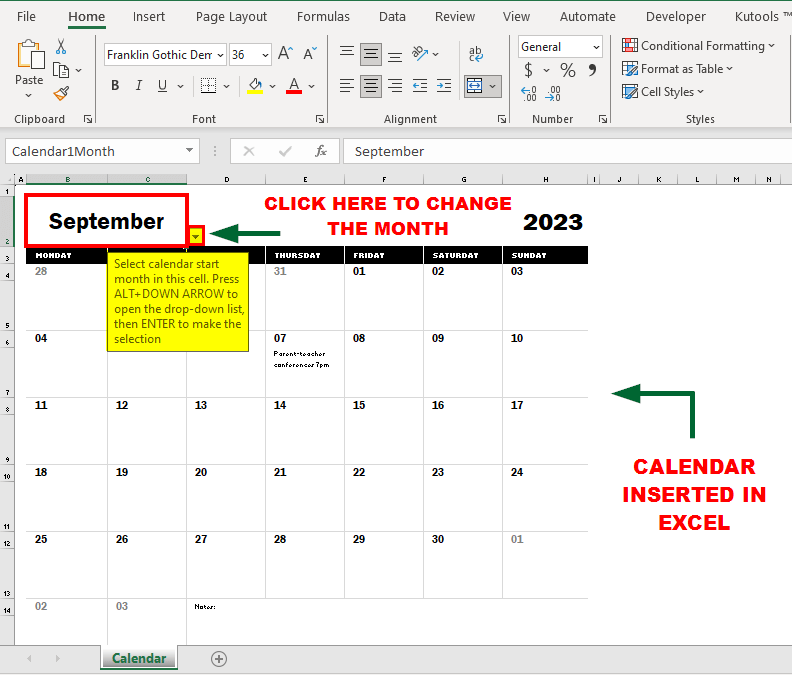
- Here, you can also filter calendar months from the left-side dropdown menu.
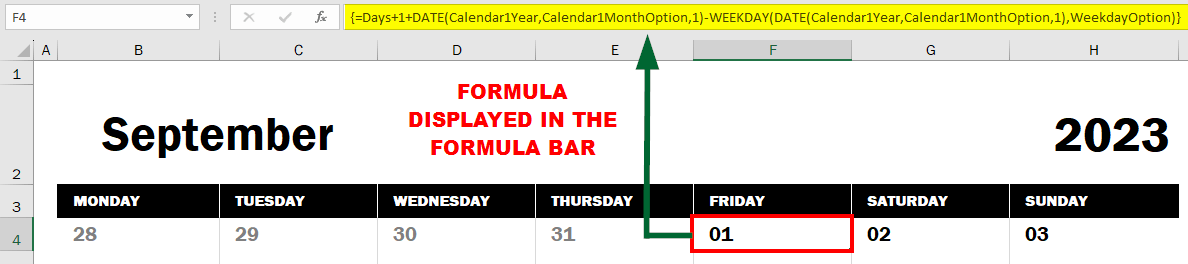
- You can view formulas by hovering over date cells, but avoid modifying them.
Method #2: Date and Time Picker
The Microsoft Date and Time Picker is one more option for inserting the calendar in Excel. For that:
1. Go to the File menu and select “Options”
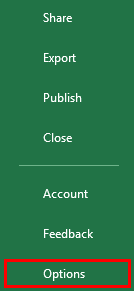
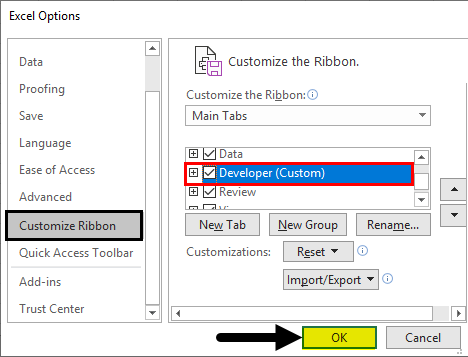
2. In Customize Ribbon, select the checkbox “Developer (Custom)” option to enable the tab in the menu bar and then click OK.
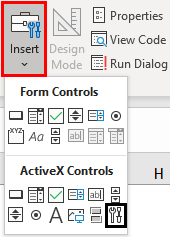
3. Now go to the Developer menu and choose Insert under Controls.

4. Select the last icon from the dropdown menu named “More Control.”
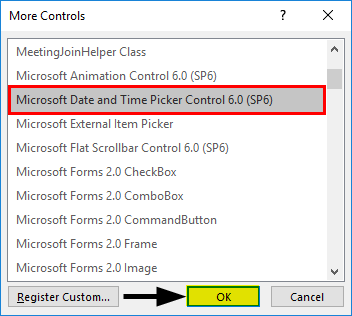
5. In the More Controls window, select Microsoft Date and Time Picker Control 6.0 (SP6) and click OK.
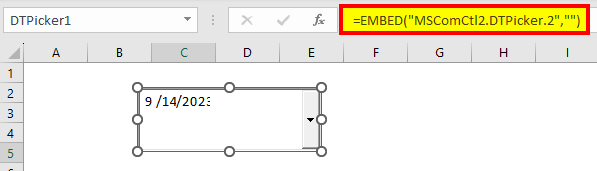
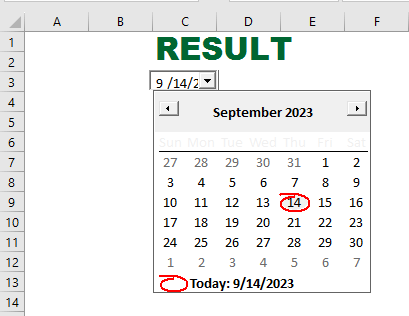
6. After clicking on it, it will enable the pointer, and you can draw the date box as per your need. Then, you will be able to see the current date in that box with a dropdown at a corner.
7. Right-click on the dropdown and select Format Control.
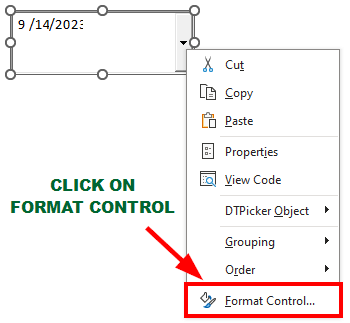
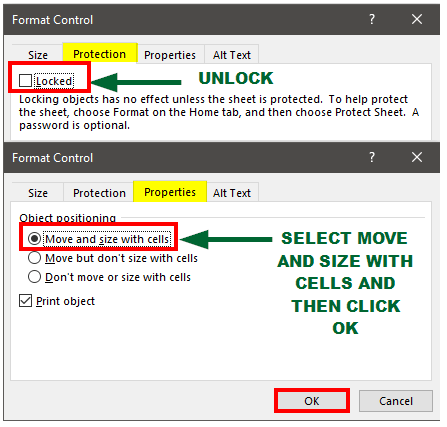
8. A Dialog box will appear.
- Click on the Protection section
- Select the Locked check box and unlock it
- Then go to select the Properties section
- Select the option “Move and size with cells.“
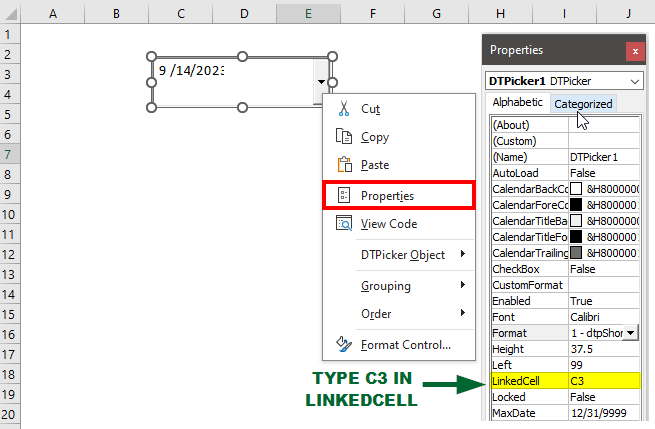
9. Then go back and again right-click on the dropdown and select Properties. In the newly opened window, select LinkedCell and type C3.
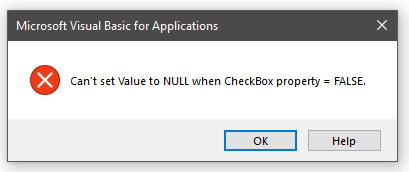
10. As shown below, an Application will open; click OK.
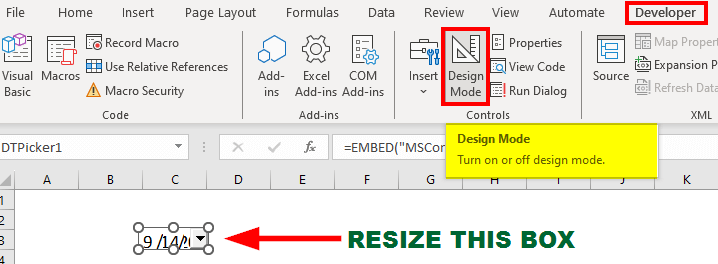
11. Resize the box in cell C3 and turn off Design Mode from the Developer Tab.
Method #3: Insert Calendar using Add-ins
Another method for adding calendars to Excel is using Add-ins. For this, you need to Sign in to your Microsoft account to enable Add-ins to Excel.
After signing in, follow these steps:
1. Go to the Home Tab and select Add-ins. If you don’t find it here, look in the Developer tab.

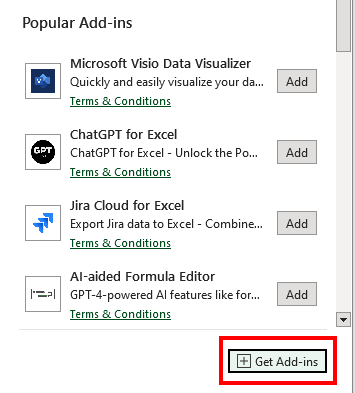
2. Click “Get Add-ins” in the Popular Add-ins Command pop-up.
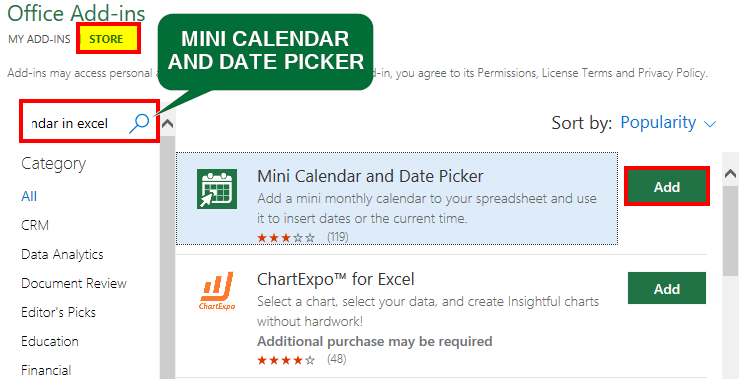
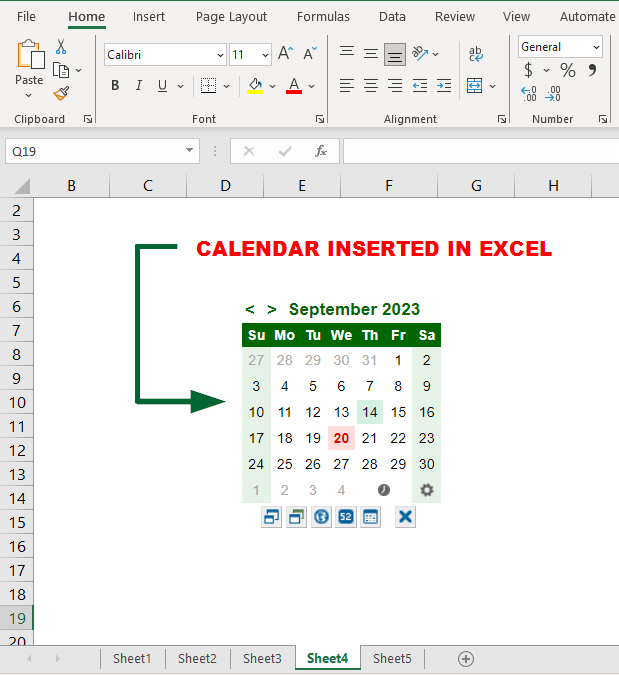
3. In Office Add-ins, go to STORE and search for “Mini Calendar and Date Picker.” Click “Add” when they appear.
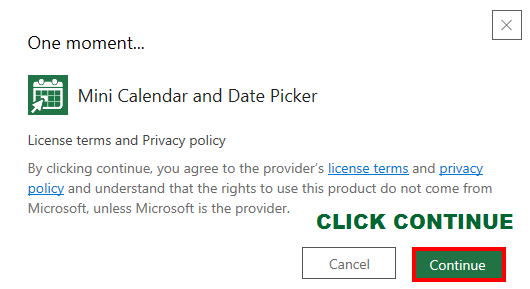
4. Read and accept the terms and conditions by clicking “Continue”
Method #4: Create a Manual Calendar
This method shows you how you can create a calendar in Excel as per your needs.
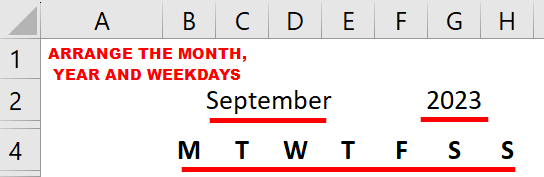
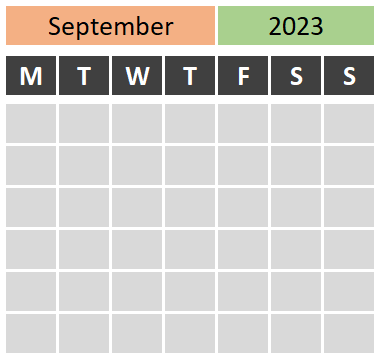
Step 1: Arrange the Month, Year, and Weekdays accordingly.
Step 2: Add rows and columns to create a structure like a calendar.
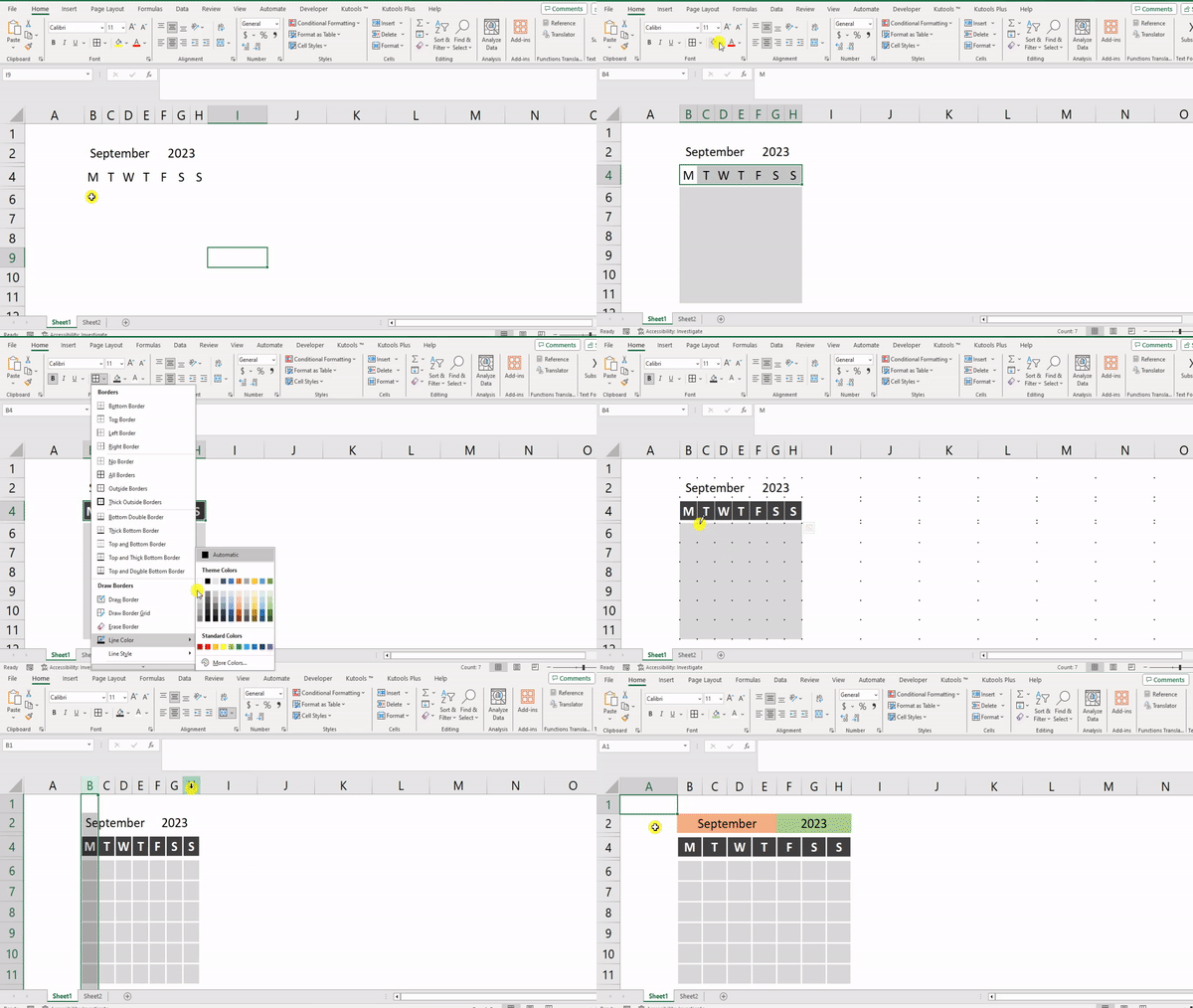
After editing, it will look like this:
Step 3:
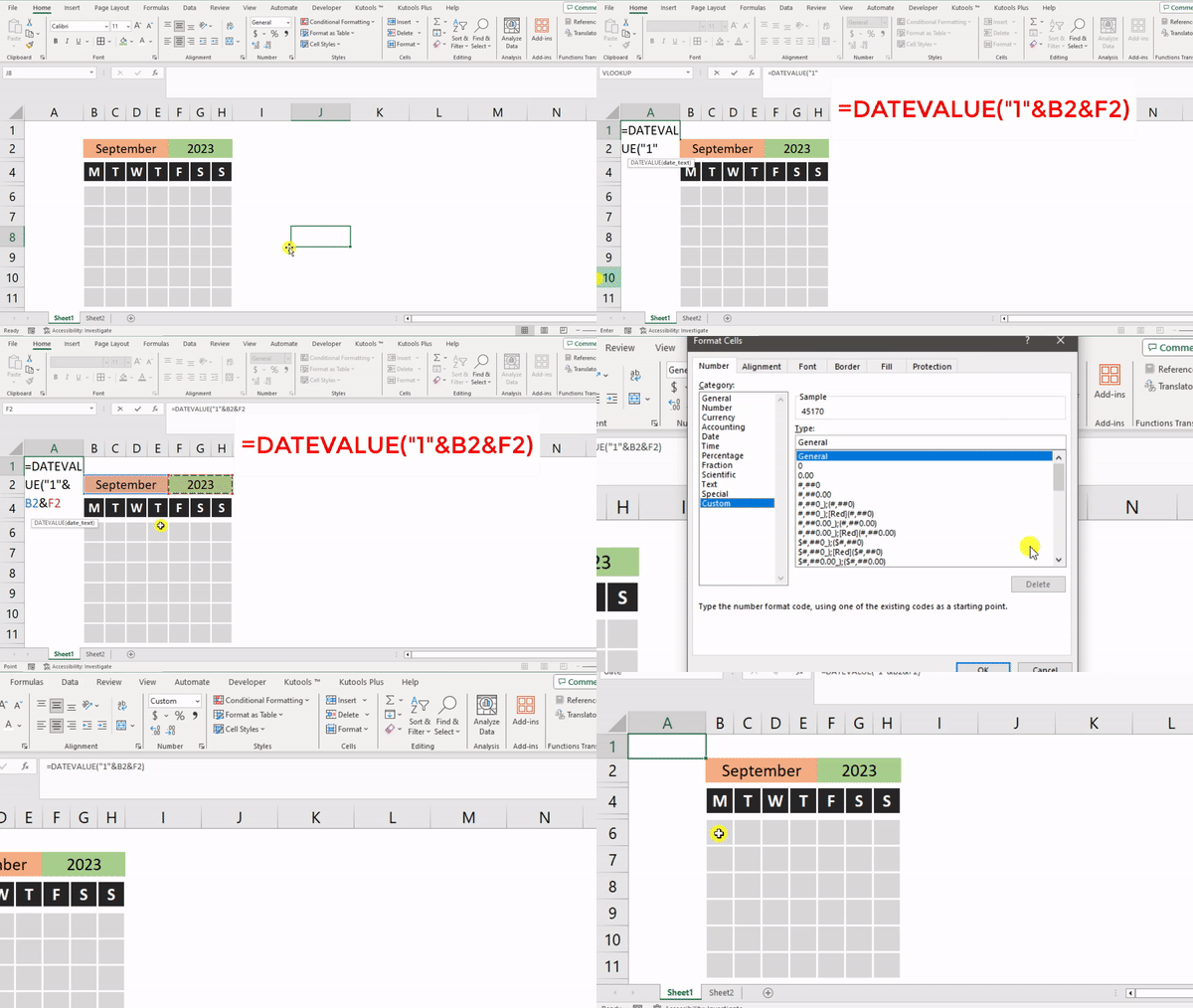
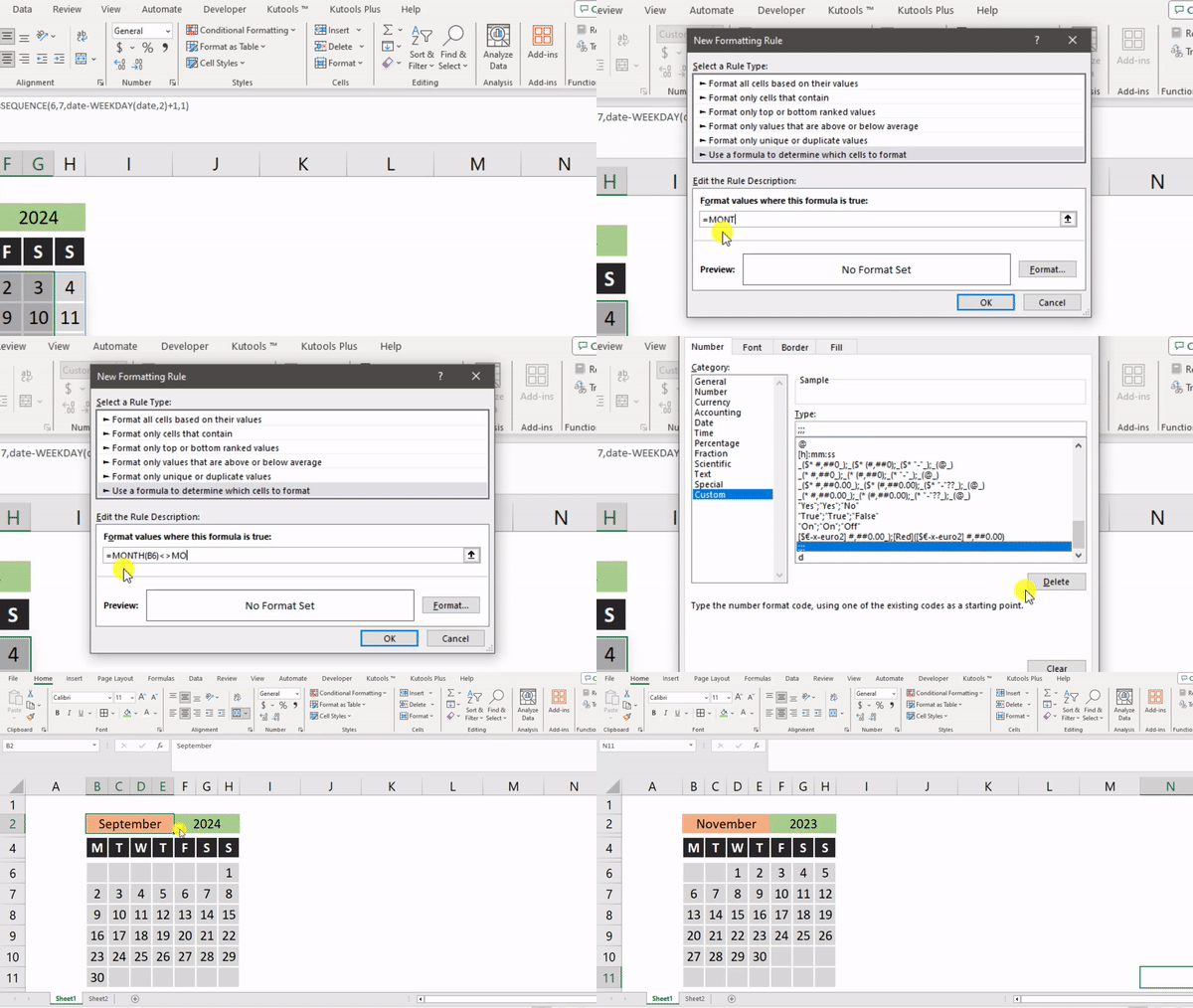
- In cell A1, enter the formula =DATEVALUE(“1″&B2&F2).
- In the Home tab, under Number Group, choose More Number Formats.
- Then choose Number, select Custom, type “;;;” in the Type field, and click OK.
- Select cell A1 and rename it to “date” by adding it to the Name Box.
- Press Enter.
Step 4:
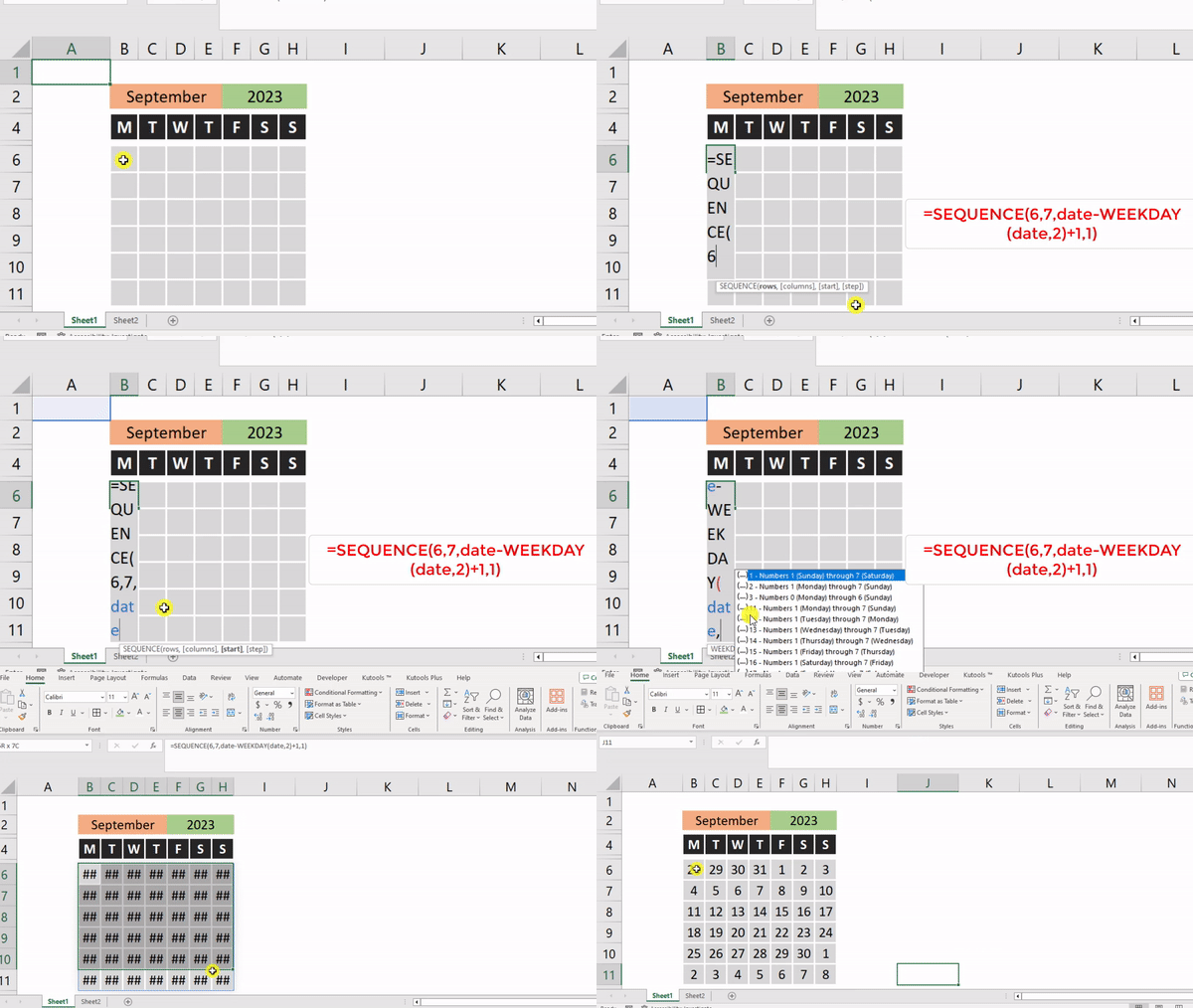
- In cell B6 and enter formula =SEQUENCE(6,7,date-WEEKDAY(date,2)+1,1)
- Go to Home > Number > Custom, type “d“
- Click OK.
Step 5:
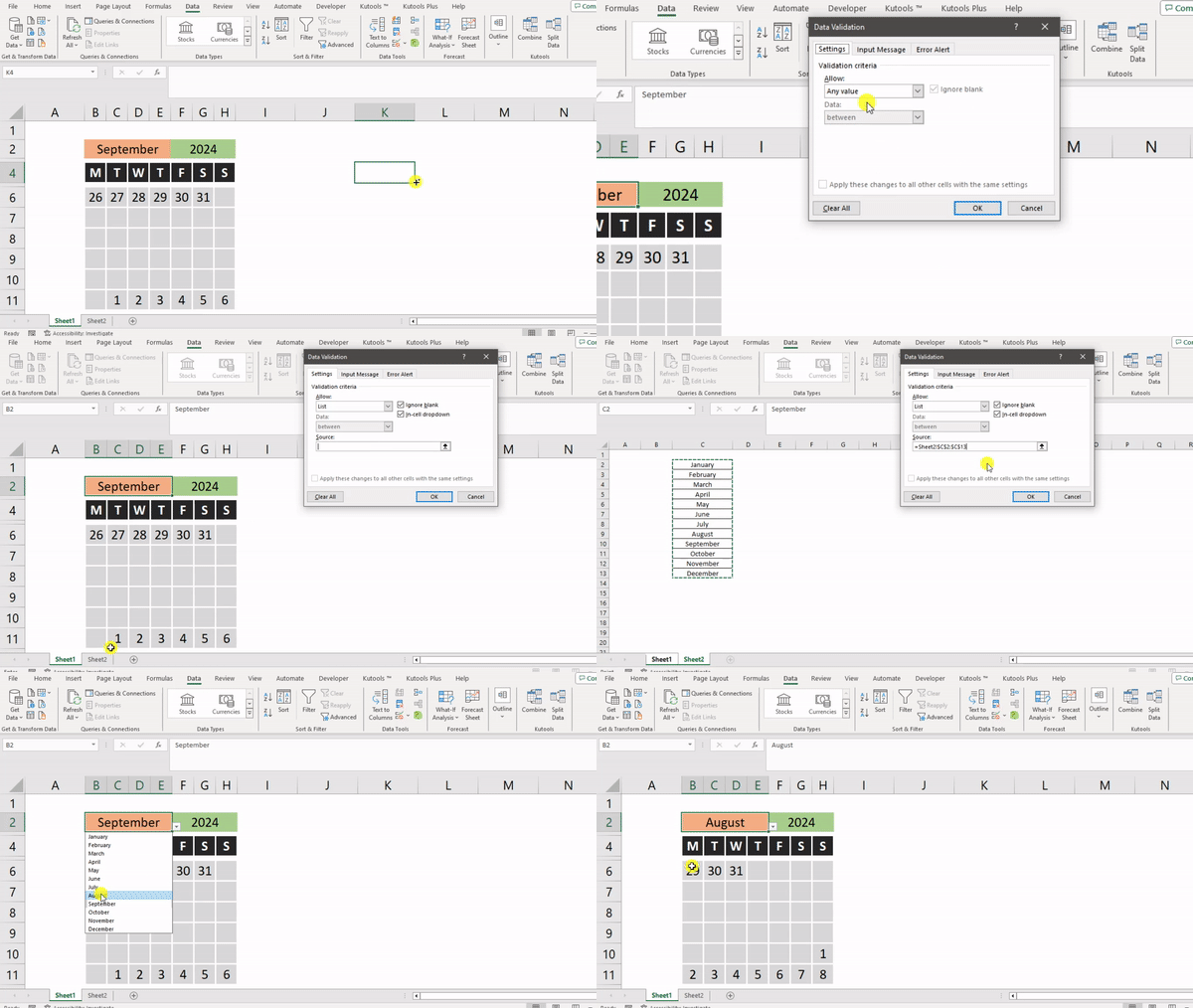
- Select cell B6, go to Data Tab, and choose Data Validation from Data Tools.
- In the dialog box, under Settings, select List as Allow, set the Source to Sheet 2 (or respective file name), drag from range B2:B13, and click OK.
Step 6:
- Select the range B6:H11 and open the Home Tab
- Choose Conditional Formatting, which is present in the Styles group.
- From the dropdown list, click on New Rule.
- After that, from the dialog box that appears, choose “Use a formula to determine which cells to format.”
- Type =MONTH(B6)<>MONTH(date) as the formula.
- Finally, open Format > Number > Custom and select “;;;”, and click OK
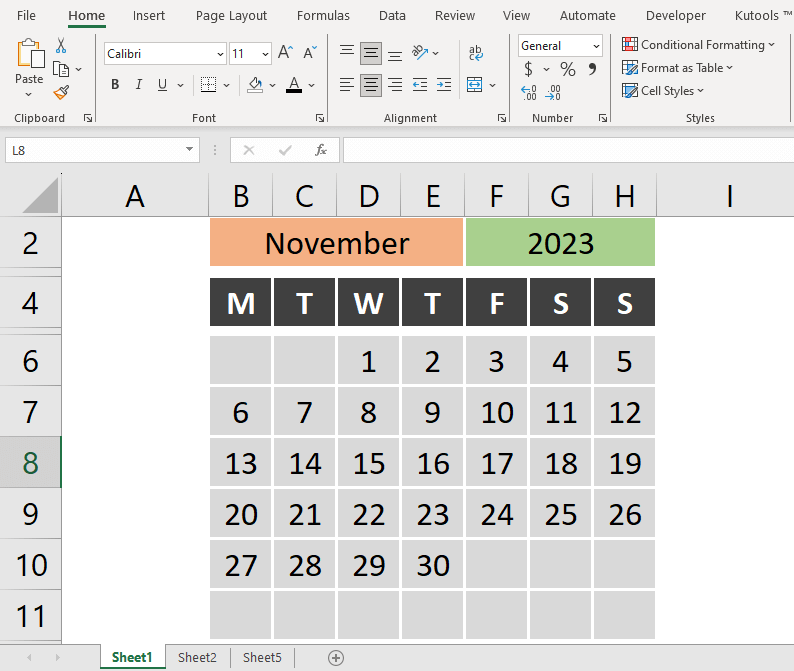
Result:
Things to Remember About Insert Calendar in Excel
- After inserting the calendar, you can use conditional formatting to highlight specific dates. For instance, you can use it to highlight December 25, 2023, in red on your calendar.
- If you prefer dropdown lists for date selection in the calendar, use Data Validation. This will allow users to choose only a valid date, like “November 12, 2023,” from the list.
- To insert a calendar using the built-in templates available in Excel, you must have an internet connection to download and import the settings and template from the Microsoft server.
Frequently Asked Questions
Q1. What are the pros of using this Excel calendar creation method?
Answer: Here are some pros of using a calendar in Excel.
- You can easily move the calendar anywhere on your Excel sheet.
- You can easily include text, memos, or notes to the calendar in Excel, just like with mobile phones or Outlook calendars.
- The calendar automatically adjusts when you change the month or year.
Q2. Are there any Excel calendar templates available for download?
Answer: Yes, there are many inbuilt Excel calendar templates available for download online, including academic, personal, and business templates. These pre-designed templates are available on Microsoft’s official template website and various third-party websites.
Recommended Articles
This is a guide on inserting calendar in Excel. Here, we discuss how to insert calendar in Excel, practical examples, and a downloadable Excel template. You can also go through our other suggested articles –

