
Definition of Inkscape Fonts
Fonts are specially designed typefaces created for enhancing the creativity and appearance of the artworks. The user works with various genres of Fonts to elevate their designs. Inkscape Fonts are no different than other program Fonts. Fonts are particularly installed in the operating system and are a part of the existing OS. Accordingly, the user will comprehend the same set of Fonts in every program, installed on the computer including Inkscape. However, the user can download the Fonts from the internet and install them in Inkscape.
How Fonts work in Inkscape?
A Font does not work with Individual software. Fonts are the characteristics of the text that includes numbers, letters, and special characters as well. In Inkscape, the user will find all the Fonts that are installed in the operating system. Furthermore, the user can download and install the Fonts and place the Font file in the Font’s folder of the operating system respectively.
To work with Fonts in Inkscape there are two methods to install and create custom Fonts according to the demands of the user. The interface of Inkscape Fonts is user-friendly and quick to respond to the users. The users can download Serif, Sans-serif, and Mono Fonts from the internet as well. Or they can create their custom Fonts in Inkscape too. Fonts are Universal in nature. Any Font that is used on Linux can also be used on Windows or Mac operating systems and the other way round also.
Method 1:
In this method, the users will learn to download a Font from the internet and install and create a text with that specific Font in Inkscape. Following are the steps to do the same:
1. Search on the web for Free downloadable Fonts
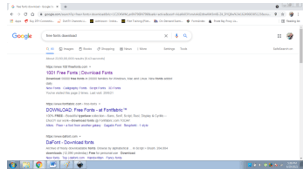
2. You can go to www.1001freeFonts.com
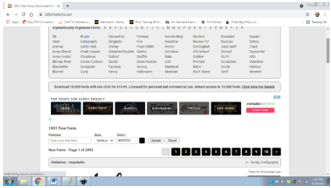
3. Download any Font from the website.
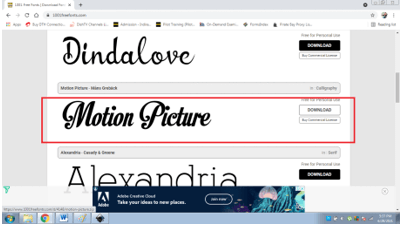
4. You will get a zip folder, unzip the folder, and double-click on the Font file.

5. A Font is created in the extensions of.OTF and .TTF. To install the Font double click on the Install button.
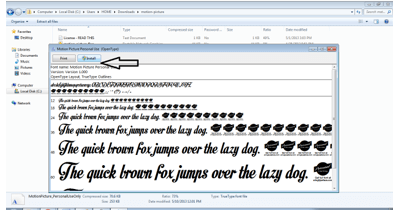
6. Restart or launch Inkscape.
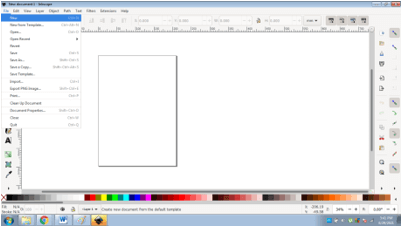
7. Create a New File
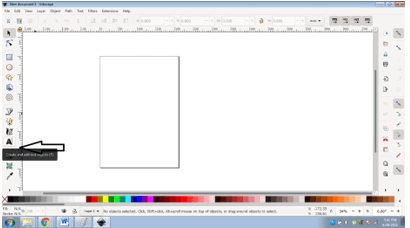
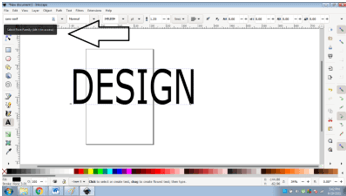
8. Go to the text tool
9. Type a text.
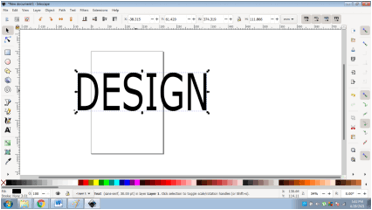
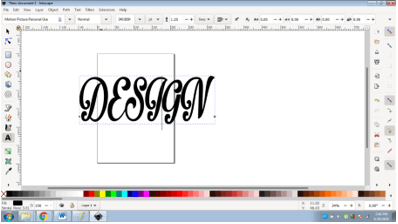
10. You will see the Font style on the top command panel or you can go to Text > Text and Font. This will open a dialog box where the user can do editing on the text.
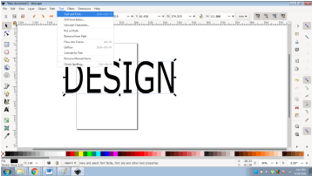
11. Search the Font that you have downloaded by either scrolling through the list or typing the name of the Font.
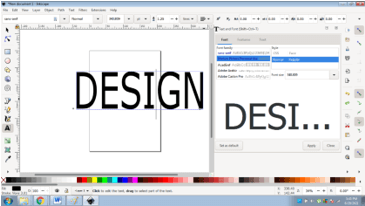
12. Click on the Font, and then click Apply
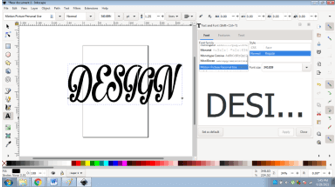
13. You will see that the downloaded Font has been applied to the text.
Important point:
Sometimes, the Font which the user has downloaded doesn’t appear in the Fonts list of the program. For this issue, make sure you click on the option INSTALL FOR ALL THE USERS on the fonts when you install them respectively.
Method 2
In this method, the users will learn how to create custom Fonts on the Inkscape program and use these fonts on other platforms as well. The fonts that are created on the software are in.SVG Format. The users can convert the fonts in other formats using a font convertor with the help of the following steps:
1. Launch Inkscape
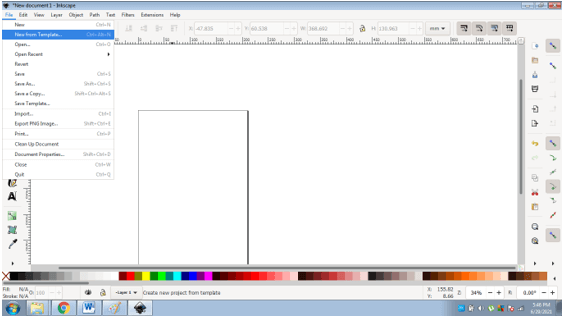
2. Go to File> New from Template
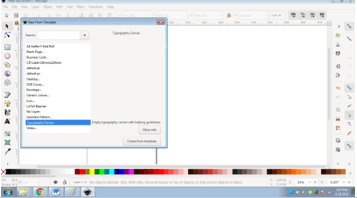
3. A dialog box will appear, select Typography Canvas from the list.
4. An art board will appear to create custom texts
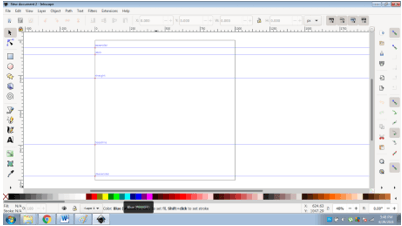
5. Next, click on Text from the menu bar and Go to SVG EDITOR
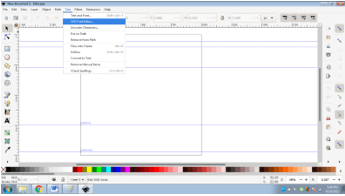
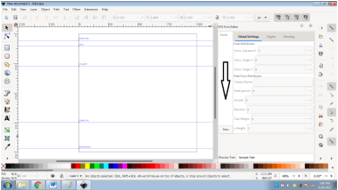
6. You will see a column named Fonts. Click on New or double-click on the column itself.
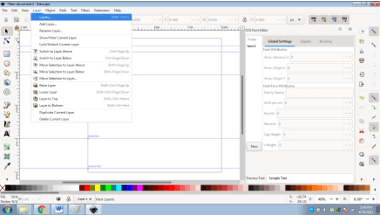
7. Next, Go to Layers from the menu bar and click on Layers to view the Layers panel.
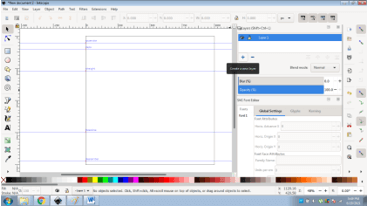
8. Next, create a new Layer by clicking on the + (Add Layer option) Sign.
9. Now, with the help of Bezier tool create a letter
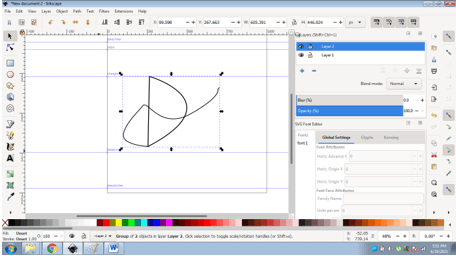
10. Once the letter is created, select GET CURVES FROM SELECTION.
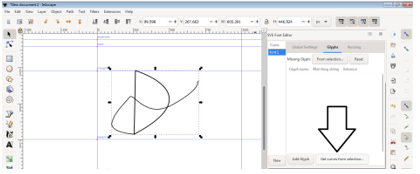
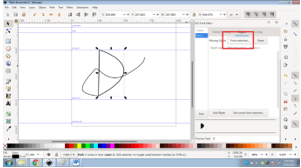
11. In case, you are unable to see the text, click on From Selection as shown in the figure below.
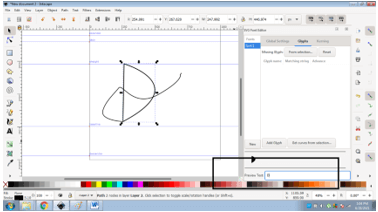
12. You can also view the sample text from the option PREVIEW TEXT.
13. Once, the font is created, you can save the file in the.SVG Inkscape format.
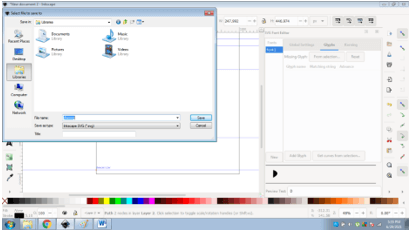
14. To convert the file in .ttf format, use an online text font convertor like CONVERTIO.CO.
15. Convert and install the font to use the custom-created font on other platforms.
Conclusion
Summarizing the article, the user will learn all about Fonts and how to download and construct special fonts in Inkscape. Even though, the process of making Fonts can be confusing, but once learned, it can benefit the users to a great extent.
Fonts will always be a major attribute in designing creative and innovative artworks. Therefore, learning their use and properties will help the users in future endeavors.
Recommended Articles
This is a guide to Inkscape Fonts. Here we discuss the definition, How to work with Fonts in Inkscape? along with method respectively. You may also have a look at the following articles to learn more –

