


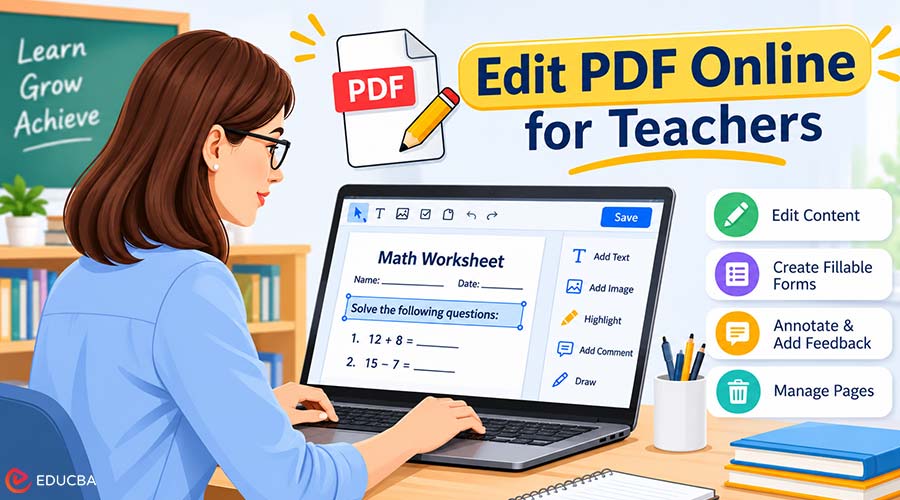
Most teachers have a folder full of PDFs: worksheets from a publisher, printable worksheets shared by colleagues, quizzes from last year, and scanned handouts with no original file. Using an Edit PDF Online makes it easier to update and reuse these materials without recreating them from scratch.
They are useful, but rarely ready to go as they are. One has the wrong date, another needs an extra question, and a third has to work for students who will fill it out on a laptop. Retyping each one in Word takes longer than the lesson it is for. Editing the PDF directly is faster.
What You Can Change When You Edit PDF Worksheets?
A browser-based PDF editor handles most of the small fixes teachers make every week:
- Add text, such as new instructions, a due date, or a class name.
- Fix typos in existing text, as long as the PDF has selectable text and is not just a scanned image.
- Insert images, diagrams, or a school logo.
- Delete pages you do not need, or reorder them to match your lesson.
- Highlight key terms or draw arrows and circles to guide attention.
If you can not select the text in a worksheet with your cursor, it is probably a scan. Run it through an OCR tool first so the editor can recognize the words. Before you change a purchased worksheet, check its license. Many sellers allow edits for your own classroom but not resharing the modified file.
How to Turn Printable Worksheets Into Fillable PDF Files?
A paper worksheet does not work well for remote learning or one-to-one devices. Students end up printing it, writing on it, and taking a photo of the result. With a fillable PDF, students skip those steps. If the worksheet already has form fields, a PDF editor can detect them, so students type their answers into text boxes, tick checkboxes, and pick radio buttons right in the browser.
If the worksheet has no form fields, add text boxes next to each question as answer spaces before you share it. Students then click into the box and type. It looks less polished than a fully built form and works well for exit tickets, reading responses, and short-answer quizzes.
How to Annotate PDF Homework and Give Feedback?
The same tools work in reverse when students hand back their work. You can annotate PDF submissions instead of printing a stack of papers:
- Highlight a sentence that needs revision.
- Add a sticky note or comment with specific feedback.
- Draw a circle around a calculation error.
- Type a score or rubric note at the top of the first page.
Download the marked-up file and return it through your learning management system or by email. Most PDF viewers display these comments, so students do not need special software.
How to Edit PDF Online: Step-by-Step
A free PDF editor in the browser covers the changes most teachers make, with nothing to install. That matters on school Chromebooks and laptops where you can not add software. When you edit a PDF online, the process is usually three steps: upload the worksheet, make your changes, and download the new version.
Teachers looking to edit PDFs online for free can try PDFFly, whose editor lets you add text and images, highlight, draw, leave sticky notes, fill form fields, and rearrange or delete pages. The editor accepts PDFs up to 100 MB and runs in a mobile browser so that you can fix a typo in a handout from your phone before first period. Keep the original file alongside the edited one. It is easier to start fresh next year from a clean copy than to undo old changes.
Keep Student Data Safe When You Edit PDF Online
Worksheets with student names, grades, or comments can count as education records, which FERPA protects in the US. Before uploading anything with personal details to an online tool, read how it handles files. Look for encrypted connections and a clear statement that it deletes files after processing. A simple habit helps too: edit blank templates online and add student names only in your school’s approved systems.
Other Teacher Tools That Pair Well With an Online PDF Editor
Editing is only one step in building class materials. Teachers who edit pdf online can also use other PDF tools to organize worksheets and prepare classroom resources more efficiently.
A few other teacher tools fill the gaps:
- Merge: combine several worksheets or readings into one packet.
- Split: pull a single chapter out of a long textbook PDF.
- Compress: shrink a file that is too large for your LMS upload limit.
- OCR: turn a scanned handout into text you can search and edit.
Many online PDF platforms offer these next to the editor, so you can finish a whole packet without switching sites.
Final Thoughts
Editing your existing PDFs saves hours compared with rebuilding worksheets from scratch. With an Edit PDF Online tool, teachers can fix details, add answer spaces, and leave feedback on student work directly in a browser. Keep originals, check licenses on purchased materials, and protect student data, and one folder of old worksheets can serve you for years.
Recommended Articles
We hope this comprehensive guide to Edit PDF Online helps you simplify worksheet editing, create fillable PDFs, and provide feedback on student assignments. Check out these recommended articles for more useful tools and tips to improve your document management workflow.