

Introduction to CorelDraw Templates
Corel Draw templates are a set of predefined page styles and layout formats that are ready-made for the convenience of the designers and users. Templates are also referred to as templates in graphic designing software. In this topic, we are going to learn about CorelDraw Templates.
How to Create CorelDraw Templates?
In Corel draw, the users can create and edit the templates and also use the predefined templates as and when needed. Corel Draw is a vector program used to create vector graphics that are generally used for print and media purposes.
How to create a template in CorelDraw
When the users are unable to find predefined templates, then they can create their own templates. The following steps will help in creating a template in Corel Draw:-
- Open Corel draw software.
- We will see a welcome screen with all the toolbars.
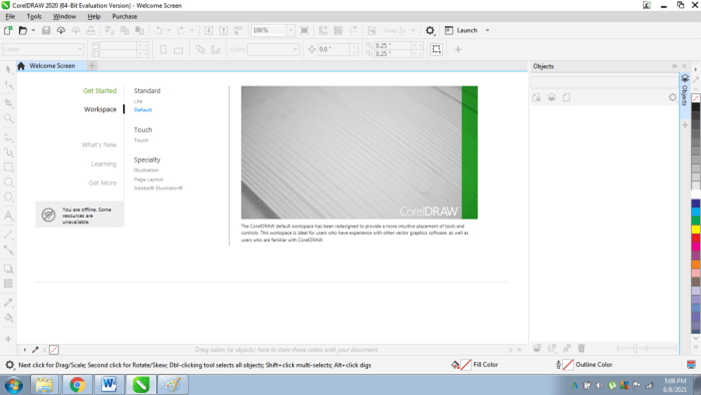
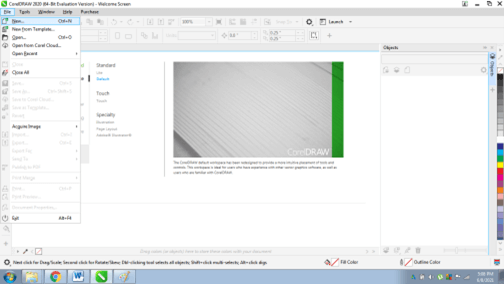
- Create a New file from the File menu
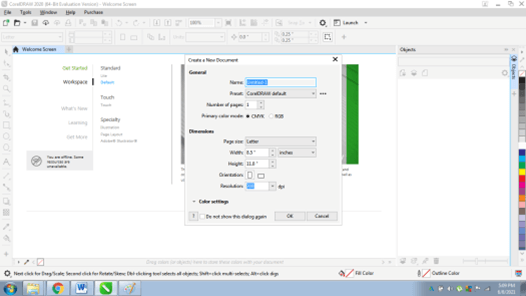
- Create a template of your choice, using different styles and formatting options as shown below. Templates are simply files that can be stored and saved and can be edited or modified at any given point.
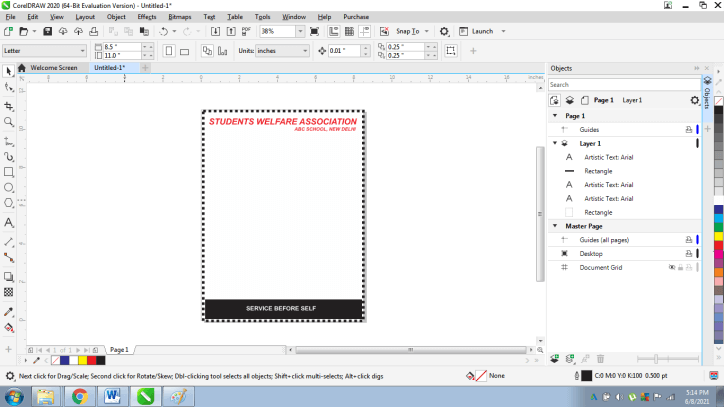
- After creating a template, go to File > Save as Template.
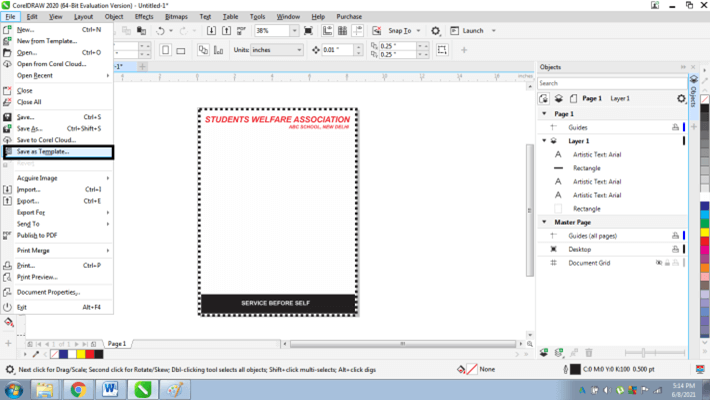
- Save the template with a specific name so that you can edit the same anytime.
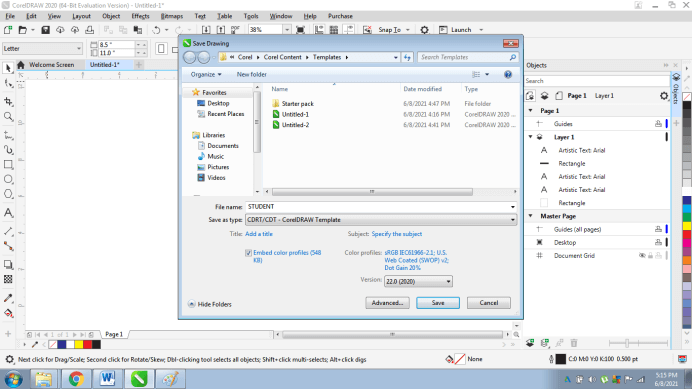
- When asked to save, a dialog box will appear as shown below:-
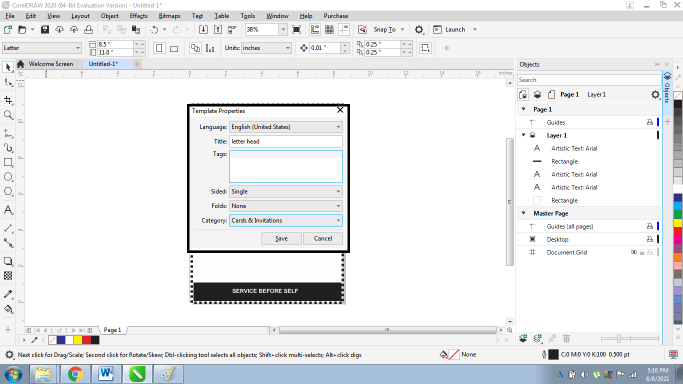
- This dialogue box has several setting that needs to be kept in mind:-
- Title: this is the name of the template. This title name is shown with the thumbnail of the template.
- Tags: Extra Tags can be mentioned in this section.
- Sided: this option lets you select whether it is a single or double-sided template.
- Folds:- This option will tell the number of folds used or will be used
- Category: The category contains a list of industries listed that can be used for the template.
- Once this is done, the template is saved and can be used for editing and formatting.
How to Use Templates?
Corel Draw templates can be used as a sample layout to the new document, or we can create a new document and import the already existing templates to the same.
When we use the templates preinstalled within the software, CorelDraw edits the original file and edits the format and layout of the file with the templates used.
In CorelDraw, there is a list of various preinstalled templates available.
Follow the below steps to apply templates to a new document:-
- Open CorelDraw
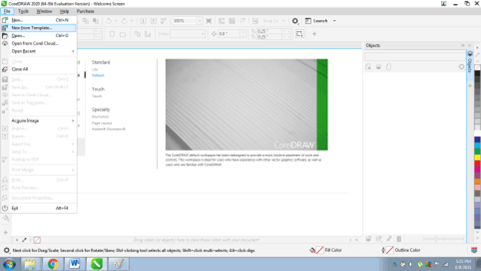
- Go to File and Select New from Template
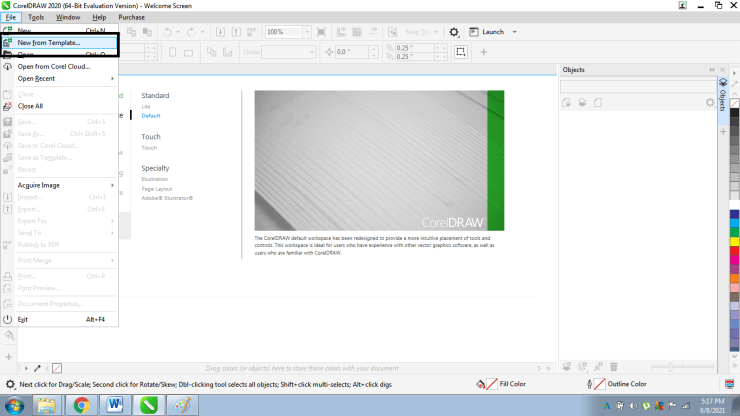
- This option will help the user to choose from different templates available within the software.
- For example, the user wants to create a poster. So, from the dialogue box, select ALL TEMPLATES & POSTER.
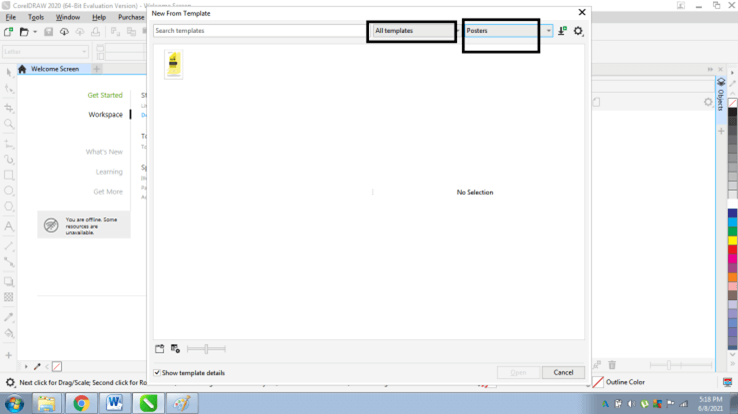
- After that, select a specific template available in the software and click OPEN.
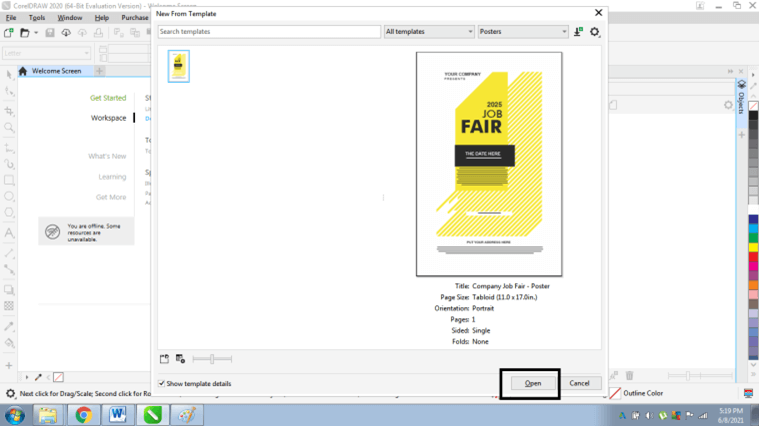
- Once the template is opened, the user can edit and reformat the same as per their needs.
How to Edit or Modify Templates?
Coral draw templates are a go-to stop for a graphic designer. Templates can be created, modified, or can be downloaded from the internet as required. For example, a user needs to create a Resume with a well-defined layout and format style. So, CorelDraw templates can be used quickly and can even be modified according to the user.
Following are the steps to edit a template:
- Go to File and select New from Templates
- Select All Templates and select resume in the Filter Content box.
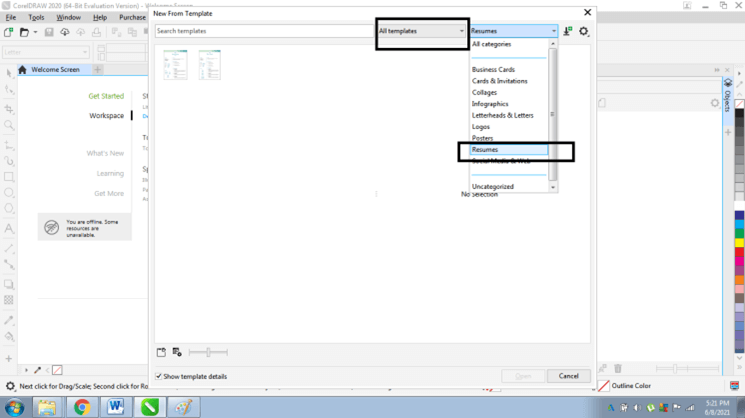
- Now Click Open
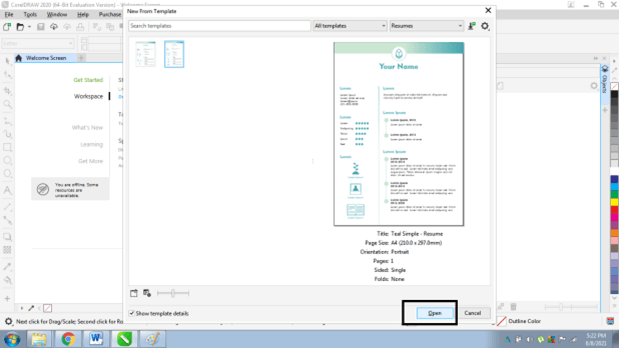
- Go to Windows And Select Dockers and Select Options dialogue box
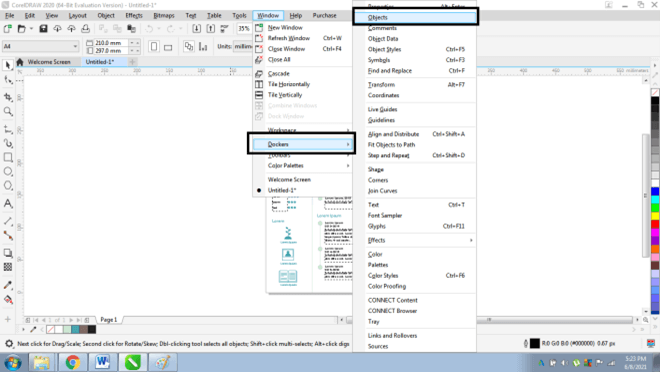
- The Options tab helps the user view every object or text, or symbol on the page in a sequential format.
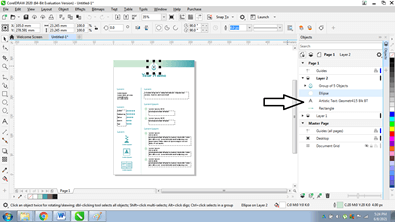
- The user can edit the format, text, text style, font, size, colors by selecting the specific text or symbol from the options tab.
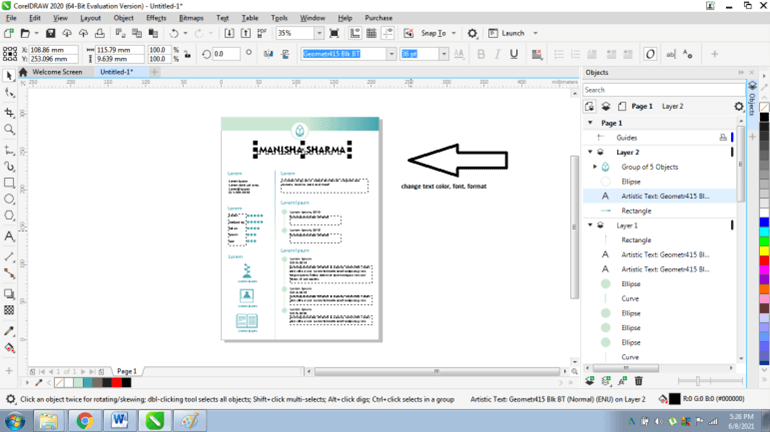
- This makes the work easier and straightforward.
- Similarly, the users can create any template or download any template from the internet and edit them as required.
Conclusion
Templates in Corel Draw give the designer an added benefit that saves both time and effort. Corel Draw templates prove to be user-friendly, and at the same time, they provide major support in creating graphic designs within the time frame.
Once created, the user can easily format and edit the templates whenever required. A template proves to be very helpful when the user is required to create a complex design within a specified timeframe. The user can simply download the format and layout of the design and then edit the same as shown in the above methods.
Recommended Articles
This is a guide to CorelDraw Templates. Here we discuss How to create a template in CorelDraw and How to Edit or Modify Templates. You may also have a look at the following articles to learn more –

