


What Does AI in Excel Mean?
AI in Excel means using AI’s advanced algorithms (which have human-like intelligence) to simplify and speed up tasks like data management, analysis, and visualization in Excel.
It greatly enhances your ability to use Excel by automating tasks and helps you make more informed decisions. Therefore, integrating AI in Excel makes it a more intelligent tool.
In this article, we will see how AI enhances Excel’s capabilities and how to use AI in Excel with detailed step-by-step instructions. We will also explore the different Excel AI tools.
Table of Contents
Benefits of AI in Excel
There are various benefits of integrating AI into Excel workflows. It enables users to:
◆ Automates Repetitive Tasks
For example, if you manage sales data, AI can quickly identify which sales data belongs to which region or product category without manually sorting out the data.
◆ Performs Predictive Analysis
Imagine you are running a small business and want to predict next month’s sales based on previous data. Instead of spending hours crunching numbers, AI algorithms in Excel can analyze your sales history and provide you with forecasts. This helps you make better inventory, staffing, or marketing decisions without being a data scientist.
◆ Natural Language Processing Helps Generate Reports
Let’s say you are working on a project with a large dataset and want to generate insights or reports quickly. Instead of manually creating formulas or sorting through data, you can type your instructions in plain language. For example, you could tell AI, “Show me the average sales for each month,” and AI-powered features would understand your request and generate the desired results using NLP.
Top Excel AI Tools to Use in 2024
Excel AI tools are platforms that integrate artificial intelligence (AI) functionalities within Microsoft Excel to help enhance productivity, provide insights, and streamline tasks within Excel.
Here are some top Excel AI tools:
1. Formula Bot
The Excel Formula Bot simplifies generating complex Excel formulas using natural language processing. Users can create formulas customized to their needs with just a few clicks. This tool works well for most formula requirements. However, highly specialized formulas might need manual adjustments.
$9/ monthFeatures:
- Quickly create Excel formulas using artificial intelligence technology, simplifying complex calculations.
- Seamlessly generate formulas for Excel and Google Sheets, expanding platform compatibility and usability.
- The bot handles complex formulas like nested functions and multiple conditions, simplifying advanced calculations for users.
- Easily retrieve general information about anything from the internet.
2. ChatGPT For Excel
ChatGPT Excel add-in designed for Microsoft Excel to enhance productivity in Microsoft Excel as an AI-powered add-in. Whether you are on the complimentary plan with basic features or the premium plan with access to advanced parameters, the ChatGPT Excel AI tool helps you use technology to your advantage, freeing you to focus on more significant tasks.
Free
Features:
- Automate routine tasks effortlessly.
- Gain valuable insights from your data.
- Create tables powered by artificial intelligence in just a few clicks.
- Translate content into multiple languages seamlessly.
- Efficiently format data and extract valuable insights from data.
3. Formularizer
Formularizer is an AI tool designed to streamline the process of converting text instructions into Excel formulas, boosting efficiency and productivity. This platform automatically generates formulas for a wide range of tasks and offers detailed explanations for each generated formula. Formularizer is notably more affordable than similar Excel AI tools available.
Basic – Free
Pro – $4.99/monthFeatures:
- Easily convert text instructions into Excel formulas with a simple process.
- Instantly generate formulas to solve various problems, saving time and effort.
- Gain insights into the creation of formulas with detailed explanations provided for each generated formula.
4. Sheet AI
SheetAI is a brand-new app that brings the magic of artificial intelligence (AI) to Google Sheets, your favorite spreadsheet tool. The design helps users, whether you are a business owner, marketer, or just someone managing their finances. With SheetAI, you can use functions like SHEETAI to generate text or translate languages without coding skills. Command SheetAI is what you want in plain English, and it does the hard work for you. It’s like having a smart assistant in your spreadsheet, making your work faster and easier.
INR 657/month
INR 5,964/yearFeatures:
- Generates responses based on prompts for various purposes like blog post ideas, paragraphs, online comments, etc.
- Generates answers based on a question and a range of cells, useful for summarizing feedback, categorizing reviews, etc.
- Creates images from scratch based on descriptions, ideal for logos, icons, illustrations, etc.
- Simplifies copywriting by storing and retrieving essential information, aiding in crafting taglines and content for applications.
- Accessible via the sidebar, it generates formulas based on plain English descriptions of tasks.
5. Sheet God
SheetGod is a smart tool that makes working with Excel and Google Sheets easier. It helps users create complex formulas using simple English. With SheetGod, you can save time by automating tasks with just a few clicks. It even supports regular expressions for precise data manipulation. The tool has a user-friendly interface, making it easy to use.
Additionally, it offers step-by-step tutorials to help you get started. Using your spreadsheet data, you can use SheetGod to send emails, generate PDFs, and more. It’s made in India and supports multiple languages. It’s made in India and supports multiple languages. Overall, SheetGod is a must-have for anyone who wants to simplify their work with Excel and Google Sheets.
Free Version
Basic Plan – $10/monthFeatures:
- Saves time by easily creating complex Excel formulas using plain English.
- Users can focus on important tasks by automatically generating Appscript and VBA code to automate repetitive tasks.
- Create macros that imitate human behavior, enhancing automation effectiveness.
- Extract specific data pieces and apply complex transformations, simplifying data cleaning and preparation tasks.
How to Use AI in Excel?
Let us understand how to use an Excel AI Tool using some examples.
Example #1: Using ChatGPT Add-in to Find Tourist Spot Descriptions
If you are planning a trip to Maldives and want to create a description of the best places to visit, you can use Excel ChatGPT’s AI. Ask feature to get the required information easily.
Here are the simple steps to follow:
Step 1: In Excel’s Insert tab, select Add-ins.

Step 2: Search “ChatGPT for Excel” in the Add-ins section and click Add.
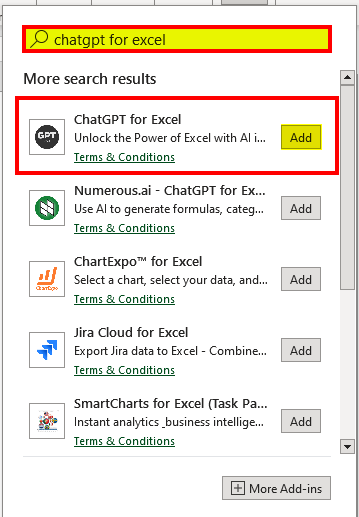
Step 3: Check if the ChatGPT for Excel Add-in is added in the Home Tab, as seen below.

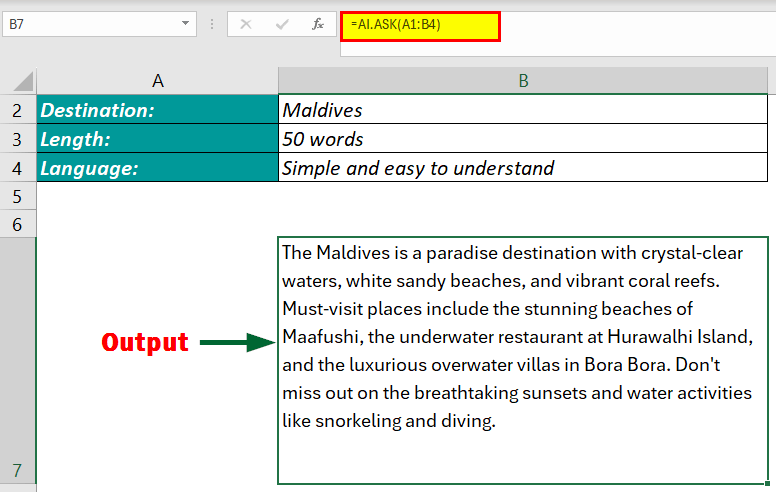
Step 4: In your Excel sheet, enter the details such as Task, Destination, Length of the Description, and Language for the description in Column A and Column B.

Step 5: In cell B7, add the formula =AI.ASK(A1:B4) and hit Enter.
Result: This AI feature automatically adds the description of the Maldives using the data available in cells A1:B4. It displays the output in cell B7.
Example #2: Integrating Excel with Formulazier AI
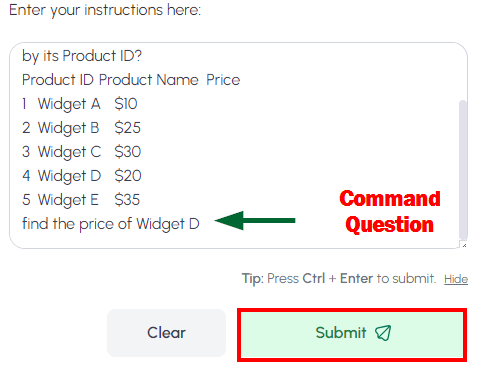
Your company maintains a list containing Product IDs, Product Names, and their respective prices. If you need to find the price of a specific product and you only know its product ID, you can easily do it by using Formulazier AI.
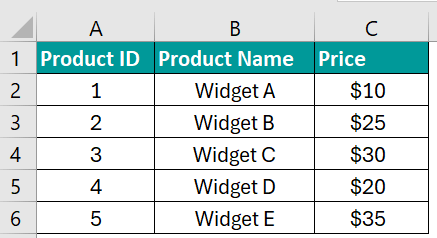
Here are the steps you need to follow:
Step 1: Sign in to Formularizer.
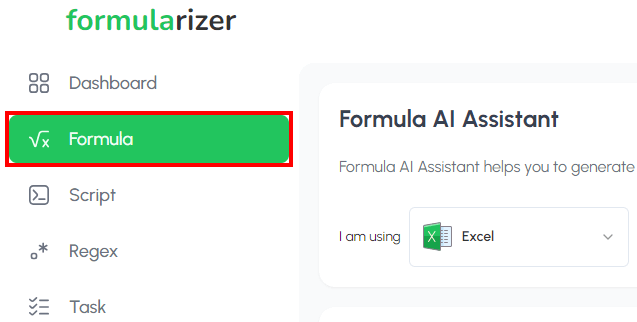
Step 2: Select “Formula” from the Left Side of the page
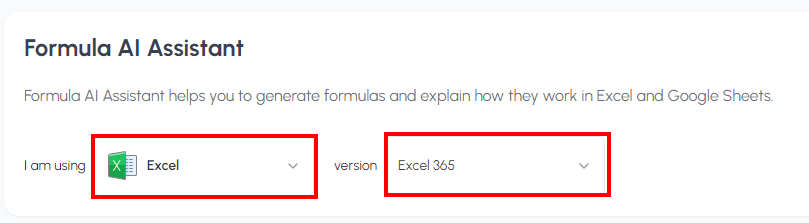
Step 3: In the Formula Assistant, select “I am Using Excel” and the version of Excel you are using, for example, Excel 365.
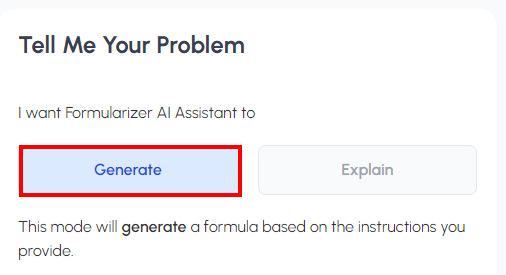
Step 4: Select “Generate” from “Tell Me Your Problem“.
Step 5: In the prompt, add your data with the question and submit it.
Step 6: Check the Result and copy the Formula
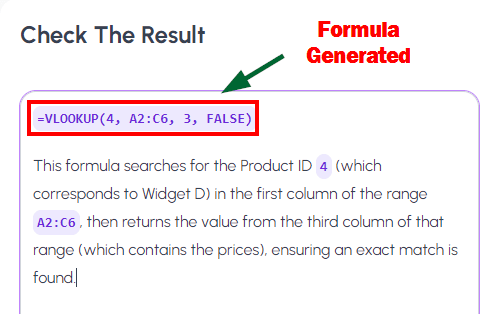
Step 7: Insert the Formula in your Excel Sheet to find out the answer
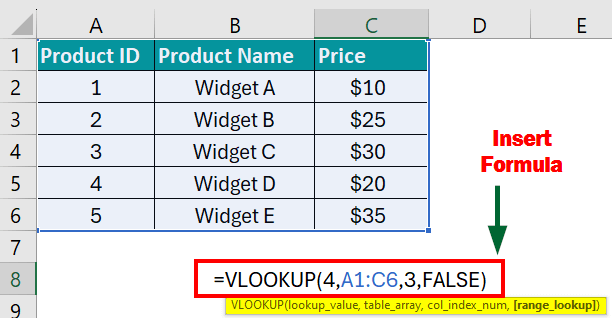
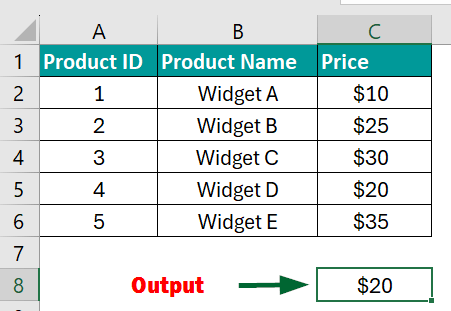
Result: Using the formula given by the formularizer, we are able to find and display the price of Product ID 4 as $20.
Example #3: Using ChatGPT Add-in to Find Specific Information
Suppose you have an Excel sheet with information like an individual’s name, contact number, email, item purchased, address, etc., all stored in a single cell. Now, you want to display only specific information from the content, such as the Phone Number or the Special guest name, using the Excel formula. You can use Excel ChatGPT to find the solution quickly.
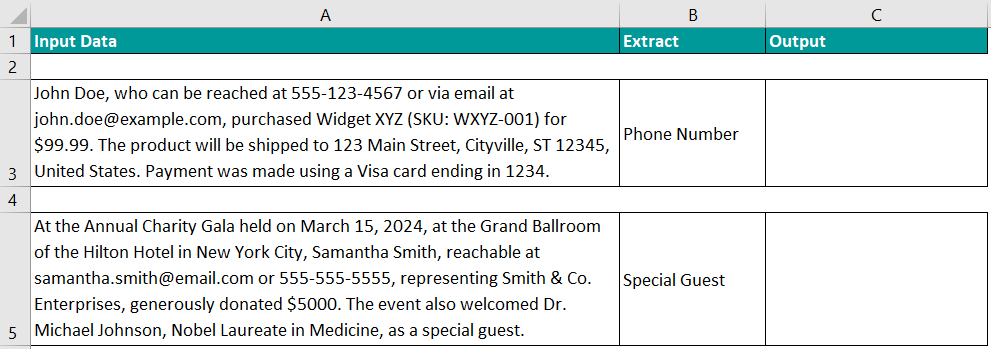
Here are the steps you need to follow:
Step 1: Select cell C3 and type formula =AI.EXTRACT(A3,B3).
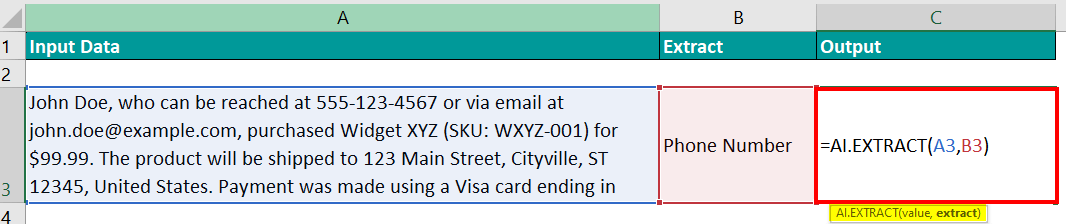
=AI.EXTRACT(Value, Extract)
- value: A reference to a cell containing data
- extract: What to extract
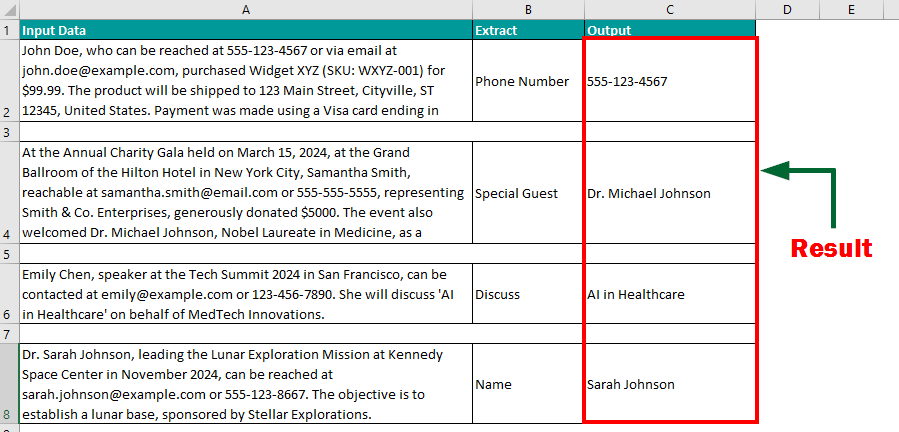
Step 2: Drag and drop the formula to the below cells to extract the information.
Result: The AI.The EXTRACT formula displays information, such as phone number, special guest name, etc., from the content.
Example #4: Integrating Excel with Formula Bot AI
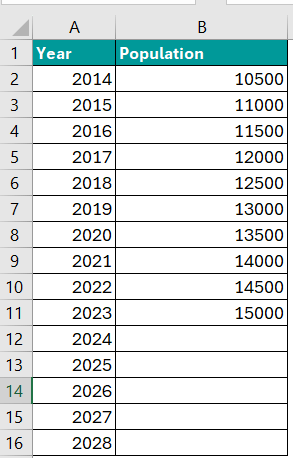
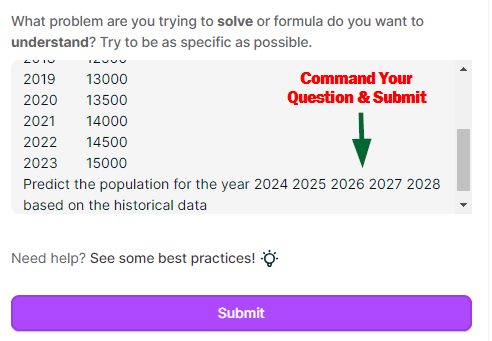
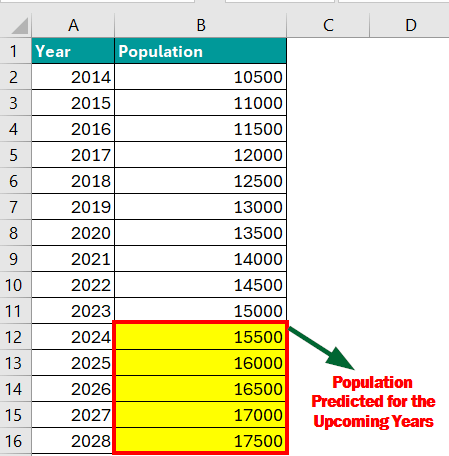
Suppose for your university research paper, you need to find how much the population will be in the year 2024 to 2028. You have collected data from 2014 to 2023. All you need is a formula to predict the population growth for the upcoming years, which you can do using the Excel Formula Bot AI.
Solution:
Step 1: Sign in to Formula Bot.
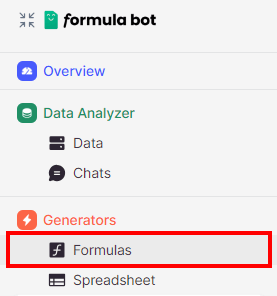
Step 2: Select “Formulas” from the “Generators” Section.
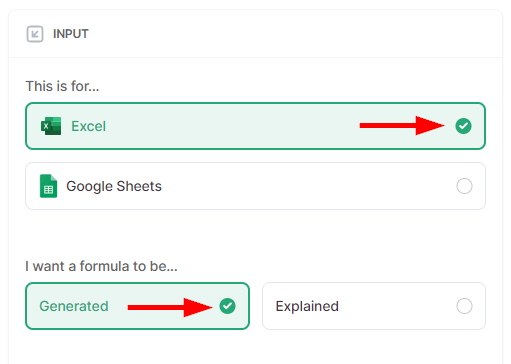
Step 3: In the Input section, select Excel and click on Generated from “I want the formula to be“.
Step 4: Add your data, command the question in the Prompt, and submit the question.
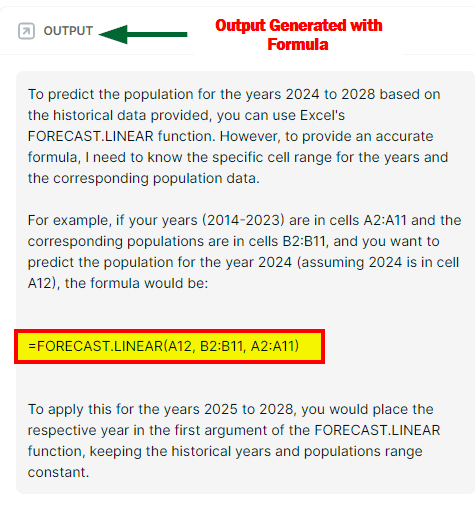
Step 5: In the Output section, the tool will generate the formula.
Step 6: Copy the formula in cell B12 in your Excel sheet.
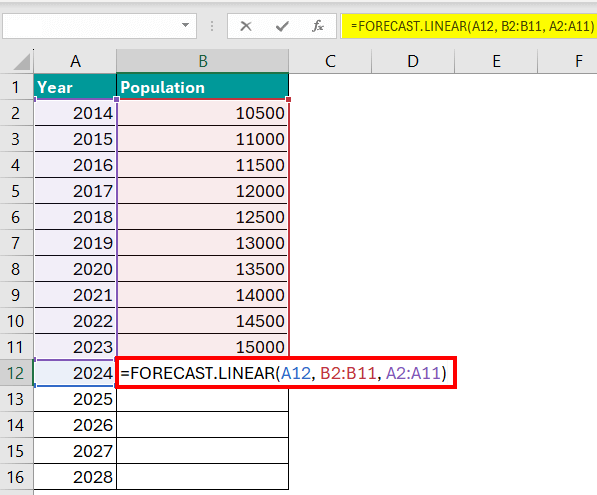
Step 7: Enter the formula for the result and drag down the formula to predict the data for future years.
Result: Using the formula given by Formulbot, we were able to predict the population for the upcoming years.
Final Thoughts
These Excel AI tools are revolutionizing spreadsheet work, making complex tasks easier and more accurate. Therefore, with AI in Excel, professionals can take their spreadsheet skills to new heights, boosting success in their work. Moreover, as technology evolves, we can expect more advancement and exciting innovations in the AI tool market.
Recommended Articles
We hope the article on “AI in Excel” was helpful to you. Get ready to optimize your Excel sheet with the above-listed Excel AI tools. For more AI-related information, feel free to explore EDUCBA’s suggested articles.

