


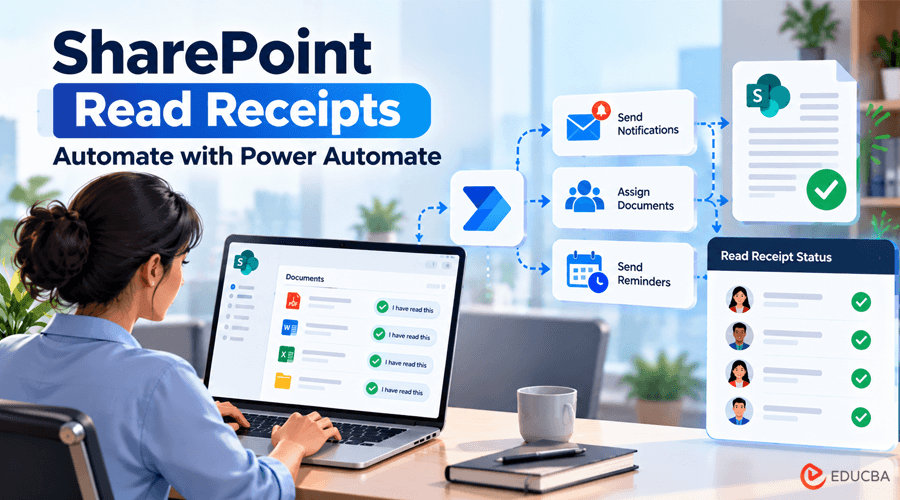
Can you automate SharePoint Read Receipts without buying extra software? Yes. You can combine an SPFx web part that captures an “I have read this” confirmation with Power Automate flows that assign documents, send reminders, and log each acknowledgment to a SharePoint list. Done well, this gives you reliable read receipts for SharePoint documents using the Microsoft 365 platform you already own.
The challenge is that “done well” involves more than a button and a flow. Version tracking, permissions, reminders, and audit-ready reporting all need careful design, and gaps usually surface when an auditor or manager asks for proof.
In this guide, you will learn how SharePoint Read Receipts work, how to build the architecture step by step, where DIY solutions typically struggle, and when a ready-made tool makes more sense. Let us start with what the solution actually does.
What Are SharePoint Read Receipts for Documents?
SharePoint Read Receipts are system-generated records that confirm a specific user opened a document, acknowledged it, and did so for a particular version at a particular time. Unlike email read receipts, which only show that a message was opened and can be declined, these receipts are tied directly to the document and the user’s identity in Microsoft 365.
In a typical build, two technologies share the work. An SPFx web part (built with the SharePoint Framework) provides the user interface, such as a list of assigned documents and an acknowledge button. Power Automate handles the background logic: creating tasks when a document is published, sending notifications, following up on overdue items, and writing records.
This matters because policy acknowledgment is increasingly an audit requirement, not a nice-to-have. Regulated teams must prove staff have read safety procedures, data protection policies, and codes of conduct. If your receipts are incomplete or editable, they will not hold up. That is also why many organizations compare a custom build against a dedicated product like DocRead for SharePoint, which delivers the same outcome without the development and maintenance overhead.
The key benefits of automating SharePoint Read Receipts are clear:
- Reliable evidence: Every acknowledgment is logged with user, version, and timestamp
- Less manual chasing: Reminders and escalations run on schedule
- Better compliance tracking: Reports show completion across teams at a glance.
A common misconception is that a single flow is enough. In practice, you need a data model, a UI, and several flows working together, which is what the next section covers. For background on the wider compliance problem, Collaboris has worked with SharePoint document acknowledgment since 2007.
How to Build Read Receipts for SharePoint Documents Step by Step?
Building SharePoint Read Receipts follows a clear sequence: design the data, build the interface, automate the workflow, and then secure and report on the results. The steps below describe a practical architecture that most Microsoft 365 teams can implement. If you would rather skip the build, DocRead packages these capabilities as a supported SharePoint add-on.
Step 1: Design Your Data Model
Everything depends on where you store assignments and receipts. Start by creating two SharePoint lists.
The Assignments list holds one row per user per document, with columns for the user, document ID, document version, assigned date, due date, and status. The Receipts list stores completed acknowledgments with the user, document ID, version label, and a timestamp.
Keep receipts separate from assignments. Assignments change as people are reminded or reassigned, while receipts should never change once created.
Tip: Store the document’s version label (for example, 3.0) rather than just the file name. Without it, you cannot prove which version someone accepted.
Step 2: Trigger Assignments When Documents Are Published
Next, create a Power Automate flow that fires when a document in your policy library is created or modified. Filter it so it only runs for major versions, since you do not want every draft save to generate tasks.
The flow reads a metadata column indicating the target audience (such as a Microsoft 365 group), expands that group into its members, and creates an assignment row for each person. It then sends a notification by email or Teams with a link to the document.
Tip: Large groups can hit Power Automate throughput limits. Use batching or concurrency controls, and test with a group of several hundred users before going live.
Step 3: Build the SPFx Acknowledgment Web Part
The SPFx web part is what users actually see. Typically, it displays the current user’s outstanding assignments, opens each document, and presents an acknowledgment button with a short statement such as “I have read and understood this policy.”
When the user confirms, the web part writes a receipt record using the SharePoint REST API or PnPjs, capturing the version the user viewed at that moment. It then updates the related assignment to complete.
Place the web part on your intranet home page or a dedicated “My Policies” page. Visibility is essential; hidden tasks rarely get done.
Tip: Read the document version at the moment of acknowledgment rather than trusting the version stored on the assignment. If the document was updated in between, you want the receipt to reflect reality.
Step 4: Automate Reminders and Escalations
A scheduled Power Automate flow should run daily, look for assignments approaching or past their due date, and send reminders. After a set number of reminders, escalate to the employee’s manager using their profile data from Microsoft Entra ID.
Keep reminder messages short, specific, and linked directly to the task. Bundling multiple outstanding items into one message reduces notification fatigue.
Step 5: Handle Version Changes
When a policy receives a new major version, earlier receipts no longer cover the updated content. Extend your trigger flow so that a new major version creates fresh assignments for the audience, while old receipts remain stored as historical evidence.
Agree on a clear rule for what counts as a major change. Otherwise, staff get re-asked to read documents after trivial edits and start ignoring requests.
Step 6: Lock Down Permissions
This step is often skipped, and it undermines everything else. If users can edit the Receipts list, your audit trail is not trustworthy.
Break permission inheritance on the Receipts list. Use a service account or app-only permissions for writing records, and give most users no direct access. Compliance administrators should have read-only access for reporting.
Step 7: Build Reporting
Finally, create reporting that answers the questions auditors actually ask: who has read this policy, who has not, and when did each person acknowledge it? Power BI connected to your lists works well, or you can create filtered views for simpler needs.
Make sure reports can be exported and filtered by department, document, version, and date range.
Where DIY SharePoint Read Receipts Typically Struggle?
This architecture works, but it carries ongoing costs. Flows break when list columns change, SPFx packages need updating as the framework evolves, and knowledge often sits with one developer. If that person leaves, your compliance tracking can quietly stop working. Before committing, weigh development and maintenance time against a supported product.
Real-World Scenarios for Automated Read Receipts
Seeing how teams apply this approach helps clarify which route suits your organization. Here is how different organizations handle SharePoint Read Receipts in practice.
An Internal IT Team at a Manufacturer
The team built the SPFx and Power Automate solution described above for 250 users. It worked well for the first year, until a flow failed silently after a library change and new starters stopped receiving safety policies for six weeks. They added failure alerts to every flow and assigned a named owner for ongoing maintenance.
A Healthcare Trust With 2,000 Staff
Facing inspection deadlines, the compliance team decided a custom build was too risky. They deployed DocRead for SharePoint instead, reusing existing department groups. Completion reports that once took days to compile became available instantly.
A Consultancy Using a Hybrid Approach
The firm kept a lightweight flow for internal notices but used a dedicated tool for regulated policies. This balanced cost with audit confidence.
Each scenario shows that automated read receipts for SharePoint documents work; the right build depends on your scale and risk.
Best Practices for Reliable SharePoint Read Receipts
Getting the architecture right is the foundation. These practices help keep your SharePoint Read Receipts accurate and defensible over time.
Make Receipts Immutable
Once a receipt is written, nobody should be able to edit or delete it through normal access. Use restricted permissions and write records with a service identity. An editable log undermines your audit trail, no matter how polished the rest of the system is.
Add Monitoring to Every Flow
Power Automate flows can fail without anyone noticing. Configure failure notifications and review run history weekly. A single broken trigger can leave an entire department without assignments, and you may only discover it during an audit.
Document Your Solution
Write down how the lists, flows, and SPFx web part fit together, including permissions and version rules. If the original developer leaves, clear documentation prevents your compliance tracking from becoming a mystery nobody dares to touch.
Plan for Scale Early
Test with realistic user numbers before launch. Large group expansions and bulk reminders can hit service limits. If scaling becomes a recurring headache, compare your build against options from Collaboris designed for enterprise volumes.
Keep the User Experience Simple
Staff should reach their outstanding documents in one click. Clear wording, short deadlines, and a visible task list improve completion far more than extra reminders.
Following these practices turns a working prototype into a system you can trust.
Choose the Right Approach for Reliable SharePoint Read Receipts
Automating SharePoint Read Receipts for documents with Power Automate and SPFx is entirely achievable. You need a solid data model, an acknowledgment web part, flows for assignments and reminders, version handling, locked-down permissions, and clear reporting.
Whichever route you choose, acting now means you will have evidence ready before an audit or incident demands it. Reliable policy acknowledgment protects your organization and gives managers genuine visibility into who knows the rules.
If you would rather spend your team’s time on policy content than on maintaining flows and web parts, the next step is to compare your build plan with a ready-made option. Explore DocRead for SharePoint to automate read receipts without custom development.
Frequently Asked Questions (FAQs)
Q1. Can SharePoint track who has read a document natively?
Answer: Not in a way that works as audit evidence. SharePoint’s built-in analytics can show views, but they do not capture a formal acknowledgment, a specific version, or a permanent record per user. To create reliable read receipts for SharePoint documents, you need a custom build with Power Automate and SPFx or a dedicated add-on.
Q2. Do I need SPFx, or is Power Automate enough?
Answer: Power Automate alone can send requests and record replies, for example through Microsoft Forms or approval actions. However, an SPFx web part provides a much better user experience, showing outstanding documents in one place and capturing the exact version at the moment of acknowledgment. For regulated use, the combination is more robust.
Q3. How do I stop users from editing their own receipts?
Answer: Break permission inheritance on the Receipts list and write records using a service account or app-only permissions. Give regular users no direct access and compliance staff read-only access. This keeps your audit trail trustworthy because acknowledgments cannot be altered or deleted after they are created.
Q4. Is a custom build cheaper than a dedicated tool?
Answer: Not always. The initial build may seem inexpensive, but ongoing maintenance, flow monitoring, SPFx updates, and developer time add up. For organizations with larger audiences or strict audit requirements, a supported product often costs less over time than maintaining custom read receipts for SharePoint documents internally.
Author: Ryan Malaluan
Ryan Malaluan, CAPM®, is an SEO & Content Strategist with over 8 years of experience in SEO, content strategy, and digital marketing. He holds a Bachelor of Arts in Literature and is a Certified Associate in Project Management (CAPM®). Throughout his career, Ryan has worked with brands including Spacer, Airtasker, Marlee (formerly Fingerprint for Success), VEED.IO, and ROSEMET LLC, as well as several digital marketing agencies, helping businesses strengthen their organic visibility through strategic, results-focused SEO and content.
Recommended Articles
We hope this guide helps you understand how to automate SharePoint Read Receipts using Power Automate and SPFx. Explore our recommended articles for more insights on SharePoint automation, document management, workflow automation, and compliance tracking.

