


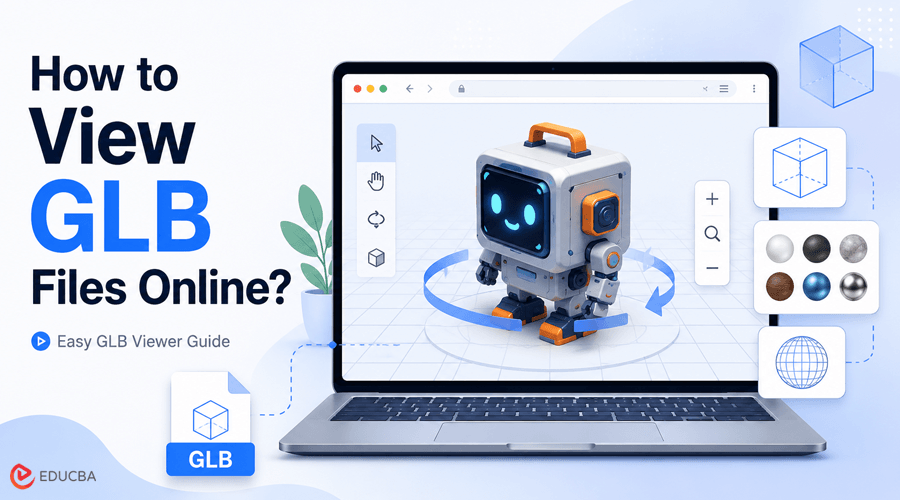
A GLB file can contain a complete 3D asset in a single package, making it useful for games, websites, augmented reality projects, product previews, and other real-time applications. However, opening one is not always as simple as viewing an image or video. Without compatible 3D software, users may be unable to inspect the model before sharing it with a client or importing it into a larger project. A browser-based viewer offers a faster way to view GLB files without setting up a full 3D application.
For example, the online GLB viewer from Meshy AI works directly in a browser, requires no software installation or account, and provides controls for rotating, zooming, and panning around the model. The browser processes files locally rather than uploading them to a server.
What is a GLB File?
GLB is the binary version of the glTF format. Both formats store and transfer 3D content efficiently, but they package project data differently. A standard glTF project may include a .gltf file, plus separate texture images and binary data. A GLB file combines these elements into one binary file. This makes it easier to upload, download, email, embed, or move between applications without losing a related texture or resource file.
Depending on how it was exported, a GLB file can contain:
- Mesh geometry
- Materials
- Texture images
- Scene hierarchy
- Animation data
- Cameras
- Lights
- Skeletal information.
The single-file structure is one reason GLB is frequently used for web-based 3D experiences and asset delivery. It is easier to manage than a collection of separate files, especially when the model needs to pass between several people or tools.
Why View GLB Files Before Using Them?
Opening the file before importing it into a game engine or editing program can reveal problems early. A quick visual check is useful when downloading an asset from a marketplace, receiving a model from a client, reviewing an AI-generated object, or testing an export from another application. Knowing how to view GLB files before using them can help identify visual problems before they affect a larger workflow.
Check the Overall Shape
Start by looking at the model from several angles. The front may look correct, while the back, underside, or interior may have missing or distorted geometry.
Rotating the model can help identify:
- Incomplete surfaces
- Stretched geometry
- Incorrect proportions
- Detached components
- Unexpected holes
- Duplicated parts.
This is particularly important for models generated from a single reference image because areas not visible in the source may contain less reliable geometry.
Review Materials and Textures
A model may load successfully, but its materials may appear incorrect. Surfaces could be completely white, unusually dark, overly reflective, or covered with stretched textures. These problems do not always mean the GLB itself is broken. They can also result from missing texture assignments, unsupported material properties, incorrect UV coordinates, or differences between rendering environments. An online preview helps determine whether the problem appears in the exported asset or only after you import the file into a particular application.
Confirm the Model’s Orientation
Different 3D applications may use different coordinate systems. As a result, an exported model can appear sideways, upside down, or facing the wrong direction. Identifying the orientation problem before integration makes it easier to decide whether to correct the model in Blender or another digital content creation tool, or adjust it after importing it into the target engine.
Inspect the Asset Before Sharing It
GLB files are often sent to clients or team members because their single-file structure is convenient. Previewing the final version before delivery reduces the chance of sharing a model with missing textures, incorrect proportions, or visible geometry errors. Being able to view GLB files directly in a browser can make this final quality check faster and more convenient.
How to View GLB Files Online?
An online viewer lets you inspect the file quickly without a large desktop program. The exact interface varies between tools, but the basic process is usually similar.
Step 1: Prepare the GLB File
Locate the file on your device and confirm that it uses the .glb extension. If the model is still stored as a group of glTF files, textures, and binary resources, you may need to export or convert it to GLB first. Renaming the extension alone will not combine the files or change their internal structure. It is also helpful to check the file size. Very large models may take longer to load because they contain dense geometry, high-resolution textures, or multiple animation clips.
Step 2: Open the Online Viewer
Open the viewer in a supported browser. Because the tool runs online, you do not need to download and configure a full modeling suite for a basic inspection. This is useful on a computer without Blender, Maya, or another 3D application installed. It also lets you quickly view GLB files on a device with limited storage.
Step 3: Load the Model
Select the GLB file on your device and let the viewer process it. Loading time will depend on the model’s size and complexity. Once the asset appears, wait for its materials and textures to finish loading before judging the result. A partially loaded model may briefly display incomplete surfaces or placeholder shading.
Step 4: Rotate, Zoom, and Pan
Use the viewer controls to inspect the asset from different positions.
A useful review sequence is:
- Examine the front and back
- Rotate to both side views
- Look at the top and underside
- Zoom in on detailed areas
- Zoom out to evaluate the complete silhouette
- Pan across larger scenes or models with separated components.
For character models, pay particular attention to the face, hands, hair, clothing intersections, and joints. For environment props, inspect thin edges, repeated details, openings, and contact points between separate parts.
Step 5: Record Any Problems
An online viewer is primarily an inspection tool. If the asset needs changes, note the issues before opening it in a modeling application.
Useful notes may include:
- Rotate the model to the correct orientation
- Repair a missing surface
- Reduce the polygon count
- Correct a stretched texture
- Separate joined objects
- Resize the asset
- Adjust the material roughness
- Check the skeleton or animation.
A short review checklist can prevent the same problems from being rediscovered later in the production process.
What Should You Check When You View GLB Files?
Looking at the model is useful, but a structured inspection produces more reliable results.
Geometry and Silhouette
First, examine whether the overall form matches the intended design. Look for unexpected bumps, flat areas, asymmetry, or missing parts. The silhouette matters most for real-time game assets because it stays visible even when you reduce smaller surface details.
Surface Quality
Zoom in and check whether smooth surfaces appear uneven or faceted. This may indicate low mesh resolution, incorrect normals, or unwanted geometry. Also inspect areas where multiple pieces meet. Intersecting parts are not always a problem for static visualization, but they can create difficulties during animation, editing, or later optimization.
Textures and UV Mapping
Look for visible seams, blurred details, inconsistent resolution, or textures in the wrong place. If the model uses several materials, confirm that each surface displays the intended material. For example, a wooden section should not unexpectedly use a metal texture.
Polygon Density
A basic online viewer may not provide a complete topology analysis, but visual inspection can still reveal whether the asset appears unnecessarily dense or visibly under-detailed. A high polygon count can increase file size and affect performance. However, reducing polygons too aggressively can damage curved surfaces and important details. The correct level depends on how close the model will appear to the camera and where it will be used.
Animation
If timeline controls appear, preview the available animation clips; otherwise, validate them in Blender or the target engine. Animation support can vary depending on the file, format, and the viewer’s capabilities. Even when a clip can be previewed, watch for distorted limbs, unexpected mesh stretching, sliding feet, or parts that separate during movement. A successful static preview does not guarantee a rigged asset will deform correctly. Characters and other animated models may still require closer inspection in Blender, Maya, or the intended game engine.
When is an Online GLB Viewer Most Useful?
A browser-based viewer is particularly practical for quick decisions and early checks. It lets you view GLB files without installing a full 3D editing application.
Common use cases include:
- Reviewing an asset before importing it into Unity or Unreal Engine
- Checking an AI-generated model before further editing
- Confirming that a client-delivered file opens correctly
- Inspecting a marketplace asset before adding it to a project
- Verifying a GLB export from Blender
- Checking textures before sharing a file
- Previewing a 3D product model
- Reviewing an asset on a device without 3D software.
For these tasks, opening a full digital content creation application may take longer than the inspection itself.
Online Viewer vs. Desktop 3D Software
An online viewer and a desktop modeling application serve different purposes.
An online viewer is best for:
- Fast visual checks
- Model rotation and close inspection
- Verifying that a file opens
- Reviewing geometry and materials
- Checking an asset without installing software.
Desktop software is more appropriate for:
- Editing geometry
- Repairing topology
- Changing UV maps
- Repainting textures
- Modifying materials
- Reducing polygons
- Editing rigs and animations
- Exporting a revised model.
The online viewer can therefore act as a first checkpoint. If the asset passes the visual review, it can move into the next stage. If problems are visible, you can open the model in an editing tool with a clearer list of required changes.
Final Thoughts
Knowing how to view GLB files online makes it easier to inspect 3D assets before they enter a larger production workflow. A short browser-based review can reveal missing geometry, texture problems, incorrect orientation, and proportion issues without requiring a full 3D application.
An online viewer does not replace Blender, Maya, or a game engine when detailed editing is required. Its value comes from providing a fast first check. By reviewing the model systematically and recording any visible issues, developers and designers can avoid importing unsuitable assets and spend less time diagnosing preventable problems later.
Frequently Asked Questions (FAQs)
Q1. Can I View GLB Files Without Blender?
Answer: Yes. An online GLB viewer can display the model in a browser without requiring Blender or another desktop 3D application. Editing the model will still require compatible software.
Q2. What is the Difference Between GLB and glTF?
Answer: GLB stores the 3D scene and its associated resources in one binary file. A glTF project may store geometry, textures, and other resources as separate files.
Q3. Why is My GLB Model White?
Answer: The texture may be missing, incorrectly assigned, or unsupported by the viewing environment. Incorrect UV mapping or an incomplete export can also cause this.
Q4. Why is the Model Sideways?
Answer: The application that exported the model may use a different up-axis or coordinate system. You can correct the orientation in a 3D editor or, in some cases, during import into the target engine.
Q5. Can a GLB Viewer Detect Every Problem?
Answer: No. A viewer helps with visual inspection, but it may not detect non-manifold geometry, hidden topology issues, rigging errors, or engine-specific compatibility problems. More detailed validation may require a modeling application or game engine.
Q6. Is GLB Suitable for Game Assets?
Answer: Yes. GLB is commonly used to deliver 3D assets compactly, especially in web and real-time workflows. However, you should still check the model’s polygon count, texture size, materials, scale, orientation, and animation compatibility.
Recommended Articles
We hope this guide helps you view GLB files online, inspect 3D models, and identify common geometry, texture, and orientation issues. Explore these recommended articles for more insights on 3D modeling, GLB and glTF files, online 3D tools, and digital asset workflows.

