

Updated June 8, 2023
Median Formula in Excel
The median Formula in Excel is one of the prime members of the statistical measure of central tendency (the rest two are mean and mode). It gives a more decent approach to finding out the middle most value for the given data.
If we have a group of observations arranged in ascending or descending order, then the median of that group will be the middlemost value. This means exactly 50% (half of the observations) are above the median value, and exactly 50% (or half) are below the median value.
If the data set has an odd number of observations, the median will be the middle observation. If the data set has an even number of observations, the median will be the average of the middle two observations.
In cases where we need to calculate the exact center of the data, e.g., Calculations containing data on salary are the ones where the mean value would not be with that efficiency. Our mean value might have extremely low or high observations, which may affect the average salary. However, the median is least affected by such extreme observations, so we prefer calculating it.
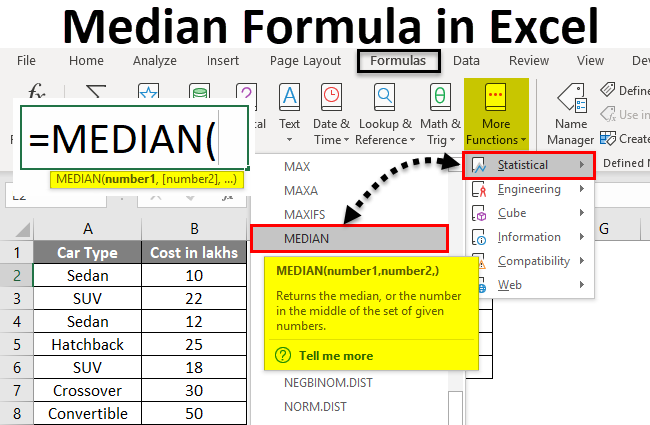
In Microsoft Excel, we can calculate the median using the MEDIAN function. It is an in-built function in Excel that works on a range of data and calculates the median for that group.
The Formula for the Excel MEDIAN function is as below:
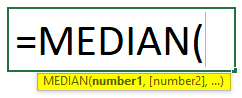
Where number1, number2 … are the arguments for the function. Excel MEDIAN Formula can take numbers, arrays, named ranges, dates, or cell references as input arguments. This function requires at least one argument to provide an output (i.e., number 1 is a fixed/required argument, and the rest are optional).
How to Calculate the Median in Excel using Formula?
Calculating the Median in Excel using a formula is very simple and easy. Let’s understand how to calculate the Median in Excel with some examples.
Example #1 – Group with an Odd Number of Observations
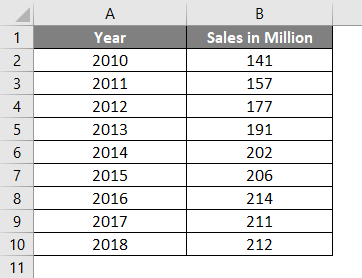
Suppose I have data on vehicle sales in a million from 2010 to 2018 for the USA. (9 observations in total which is an odd number).
In the image below, you can see that the observations are listed in ascending order by year.
Put the following formula in cell B12. i.e.=MEDIAN(B2:B10). See the image below:
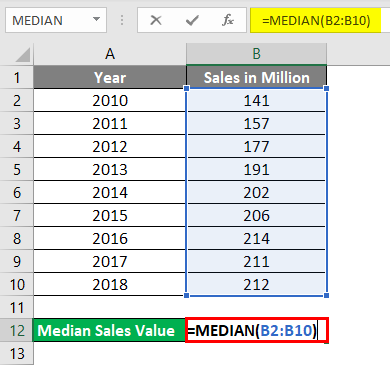
What do you expect to be an output using this formula?
As you might have rightly guessed, this function allows Excel to print the Median value for the given range (B2:B10), 202 in this case.
- Press enter once you are done with the formula, and you’ll get the following output:
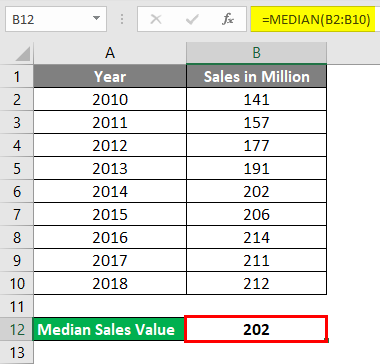
The year associated with the median value can be considered Median Year (in this case, 2014). It seems logical, right?
Please note that we have arranged the data Year-wise, not Sales-wise. So, don’t get confused if the sales value seems to be not in ascending or descending order.
Now, what if I have an even number of observations?
Example #2 – Group with Even Number of Observation
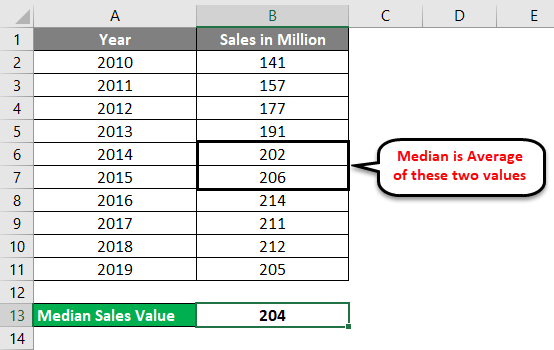
Suppose I have sales detail for one more year, 2019. That means even the number (10) of observations. Let’s see how the median formula works on such data.
Suppose I have data as below:
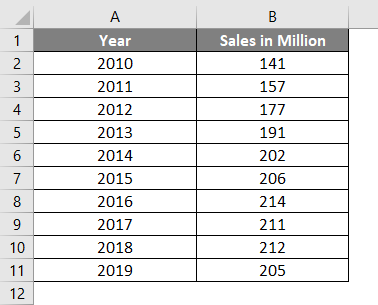
In cell D2, input the formula =MEDIAN(B2:B11)
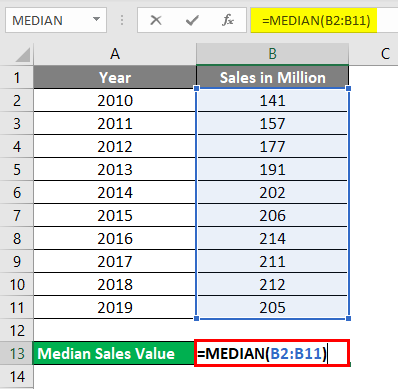
Press enter once done and see the output.
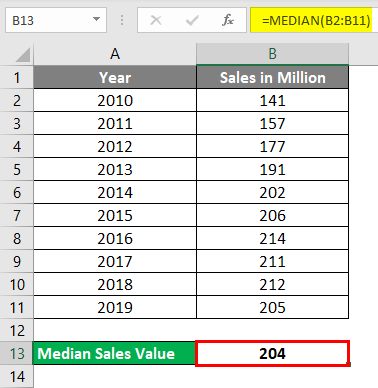
When you have an even number of observations, the Median value is an average of two middlemost values.
Conditional Median Formula
While working on the AVERAGE function in Excel, you might have seen some customized formulas like AVERAGEIF & AVERAGEIFS, allowing you to customize the AVERAGE function based on condition/conditions. That means giving an average of a group following specific criteria. Unfortunately, for MEDIAN, there is no such customized formula available ready-made in Excel. However, you can use your own logic and create one of such conditional formulas for calculating the Median of a group of observations.
Following is the formula which can be used:

Example #3 – Excel Median If Formula
Suppose you have data on cars type and their costs in Lakhs as below:
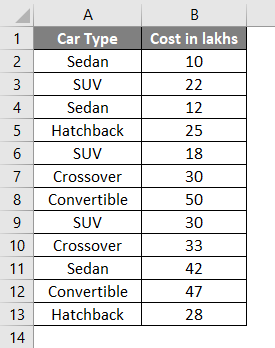
You wanted a median cost for Car Type Sedan in your data; what can you do?
Put the Car Type values in one separate column, column D.
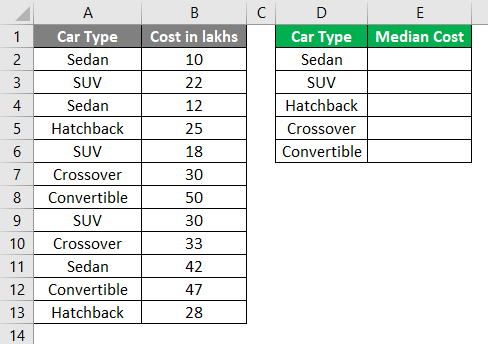
Use the conditional formula below:
=MEDIAN(IF($A$2:$A$13 = $D$2, $B$2:$B$13))
See the image below:
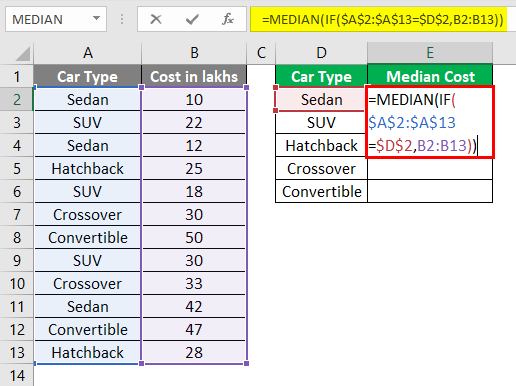
Hit Ctrl + Shift + Enter at the same time after you have completed the formula.
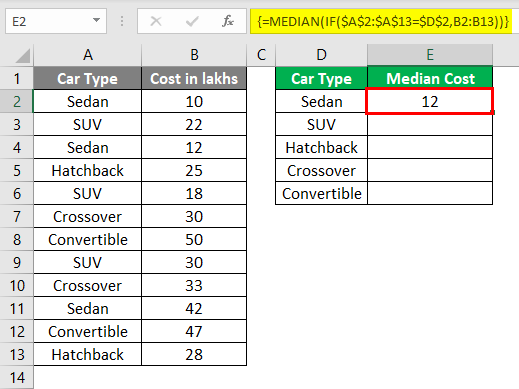
Because you are working on a range of cells (i.e., Array), the dollar sign ($) makes the cell ranges absolute and is helpful when you have the same range of data for different other categories.
Moreover, as you can see through the formula, you are now working on a range of cells that is an array. You need to hit Ctrl + Shift + Enter to make the array formula work.
What this formula has done is, it has selected all the Sedan’s and their costs in lakhs, arranged those in ascending order (which is by default), and then selected the median from the available set of values.
Do the same procedure for other cells in column D (cells D3, D4, D5, D6).
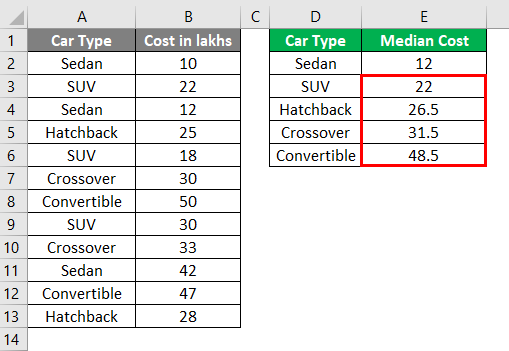
You also can add multiple conditions in this formula and make it work like AVERAGEIFS.
That’s it from this article. Let’s wrap up with some things to remember.
Things to Remember About Median Formula in Excel
- When the group of observations has an odd number of values, the MEDIAN formula considers the middlemost value as a median. If the group of observations has an even number of values, the MEDIAN formula considers an average of two middlemost values as a median.
- Your observations should be sorted in ascending or descending order before you start using this formula.
- Any cell with zero value is still a part of median calculations.
- In most cases, the median has a preference over the mean because it is least affected by extremely low/high observations.
- While calculating empty cells, cells with text or logical values are neglected automatically.
- Excel 2003 and earlier allows 30 arguments per formula for the MEDIAN function. In Excel 2007, 2010, 2013, and 2016, this limit has been extended from 30 to 255. It means that you can pass to 255 arguments.
- Logical values of TRUE and FALSE get counted in the MEDIAN formula. For example, MEDIAN(FALSE, TRUE, 2, 3) will output 1.5 as a median which is nothing but an average of the Logical value of TRUE (TRUE =1) and the number 2.
Recommended Articles
This has been a guide to Median Formula in Excel. Here we discuss How to calculate the Median in Excel, along with practical examples and a downloadable Excel template. You can also go through our other suggested articles –

