
Updated June 19, 2023

Introduction to WordPress Google Analytics
WordPress Google Analytics is used to enhance your website improvement. It helps to gather the details you require to increase the user experience and helps to enhance the conversions on WordPress Website. Google Analytics includes the features like collecting data, analyzing, integrating, monitoring, reporting, and visualizing with other applications. Those features help users recognize trends and patterns in how visitors engage with their websites.
Key Takeaways
- Google Analytics includes the features like collecting data, analyzing, integrating, monitoring, reporting, and visualizing with other applications.
- It is a wide range of information that is divided into five categories:
- Conversions
- Behavior
- Acquisition
- Realtime
- Audience
What is WordPress Google Analytics?
Google offers Google Analytics, a Web Analytics service that tracks and reports website traffic, as part of the Google Marketing Platform trademark. Google Analytics comprises highly developed aspects to complement WordPress.com stats. The report supports tracking the path visitors take through your Website and Goal adaptation to measure how visitors complete precise tasks like reaching out to the contact form or the product page.
How to Add WordPress Google Analytics?
There are various methods to connect Google Analytics to the WordPress Website. The easiest way for most WordPress users is to include Google Analytics on their Websites with Google Analytics WordPress Plugin.
To apply this, there are two plugins recommended they are as follows:
a. Site Kit by Google
If you want to include Google Analytics in the WordPress Website, Google has covered it with the easiest method of the powerful plugin, Site Kit, by Google.
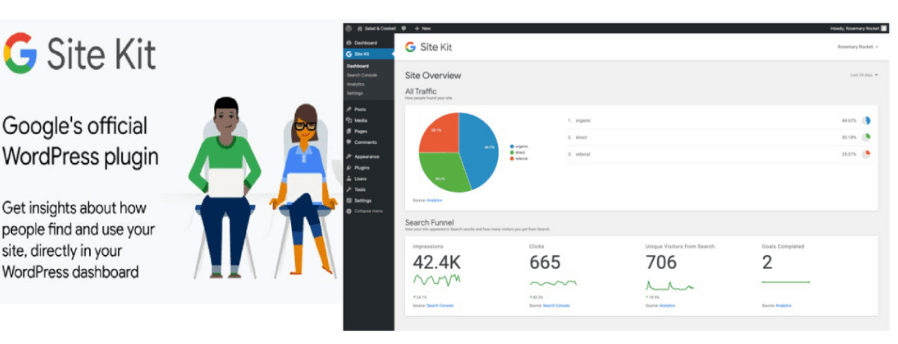
Let’s see the following process to add it:
The service provided by Google is Google AdSense, PageSpeed Insights, and Google Search Console, which enables the creation of a dashboard based on Google as the data source. Let’s see how to start installing and activating the plugin Site Kit by Google. For that, click on the Start Setup button.
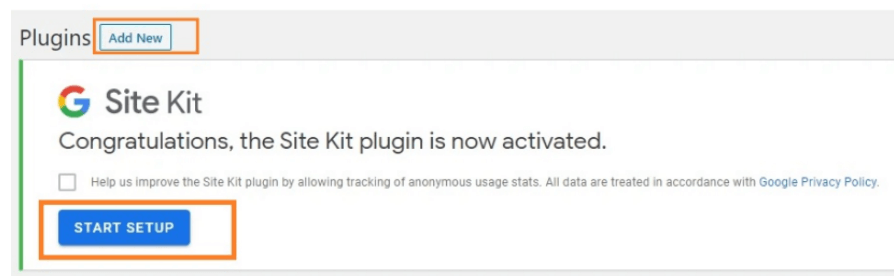
Once the process ends, we must connect the Website to the Analytic Account. We require the following steps to confirm the possessor of the domain and grant admittance to Google to access the data and group the service you prefer, including WordPress.

Once connected successfully with Google Account, we can visualize the data from Google Analytics with the complete services activated directly in the dashboard.
Let’s see what it looks like:
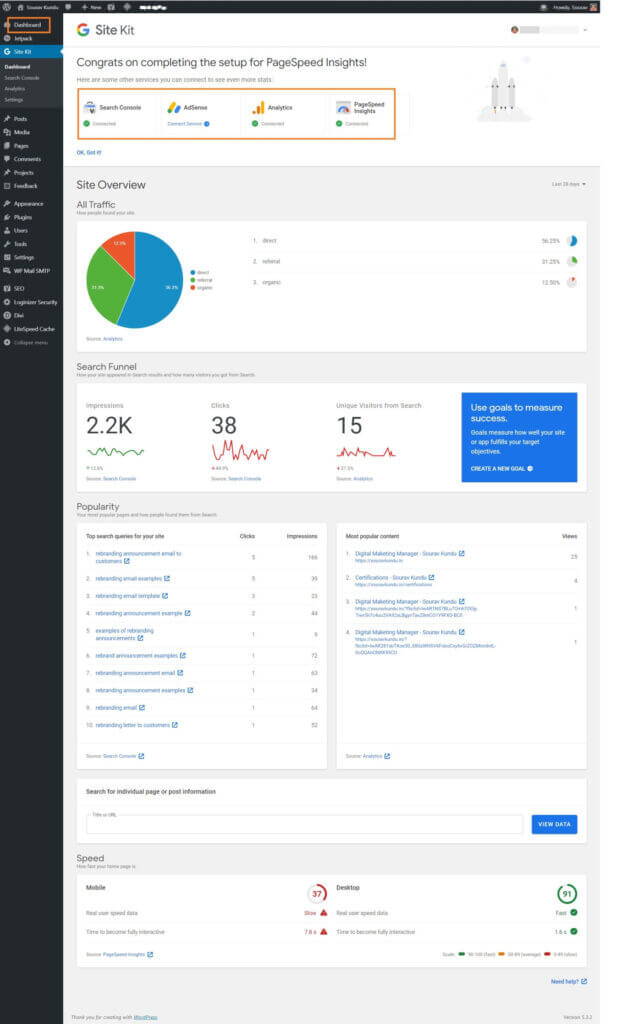
The entire data will always be reachable on the left sidebar. If the plugin is unsuitable for any case, you might focus on the next plugin, GA Google Analytics, as follows.
b. GA Google Analytics
The free plugin GA Google Analytics by Jeff Starr has over 400,000 active installs and top ratings.

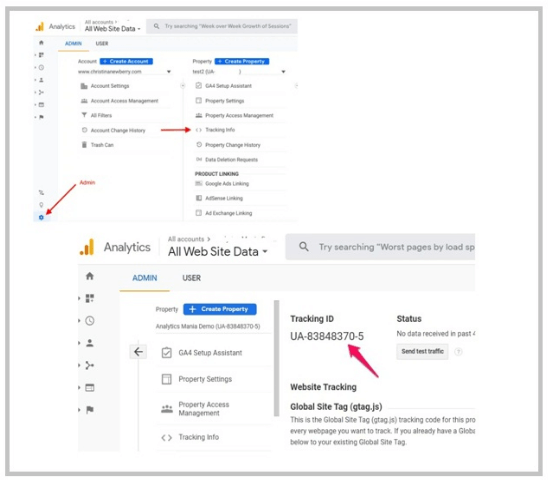
The Google Analytics tracking ID must be entered in the settings after the Google Analytics WordPress Plugin has been installed and activated. To get your tracking ID to, go to the GA Account and click on the sidebar Admin.
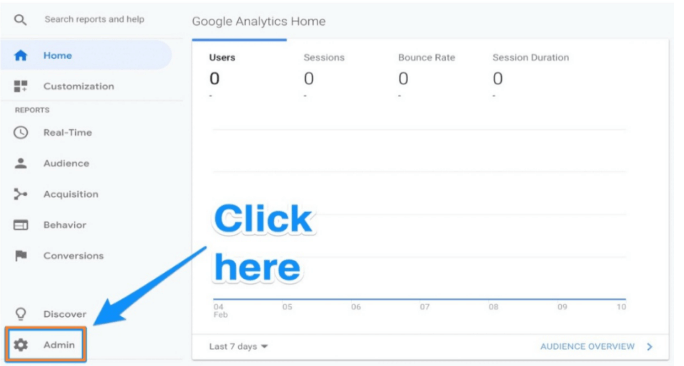
In the Property, select the Tracking Info and then click on Tracking Code:
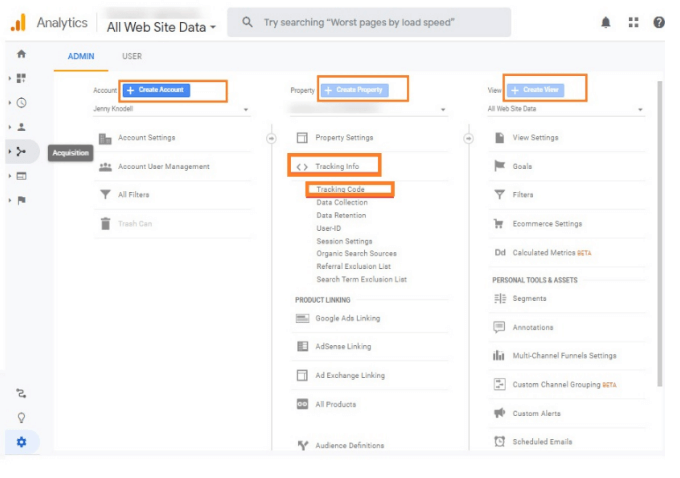
The Tracking ID starts with UA and is at the top of this section.
In the Dashboard, navigate to Settings Google Analytics, scroll down to the Plugin Setting, and include the tracking code in the relevant field.
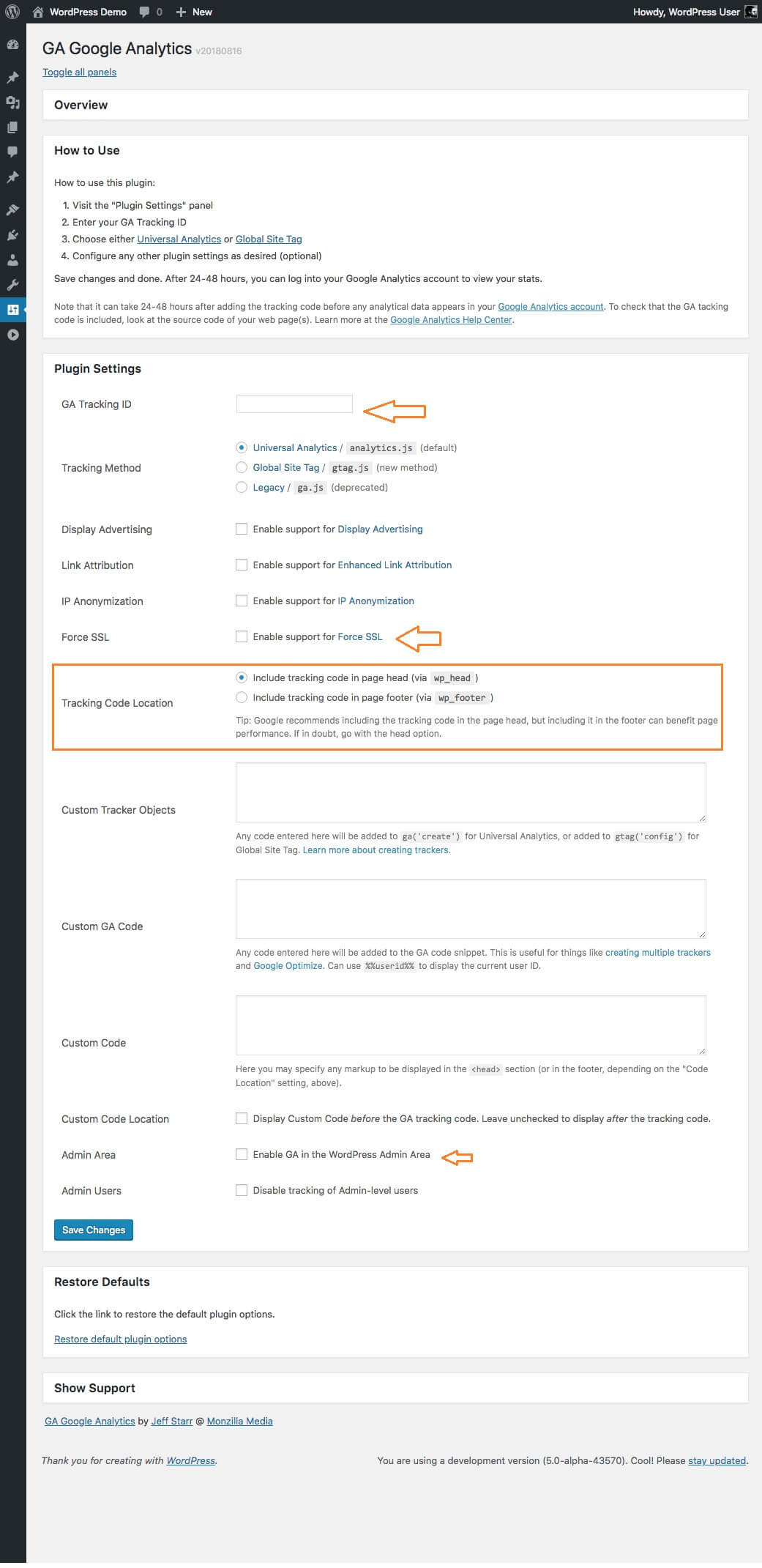
This Plugin enables you to select whether to track the code to be placed in your header vs the footer and includes custom tracking code force SSL and stop tracking for admin users and a small number of other functional options. Once completed with your requirement, scroll down and select the Save Changes button. Google Analytics now be active on WordPress Website.
How to Add WordPress Google Analytics in Dashboard?
There are various Plugins to be selected. Let’s see the tools that connect the platform to the Website and show a few of their metrics with the dashboard.
There are five types of best Google Analytics WordPress Plugins to be considered.
They are:
- MonsterInsights
- Site Kit by Google
- Google Analytics Dashboard by Analytify
- Google Analytics WD
- Beehive Analytics
Let’s see the two types of Google Analytics in Dashboard:
1. Google Analytics Dashboard by Analytify
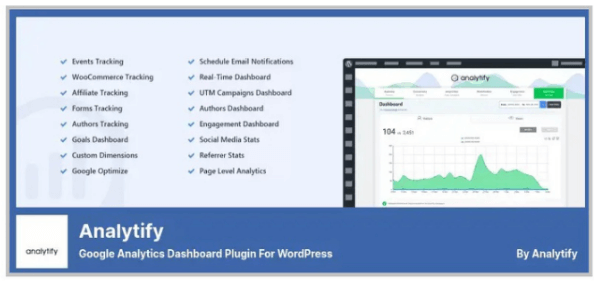
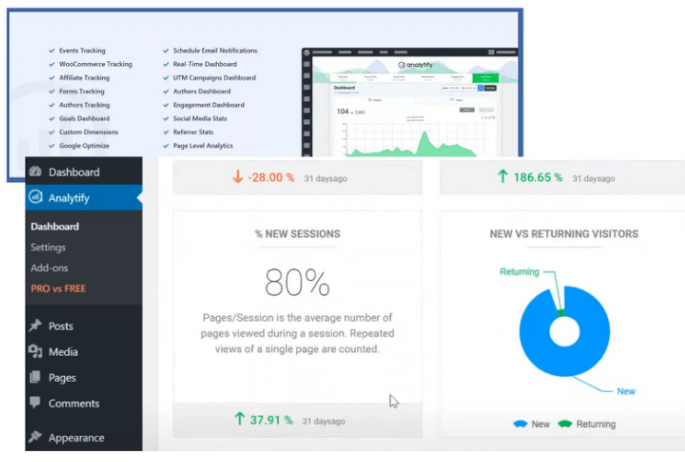
The Google Analytics Dashboard Plugin by Analytify which exactly their name. With the plugin, we can add Google Analytics by clicking only a few clicks and accessing the dashboard in the Admin Panel.
There are several features that the plugin offers, and it shows some data sets.
- Increased e-Commerce tracking with support for WooCommerce.
- Built-in traffic numbers for entire WordPress pages and posts.
- Device type of Statistics.
- Visitors by top Countries and Cities.
- Ratings of page bounce.
- Finding which Websites send the most visitors.
The entire data is available in both formats of graphs and easy numerical breakdowns.
2. Beehive Analytics

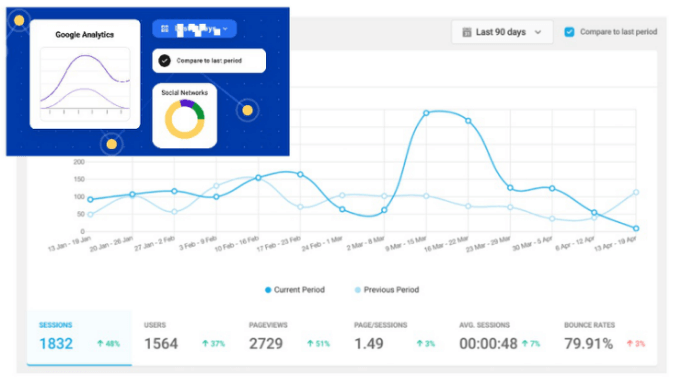
The Beehive Analytics is one of the WPMU Dev family of Plugins. This Free Plugin allows connecting the Analytics account with WordPress and shows data with the Dashboard. The Beehive also allows planning of which user roles have the right to use which data within the dashboard.
By using Beehive Analytics, you can get access to the following things:
- Rating Bounce Statistics
- Number of Sessions and Users
- Number of Page Visitors
- Average Time on Page
- Visited Pages from Top Countries
- Referral Website and Reports of Search Engine
The powerful Google Analytics dashboard gives the entire metrics, which is monitoring; Beehive Analytics is a Solid Choice.
FAQs
Q1. How to find Google Analytics on WordPress Dashboard?
Answer: Default when connecting GA to WordPress does not give access to metrics within CMS Dashboard. We are required to use the GA WordPress plugin includes features.
Q2. Which is the best Google Analytics plugin for WordPress?
Answer: It is used to depend on the metrics we are required to monitor and select which User Interface we prefer. It includes Google Analytics for WordPress by MonsterInsights and Beehive Analytics.
Q3. How to Improve GA Metrics?
Answer: Improving the Google Analytics metrics requires SEO (Search Engine Optimization) work. Using WordPress, we used various plugins for SEO that were added, the Yoast SEO and RankMath.
Conclusion
In this article, we have seen Google Analytics with its features. The report supports tracking the path visitors take through your Website and Goal adaptation to measure how the visitors complete precise tasks.
Recommended Articles
This is a guide to WordPress Google Analytics. Here we discuss the introduction, how to add wordpress google analytics, and FAQs. You may also have a look at the following articles to learn more –

