


Updated January 3, 2023
VBA On Error Statements
VBA On Error is an easy method for handling unexpected exceptions in Excel Macros.It is known that we cannot write code without any error. Sometimes writing big code may give us an error even at the time of compiling. To avoid this kind of situation, we add an Error Message which, instead of giving us the right answer or error code it will show us the message with the error code. That would look like we got the output of our calculation, but it is the error code that will get imprinted.
How to Use Excel VBA On Error Statements in Excel?
There are 3 ways of Error in VBA. Let’s understand different ways with some examples.
Example #1
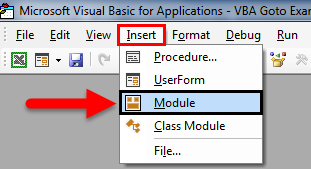
The first error type is a Code compilation error which comes when a code is undeclared or impossible variables. To understand more, we will use a simple mathematical expression of the divide. For this, go to the Insert menu of VBA and select Module as shown below.
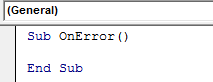
Now open Subcategory and add any name as we are using On Error, so we have named it as same.
Sub OnError()

End Sub
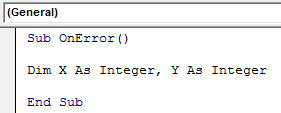
Now define any 2 or 3 Integers. Here we have taking X and Y as Integers.
Sub OnError()

Dim X As Integer, Y As Integer, Z As Integer

End Sub
Now, as discussed above, we will calculate division mathematical expression. For X, we will put a character in Numerator and divide it 0. And Y will be 20/2, which is complete numbers.
Sub OnError()

Dim X As Integer, Y As Integer

X = Test / 0

Y = 20 / 2

End Sub
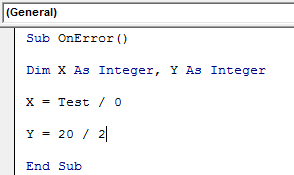
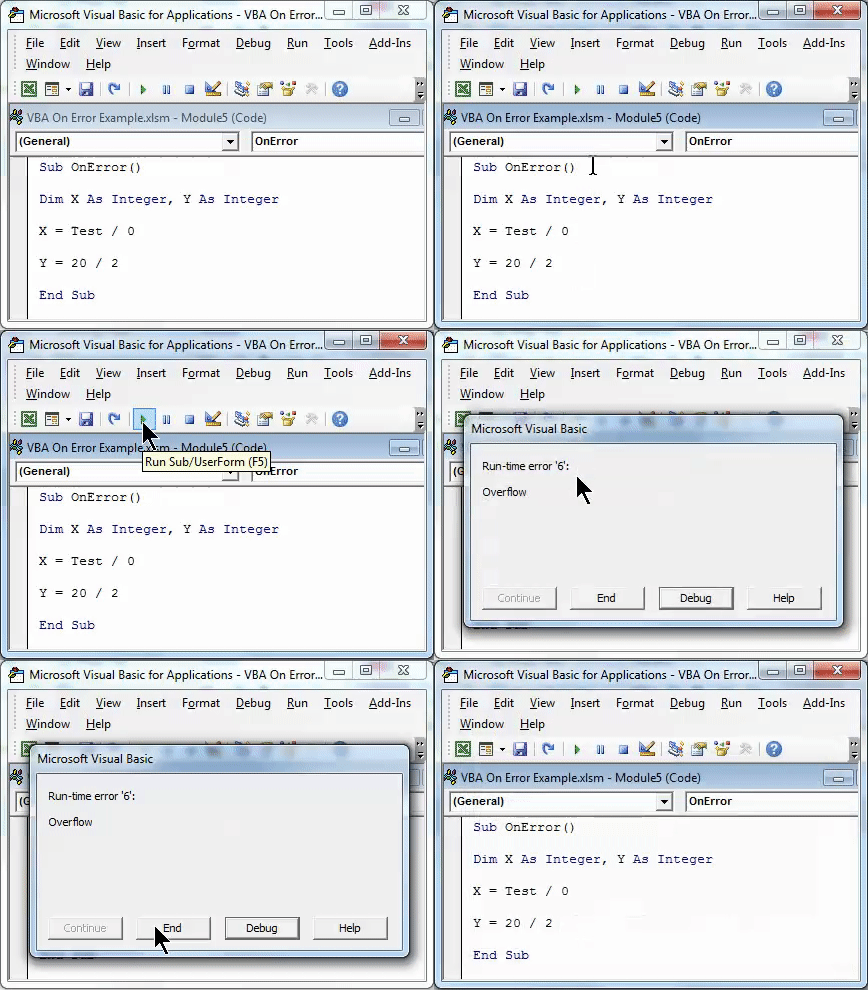
Now run the code by using the F5 key or clicking on the play button as shown below. We will get Run-time error 6, which shows Text over number error.
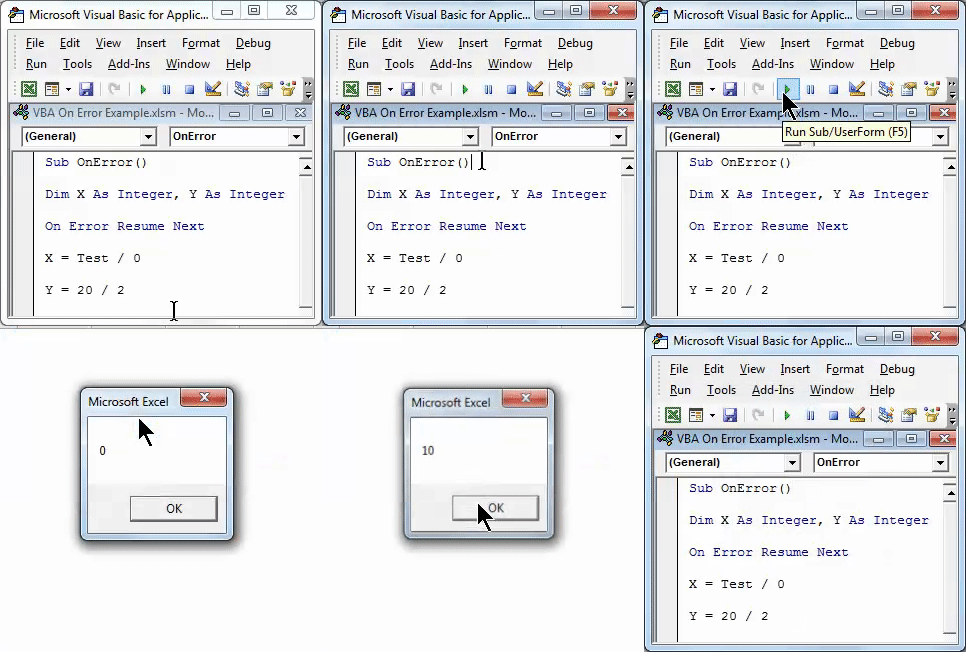
Now to overrule this error, we will add one line On Error Resume Next before we write the mathematical code. It will jump the error code, but we will not able to see the outcome of the second mathematical code. This only hides the error message of various codes lines, as shown below. Now try to run the code as well.
Sub OnError()

Dim X As Integer, Y As Integer

On Error Resume Next

X = Test / 0

Y = 20 / 2

MsgBox X
MsgBox Y

End Sub
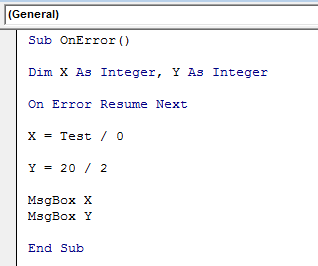
Now to overrule this error, we will add one line On Error Resume Next before we write the mathematical code. It will jump the error code, but we will not able to see the outcome of the second mathematical code. This only hides the error message of various codes lines, as shown below. Now try to run the code as well.
Example #2
In this example, we will consider that mathematical division which gives infinite result, but in coding, it will #DIV/0 result. To demonstrate this, we will consider one more integer Z along with X and Y in a subcategory, as shown below.
Sub OnError()

Dim X As Integer, Y As Integer, Z As Integer

End Sub
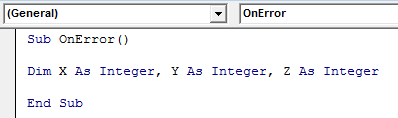
Now frame all the integers X, Y, and Z with a mathematical expression of divide and to print it use MsgBox function in VBA of each integer’s result.
Below for Integer X, we have divided 10 by 0, 20 by 2 and 30 by 4.
Sub OnError()

Dim X As Integer, Y As Integer, Z As Integer

X = 10 / 0

Y = 20 / 2

Z = 30 / 4

MsgBox X
MsgBox Y
MsgBox Z

End Sub
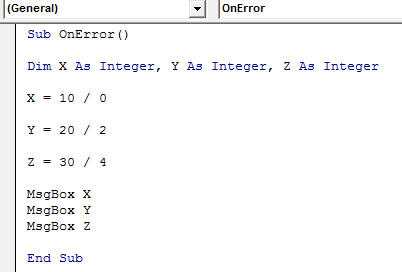
Now run the code using the F5 key or manually, as shown below.
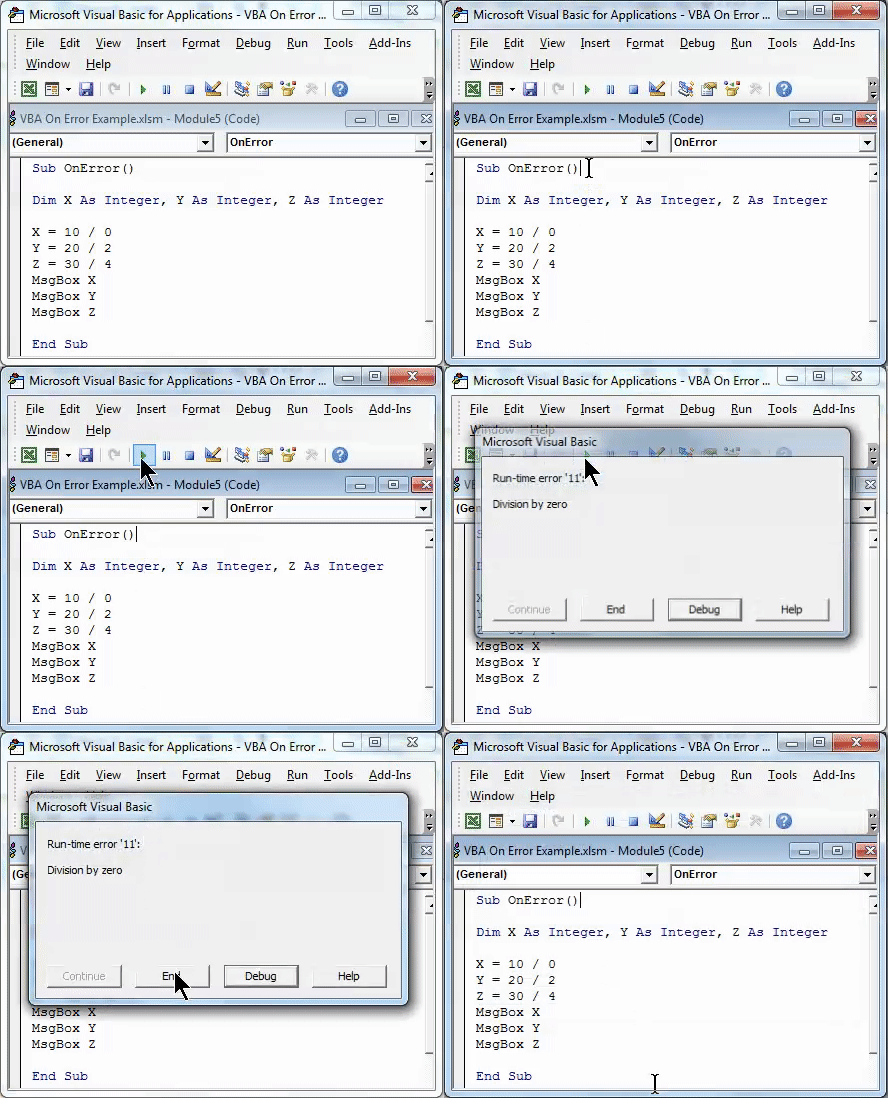
As we can see in the above screenshot, Run-time error 11, which means the error is related to the number. Now to overcome this, add one line On Error Resume Next before mathematical expression as shown below.
Sub OnError()

Dim X As Integer, Y As Integer, Z As Integer

On Error Resume Next

X = 10 / 0

Y = 20 / 2

Z = 30 / 4

MsgBox X
MsgBox Y
MsgBox Z

End Sub
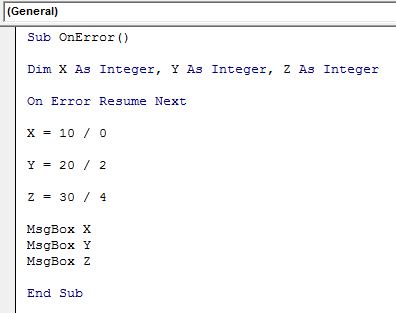
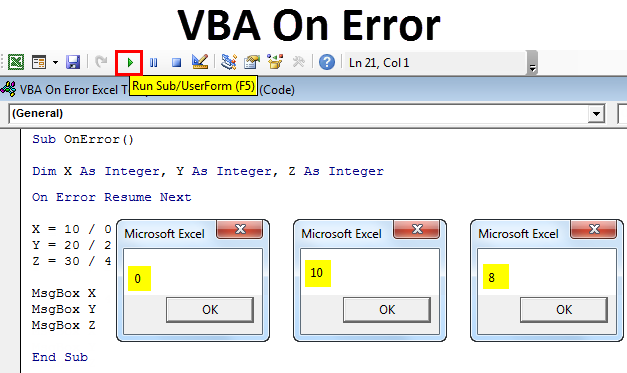
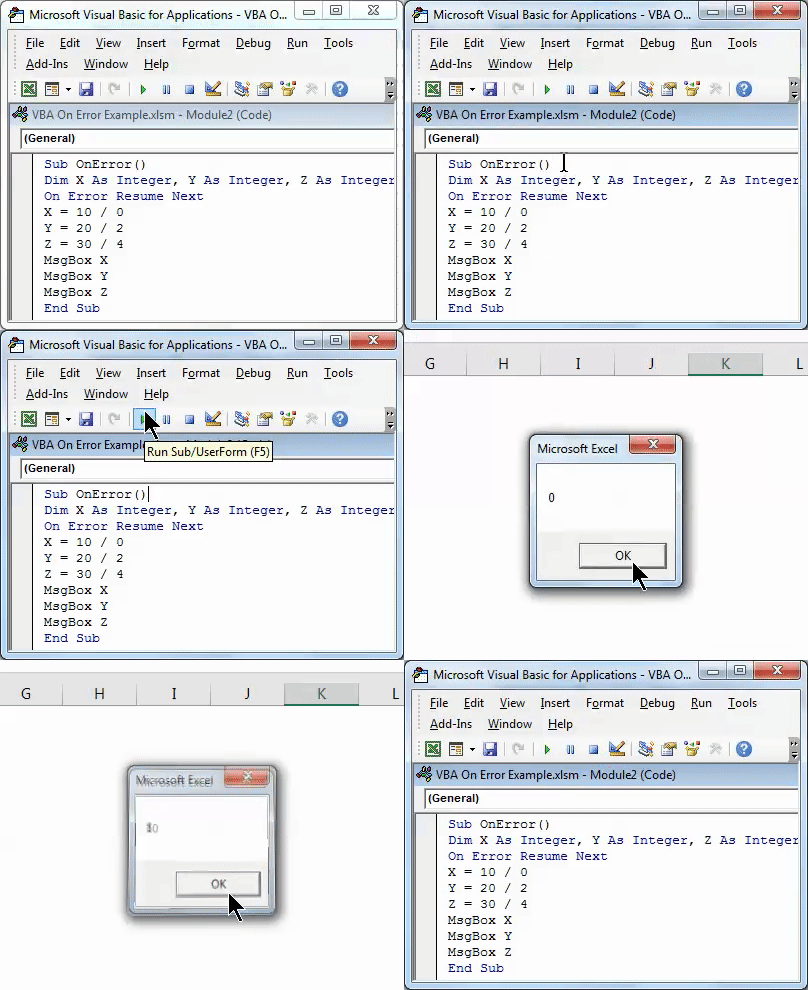
Now, if we run the code, we will get zero for the first integer X and for Y and Z, we will get respective division answers as shown below.
Example #3
The second type of error is seen when we enter incorrect data entry in code. For this, we will consider 3 integers, X, Y, and Z, by opening the Subcategory in VBA as shown below.
Sub OnError()

Dim X As Integer, Y As Integer, Z As Integer

End Sub
Now also consider the same mathematical division which we have seen in the above example.
Sub OnError()

Dim X As Integer, Y As Integer, Z As Integer

X = 10 / 0

Y = 20 / 2

Z = 30 / 4

MsgBox X
MsgBox Y
MsgBox Z

End Sub
If we run the code, we will get the same error message of Run-time error 11.
Now to overrule this error, use text On Error GoTo with the word “ “Result to skip the error message and get the output which works fine, as shown below.
Sub OnError()

Dim X As Integer, Y As Integer, Z As Integer

On Error GoTo ZResult:

X = 10 / 0

Y = 20 / 2

ZResult:
Z = 30 / 4

MsgBox X
MsgBox Y
MsgBox Z

End Sub
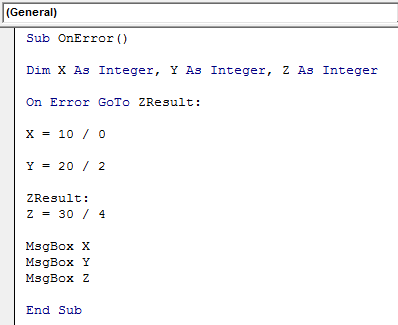
Now run the code again. We will get the same result as the previous example.
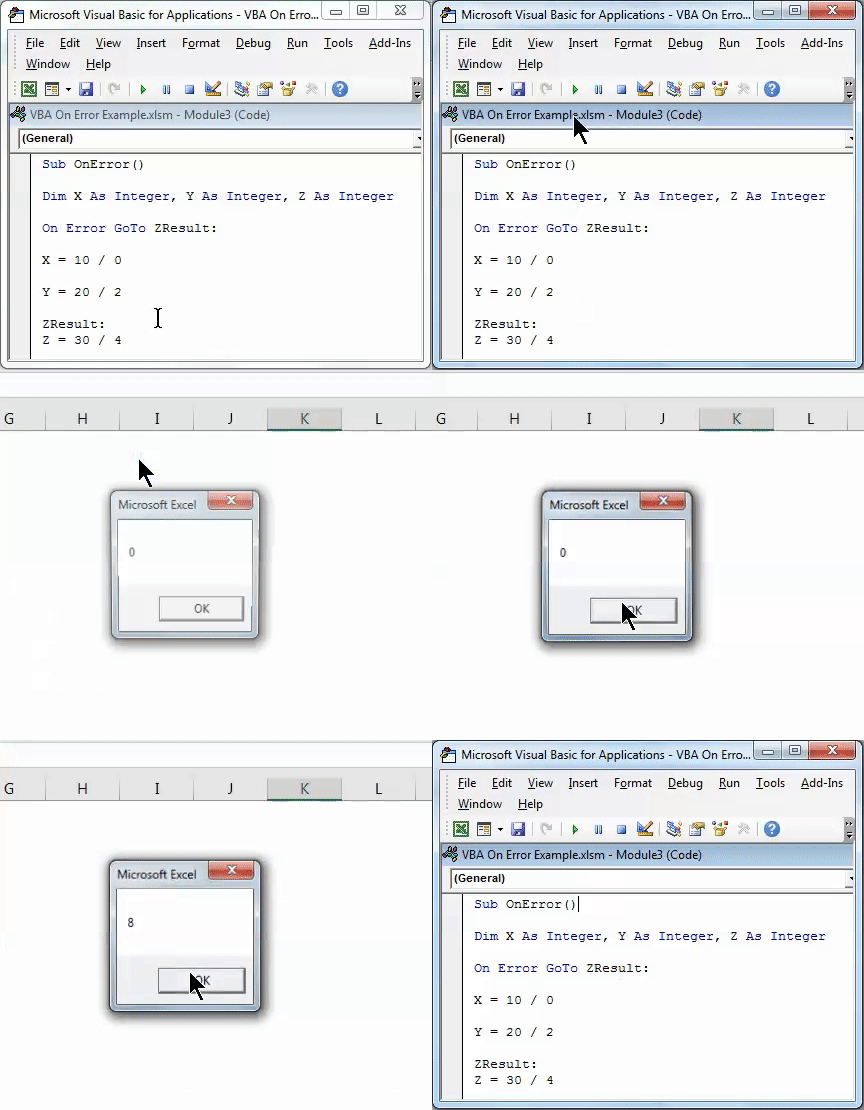
On Error GoTo ZResult helps us to directly jump of mentioned result point integer as we did for integer Z.
Example #4
In the third type of error, when we run the code and VBA is not able to understand the line of code. This can be done with the help of code On Error Resume Next along with MsgBox Err.Number. Consider the same data as used in the above examples. We will again see the same 3 integers X, Y, and Z, as shown below.
Sub OnError()

Dim X As Integer, Y As Integer, Z As Integer

End Sub
And for printing the result output, allow message boxes for all Integers as output.
Sub OnError()

Dim X As Integer, Y As Integer, Z As Integer

X = 10 / 0

Y = 20 / 2

Z = 30 / 4

MsgBox X
MsgBox Y
MsgBox Z

End Sub
Now, if we run the complete code, then we will get an error message of mathematical error Run time error 11.
Now to overrule this error, we will use On Error Resume Next.
Sub OnError()

Dim X As Integer, Y As Integer, Z As Integer

On Error Resume Next

X = 10 / 0

Y = 20 / 2

Z = 30 / 4

MsgBox X
MsgBox Y
MsgBox Z

End Sub
And run the code. This will give a use result on a valid mathematical line, as shown below.
Now further add ZResult code line before Z integer division mathematical expression and add MsgBox Err.Number code line at the end of code as shown below.
Sub OnError()

Dim X As Integer, Y As Integer, Z As Integer

On Error Resume Next

X = 10 / 0

Y = 20 / 2

ZResult:
Z = 30 / 4

MsgBox X
MsgBox Y
MsgBox Z

MsgBox Err.Number

End Sub
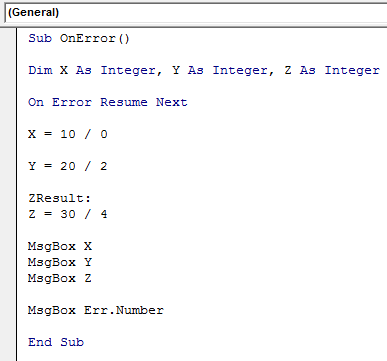
Now run the code by using the F5 key or by pressing the play button, as shown below.
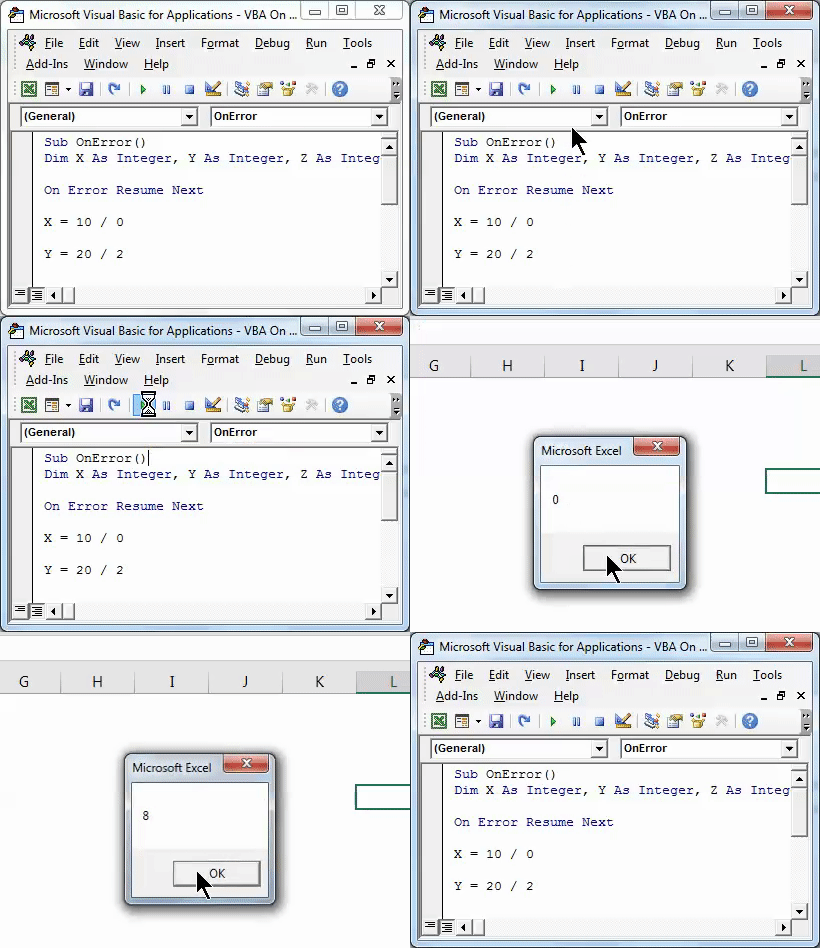
As we can see in the above screenshots. The first message box has 0, which is overruling of incorrect mathematical expression. 2nd and 3rd have a division result of Y and Z integers. And last message box has run time error code 11, which is probably the error code of X integer’s division expressions.
Pros of VBA On Error
- We can calculate any mathematical formula even if it is incorrect.
- For bigger coding structures where there are chances of having an error, using these methods may give correct result even among the line of codes.
- This gives a better result as compared to the result obtained from normal excel calculations.
Things to Remember
- Always save the file in a Macro-Enabled Excel file so that we can use created VBA code many and multiple times.
- Always compile the written code before implementing with any excel requirement.
- If needed, assign the written code to any button so that we can quickly click on the button and run the code.
You can download this VBA On Error Excel Template here – VBA On Error Excel Template.
Recommended Articles
This has been a guide to Excel VBA On Error. Here we discussed how to use VBA On Error Statement along with some practical examples and a downloadable excel template. You can also go through our other suggested articles–

