

Updated April 8, 2023
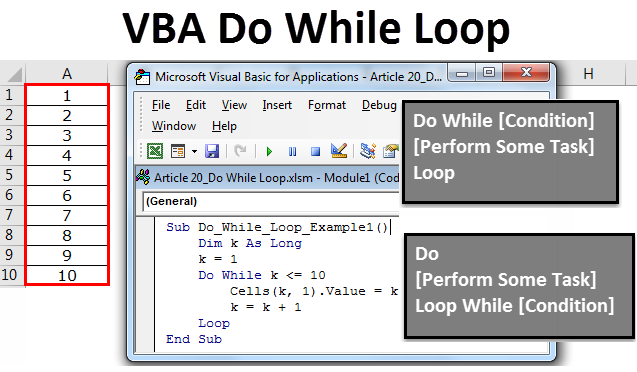
Excel VBA Do While Loop
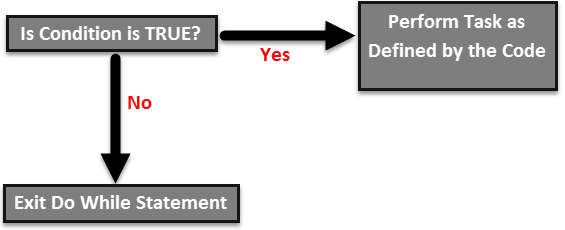
Do While Loop means to do something while the condition is TRUE. It is like a logical function which works based on TRUE or FALSE. So if the condition is TRUE, it will keep executing the statement inside the loop, but if the condition is FALSE straight away, it will exit the Do While statement. The working of the VBA Do While Loop is shown in the figure given below.
Syntax of Do While Loop in VBA Excel
Do While Loop has two kinds of syntax in Excel VBA.
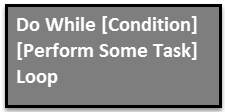
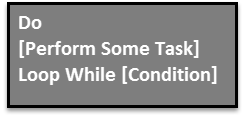
Both look very similar, and there is one simple differentiation in them.
In the first syntax “Do While” loop checks the condition first and gives the condition result is TRUE or FALSE. If the condition is TRUE, it will execute the code and perform a specified task, and if the condition is FALSE, then it will exit the loop.
In the second syntax “Do” loop firstly will execute the code, and then it tests whether the condition is TRUE or FALSE. If the condition is TRUE, it will again go back and perform the same task. If the condition is FALSE, then it will straight away exit the loop.
Example of Excel VBA Do While Loop
If you have not understood anything in the theory part nothing to worry about. I will explain to you the simple set of examples to have a fair knowledge about this loop.
Now we will perform the task of inserting the first 10 serial numbers from cell A1 to A10. Follow the below steps to apply the “Do While” loop.
Step 1:
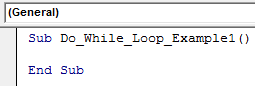
Create a macro name first.
Code:
Sub Do_While_Loop_Example1()

End Sub
Step 2:
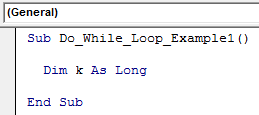
Define a variable as “Long”. I have defined “k” as a long data type.
Code:
Sub Do_While_Loop_Example1()

     Dim k As Long

End Sub
Step 3:
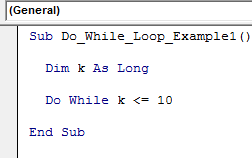
Now enter the word “Do While”. And after starting the loop name, enter the condition as “k <=10”.
Code:
Sub Do_While_Loop_Example1()

     Dim k As Long

     Do While k <= 10

End Sub
Step 4:
Now using the CELLS property, let’s insert serial numbers.
Code:
Sub Do_While_Loop_Example1()

  Dim k As Long

  Do While k <= 10
     Cells(k, 1).Value = k
End Sub
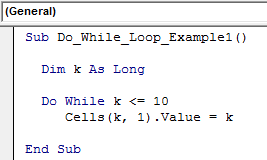
Note: Here, variable “k” starts from 1, so at first k value is equal to 1. Wherever “k” is, there is equal to 1.
Step 5:
Now close the loop by entering the word “LOOP”.
Code:
Sub Do_While_Loop_Example1()

  Dim k As Long

  Do While k <= 10
     Cells(k, 1).Value = k
  Loop

End Sub
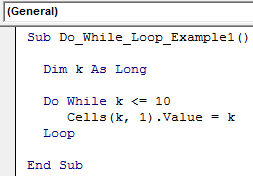
Ok, we are done. For better understanding, let’s test this code one by one by pressing the F8 key once.
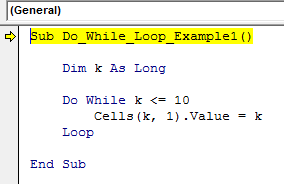
The first press F8 key, it will highlight the macro name by yellow color.
Now one more time, press the F8 key; it will jump to Do While Loop. Place the cursor on “k” and see what the value is.
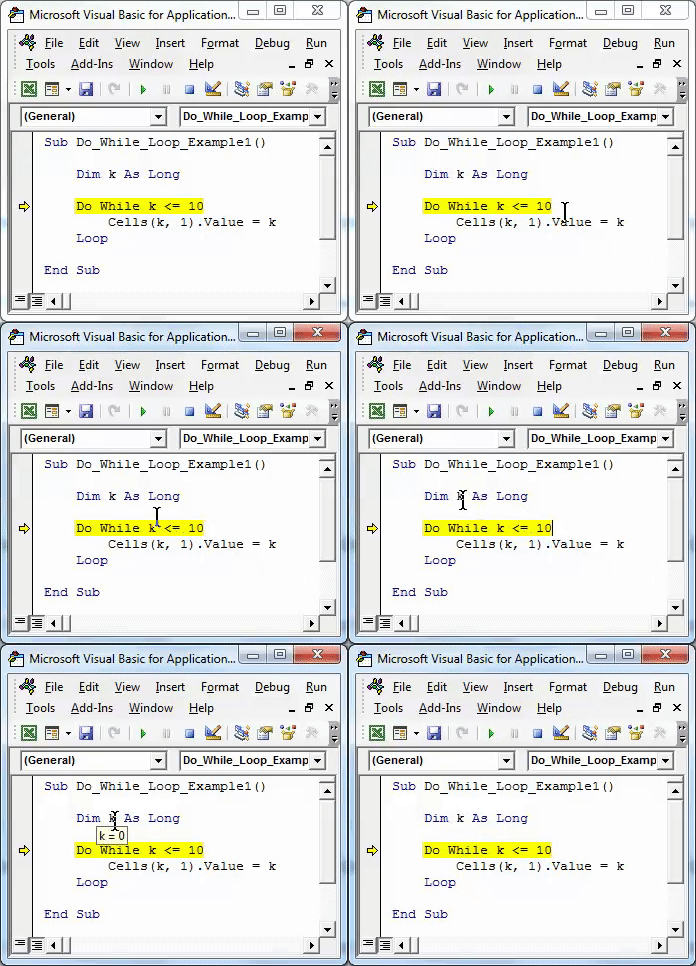
So, K=0. The reason why “k” is equal to zero now because the loop is not started to executed here. Press F8 one more time and see what the value is.
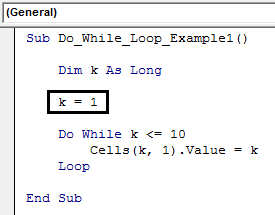
Still, the “k” value is zero. Ok, let’s do one thing now, stop the running of macro and assign the value of “k” as 1 before the loop starts.
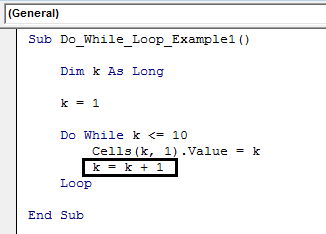
Now inside the loop, reassign the k value as k = k +1.
Now start the process of executing the code line by line by pressing the F8 key. Start pressing the F8 and see what the value is when it executes the “Do While” loop.
Code:
Sub Do_While_Loop_Example1()
Dim k As Long
k=1
Do While k <= 10
Cells(k, 1).Value = k
k = k + 1
Loop
End Sub
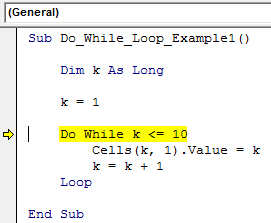
So the “k” value is equal to 1. Wherever “k” is, there is equal to the value of 1. So the line of code Cells (k, 1). Value = k is equal to:
Cells (1, 1).Value = 1 i.e. Row 1 & Column 1 (A1 cell) value is equal to 1.
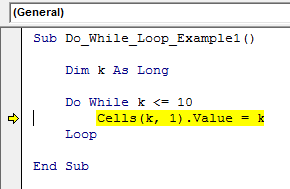
Press the F8 key and execute the action inside the loop.
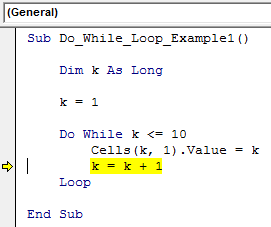
Now, look at the value in cell A1.
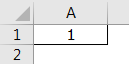
So we got the value of 1 in cell A1.
Now execute the next line by pressing the F8 key and see what the value of “k” is.
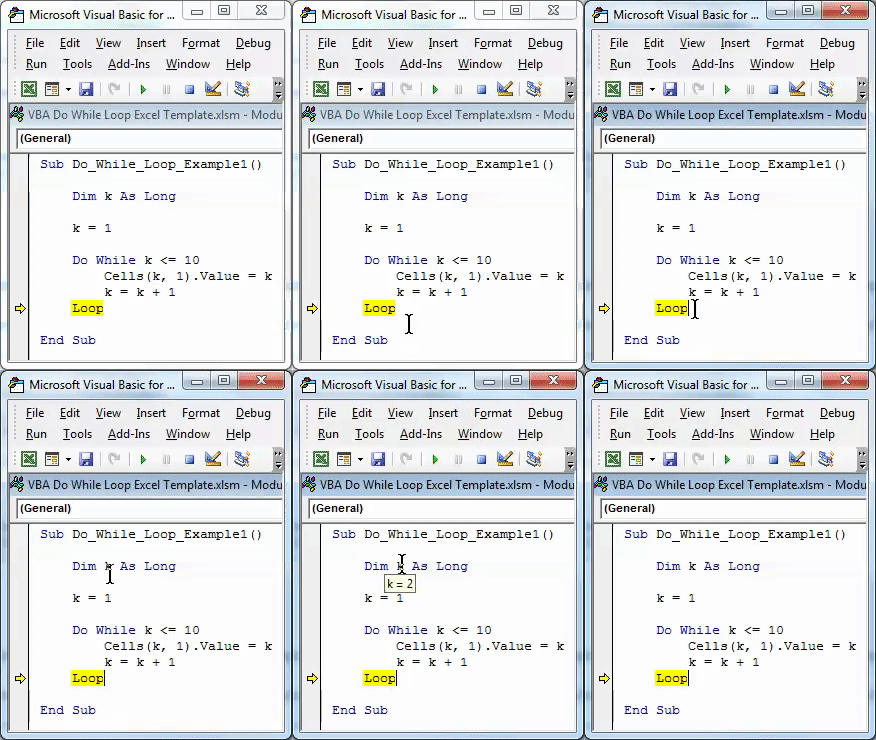
So now the k value is equal to 2. So wherever k is, there is equal to 2.
Press the F8 key; now, the code will return to test the value of k.
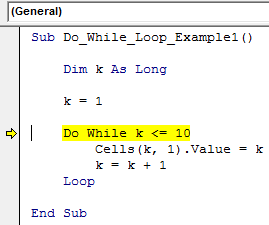
Now press two more times the F8 key and see what the value is in cell A2.
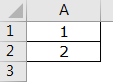
Like this, Do While Loop keeps executing the task of inserting serial numbers until the value of k reaches 11. Now I have already executed line by line until the k value becomes 10.
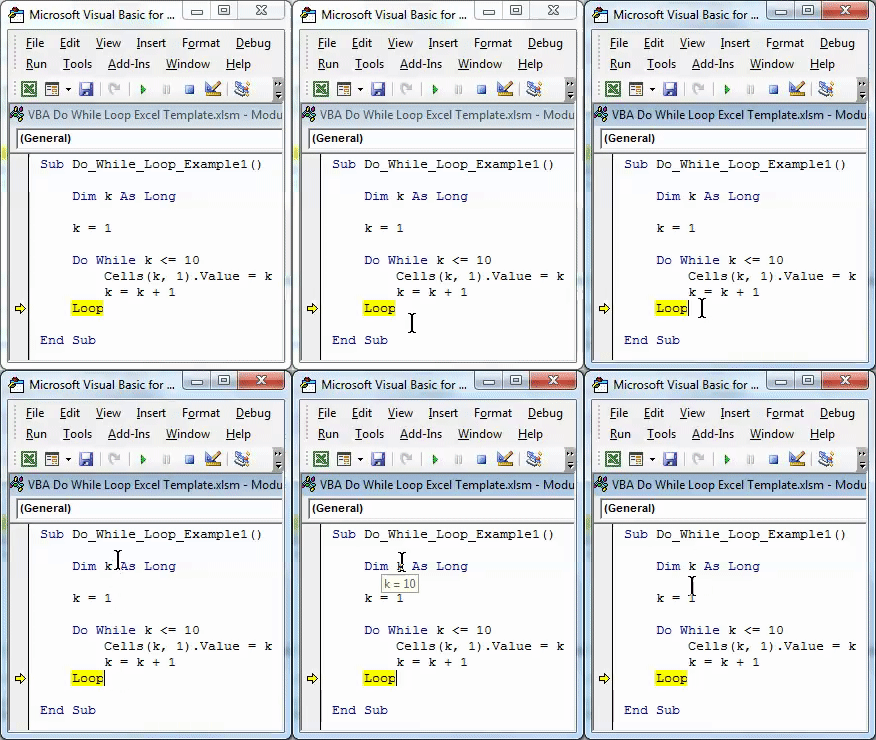
Now, if I press one more time F8 key, it will go back to test the condition but will not execute the line of code because the k value is more than 10 now.
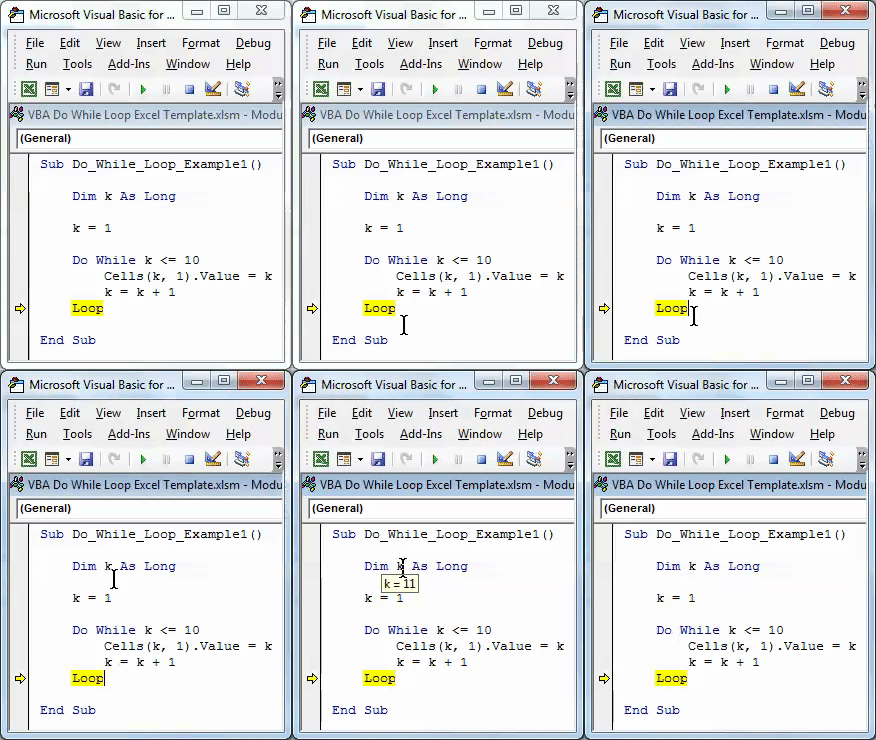
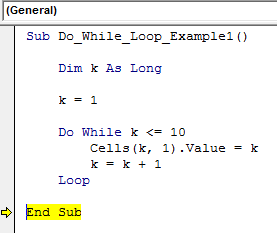
If I press the F8 key, it will straight away exit the loop and goes to End Sub.
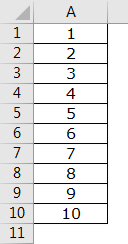
The final output is given as follows.
Like this, VBA Do While Loop can be used to perform the same set of tasks until the given condition is TRUE.
Things to Remember
- VBA Do While Loop executes the task until the condition is TRUE.
- We can also test the condition at the beginning of the loop or also at the end of the loop.
- The movement condition is FALSE; it will exit the loop and will not perform the task.
Recommended Articles
This has been a guide to VBA Do While Loop. Here we discussed how to use Excel VBA Do While Loop along with some practical examples and a downloadable excel template. You can also go through our other suggested articles –

