


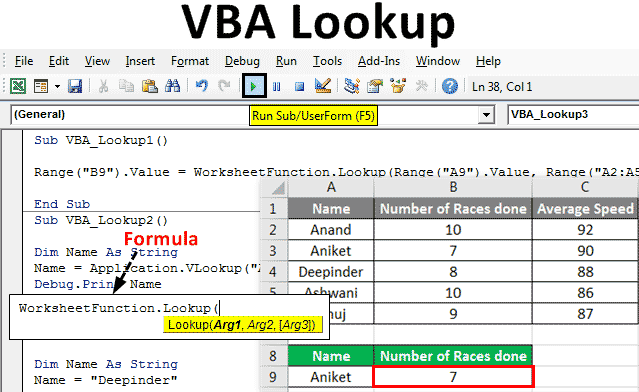
Excel VBA Lookup Function
In excel, we have used VLookup many times. It is there in Insert function which is used to fetch or map any kind of values we want. Similarly, in VBA we have Lookup application, which works as same as Excel Vlookup. VBA Lookup has a flexible data structure as it can be used to map any kind of value from any kind of table array. This means if we apply Excel Vlookup, then we won’t be able to map the right column data with left column data in one syntax. Whereas in VBA Lookup, there is no proper structure of mapping. We just need to follow the syntax of VBA Lookup. If the syntax is satisfied and properly framed then we can fetch the values from the right or left side of the table.
Syntax of VBA Lookup Function:

Where,
- Arg1 = Value we want to lookup.
- Arg2 = Range of the columns or table from where we want to lookup.
- Arg3 = Result as Boolean or Vector.
How to Use the Lookup Function in Excel VBA?
We will learn how to use the Lookup function in Excel by using the VBA Code.
VBA Lookup – Example #1
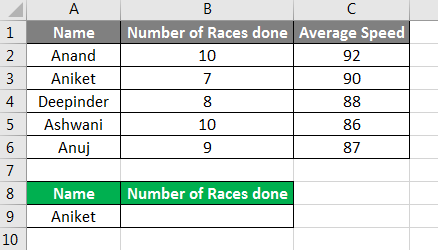
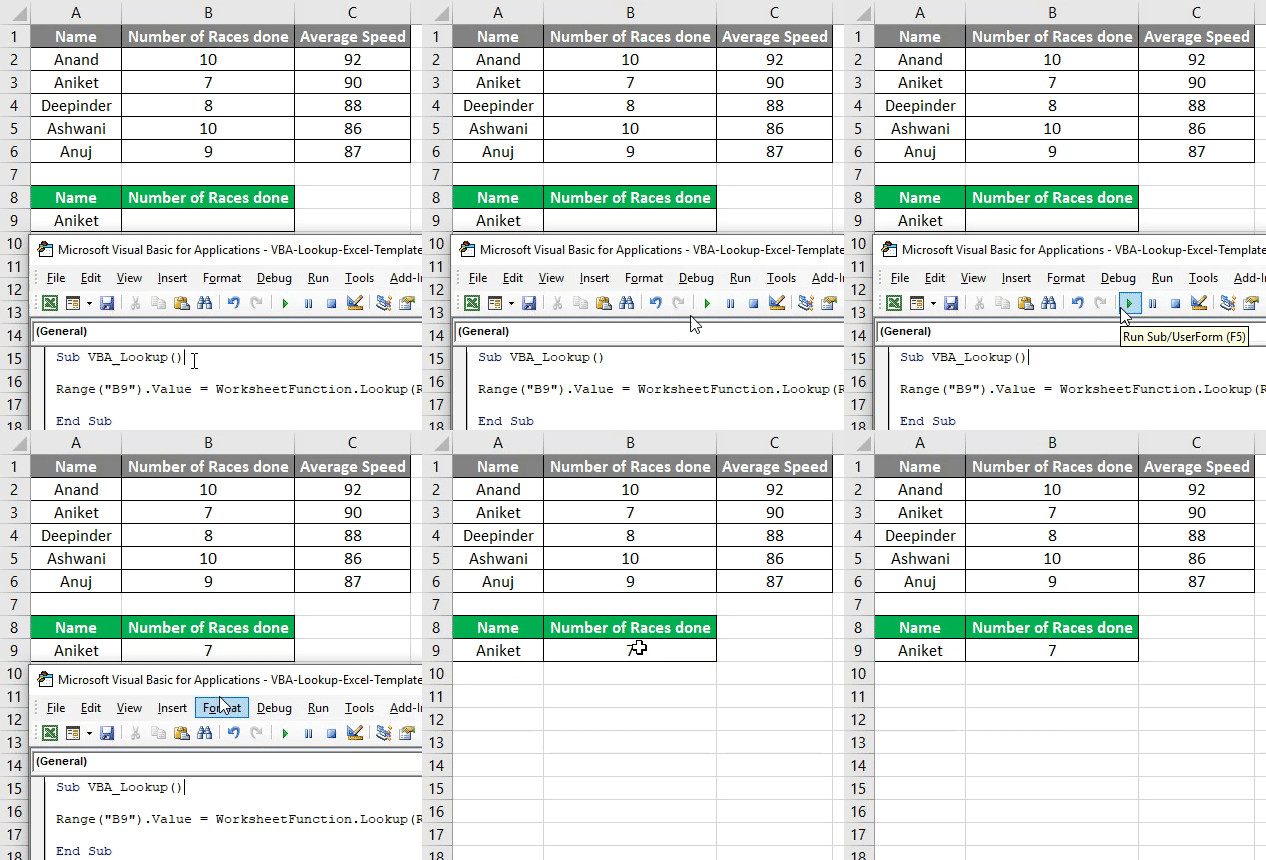
There are many ways to write the VBA Lookup code. In this example, we will see a simple way to write the VBA Lookup. For this, we have a data set as shown below. This table has the number of races and the average speed of the racers. Now we will be using this data to apply VBA Lookup in the below table with the Blue headers in A8 to B8. For this, follow the below steps:
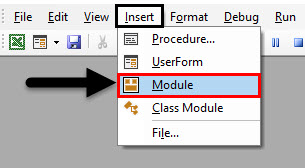
Step 1: Open a Module from the Insert menu tab as shown below.
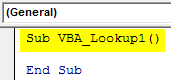
Step 2: Write the subprocedure for performed work in that Module. Here we have chosen the name as VBA Lookup.
Code:
Sub VBA_Lookup1()

End Sub
Step 3: Select the output cell where we need to see the lookup value. Here that cell is B9 where we will be lookup with the value concerning the name “Aniket” which is our lookup value.
Code:
Sub VBA_Lookup1()

Range("B9").Value

End Sub
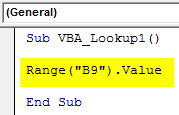
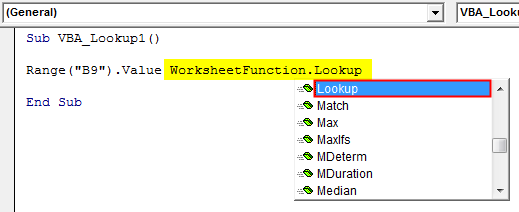
Step 4: Now we will use Worksheet Function and select Lookup function inbuilt in the list as shown below.
Code:
Sub VBA_Lookup1 ()

Range("B9").Value = WorksheetFunction.Lookup

End Sub
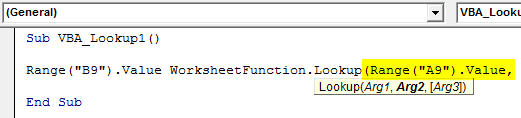
Step 5: Once we select the Lookup function, we will see the Arg1, Arg2, and Arg3 in its syntax. For that, we will first put our Lookup value range which is cell A9 in place of Arg1.
Code:
Sub VBA_Lookup1()

Range("B9").Value = WorksheetFunction.Lookup(Range("A9").Value,

End Sub
Step 6: Now for Arg2, select the lookup range which is from cell A2:A5.
Code:
Sub VBA_Lookup1 ()

Range("B9").Value = WorksheetFunction.Lookup(Range("A9").Value, Range("A2:A5"),

End Sub

Step 7: At last, select lookup values ranges which is from B2 to B5 in place of Arg3.
Code:
Sub VBA_Lookup1()

Range("B9").Value = WorksheetFunction.Lookup(Range("A9").Value, Range("A2:A5"), Range("B2:B5"))

End Sub

Step 8: Run the code by pressing the F5 key or by clicking on the Play Button located below the menu ribbon. We will see, as per Lookup, the number of races done by the name “Aniket” is 7.
VBA Lookup – Example #2
There is another way to apply a Lookup function in Excel VBA. For this, we will be using the same data that we have seen in example-1. For this, follow the below steps:
Step 1: Write the subprocedure for VBA Lookup, as shown below.
Code:
Sub VBA_Lookup2()

End Sub
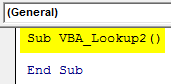
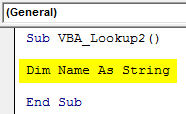
Step 2: Define a variable as String which will be used to map the Name column.
Code:
Sub VBA_Lookup2()

Dim Name As String

End Sub
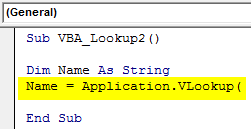
Step 3: In the defined variable Name, we will apply the Vlookup application as shown below.
Code:
Sub VBA_Lookup2()

Dim Name As String
Name = Application.VLookup(

End Sub
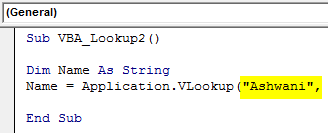
Step 4: Let’s say our lookup value is named “Ashwani” from the table.
Code:
Sub VBA_Lookup2()

Dim Name As String
Name = Application.VLookup("Ashwani",

End Sub
Step 5: And the range is from A1 to C6 from Sheet1.
Code:
Sub VBA_Lookup2()

Dim Name As String
Name = Application.VLookup("Ashwani", Sheet1.Range("A1:C6"),

End Sub
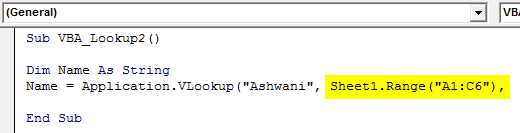
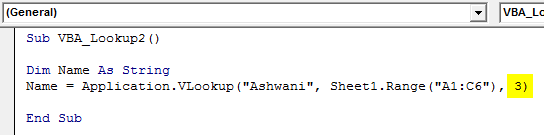
Step 6: Now if we want to see the average speed of rider “Ashwani” here, we need to map the cell in the Lookup syntax which is at 3rd place.
Code:
Sub VBA_Lookup2()

Dim Name As String
Name = Application.VLookup("Ashwani", Sheet1.Range("A1:C6"), 3)

End Sub
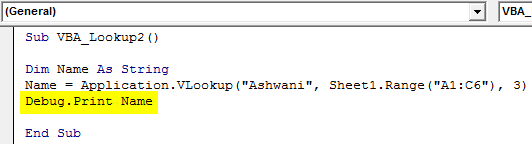
Step 7: Now to see the Average speed of rider “Ashwani”, we can use MsgBox and Debug Print both. But using Debug Print is way better than MsgBox. So Assign Debug Print with defined variable Name.
Code:
Sub VBA_Lookup2()

Dim Name As String
Name = Application.VLookup("Ashwani", Sheet1.Range("A1:C6"), 3)
Debug.Print Name

End Sub
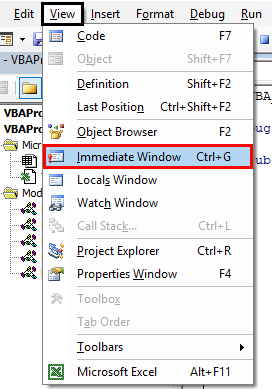
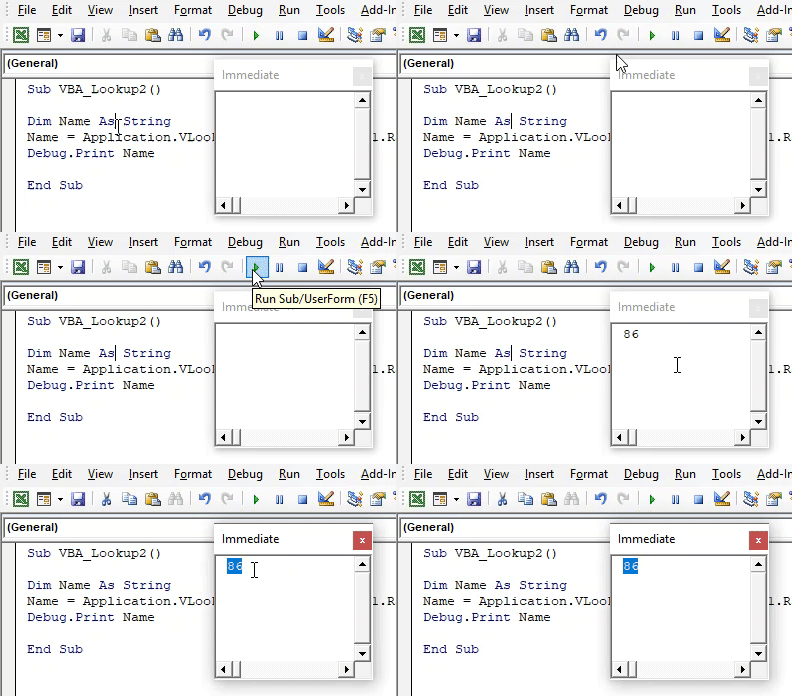
Step 8: Now open Immediate Window which is there in View menu tab to see the output.
Step 9: Compile the code and run it. We will see, Lookup has mapped with speed of Ashwani and fetched that into Immediate window as 86.
Code:
Sub VBA_Lookup2()

Dim Name As String
Name = Application.VLookup("Ashwani", Sheet1.Range("A1:C6"), 3)
Debug.Print Name

End Sub
VBA Lookup – Example #3
For using the lookup function in excel VBA, follow the below steps:
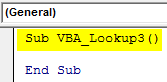
Step 1: Write the subprocedure for VBA Lookup, as shown below.
Code:
Sub VBA_Lookup3()

End Sub
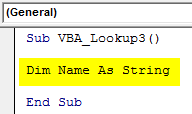
Step 2: Declare a variable for Name as String as shown below.
Code:
Sub VBA_Lookup3()

Dim Name As String

End Sub
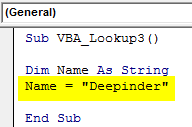
Step 3: Now assign the name which wants to lookup to defined variable Name as shown below.
Code:
Sub VBA_Lookup3()

Dim Name As String
Name = "Deepinder"

End Sub
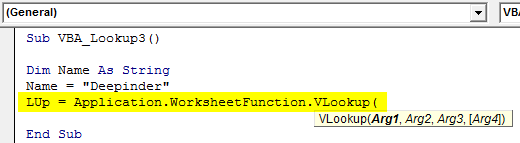
Step 4: Now use any word to define and use Lookup lets say LUp. And in that use Worksheet Function with Vlookup as shown below.
Code:
Sub VBA_Lookup3()

Dim Name As String
Name = "Deepinder"
LUp = Application.WorksheetFunction.VLookup(
MsgBox "Average Speed is : " & LUp

End Sub
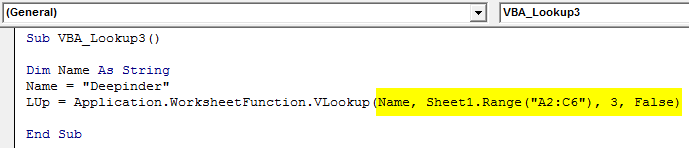
Step 5: Now use the same Vlookup syntax as we use in Excel. In Arg1 put the Name variable, then select the range matrix and look for up value which we want to get. Here that column is 3 as shown below.
Code:
Sub VBA_Lookup3()

Dim Name As String
Name = "Deepinder"
LUp = Application.WorksheetFunction.VLookup(Name, Sheet1.Range("A2:C6"), 3, False)
MsgBox "Average Speed is : " & LUp

End Sub
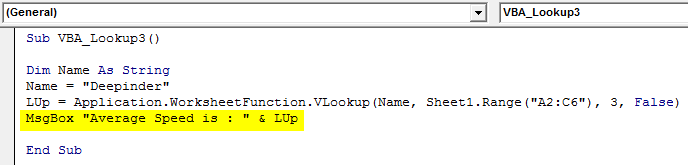
Step 6: Now use MsgBox to see the output.
Code:
Sub VBA_Lookup3()

Dim Name As String
Name = "Deepinder"
LUp = Application.WorksheetFunction.VLookup(Name, Sheet1.Range("A2:C6"), 3, False)
MsgBox "Average Speed is : " & LUp

End Sub
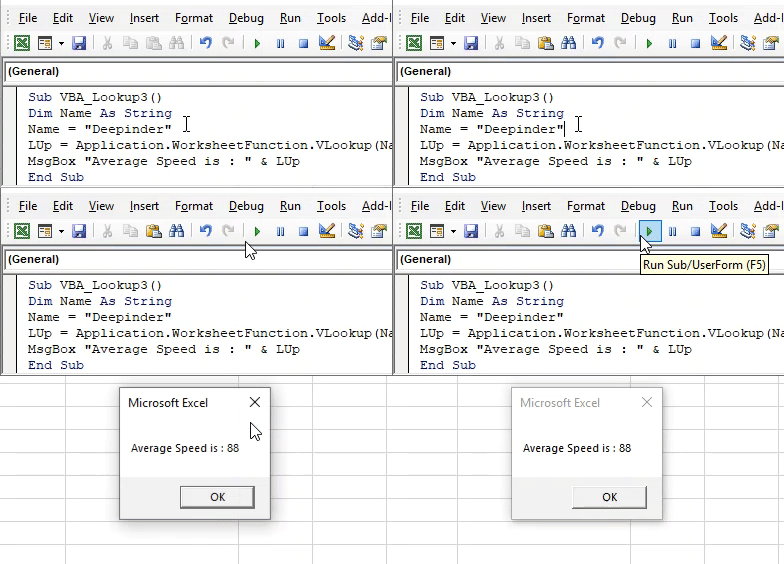
Step 7: Compile and run the code. We will see, for the Name “Deepinder” the Average Speed is coming as 88. Whereas the same value is given for the name Deepinder in the table.
Code:
Sub VBA_Lookup3()

Dim Name As String
Name = "Deepinder"
LUp = Application.WorksheetFunction.VLookup(Name, Sheet1.Range("A2:C6"), 3, False)
MsgBox "Average Speed is : " & LUp

End Sub
Pros of Excel VBA Lookup Function
- It is as easy to use and implement as applying regular excel Vlookup formulas in Excel.
- We can use any kind of range and matrix in VBA Lookup.
- There are very few or no constraints while applying VBA Lookup.
Things to Remember
- We can use Lookup in place of Vlookup in any situation.
- Range for Lookup vector and result vector should be the same.
- Once done the application, save the file as Macro Enable format to retain the code.
- There is no mandatory requirement to put the result column every time to be at the right of the lookup value.
Recommended Articles
This is a guide to the VBA Lookup function. Here we discuss how to use the Lookup function in Excel VBA along with practical examples and downloadable excel template. You can also go through our other suggested articles –

