


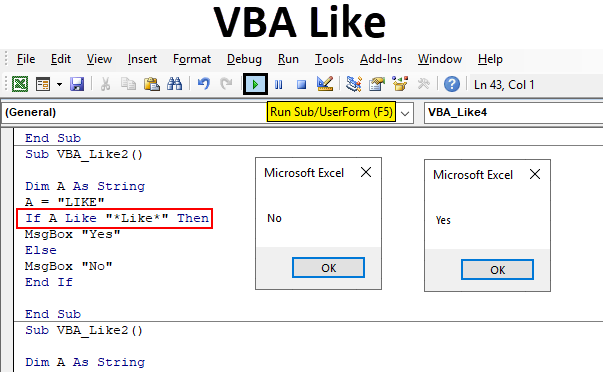
Introduction to VBA Like
VBA Like is used when we have some special characters, spaces in the string and we need to get exact or most relevant output from that word. VBA Like allows us to match the pattern in alphabetical sequence so that if any word contains some special characters then with the help of VBA Like we can complete word. We can also determine if that string is in the proper format or not.
In VBA Like, we have some conditions on that basis we can define what we need to get and how we need to fill the space of missing blank words.
- Question Mark (?) – By this, we can match only one character from the string. Suppose we have string “TAT” and the pattern is “T?T” then VBA Like will return TRUE. If we have the string as “TOILET” and the pattern is still “T?T” then VBA Like will return FALSE.
- Asterisk (*) – By this, we can match 0 or more characters. Suppose we have the string as “L**K” then VBA Like will return TRUE.
- [Char-Char] – By this, we can match any single character in the range Char-Char.
- [!Char] – By this, we can match any single character but not in the list.
- [!Char-Char] – By this, we can match any single character but not in Char-Char.
How to Use VBA Like Function in Excel?
We will learn how to use a VBA Like function with a few examples in excel.
Example #1 – VBA Like
To find if the available string is TRUE or FALSE for VBA Like first, we need a module. For that,
Step 1: Go to Insert menu and click on Module option from the list as shown below.
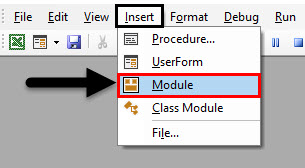
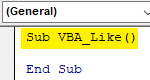
Step 2: Now in the opened window of Module in VBA, write the subcategory of VBA Like as shown below.
Code:
Sub VBA_Like()

End Sub
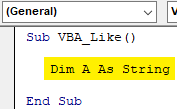
Step 3: Now first, we will define a variable A as String as shown below. Here, we can use the Long variable as well as it too allows to store any text value in it.
Code:
Sub VBA_Like()

   Dim A As String

End Sub
Step 4: Next, we will assign a word to variable A. Let’s consider that word as “LIKE”.
Code:
Sub VBA_Like()

  Dim A As String
  A = "Like"

End Sub
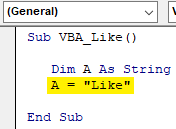
Step 5: Now with the help of If-End If loop we will create VBA Like condition.
Code:
Sub VBA_Like()

   Dim A As String
   A = "Like"

If

End If

End Sub
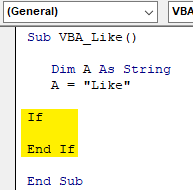
We will use the above code in the upcoming example as well directly.
Step 6: Now in If-End If loop write the condition as variable A like “L?KE” is a TRUE condition then give us Yes in a message box or else give us No in the message box for FALSE.
Code:
Sub VBA_Like()

   Dim A As String
   A = "Like"

If A Like "L?KE" Then
   MsgBox "Yes"
Else
   MsgBox "No"
End If

End Sub
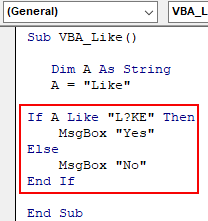
We have kept a question mark in the second position. But this can be kept anywhere in whole string.
Step 7: Now compile the code and run it by clicking on the Play button which is available below the menu bar.
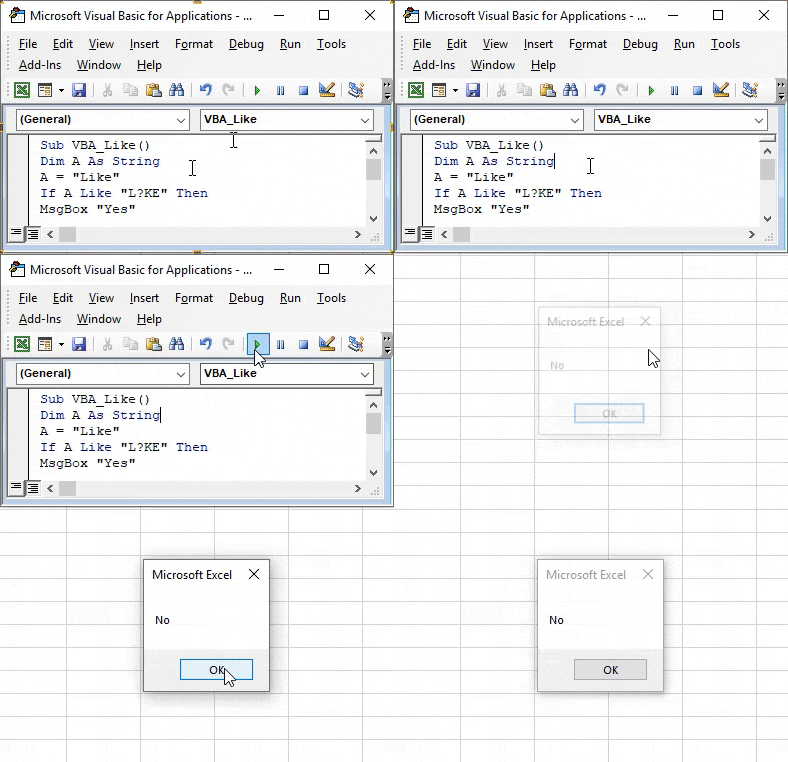
We will get the message box as NO. Which means, the word which chose “LIKE” in variable A may have other alphabets in place of a question mark and instead of only “I”.
Example #2 – VBA Like
In this example, we will implement Asterisk (*)
Step 1: Now we will use the same code structure which we have seen in example-1 with the same word “LIKE”.
Code:
Sub VBA_Like2()

  Dim A As String
  A = "LIKE"

If
End If

End Sub
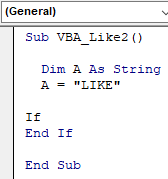
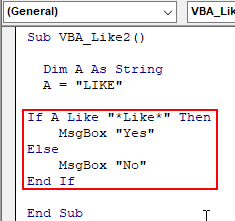
Step 2: As we know that with Asterisk we have a match 0 or more characters from any string. So in If-End If loop we will write, if VBA Like matches “*Like*” is TRUE then we will get the message as Yes, else we will get No if it is FALSE.
Code:
Sub VBA_Like2()

  Dim A As String
  A = "LIKE"

If A Like "*Like*" Then
   MsgBox "Yes"
Else
   MsgBox "No"
End If

End Sub
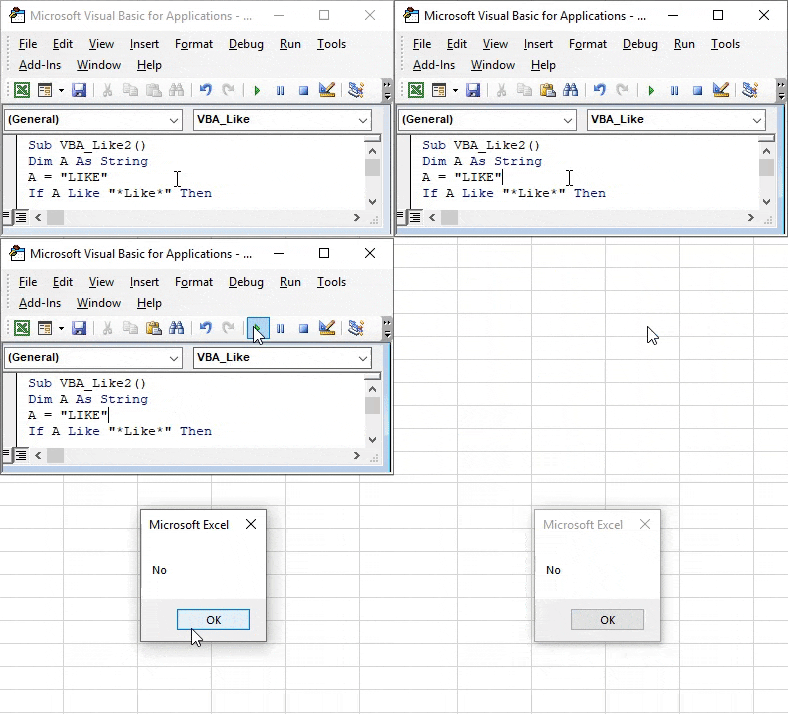
Step 3: Again compile the complete code and run it. We will get the message as NO because VBA Like is failed to match any alphabet apart from defined string “Like”.
Step 4: Now if we change the string A from “Like” to “Like Wise” and try to match any letter from the string, let’s say it is “W” in asterisk then what will we get?
As said above, we have used “LIKE WISE” as our new string.
Code:
Sub VBA_Like2()

  Dim A As String
  A = "LIKE WISE"

  If A Like "*W*" Then
   MsgBox "Yes"
  Else
    MsgBox "No"
  End If

End Sub
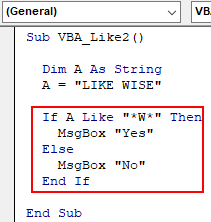
Step 5: Now compile the code and run it again. We will get the message as YES. Which means that VBA Like is able to match any alphabet from our string “LIKE WISE”.
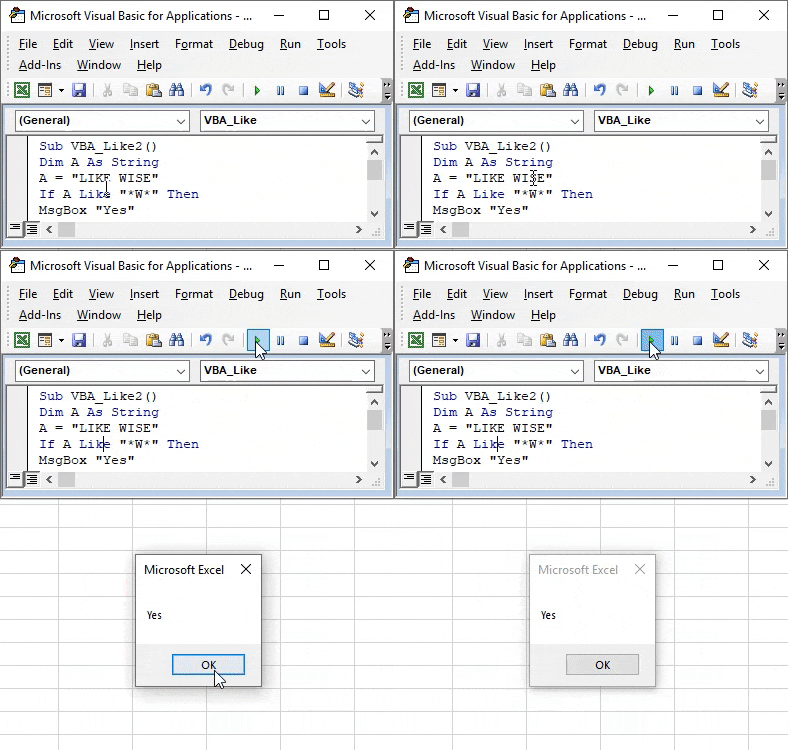
In the same manner, if we match any other letter from “LIKE WISE” we may get the same results.
Example #3 – VBA Like
In this example, we will see, how Char-Char works in matching the strings of characters.
Step 1: For this also, we will use the same frame of code which we have seen in example-2 for defined variable A as “LIKE WISE”.
Code:
Sub VBA_Like4()

  Dim A As String
  A = "LIKE WISE"

If

End If

End Sub
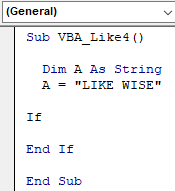
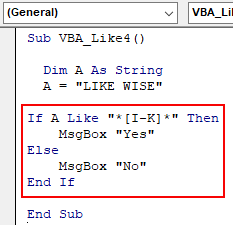
Step 2: In if-End If loop, write the condition VBA Like matches letters from I to K (In Asterisk and Char) then it will be TRUE and give us the message as YES. If not then it will be FALSE and we will get the message as NO.
Code:
Sub VBA_Like4()

   Dim A As String
   A = "LIKE WISE"

If A Like "*[I-K]*" Then
   MsgBox "Yes"
Else
   MsgBox "No"
End If

End Sub
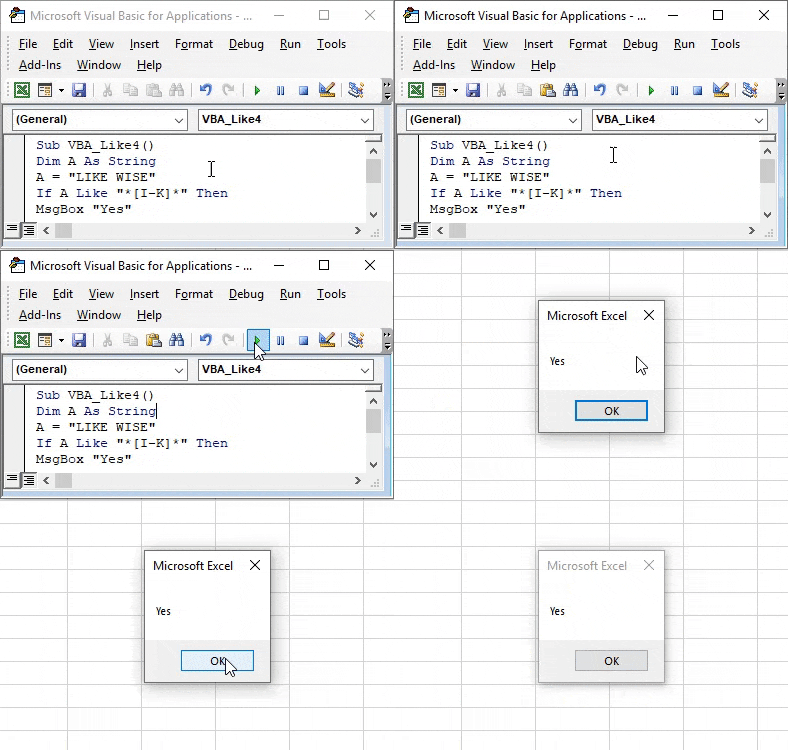
Step 3: Again compile the code and run it. We will see, VBA Like is able to match the characters from letter I to K and gave us the message as YES.
Pros and Cons of VBA Like
- In a set of database where it is quite frequent to see such special characters, there using VBA Like will allow us to frame hidden words.
- As it has very limited application, so it is very rarely used.
Things to Remember
- We can compare and match only strings. Any other variables such as integers, double cannot be used.
- It is not recommended to record a macro on VBA Like. As we don’t know any excel function on it. And also, doing this process with other ways may result in getting incorrect match results.
- Though VBA Like is very rarely used, but the kind of output it gives may not be accurately given by other functions and command of the same type.
- Save the file in Macro Enable Excel file format only. This format is mainly used when we create any macro.
Recommended Articles
This is a guide to VBA Like. Here we discuss how to use Excel VBA Like function along with practical examples and downloadable excel template. You can also go through our other suggested articles –

