


VBA Filter in Excel
It is very easy to apply the filter through just by pressing Alt + D + F + F simultaneously or Shift + Ctrl + L together. We can even go to the Data menu tab and select the Filter option there. But what if I say there is a much cooler way to use Filter using VBA Codes. Although applying the filter in any data is very easy manually but if we have a huge set of data where we need to apply the filter. Doing manually will take huge time to execute but doing this using Filter in Excel VBA code, we can make it much easier.
Syntax of VBA Filter:

Where, Range = This is the range of cells where we need to apply Auto Filter. This can be a single cell or range of cells in a row.
- Field: This is a sequence number of the column number from there our range is getting started.
- Criteria: Here we can quote our criteria which we want to filter from the selected field.
- Operator: This is optional if we have only one criteria. But for Criteria2 we use xlAnd, xlOr, xlBottom10Items, xlTop10Items, xlTop10Percent, xlBottom10Percent such keys to filter the data.
How to Apply Filter using VBA (Examples)
Below are the different examples of Filter in Excel VBA:
Example #1
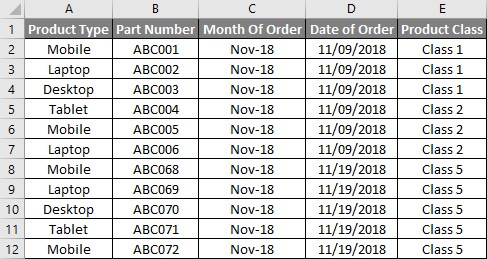
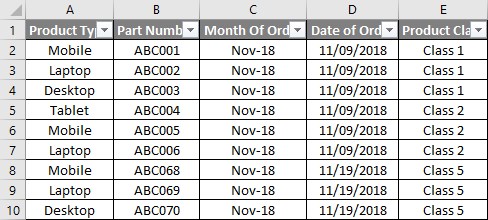
We have some sales data in Sheet1 as shown below. As we can see, we have the data in multiple columns which is perfect to show how VBA Filter works. For this, follow the below steps:
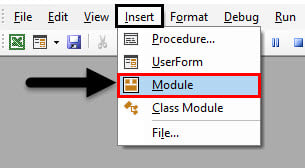
Step 1: Insert a new module inside Visual Basic Editor (VBE). Click on Insert tab > select Module.
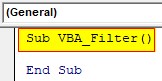
Step 2: Now write the subprocedure for VBA Filter.
Code:
Sub VBA_Filter()
End Sub
Step 3: Select the worksheet which has the data. Here our data is in Sheet1.
Code:
Sub VBA_Filter()
Worksheets(“Sheet1”).
End Sub
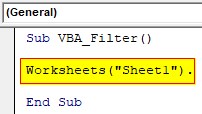
Step 4: And after select the column as Range which we want to filer followed by AutoFilter function.
Code:
Sub VBA_Filter()
Worksheets(“Sheet1”).Range(“G1”).AutoFilter
End Sub
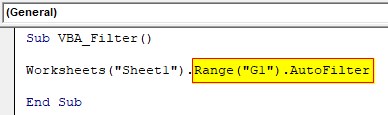
Step 5: Now run the code. We will see the complete row got the filter dropdown. Even if we select a cell, auto filter will be applied to the complete row.
Example #2
If we use the proper syntax of VBA Filter, we can filter the data as we do manually. Let’s filter the data with the Owner’s name as Ben and see what we get. For this, follow the below steps:
Step 1: Defining the subprocedure for VBA Filter.
Code:
Sub VBA_Filter2()
End Sub
Step 2: Select the worksheet which has the data. Here again, the sheet is Sheet1. And then select the column name as Range which we want to filter. Here the Owner name column is at G1 position.
Code:
Sub VBA_Filter2()
Worksheets(“Sheet1”).Range(“G1”).
End Sub
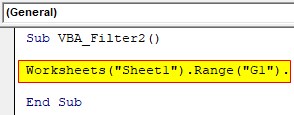
Step 3: Now we will use the AutoFilter command to apply the filter. Then select the Field number which is at 7th position and Criteria as Ben.
Code:
Sub VBA_Filter2()
Worksheets(“Sheet1”).Range(“G1″).AutoFilter Field:=7, Criteria1:=”Ben”
End Sub

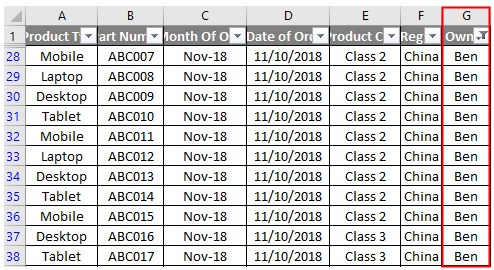
Step 4: Compile the code by hitting F5 or the Run button and run it. We will see, the filer is now applied to Row1 at cell G1. And as we can see, the dot in the G1 cell filter shows the data is filtered.
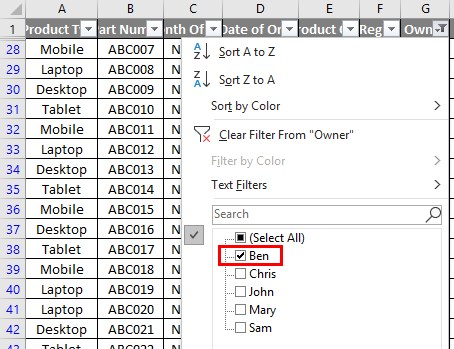
Step 5: To further dig, if our selected criteria is filtered or not, go to cell G1 and click on the drop-down arrow. We will see, only Ben is selected.
Step 6: We will get the same result if we select the Range from A1:J1 as shown below.
Code:
Sub VBA_Filter2()
Worksheets(“Sheet1”).Range(“A1:J1″).AutoFilter Field:=7, Criteria1:=”Ben”
End Sub

Step 7: What if we choose an Operator here to apply multiple filters in the same selected field? For this, in the same line of code, add Operator xlOR. This will help us to apply more than one criteria.
Code:
Sub VBA_Filter2()
Worksheets(“Sheet1”).Range(“A1:J1″).AutoFilter Field:=7, Criteria1:=”Ben”, Operator:=xlOr,
End Sub

Step 8: Now, at last, select another criterion which is Criteria2. Let’s say that criteria be John.
Code:
Sub VBA_Filter2()
Worksheets(“Sheet1”).Range(“A1:J1″).AutoFilter Field:=7, Criteria1:=”Ben”, Operator:=xlOr, Criteria2:=”John”
End Sub

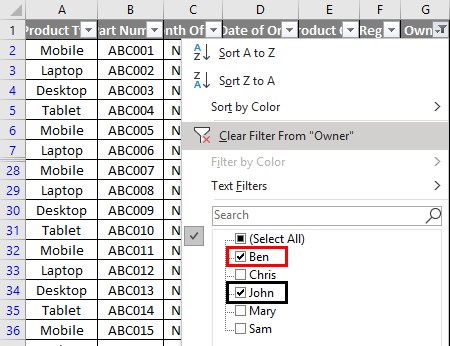
Step 9: Now run the code again. We will see, in the drop-down option at cell G1, both the owner’s name are filtered. One is BEN and the other is JOHN.
Example #3
There is another way to filter the data with more than 1 criteria in different columns. We will use With-End With Loop to execute this. For this, follow the below steps:
Step 1: Write the subprocedure.
Code:
Sub VBA_Filter3()
End Sub
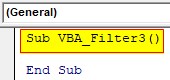
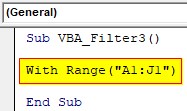
Step 2: Select the Range where we need to apply filter. Here our range is from cell A1:J1.
Code:
Sub VBA_Filter3()
With Range(“A1:J1”)
End Sub
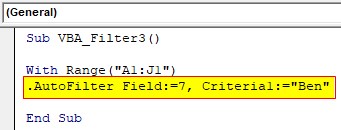
Step 3: In the next line of code, use AutoFilter function and select the Fields and Criteria as required. Here Field will be 7 and Criteria will be BEN.
Code:
Sub VBA_Filter3()
With Range(“A1:J1″)
.AutoFilter Field:=7, Criteria1:=”Ben”
End Sub
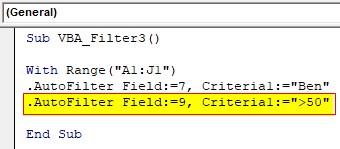
Step 4: In the second line of code, we will select another cell of headers to be filtered. Let’s filter the Quantity column with the values greater than 50 for the Owner’s name BEN.
Code:
Sub VBA_Filter3()
With Range(“A1:J1″)
.AutoFilter Field:=7, Criteria1:=”Ben”
.AutoFilter Field:=9, Criteria1:=”>50″
End Sub
Step 5: End the loop with End With.
Code:
Sub VBA_Filter3()
With Range(“A1:J1″)
.AutoFilter Field:=7, Criteria1:=”Ben”
.AutoFilter Field:=9, Criteria1:=”>50″
End With
End Sub
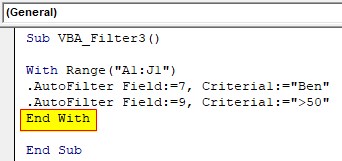
Step 6: Run the Code by hitting F5 or the Run button. we will see field number 7 and 9 both got the filtered.
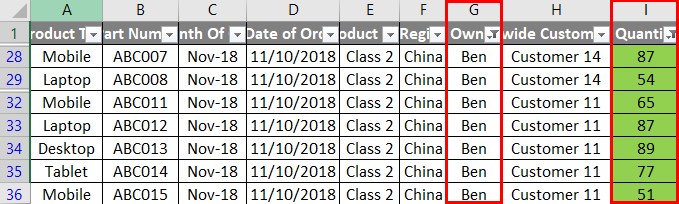
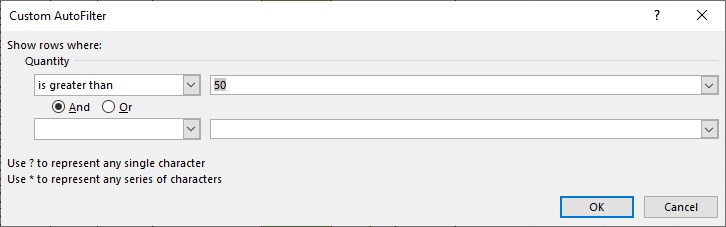
Step 7: And if we check in Column I of header Quantity, we will see, the quantities filtered are greater than 50.
Pros of VBA Filter
- It is very easy to apply.
- We can filter as many headers as we want.
- File with huge data set can easily be filtered using VBA Filter.
- VBA Autofilter can speed things up and save time.
Things to Remember
- We can select one cell or a line for Range. But the filter will be applied to the complete range of header which has data.
- Use with operation, if you want to filter the data with more than 1 column.
- The field section in the syntax of VBA Filter can only contain the number which is the sequence of the required column.
- Always mention the names into inverted quotes.
- Save the file in Macro Enabled Excel format to preserve the applied code.
Recommended Articles
This is a guide to VBA Filter. Here we discuss some useful examples of VBA Filter code in Excel along with a downloadable excel template. You can also go through our other suggested articles –

