


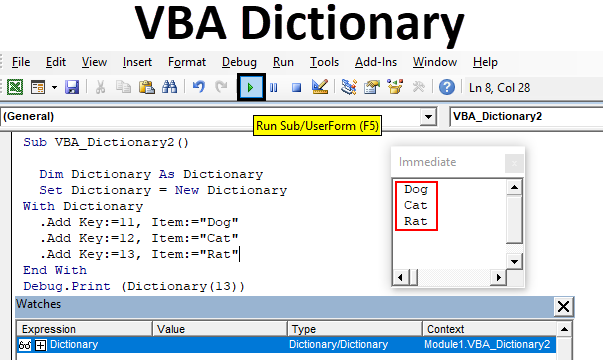
Excel VBA Dictionary
Dictionary, in general, has a collection of words with their defined meaning and applications. The same concept can be used in Excel VBA Dictionary creation, where we can add, update, change and delete as many words as we can. In VBA Dictionary we can use the collection of array or words to define or create any category. As in a normal word dictionary, we see words with their meaning, categories, application, pronunciation, etc. In VBA Dictionary as well we can define all the necessary characteristics and value which we want to assign to any word or variable.
To use VBA Dictionary, we need to enable Microsoft Scripting Runtime function which is available in Tool menu option under References.
Tool -> References -> Microsoft Scripting Runtime
VBA Dictionary has a few major properties as explained below;
- Count = It returns the count of a number of variable in the dictionary key.
- Item = We can get the item value of specific key with this.
- Key = By this we can replace any key with another one.
- Add = It is used for adding key value to a dictionary.
- CompareMode = It is used for comparing the different keys in dictionary.
Steps to Create Dictionary in Excel VBA
To create a VBA Dictionary, first, we need to activate Microsoft Scripting Runtime which is the first step towards activating the Excel VBA Dictionary. Follow the steps to create a Dictionary in Excel using VBA Code.
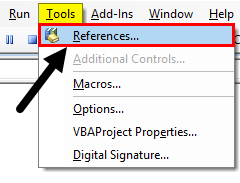
Step 1: For this go to Tool menu and select References option from there as shown below.
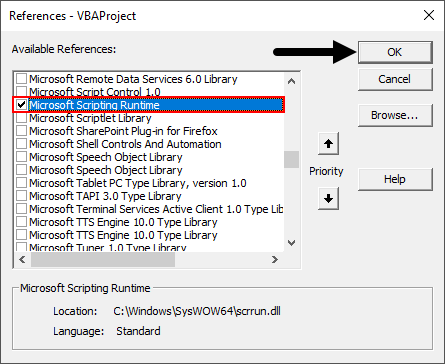
Step 2: Now from the window of References – VBA Project, select Microsoft Scripting Runtime, which will help us in updating the VBA dictionary. Once done click on OK.
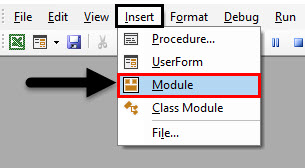
Step 3: Now we need a module to write the code for VBA dictionary. So open a Module from Insert menu option as shown below.
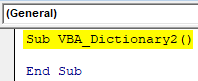
Step 4: Now write the subprocedure for VBA Dictionary in any name as shown below.
Code:
Sub VBA_Dictionary2()

End Sub
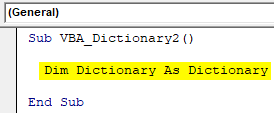
Step 5: Now we will define a variable as Dictionary and assign it the function Dictionary as shown below. To avoid confusion, you can choose any other name as per your choice.
Code:
Sub VBA_Dictionary2()

  Dim Dictionary As Dictionary

End Sub
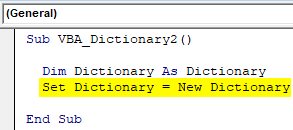
Step 6: Now set that variable Dictionary as New Dictionary as shown below.
Code:
Sub VBA_Dictionary2()

  Dim Dictionary As Dictionary
  Set Dictionary = New Dictionary

End Sub
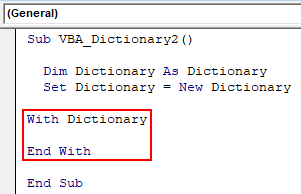
Step 7: Now we will open the With-End with Loop as shown below.
Code:
Sub VBA_Dictionary2()

  Dim Dictionary As Dictionary
  Set Dictionary = New Dictionary

With Dictionary

End With

End Sub
Step 8: As we already discussed the different properties or applications which we can choose in Excel VBA Dictionary. So here we will select .Add which is used for adding the words in the dictionary with any Key as shown below. Here we have randomly taken the key as 11.
Code:
Sub VBA_Dictionary2()

  Dim Dictionary As Dictionary
  Set Dictionary = New Dictionary

With Dictionary

  .Add Key:=11,

End With

End Sub
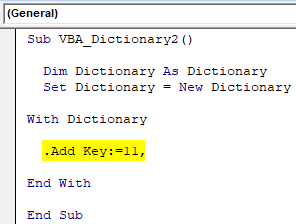
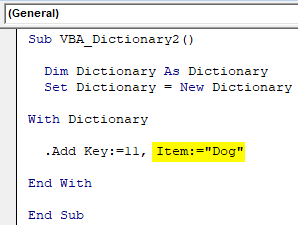
Step 9: Now we will assign an Item to that Key. We chose the word “Dog” for Key 11.
Code:
Sub VBA_Dictionary2()

  Dim Dictionary As Dictionary
  Set Dictionary = New Dictionary

With Dictionary

  .Add Key:=11, Item:="Dog"

End With

End Sub
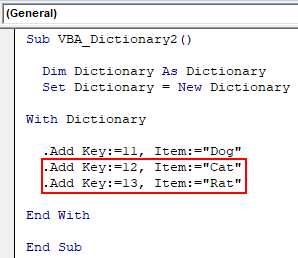
Step 10: Similarly, we add a few more words. Let’s say those words be “Cat” and “Rat” with Key 12 and 13 respectively.
Code:
Sub VBA_Dictionary2()

  Dim Dictionary As Dictionary
  Set Dictionary = New Dictionary

With Dictionary

  .Add Key:=11, Item:="Dog"
  .Add Key:=12, Item:="Cat"
  .Add Key:=13, Item:="Rat"

End With

End Sub
Step 11: Now insert Debug.Print command to print the values stored in used keys as per numbers fed.
Code:
Sub VBA_Dictionary2()

  Dim Dictionary As Dictionary
  Set Dictionary = New Dictionary

With Dictionary

  .Add Key:=11, Item:="Dog"
  .Add Key:=12, Item:="Cat"
  .Add Key:=13, Item:="Rat"

End With

Debug.Print (Dictionary(11))

End Sub
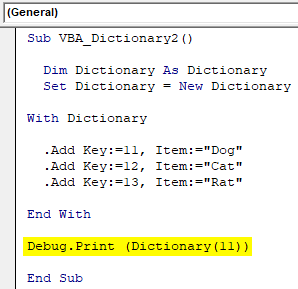
This completes our code. Now to understand how words will be added into Excel VBA Dictionary, we need to add some more watch windows.
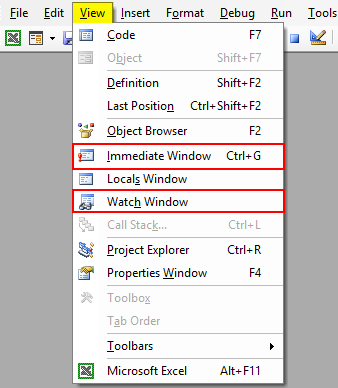
Step 12: Go to View menu and select Watch Window and Immediate Window as shown in the below list.
After that our VBA window will probably look like as shown below.
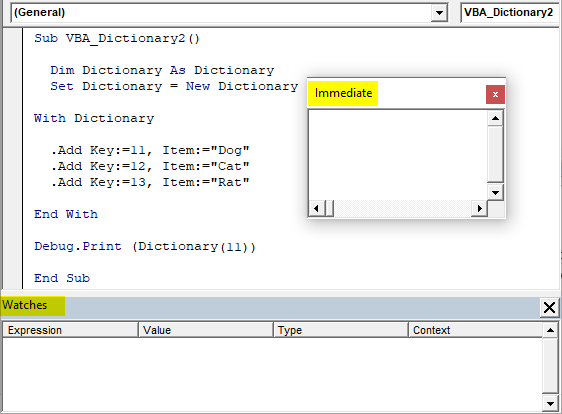
We adjust the opened Immediate and Watch window anywhere in a screen as per our need.
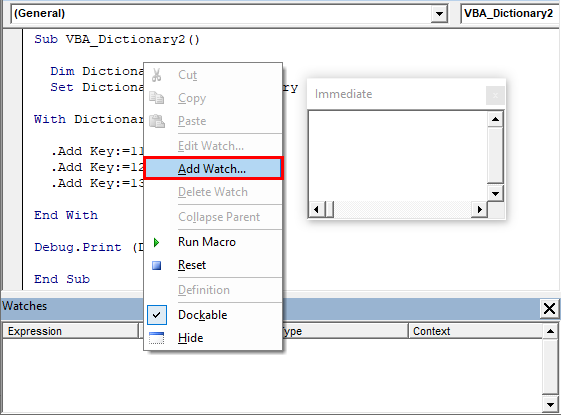
Step 13: Now add the Watch list in Watch window. For this Right-click on it and click on Add Watch as shown below.
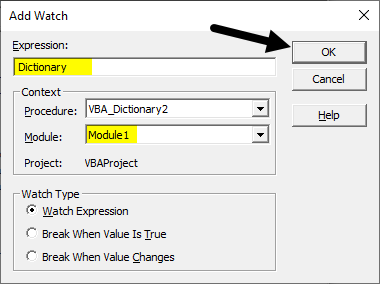
Step 14: In the watch window, name the expression and select the Module in which you have written the code. Here our module is Module1. And click on OK at last.
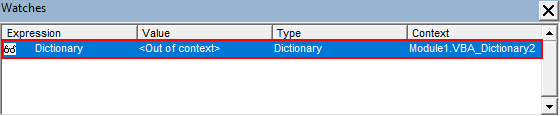
In the watch window, we will get our Watch list which is named as Dictionary as shown below.
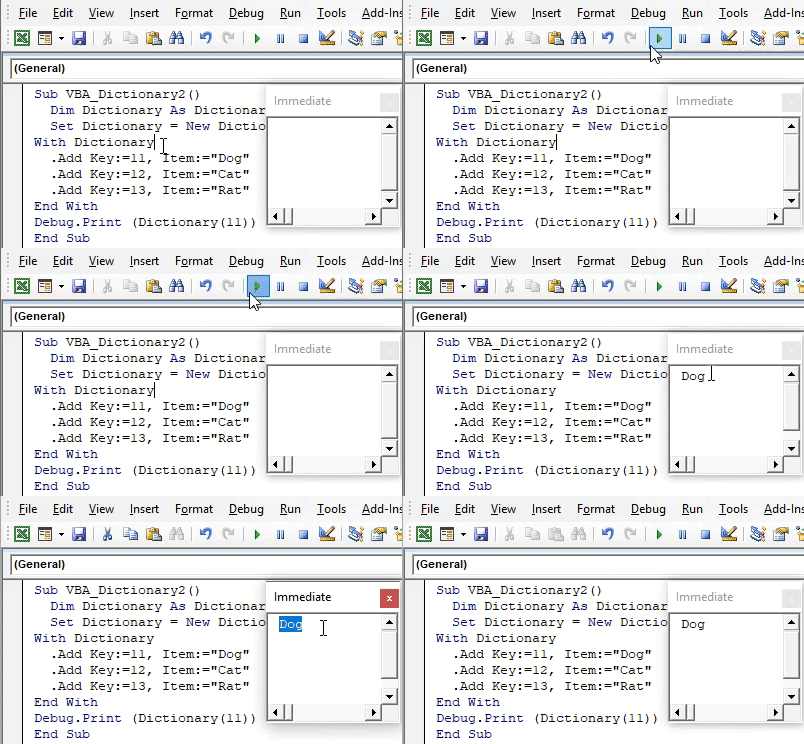
Step 15: Now run the code by clicking on the Play button or by pressing the F5 key. We will see our first word “Dog” will get added into the dictionary and will be visible in an Immediate window as shown below.
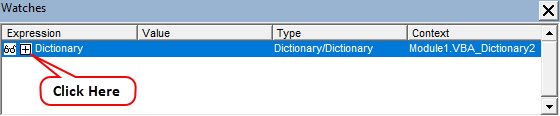
Step 16: To see the update in Watch window, press F8 key to run each step one by one. There will be a point where we will see Watch window got updated with the item and key number assigned to each number. Then click on the plus sign in Watch window to explore the things stored in each Key numbers.
In that we will be able to see the Count of variables added into our dictionary, item numbers and assigned key value to them and what type of variable they are as shown below.
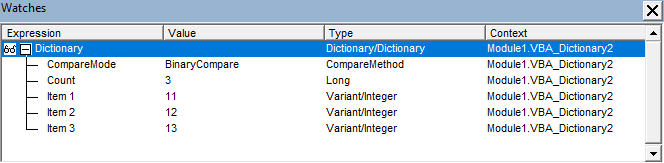
Here Count is 3 because we have chosen 3 different words to be added into our dictionary. For item Dog, Cat and Rat, the values stored are 11, 12, and 13 respectively. And in the context column, we will be able to see the Module which we have selected as Module1.
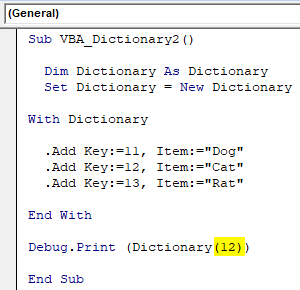
Step 17: Now to see the different values of item, we will need to change the Key number in Debug.Print as shown below. Here we chose 12.
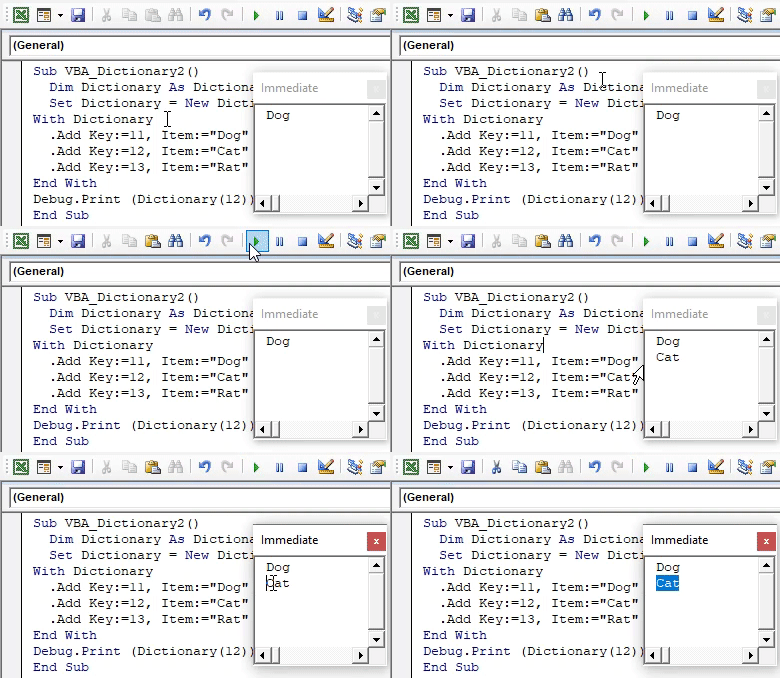
Step 18: Now again run the code by clicking on the Play button or by pressing the F5 key. We will see, in an Immediate window, next item Cat is added.
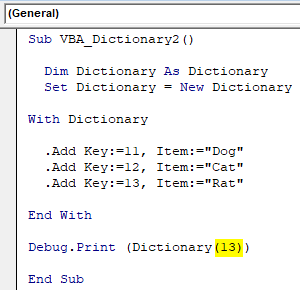
Step 19: This will be changed if we again add 13 in Debug.Print as shown below.
Step 20: Now again run the code by clicking on the Play button or by pressing the F5 key.
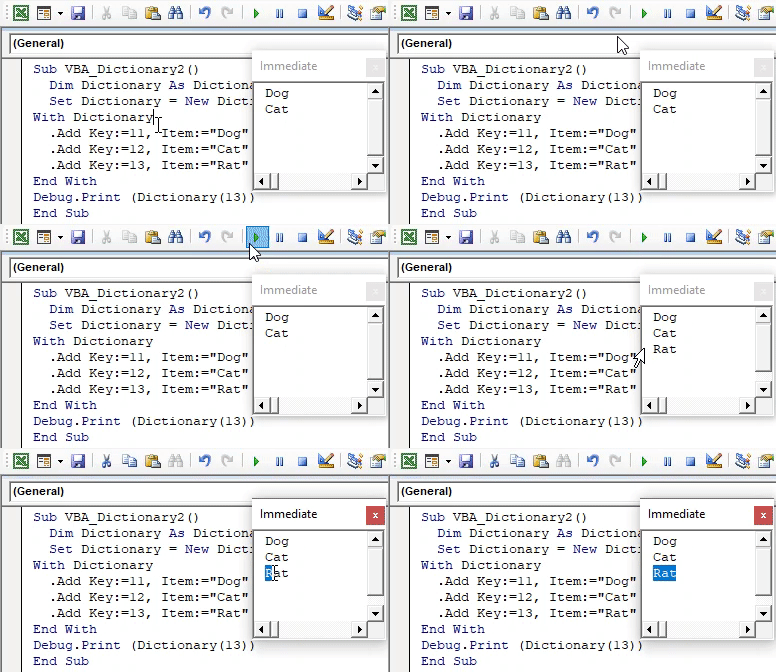
This is how we can create and add multiple words into Excel VBA Dictionary as per our choice.
Pros of Excel VBA Dictionary
- We can insert as many customized words of our choice which could be used any database creation.
- This is very easy to find the added word with the help of Key assigned to it.
- Apart from addition, we can remove, update and compare the already added words into the dictionary.
Cons of Excel VBA Dictionary
- We need to run the complete code again after changing the key number inPrint to see different words added into the dictionary.
Things to Remember
- Immediate and Watch windows are required to see the words added to the dictionary.
- Any type of word, number range, the character can be added with defined meaning.
- An immediate window shows the word which is added into the dictionary.
- Watch window shows the value and type of words added into the dictionary.
Recommended Articles
This is a guide to VBA Dictionary. Here we discuss examples to create a Dictionary in Excel using VBA code along with an example and downloadable excel template. You can also go through our other suggested articles –

