


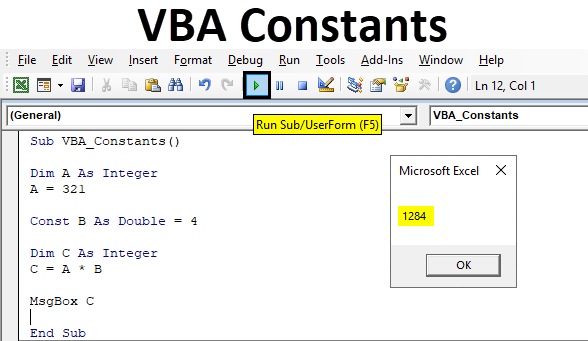
Excel VBA Constants
VBA Constant, which means a value that doesn’t change by any mean. This we have seen a lot of time in mathematics. But the Constant can also be used in VBA coding as well with the same concept when we used in solving regular mathematical problems. In VBA Constant, we fix the value of any variable as per our need and we can use this predefined Constant later whenever we feel to use it.
If we define any value under VBA Constant, it will hold and store that value somewhere which will not be changed. If a person tries to change that value then it will show up the error.
Examples of Constants in Excel VBA
Below are the different examples of contents in Excel VBA.
Excel VBA Constants – Example #1
VBA Constants is like defining a variable with DIM. First, we will see an example where we will execute a simple mathematical code as our regular process.
Follow the below steps to use Excel VBA Constants:
Step 1: Go to VBA Insert menu and open a Module first as shown below.
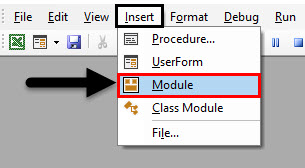
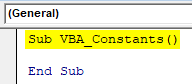
Step 2: In a newly opened module, write the subcategory of VBA Constants as shown below.
Code:
Sub VBA_Constants()

End Sub
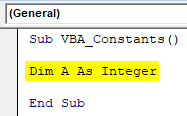
Step 3: Define a variable A as Integer first. This will allow us to consider all whole numbers in it.
Code:
Sub VBA_Constants()

Dim A As Integer

End Sub
Step 4: Now assign any value in variable A. Let’s say it as 123. By this, we will store this value under variable A.
Code:
Sub VBA_Constants()

Dim A As Integer
A = 123

End Sub
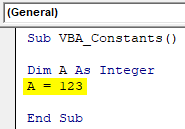
Step 5: Now again define a new variable C as Integer.
Code:
Sub VBA_Constants()

Dim A As Integer
A = 123

Dim C As Integer

End Sub
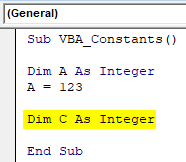
Step 6: Now in a simple mathematical multiplication problem, let’s multiply variable A with 4 and get the output in variable C as shown below.
Code:
Sub VBA_Constants()

Dim A As Integer
A = 123

Dim C As Integer
C = A * 4

End Sub
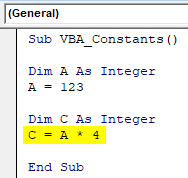
Step 7: Now to print the output, we will use MsgBox as shown below.
Code:
Sub VBA_Constants()

Dim A As Integer
A = 123

Dim C As Integer
C = A * 4

MsgBox C

End Sub
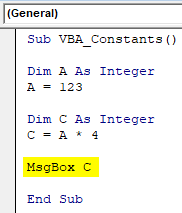
Step 8: Now compile the code and run it after clicking on the Play button as shown below which is below the menu bar. We will get the message box with multiple of 123 and 4 as 492 as shown below.
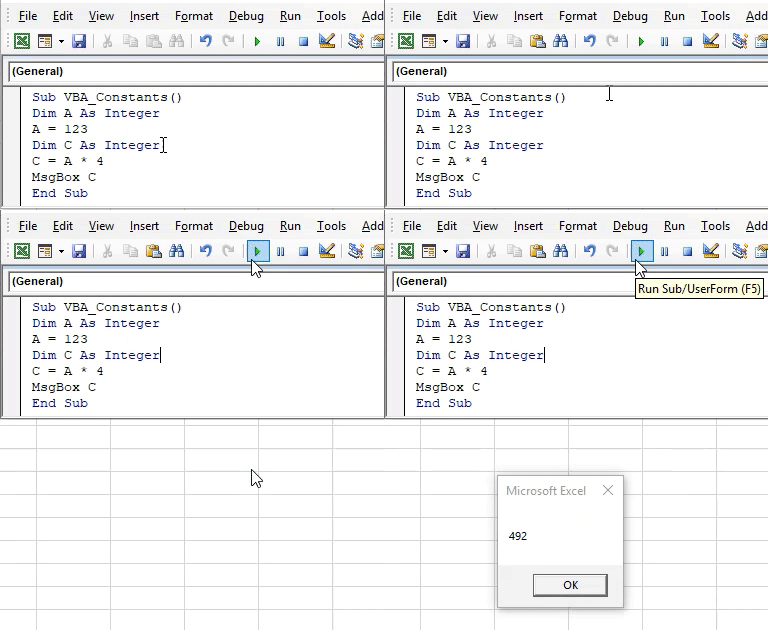
Now we may end up in a situation where we have to change the value stored in variable A multiple times by keeping the constant value of multiplier as 4. So, if we create a constant where if we fix the value of multiplier which is 4 as we have for other variables then it will reduce our frequent activities.
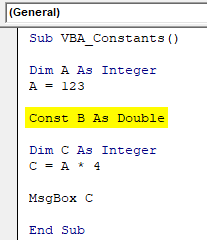
Step 9: For this, use Const as in Constant with B and give it a variable Double.
Code:
Sub VBA_Constants()

Dim A As Integer
A = 123

Const B As Double

Dim C As Integer
C = A * 4

MsgBox C

End Sub
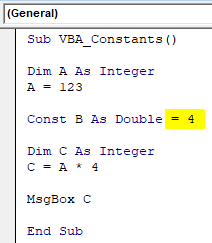
Step 10: And assign the multiplier 4 to variable B as constant.
Code:
Sub VBA_Constants()

Dim A As Integer
A = 123

Const B As Double = 4

Dim C As Integer
C = A * 4

MsgBox C

End Sub
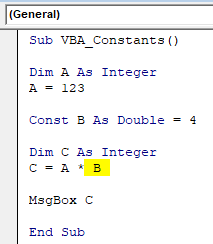
Step 11: Now change the same variable mathematically, multiply formula with 4 as shown below.
Code:
Sub VBA_Constants()

Dim A As Integer
A = 123

Const B As Double = 4

Dim C As Integer
C = A * B

MsgBox C

End Sub
Step 12: Now again compile the code and run it.
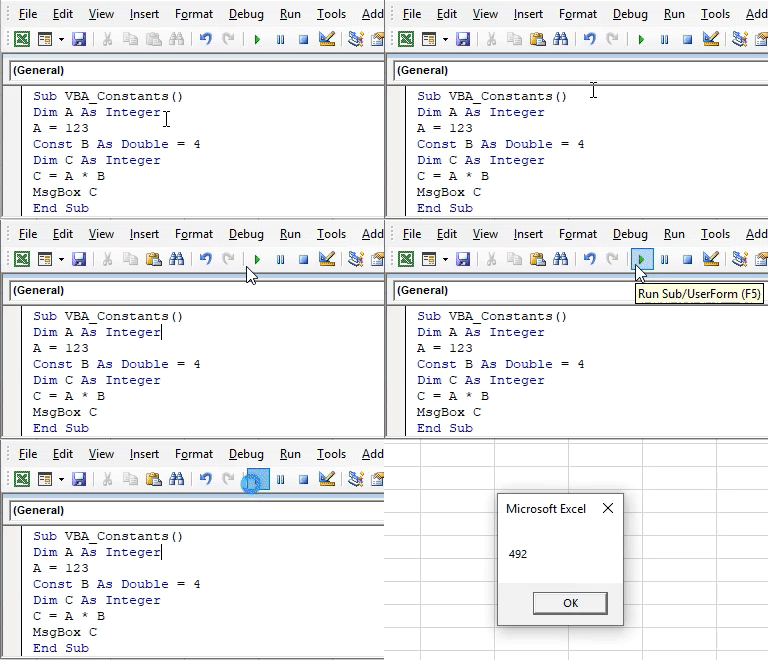
We have got the same result in variable C as 492 which is the multiplication output of 123 and 4.
Step 13: For more test, let’s change the value stored in variable A from 123 to let’s say 321 as shown below.
Code:
Sub VBA_Constants()

Dim A As Integer
A = 321

Const B As Double = 4

Dim C As Integer
C = A * B

MsgBox C

End Sub
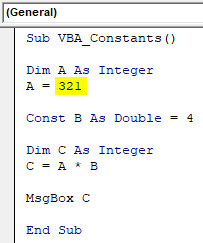
Step 14: Now if we run the code we should be getting the multiplication of 321 and 4 in a message box.
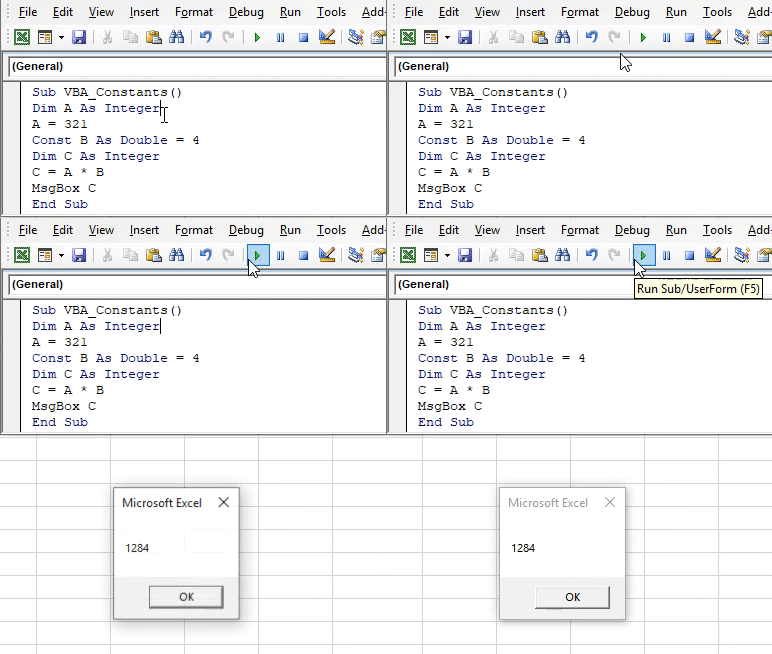
We will see, the message box with the output as 1284, which is the actual multiplication of 321 and 4. This means that value stored in Const variable B is still constant as both the time it has multiplied the variable A with 4.
Excel VBA Constants – Example #2
In another example of VBA Constant how fixing all the variables as Constant works. Follow the below steps to use Excel VBA Constants.
Step 1: Write the subcategory of VBA Constant as shown below.
Code:
Sub VBA_Constants2()

End Sub
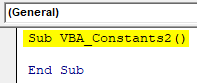
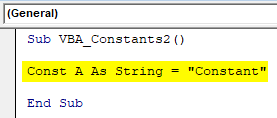
Step 2: Now define a Constant A as String and give it any text as per your choice. Let’s say that text in Constant as shown below.
Code:
Sub VBA_Constants2()

Const A As String = "Constant"

End Sub
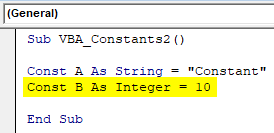
Step 3: Now in the second line, again define another Constant B as Integer and give it any number as shown below. Let’s say that number is 10.
Code:
Sub VBA_Constants2()

Const A As String = "Constant"
Const B As Integer = 10

End Sub
Step 4: In a simple way, let’s print a text as “The real constant is 10” with the help of MsgBox as shown below.
Code:
Sub VBA_Constants2()

Const A As String = "Constant"
Const B As Integer = 10

MsgBox "The real " & A & " is " & B

End Sub
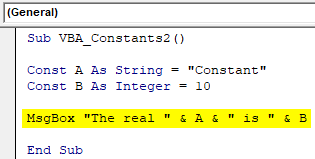
The text which we have written above can be anything.
Step 5: Now compile the code and run it, if found no error. We will get the message box as “The real Constant is 10” which we set above.
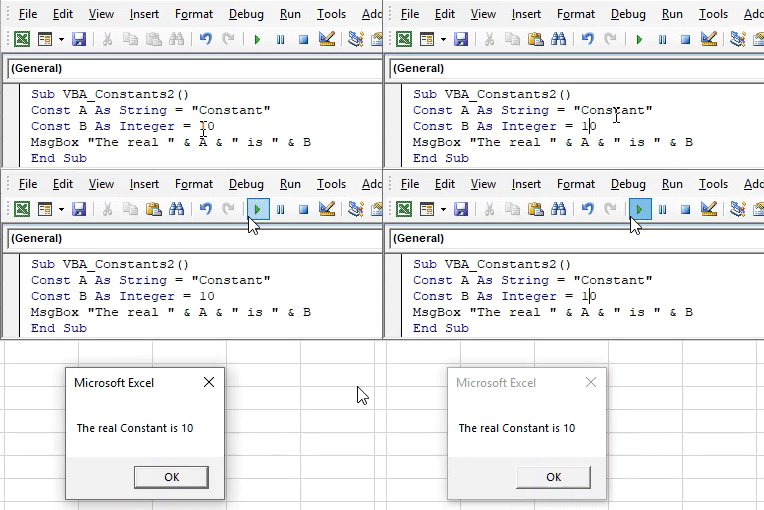
As our values are constant for A and B, so we can use these anywhere and anytime. And each time when we would call them values of Constant A and B, we will get the same values stored in this subcategory.
Pros of Excel VBA Constants
- This saves a huge amount of time for fixing one or more variables as Constant.
- The number of lines of code gets reduced.
- We just need to enter the values in defined Constants once, and then whenever we will call that constant, the value stored in it will come up.
Cons of Excel VBA Constants
- It is not always used as sometimes we need to come back multiple times to change the values stored in Constants if we are using these defined constants in different Subcategories or Class.
Things to Remember
- Results obtained from Constants and Variables are the same. The difference is once Constants are defined, it can be used anywhere multiple times. But Variables are defined for each subcategory.
- If there is a change in values which we call and stored constants then we may end up getting an error. So, it is better to check the values first which are fixed as constant.
- Saving the file as a macro-enabled excel format helps us to retain the code for the future.
- It is always recommended to use Constant when we are working on creating Class objects. Constant is shorter as compared to Variables, so it is a huge set of codes it will take lesser space.
Recommended Articles
This is a guide to VBA Constants. Here we discuss the different examples of Constants in Excel VBA along with some practical examples and downloadable excel template. You can also go through our other suggested articles –

