

Forgot iPhone passcode can be frustrating, especially when you need to access important apps, photos, contacts, or files. After entering the wrong passcode too many times, your iPhone may become unavailable or show a Security Lockout message, preventing you from using the device. So, how do you unlock an iPhone without passcode? Fortunately, several options can help restore access, including professional iPhone unlocker tools, Apple’s built-in services, and computer-based recovery methods.
Forgot iPhone Passcode? Common Situations You May Face
Users usually need to unlock an iPhone without a passcode in the following situations:
- Forgot the iPhone passcode: You changed your password recently and cannot remember it.
- iPhone Unavailable or Security Lockout: After too many incorrect attempts, your iPhone is disabled and locked.
- Bought a second-hand iPhone: The previous owner’s passcode prevents you from accessing the device.
- Broken or unresponsive screen: You cannot enter the passcode even though the iPhone still works.
- Need to reset an old iPhone: You want to erase the device before selling or giving it away.
How to Unlock an iPhone Without Passcode?
There are several ways to regain access to an iPhone when the passcode is forgotten. Choose the method that best matches your situation.
1. Unlock iPhone with TunesKit iPhone Unlocker (Fastest Way)
If you forgot your iPhone passcode and cannot access your device, using a dedicated unlock tool can be one of the easiest solutions. TunesKit iPhone Unlocker is designed to remove various types of iPhone locks, including forgotten passcodes, disabled devices, Security Lockout issues, and iPhone unavailability issues.
Steps to unlock iPhone without passcode using TunesKit iPhone Unlocker:
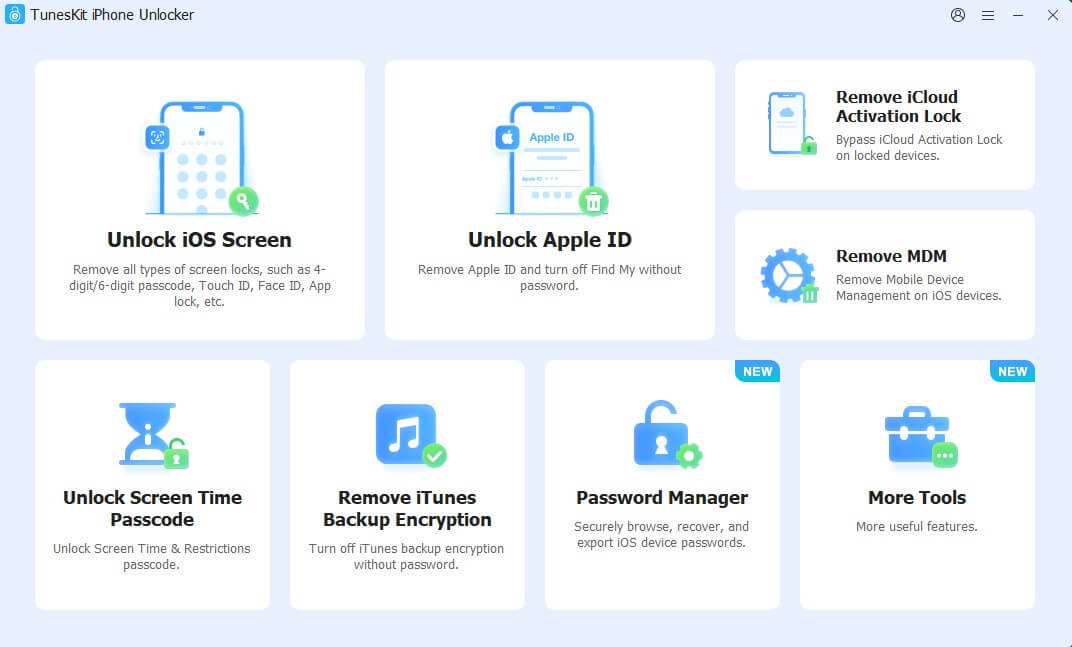
Step 1: Install TunesKit iPhone Unlocker on your computer after downloading it. Connect your locked iPhone to the computer using a USB cable. Select the Unlock iOS Screen feature.
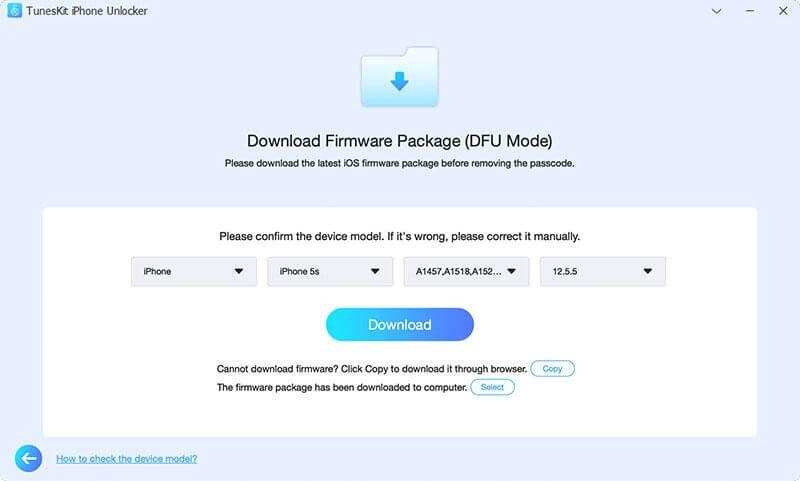
Step 2: Place your iPhone in recovery mode by following the instructions displayed on the screen. Download the matching firmware package.
Step 3: Once finished, click Unlock to remove the forgotten passcode. Wait for the process to complete, then set up your iPhone again.
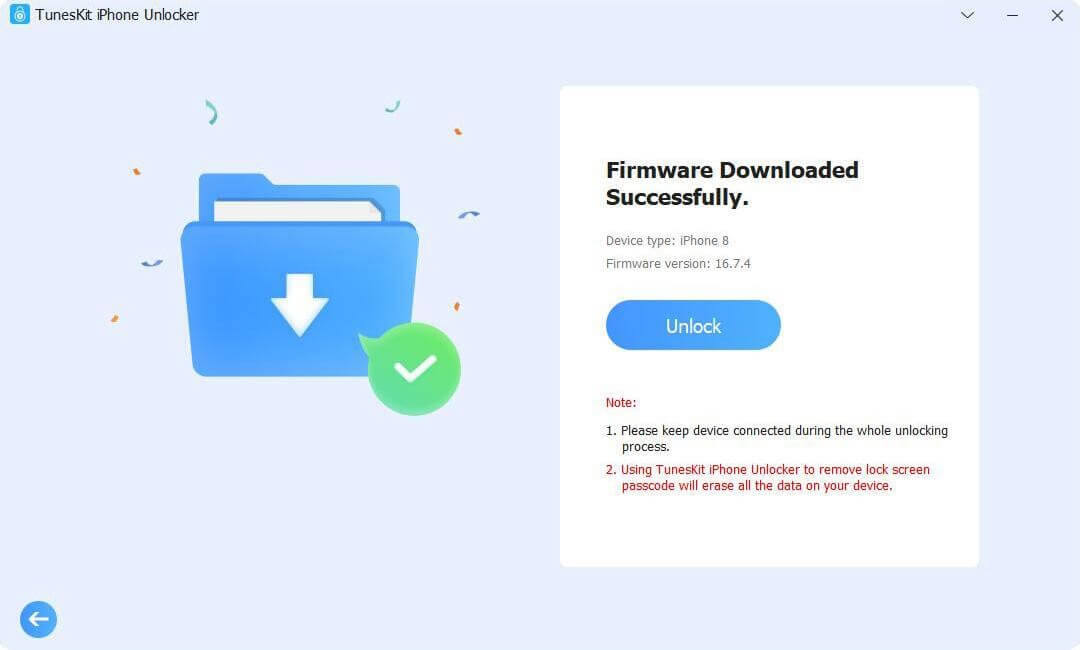
After unlocking, your iPhone will return to the setup screen, and you can create a new passcode to protect your device.
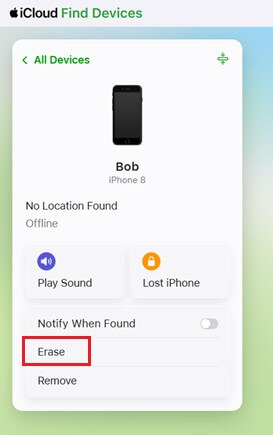
2. Erase iPhone with Apple Account (Find My iPhone)
Apple provides an official way to erase a locked iPhone through the Find My feature. This method works when you enable Find My iPhone and connect your device to your Apple Account.
Steps:
- Open Find My on another Apple device or visit iCloud Find Devices.
- Sign in with the same Apple Account.
- Select your locked iPhone.
- Choose Erase.
- Confirm the action and wait for the process to finish.
Once erased, the passcode will be removed, and you can restore your data from an available backup.
3. Restore iPhone Using Finder or iTunes
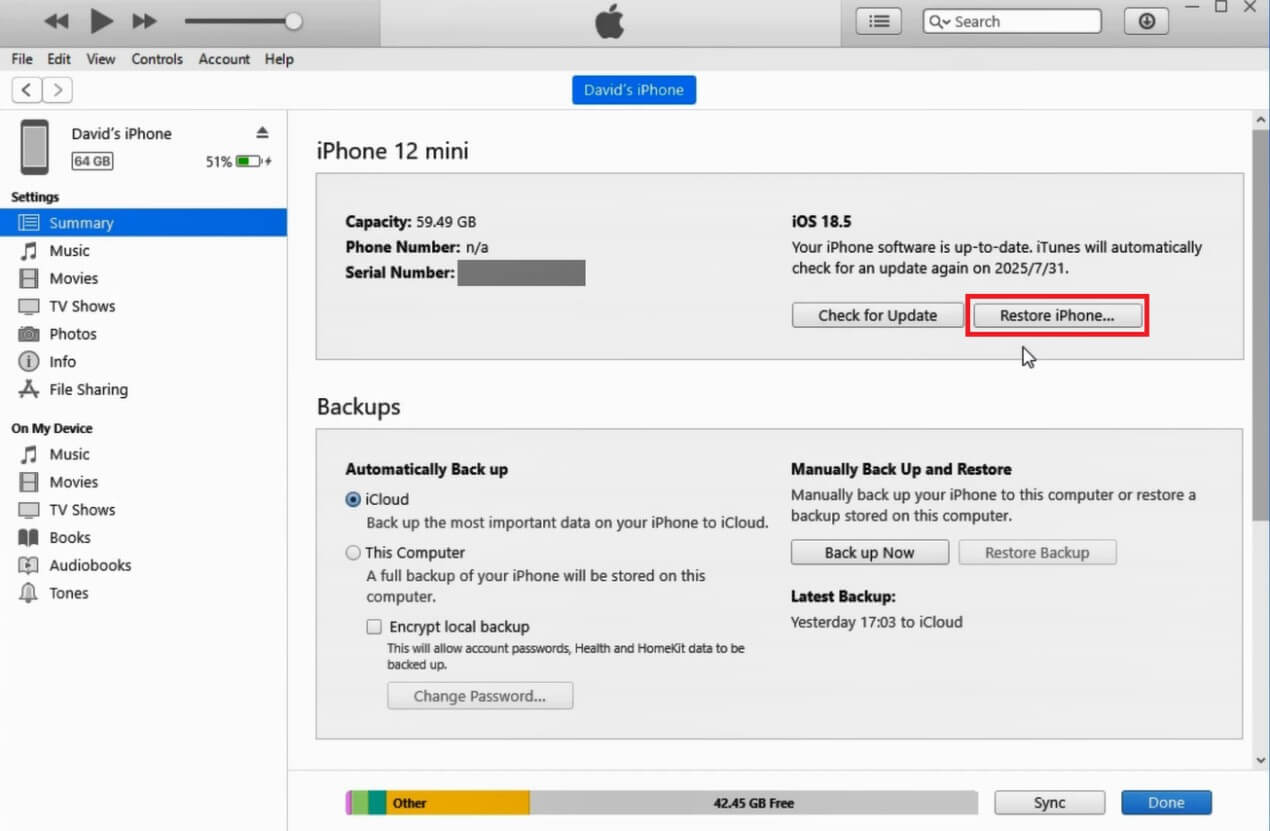
If you regularly connect your iPhone to a computer, you can restore it using Finder on Mac or iTunes on Windows. This method works well for users who already have a backup.
Steps:
- Connect your iPhone to your computer.
- Open Finder or iTunes.
- Select your device when it appears.
- Choose Restore iPhone.
- Wait for the restore process to complete.
After restoration, your iPhone will be reset, and you can set it up again.
4. Use Recovery Mode to Reset iPhone
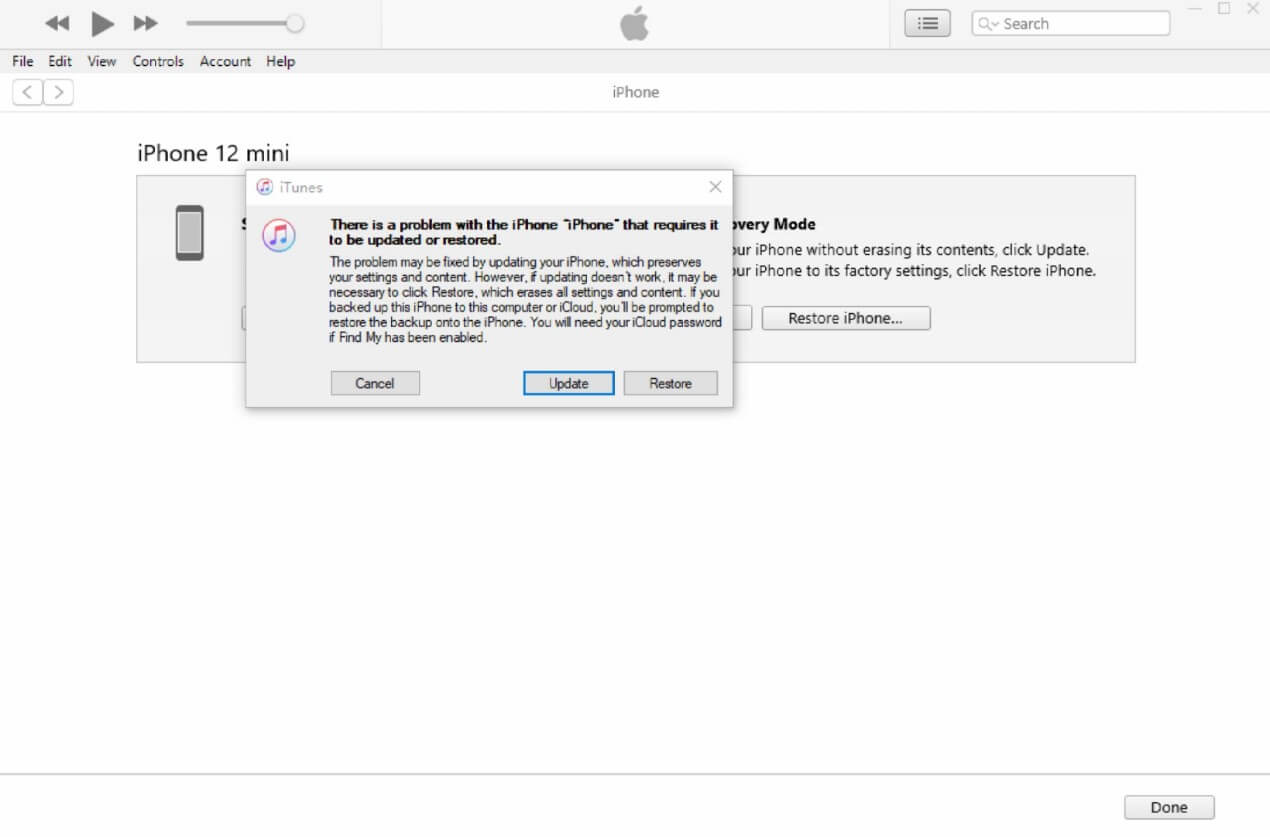
Apple’s Recovery Mode provides another official way to unlock a disabled iPhone. It allows your computer to reinstall iOS and erase the existing passcode.
Steps:
- Connect your iPhone to a computer.
- For iPhone 8 and later, quickly press and release Volume Up, then Volume Down. Next, hold the Side button until the recovery mode screen appears.
- Open Finder or iTunes; once it pops up, choose Restore.
Once the reset is complete, set up your iPhone as a new device or restore it from a backup.
5. Reset iPhone via Apple Devices App (Windows)
For Windows users, Apple has introduced the Apple Devices app as the successor to iTunes for managing iPhone and iPad devices. It lets you update, back up, and restore connected Apple devices from your computer.
Steps:
- Install the Apple Devices app from the Microsoft Store.
- Connect your iPhone to your Windows PC.
- Put your iPhone into recovery mode.
- Select your iPhone in the app.
- Click Restore and wait for the process to complete.
This method is useful if iTunes is unavailable or not working properly on your computer.
Final Thoughts
If you forgot your iPhone passcode, your device is not permanently unusable. Whether your iPhone is disabled, locked, or showing Security Lockout, there are several ways to regain access. For those seeking a straightforward way to unlock an iPhone without passcode, TunesKit iPhone Unlocker offers a simple solution for removing forgotten passcodes. Apple’s official methods, including Find My iPhone, Finder, recovery mode, and the Apple Devices app, are also available but usually require more manual operations. Before unlocking your iPhone, remember to check whether you have a backup available. Using the right method can help you unlock your iPhone and resume using it quickly.
Disclaimer:
The information provided in this article is for educational purposes only. Always use these methods on devices you own or are authorized to access, and back up your data before resetting an iPhone whenever possible.
Frequently Asked Questions (FAQs)
Q1. Can I unlock iPhone without erasing the data?
Answer: In most cases, unlocking an iPhone without the passcode requires erasing the device, which removes all data and settings. If you have an iCloud or computer backup, you can restore your files after unlocking.
Q2. Can I unlock an iPhone without a computer?
Answer: Yes. If Find My iPhone was enabled and you know your Apple Account password, you can erase your iPhone remotely through Apple’s Find My service. However, if you forgot both your passcode and your Apple Account password, you may need to use a computer-based solution.
Q3. What should I do if my iPhone says “iPhone Unavailable”?
Answer: When your iPhone displays “iPhone Unavailable,” it means there have been too many incorrect passcode attempts. You can wait if a timer is shown, or erase and reset your iPhone using Find My, recovery mode, Finder, iTunes, or a third-party unlock tool like TunesKit iPhone Unlocker.
Q4. Will unlocking an iPhone remove the Apple ID?
Answer: No. Removing the screen passcode does not remove the Apple ID or Activation Lock. After resetting your iPhone, you may still need to enter the original Apple Account credentials linked to the device. This security feature helps prevent unauthorized access if an iPhone is lost or stolen.
Recommended Articles
We hope this comprehensive guide on how to unlock an iPhone without passcode helps you regain access to your device. Check out these recommended articles for more tips and solutions to manage and troubleshoot your iPhone.