Introduction to Types of Computer Storage Devices
Types of Computer Storage Devices refer to various hardware components used to store digital data in computers. These devices are categorized into primary, secondary, tertiary, and offline storage based on speed, volatility, and usage. Primary storage is fast and temporary, while secondary storage offers long-term data retention. Tertiary and offline devices support backup and archiving. Understanding the types of computer storage devices is essential for efficient data management, system performance, and ensuring data availability when needed.
Main Types of Computer Storage Devices
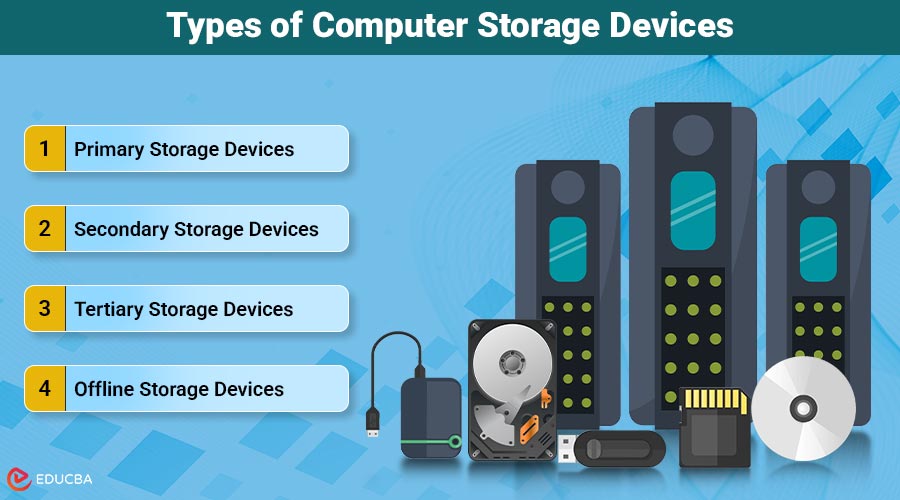
Here are the main types of storage devices categorized based on their function, speed, and accessibility:
- Primary Storage Devices
- Secondary Storage Devices
- Tertiary Storage Devices
- Offline Storage Devices
#1. Primary Storage Devices
Primary storage, also known as a main memory, is directly accessible by the CPU. It stores data that the system is currently processing and requires immediate access. It typically loses data when the power is turned off, as it is volatile.
i. RAM (Random Access Memory)
RAM is a volatile memory component that temporarily holds data and instructions that the system’s processor actively uses.
- Speed: Very fast.
- Use: Boosts performance by reducing time to access active programs.
Pros:
- Extremely fast access speed.
- Enhances multitasking.
- Reduces load time for applications.
Cons:
- Volatile—data is lost when the power is off.
- Limited capacity.
- More expensive per GB than secondary storage.
ii. ROM (Read-Only Memory)
ROM is a non-volatile memory that contains firmware—the fundamental instructions required for the computer to boot and function.
- Speed: Slower than RAM.
- Use: Essential for system startup and basic functions.
Pros:
- Non-volatile (retains data without power).
- Pre-programmed with essential software.
- Resistant to accidental modification.
Cons:
- It cannot be written easily.
- Fixed content.
- Limited flexibility for user applications.
#2. Secondary Storage Devices
The computer stores data permanently on secondary storage devices, which the CPU does not access directly. Operating systems, software, papers, films, and more are stored in them.
i. Hard Disk Drive (HDD)
HDDs use magnetic platters to store large amounts of data. They offer high capacity at a relatively low cost per gigabyte.
- Speed: Moderate.
- Capacity: Very high (up to 20TB).
Pros:
- Cost-effective per GB.
- Long lifespan.
- High capacity.
Cons:
- Slower than SSDs.
- Mechanical failure risk.
- Generates noise and heat.
ii. Solid State Drive (SSD)
SSDs store data using flash memory and contain no moving parts, offering quicker data access and enhanced durability compared to conventional hard drives.
- Speed: Very high.
- Capacity: Up to 8TB.
Pros:
- Fast boot times and data access.
- Durable (no moving parts).
- Energy efficient.
Cons:
- Expensive per GB.
- Limited write cycles.
- Lower capacity at the same price as HDDs.
iii. Hybrid Drive (SSHD)
SSHDs combine SSD speed and HDD capacity by storing frequently used data in flash memory and bulk data on magnetic platters.
- Speed: Faster than HDD but slower than SSD.
- Capacity: Typically ranges from 500GB to 2TB, though some models may offer up to 4TB.
Pros:
- Better performance than HDD.
- Affordable compared to a full SSD.
- Balances speed and storage.
Cons:
- Not as fast as SSD.
- Still contains mechanical components.
- Performance gain depends on usage patterns.
#3. Tertiary Storage Devices
Tertiary storage refers to systems used primarily for data archiving and backup. It offers high capacity with slow access speeds, typically managed by automated retrieval systems in enterprise environments.
i. Optical Discs (CD/DVD/Blu-ray)
Optical discs store data using laser technology. They are commonly used for media distribution and long-term archiving due to portability.
- Speed: Slow access.
- Capacity: CD (700MB), DVD (4.7–9GB), Blu-ray (25–100GB).
Pros:
- Cost-effective.
- Portable.
- Long shelf-life.
Cons:
- Slow data transfer.
- Easily scratched.
- Limited capacity.
ii. Magnetic Tape
Magnetic tapes are sequential access storage media used for high-volume backups. They are reliable for long-term and cost-effective data storage.
- Use: Archival storage in enterprise environments.
- Capacity: Up to 18TB native (LTO-9).
Pros:
- Extremely cheap per GB.
- Ideal for large-scale backups.
- Long-term durability.
Cons:
- Very slow access.
- Sequential access only.
- Requires special equipment.
#4. Offline Storage Devices
Offline storage devices are removable and portable, enabling easy data transfer and backup without continuous connection to a computing system.
i. USB Flash Drive
USB flash drives are compact storage devices using flash memory. They are ideal for quick, portable data transfers between devices.
- Capacity: 1GB to 2TB.
- Use: Personal data transfer.
Pros:
- Portable and plug-and-play.
- Reusable and rewritable.
- Durable and fast (USB 3.0/3.1/3.2).
Cons:
- Easy to lose.
- Security risk (data theft).
- Limited write cycles.
ii. External Hard Drive / SSD
External drives connect via USB or Thunderbolt and serve as backup solutions or storage extensions for computers and other devices.
- Use: Backup, storage expansion.
- Capacity: Typically ranges from 500GB to 20TB.
Pros:
- Large capacity.
- High-speed data transfer.
- Portable.
Cons:
- It can be expensive.
- Susceptible to physical damage.
- Needs careful handling during unplugging.
iii. Memory Cards (SD, microSD)
Memory cards are tiny flash-based storage solutions used in cameras, smartphones, and tablets for expanding storage capabilities efficiently.
- Use: Expand storage for portable devices.
- Capacity: Commonly 4GB to 1TB, with some high-end models reaching up to 2TB.
Pros:
- Small size.
- Easy to use.
- Widely supported.
Cons:
- Fragile and easy to misplace.
- Slower speeds in lower-grade models.
- Limited write cycles.
Final Thoughts
Understanding the different types of computer storage devices—primary, secondary, tertiary, and offline—is vital for optimizing system performance, data accessibility, and long-term storage planning. Depending on speed, capacity, and usage scenario, each type has a unique function. By selecting the appropriate storage solutions, users can ensure efficient data management, reliable backups, and smooth computing experiences across both personal and enterprise-level applications.
Recommended Articles
We hope that this EDUCBA information on “Types of Computer Storage Devices” was beneficial to you. You can view EDUCBA’s recommended articles for more information.