


Make Your Travel Vlogs Stand Out
Are you looking to make your travel vlogs more engaging and exciting? Travel vlog editing with Filmora for Mac can help you do just that! With transitions, effects, and music, your adventures come alive, making your audience perched in their seats. It provides a range of features that are easy for anyone to utilize to produce visually high-quality content.
Whether you are demonstrating impressive pictures of nature or simple picturesque moments, editing is essential to keeping the audience engaged!
Basic Techniques to Make Travel Vlogs
Editing is key to making your travel vlogs memorable. Here is how to create an attention-grabbing vlog:
- Start with a Hook: Begin your vlog with an exciting moment or ask a question that immediately grabs the viewer’s attention.
- Use Creative Transitions: Smooth transitions between clips keep the vlog flowing and keep your audience interested.
- Add Background Music & Sound Effects: Music sets the mood for your adventure. Choose songs that match your vibe and add sound effects for extra excitement.
- Use Cuts to Keep It Snappy: Edit your footage to show only the best parts. This keeps your video fast-paced and fun to watch.
- Include Fun Text & Graphics: Add text for fun facts, jokes, or highlights. Use graphics to emphasize key moments.
These techniques will make your travel vlog more engaging and fun to watch!
How Filmora Makes Travel Vlog Editing Easy
Wondershare Filmora video editing software for Mac is easy to use and helps you create professional-quality travel vlogs. It is compatible with Macs, Windows, iPhones, and Androids, making it versatile for any device.
Here are the key features that will take your travel vlog editing to the next level:
- Magnetic Timeline: Align clips automatically, ensuring smooth transitions without any gaps.
- Multicamera Editing: Edit footage from multiple angles and combine them effortlessly for a polished look.
- Auto Reframe: Automatically adjust your video to fit different social media aspect ratios, like 16:9 for YouTube.
- Smart BGM Generation: Filmora creates background music that fits your video’s mood and rhythm.
- AI Features: Use tools like AI Portrait Cutout and AI Voice Enhancer to enhance your vlogs with just a few clicks.
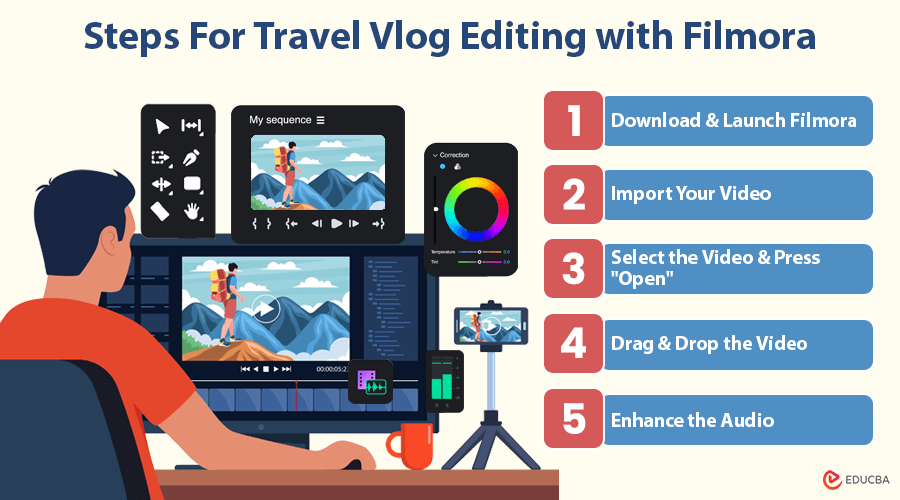
9 Simple Steps For Travel Vlog Editing with Filmora
Here is how to get started with Filmora using these simple steps:
Step 1: Download and Launch Filmora
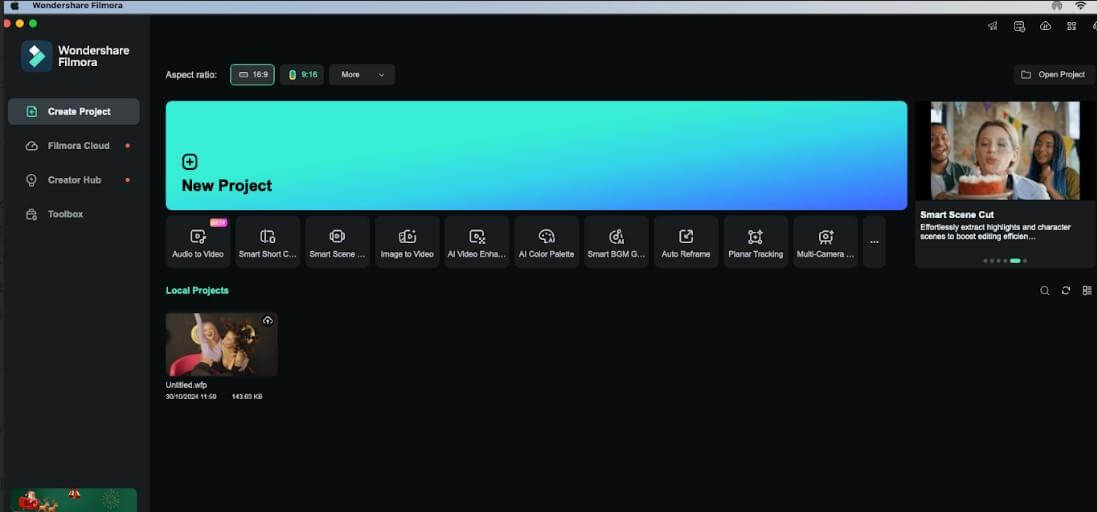
Start downloading Wondershare Filmora on your Mac and opening it. Then, click “Create Project” and choose “New Project.”
Step 2: Import Your Video
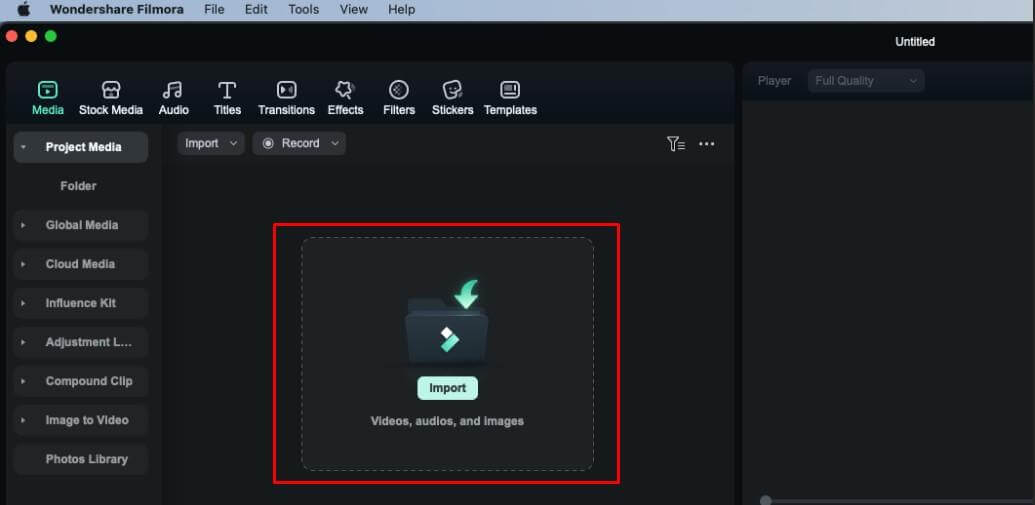
Click on the “Import” option and choose your travel video.
Step 3: Select the Video and Press “Open.”
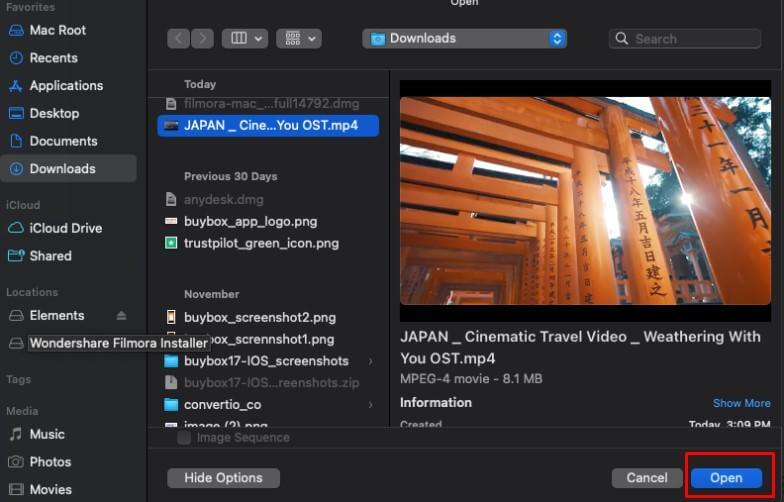
Once you have selected your video, click the “Open” button to import it into Filmora.
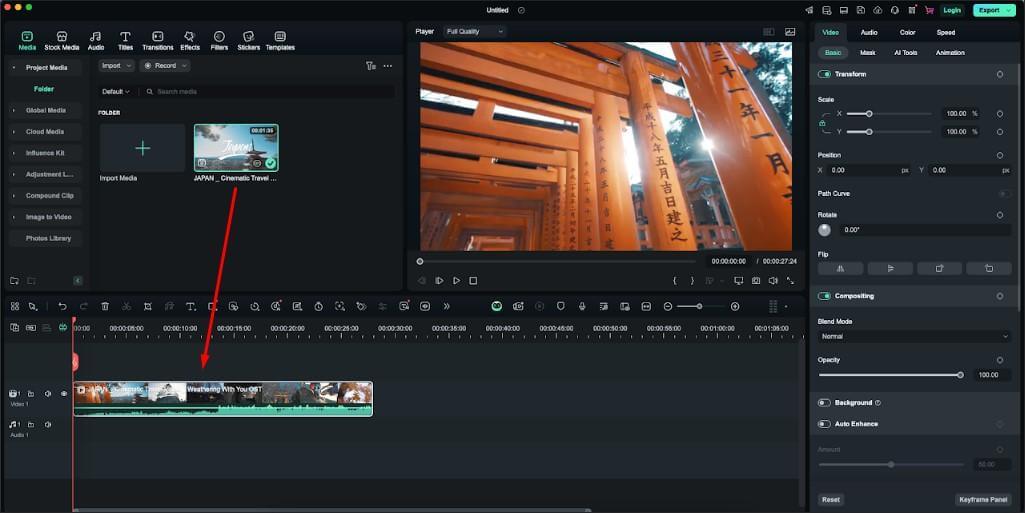
Step 4: Drag and Drop the Video
Place your video into the timeline by dragging it.
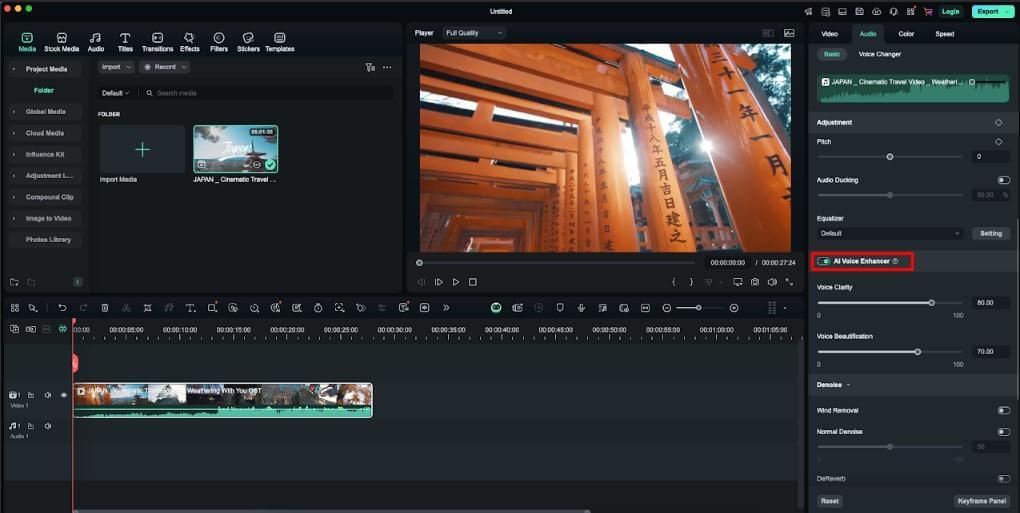
Step 5: Enhance the Audio
To enhance the voice, navigate to the Audio option at the top right of the window. Then, navigate to Basic > AI Voice Enhancer. Toggle it on, and you will get two options. One is voice clarity, and the other is voice beautification.
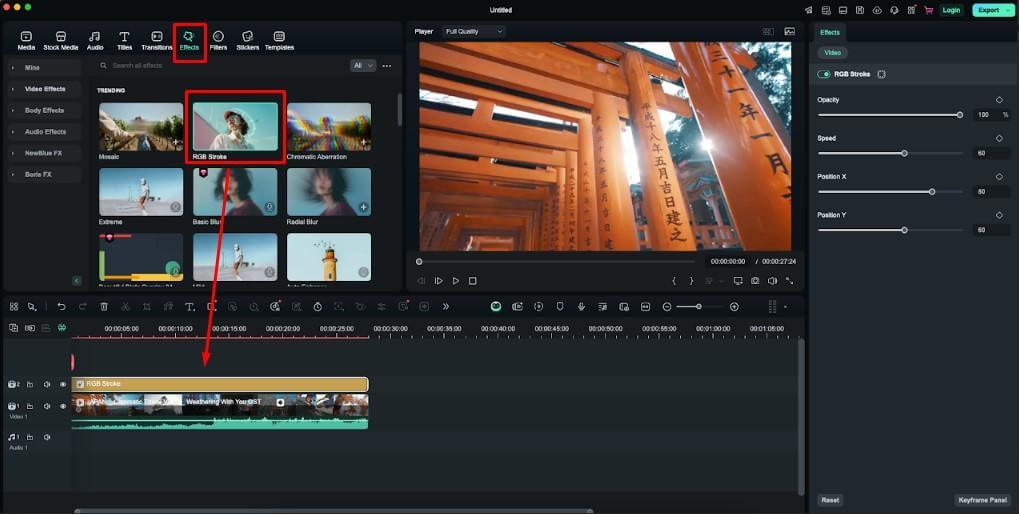
Step 6: Add Effects
To enhance your video, add effects by clicking on the Effects option. Select the one you like and place it in the timeline. On the right side, you will see options such as opacity, speed, position X, and position Y. Simply change these according to your preference.
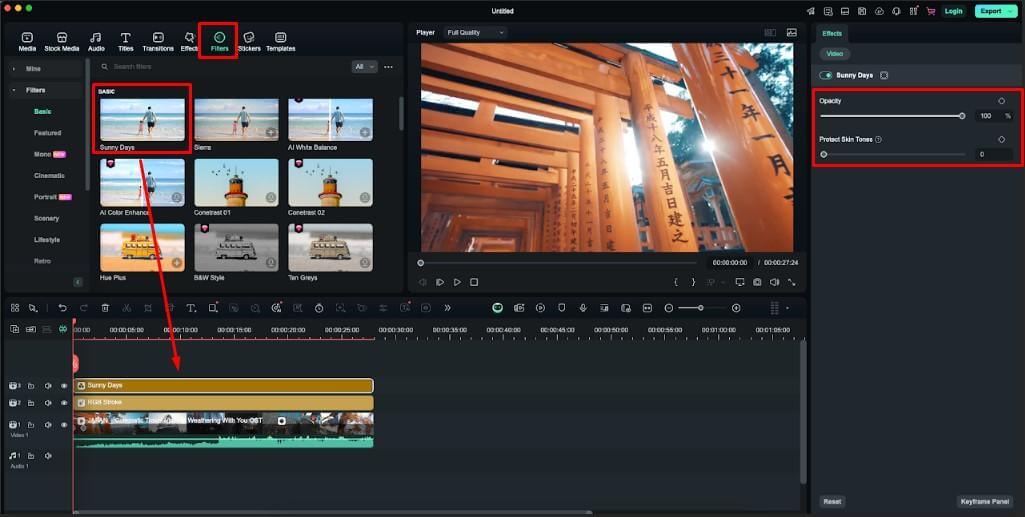
Step 7: Add a Filter
Select a filter from the “Filters” menu, then drag it into the timeline.
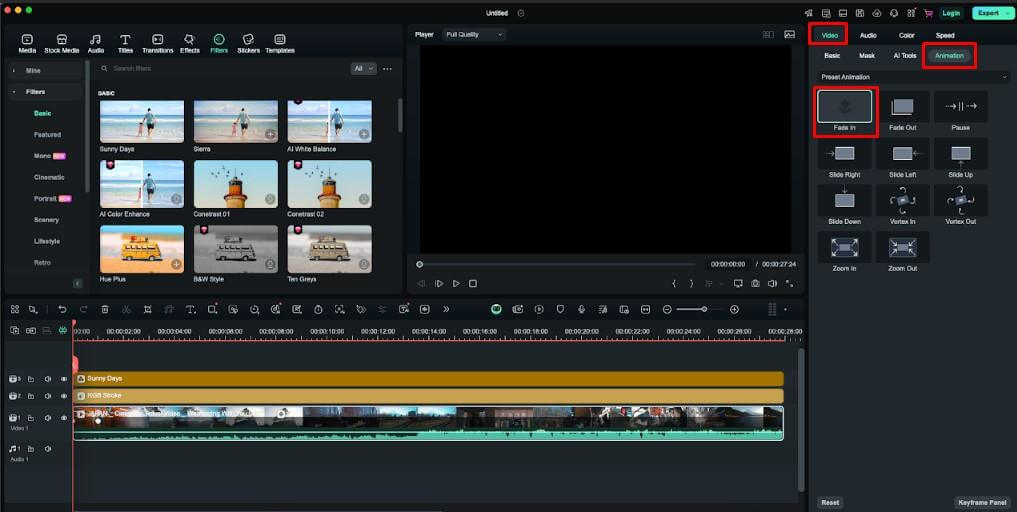
Step 8: Add Animations
To add fun animation, click on the video in the timeline, go to “Video > Animation,” and choose an animation style.
Step 9: Export Your Video:
Once you are happy with your edits, click “Export” to save your project.
Additional Tips for Your Travel Vlog
To make your travel vlog even more engaging, here are some extra tips:
- Experiment with Different Styles: Try different vlog styles, like a daily travel journal or a guided tour of the places you visit.
- Add Animations: Fun animations can highlight special moments or add humor to your vlog.
- Use Slow Motion or Time-Lapse: Show off stunning views or exciting moments with slow motion or time-lapse effects.
- Share Personal Stories: Engaging your audience with personal stories or behind-the-scenes footage can make your vlog more relatable and interesting.
- Engage with Your Audience: Encourage your viewers to comment with their thoughts, questions, or suggestions for future vlogs.
These creative ideas will make your travel vlog stand out and keep viewers returning for more.
Final Thoughts
Travel vlog editing with Filmora for Mac is an excellent way to create high-quality and engaging vlogs. With powerful editing features like magnetic timelines, multi-camera editing, and AI enhancements, Filmora helps you bring your travel experiences to life. Adding transitions, music, and personal touches can captivate your audience and excite them to watch more.
Recommended Articles
We hope this guide on travel vlog editing with Filmora helps you easily create stunning travel videos. Check out these recommended articles for more editing tips, tricks, and tools to enhance your vlogging experience.

