
Updated May 22, 2023

Definition of Tableau Web Data Connector
Tableau Web Data Connector (WDC) allows users to connect to almost any website and obtain data. One can either make their own WDC or even use connections made by the others. An HTML file including JavaScript code is considered a web data connector. Now have always had the choice of making our personal online data connector or using one which has already been designed and implemented by others. The web data connector should be maintained on the computer’s local web server, a third-party web server, or Tableau Server.
What is a tableau web data connector?
While using Tableau, the most important phase is to import data for the analysis. But if our data is stored on the web rather than in a database? A Web Data Connector is one technique to integrate web-based data into Tableau. The first connection can be slow. It is no longer an issue that once extract has been made, but it is advisable to start with a limited amount of data (a single series, with a beginning date of only just a few years ago) to have a sense of the procedure. We use WDC for data Accessibility and Automation.
How to use tableau web data connector?
WDC enables people to connect to virtually any data available on the Web and create extracts for particular workbooks. A web connector connects to a REST API and transforms data to JSON before delivering it to Tableau.
Tableau web data Connect
One can use the following checklist to verify that Web Data Connector is functioning right:
- WDC creates a huge number of users, so it’s essential to keep records of it.
- In an isolated room, we tested the Web Data Connector.
- Evaluating the Web Connector’s Resource Usage and Efficiency
- Exploring the Source
Before we begin, there are a few things we’ll need. Ascertain that the following dependencies are installed:
- js and npm
With the Public WDC, we will be able to see how many views, likes, and other metrics that posted dashboards have received. In Tableau, create a new Web Data Connector data source. Choose the Web Data Connector choice below Connect > To a Server in the Tableau application to use the connector from Tableau or Tableau Public v.10+.
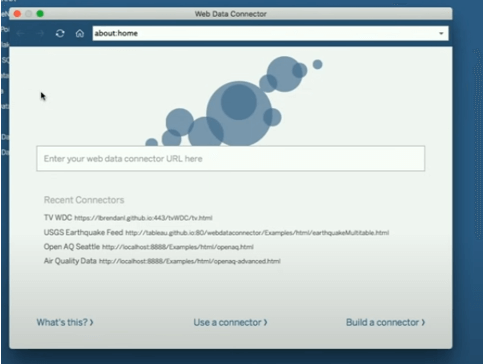
We’ll type the web data connector URL into the screen that pops up.
The URL that we put here will be determined by the type of import we want to perform. One can choose between two options:
- All tables from a dataset or application are imported.
- One can only import a single table, file, or query result at a time.
Tableau web data Connect
Tableau provides a simple way to connect to data. Web data connections are a newer Tableau feature. Web data connections make it simple to integrate data from the existing API immediately into Tableau, enabling us to quickly construct dashboards. Choosing the right Tableau attributes can be a time-consuming and tedious process. Most of the time, we just want to update a few attributes, and re-selecting all the fields in every loop of the report isn’t an option. The.txt file saved in the previous section will come in very handy here. We can use that files to duplicate an existing Web Data Connection setup.
WDC Preparation
- WDC is hosted on a server that has been set up (for example Tableau server, HTTP-server, Apache, etc.).
- Installation of the WDC SDK.
3.HTML and JavaScript were used to construct the WDC file.
- Server configuration: For local setup, I have used HTTP-server (with npm) and git for the repository, with a Node.js server-side application.
Step-1: Once npm installation is done create a directory and open MINGW64

Step-2: Install WDC SDK in an individual directory.

Step-3: Go to Properties and set Environment Variable and add a new path to an npm directory.

Install HTTP-server universally with the command at the terminals or command prompt.
Step-4: Npm Start and installation

Finally, a server setup is done. The next process is to have a connector.
To set up a Tableau Web Data Connector, follow these simple steps.
- Select Web Data Connector from the drop-down menu. The Connect To a Server module is usually in which we’ll find it. Now let’s got to the tableau to connect the web connector. The Screenshot is given as :
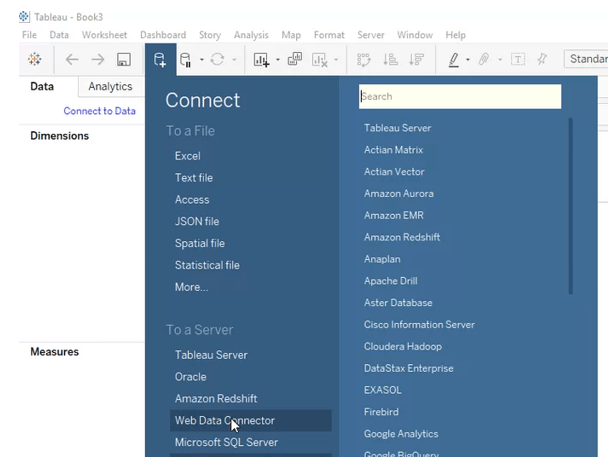
Tableau web data connector Key Benefits
The Tableau Web Data Connector is a useful tool that provides the following advantages:
- Tableau WDC enables users to create a customized link with web-based information, extract it fast, and make this information available in Tableau.
- One can create our own WDC to retrieve JSON, XML, or HTML data through internal web services, REST APIs, as well as other HTTP or HTTPS sources.
- Permits for user engagement via selection and filtering elements.
Examples
Let’s see an example with the data source which uses Recent connectors and uses tools and documentation.
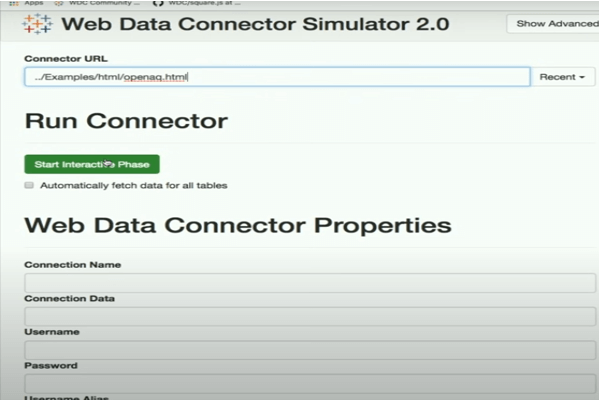
Step-1: Building a Connector where we can Type in the URL box as shown below:
Step-2:
Here we are going to Access an URL and type in the file.html. Here we have used Tv show-related products. Open the file called earthquakeWDC.html and store it in the web data connector repository’s top-level folder.
- For the adapter, build a javascript file. Save it as earthquakeWDC.js in the top-level folder. In the Html document, add an event listener for the UI button.
WDC will retrieve the data in JSON format and transmit it to Tableau. So, let’s make a strategy for it.
- We’re all prepared now. Save everything and restart the server with cmd 4’s npm start command. Go to on your browser and type in
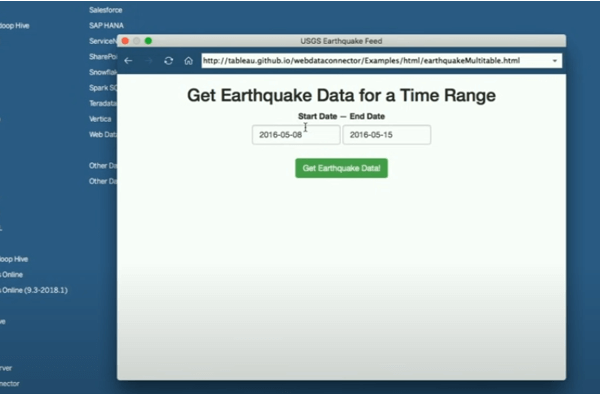
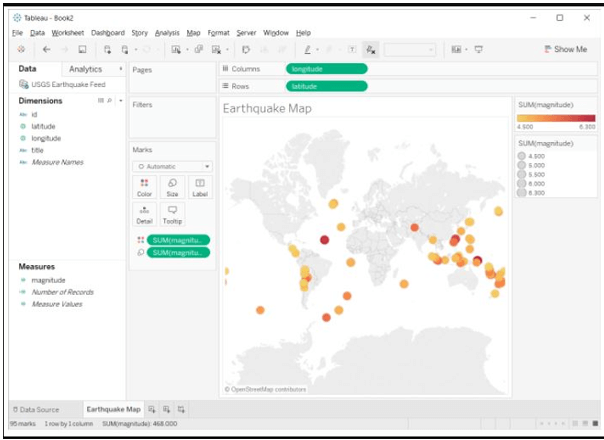
To access a data set we could get Earth Quake data from the dataset and the screenshot is shown as :
Step-3:
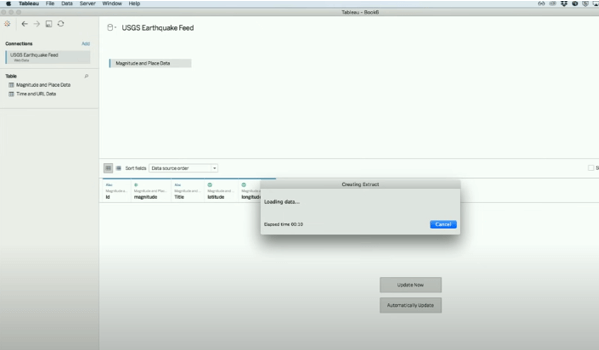
Creating an extract from the dataset from the connections.
Step-4: Adding The javascript code for an interactive web page.;
| let myCon = tableau.makeConnector();
myCon.getSchema = function (schemaCallback) {
};
myCon.getData = function (table, doneCallback) { id=” “; column =” “; };
tableau.registerConnector(myCon);
function submit() { // Add code here } |
Step-5: A final Simulation part
Step-6: A final Visualizations is shown like this
Conclusion
We learned when to use the Tableau Web Data Connector efficiently in this article. Tableau is a powerful data visualization tool that allows users to gain useful insights via visually appealing dashboards and reports. Constantly monitoring the Data Connectors, on the other hand, is indeed a time-consuming and resource-intensive process. To do so successfully, we have to dedicate some of our technical capacity to integrating data from various sources.
Recommended Articles
This is a guide to Tableau Web Data Connector. Here we discuss the Definition, What is a tableau web data connector, How to use tableau web data connector? and examples with code implementation respectively. You may also have a look at the following articles to learn more –

