


Updated April 3, 2023
Introduction to SSRS lookup
The following article provides an outline for SSRS lookup. The lookup function is used to get the value for a name/value pair with a 1-to-1 association from the dataset. For instance, one can use the lookup to extract the relevant Name field from a dataset not connected to the data area for an SNO field in a table. One of the most frequently used data integration techniques is lookups.
What is SSRS lookup?
Lookup() is a Report Builder method that can compare data from one dataset to the other. It effectively acts as a combination to link two distinct databases. While using Report Builder and report types as data sources for document preparation can be helpful. These can be considered index reference required data while processing data sets. Furthermore, those tables are mostly utilized for data standardization, augmentation, and cleansing.
SSRS Lookup Function
Combine the two joined columns and use the combined data in the Lookup function. While we can’t build a query to link our two data sets collectively, the Lookup functions come in handy. For example, this function would allow us to compare a number in one data source to a quantity in another. From such a data source that includes name/value pairs, this would bring it back to the very first perfectly matched value for the supplied name.
Syntax:
LookUp(source column, destination column, result set, data set)Definitions of parameters:
- source expression is a placeholder for a source phrase (Variant Array), An expression that defines the set of terms or keys to look up and is executed in the current scope.
- destination expression – (Variant) is an expression that provides the name or key to check on and is tested for every line in a dataset. This column will be part of the same dataset as the last argument in almost the same function.
- result expression – (Variant) is an expression that defines the value to get for the row in the dataset when source expression = destination expression. Again, we want a field from the destination dataset for appropriate source and destination expression.
For the following report items, lookup cannot be used as an expression:
- Connection strings for a dynamic data source.
- Fields in a dataset that have been calculated.
In a dataset, query parameters.
- A dataset’s filters.
- Parameters for the report
- The property Report. Language.
Imagine a column tied to a dataset with a field for the project identification PID within the example below. The associated project identifier ID and the project name are maintained in a different dataset called “Project.”
Lookup checks the result of PID to ID in each column of the dataset “Project” and returns a value of the Name field for just that row in the following expression if a match is made.
Another example is: A Dataset1 has two fields: “Company” and “warehouse Unit,” and needs to get “Amount” from Dataset2 (which also has “Company,” “warehouse Unit,” and “Amount”). One criterion can be added to the lookup method. We may move around in this challenge by merging multiple conditions into one.
(Fields!Company.Value+"-"+Fields!Warehouse_Unit.Value,Fields!Company.Value+"-"+Fields!Warehouse_Unit.Value,Fields!Amount.Value,"Destination")Consider a key-value pair. Given a product identification to check on, the explanation as follows shows the product name from a dataset (“Patient” ):
=Lookup (Fields!PatID.Value, Fields!PatID.Value, Fields.PatName.Value, "Patient")SSRS Lookup Report
Datasets for reports created using SQL Server Reporting Services (SSRS) and Report Builders are frequently reporting types (RB). Therefore, designing presentations with RB and report models as a data source can be a simple task for a report writer. This is particularly true whenever a reporting model is employed to build a single dataset used in the report. However, the retrieval routines come with the underlying caveats:
Once all filters have been applied, the lookup functions are examined.
Only one lookup level is allowed.
The data types of the source and destination phrases should be the same.
Links to reports or category variables are not allowed in source, target, or output expressions.
For such following report categories, lookup cannot be used as an expression:
- Connection strings for a dynamic data source.
- Fields in a dataset that have been calculated.
- In a dataset, query parameters.
- Parameters for the report
- The Document.
- A dataset’s filters.
- The property of language.
- The secondary dataset’s name.
I used the following custom code and expression for the sum of the lookup function.
SUM(lookup (Fields!user.Value,Fields!user.Value, Fields!Days_worked.Value,"dataset"), "priordatasetname")Calculate sales divided by exchange rates for each category in SSRS (countries, cities, etc.):
Sum(Fields!Total_Sales_Amount.Value)/LOOKUP(Fields!Country.Value, Fields!Country.Value, Fields!AMTValue, "Currency")Here is the code:
Function SumLup(ByVal items As Object()) As Decimal
If items Is Nothing Then
Return Nothing
End If
Dim sumx As Decimal = New Decimal ()
Dim pt as Integer = New Integer ()
sumx = 0
pt = 0
For Each item As Object In items
sumx += Convert.ToDecimal(item)
pt += 1
Next
If (pt = 0) Then return 0 else return sumx
End Function
This could then be used as a statement in a textbox:
=Code.SumLookup(LookupSet(Fields!Country.Value, Fields!Country.Value, Fields! AMT.Value, "Currency"))SSRS Lookup Example
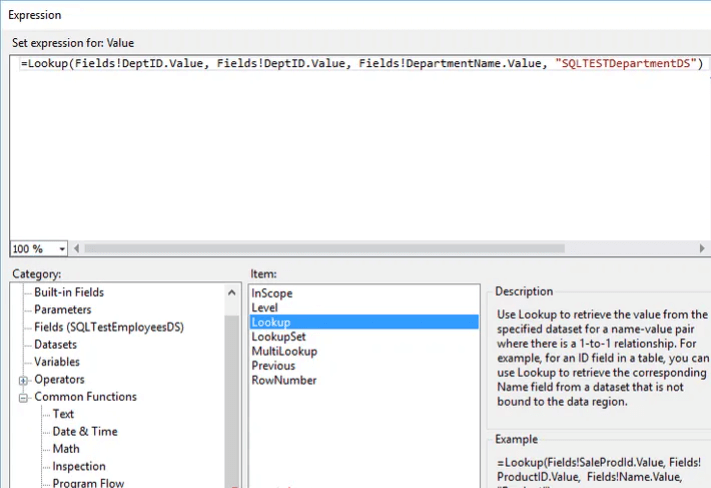
The next image is shown below:
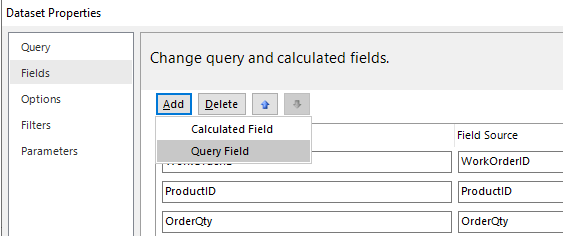
The two datasets that we created here are:
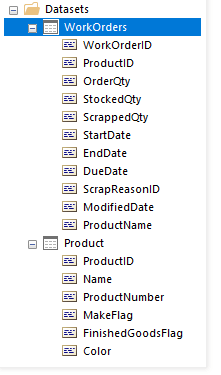
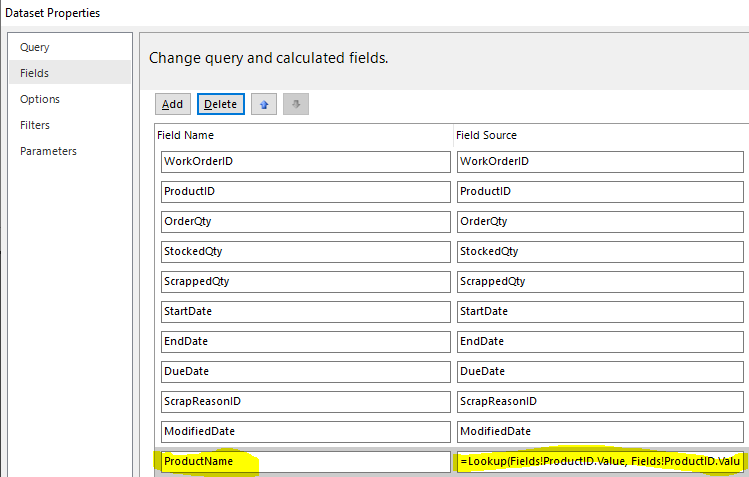
Finally, click ‘ok’ to select the preview.
Next scenario shows
Step 1: We’ve added a new row to Order called “Sr. No.” and are using a plugin to keep track of its unique sequence (i.e., 1, 2, 3, etc.) number on ‘order records.’
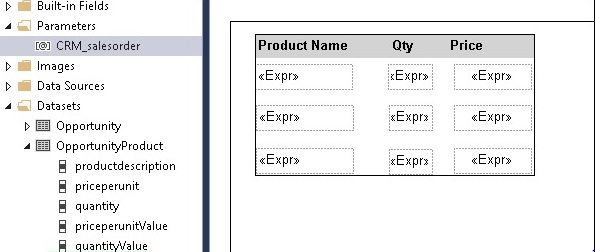
Step 2: For every textbox, one must map a value in the Lookup function according to the row series:
Display Product name’ in textbox 1 of Row 1:
Lookup(1,Fields!new_srno Value. Value,Fields!products.Value, “OppProduct”)In Row 2, display ‘Product name’ – textbox2:
Lookup(2,Fields!new_srnoValue.Value,Fields!productdesc.Value, ,”OppProduct”)In row 3, showcasing a product name
Lookup(3,Fields!new_srnoValue.Value,Fields!productdesc.Value, ,”OppProduct”)Conclusion
Lookups were explained in this article and why they are used when dealing with data. Then we discussed using the SSIS lookup transformation to normalize data values. And also, we have seen a few examples of them.
Recommended Articles
We hope that this EDUCBA information on “SSRS Lookup” was beneficial to you. You can view EDUCBA’s recommended articles for more information.

