
Introduction to SketchUp Geolocation
SketchUp Geolocation is a very good feature of this software, and by using this feature, you can place your model on the required location as per clients desired that means you can show your model with its geographical location on which it will be constructed and understand different aspect such as environment around it, sunlight direction and timing, the effect of community around it and so on. You set geo-location for your model by locating it on the geographical map or by entering the address of that location in the geo-location box of this software. There are many more things in this feature of which you can manage according to you.
How to work with SketchUp geolocation?
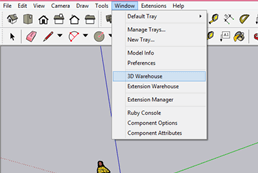
Working with Geo-location in SketchUp is a very easy task. You just have to manage your model according to direction, height, and other parameters that suit your desired requirement. For understanding geo-location, we need a model, and for that, I will make a house model from the 3D Warehouse of this software. 3D Warehouse is an online library of Sketchup from where you can get different models for your project work. You can find 3D Warehouse in the scroll-down list of the Window menu.
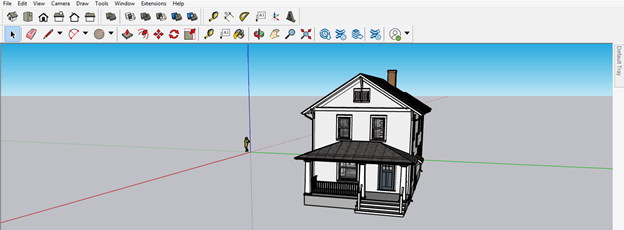
This is a beautiful traditional house model. But, of course, you can take your own model in place of it. I am taking this model just for explaining to you this topic.
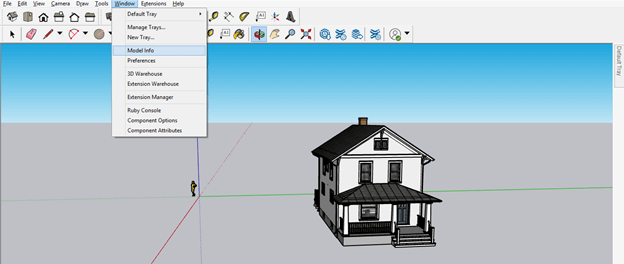
Now again, go to the Window menu of the menu bar and click on the Model Info option of the scroll-down list.
Once you click on the Model Info option, a dialog box will be open. Here in this dialog box, you will find the number of option in the list of it. Then, click on the Geo-location option of the list.
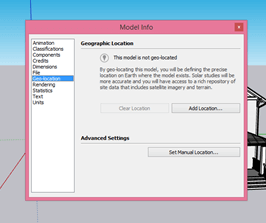
Now click on Add Location button of this option.
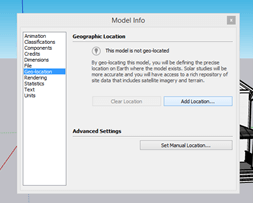
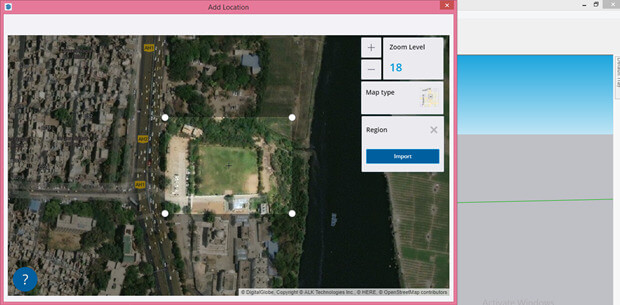
Once you click on Add Location button geographical map of your location will be open like this.
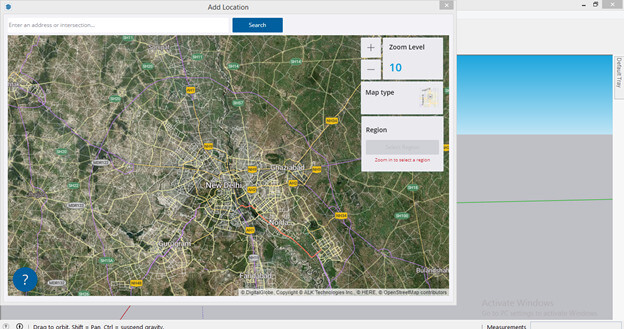
You can enter your desired address in the search box of this Add Location dialog box, and when you click on the search button, it will locate your address on the map.
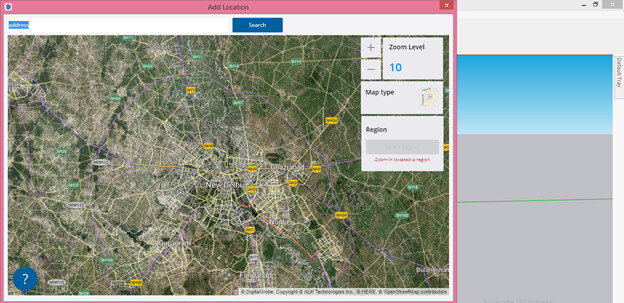
By clicking on the Map type button, you can change the geographical map to a normal map structure.
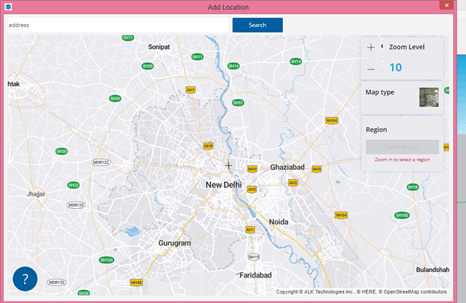
You can zoom in or out according to how much detail you want to locate in the region of your model. Once you are satisfied with your location, then click on the Select Region button of this dialog box.
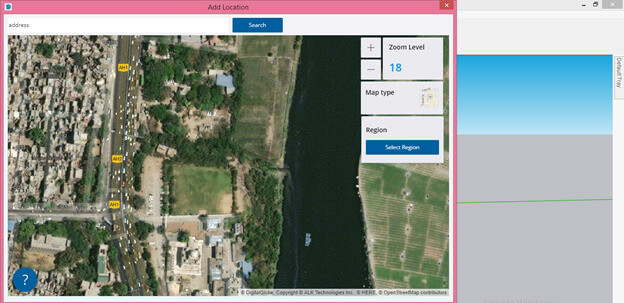
And a square box will become for selecting the region.
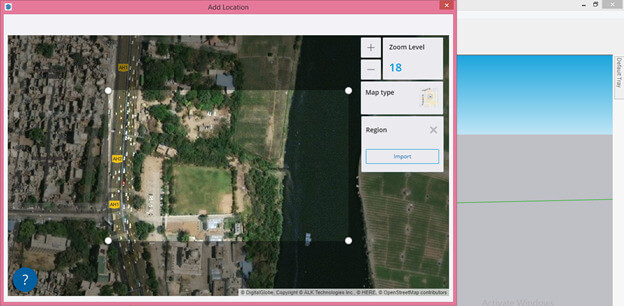
You increase or decrease the size of selecting box according to how much area you want to select. You can also drag a map all around to set the proper location by holding it with a mouse click.
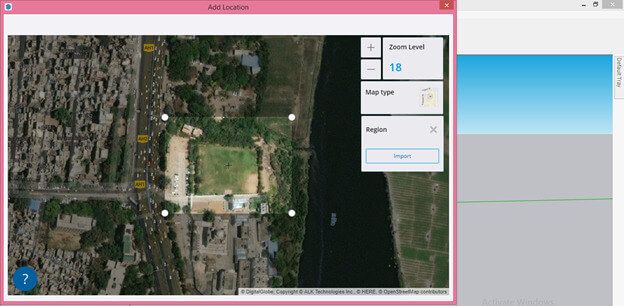
Once you are satisfied with your location and selected region, click on the Import button of this dialog box.
Once you click on this button, your selected geo-location will import on the working screen of SketchUp and also there will be a Model Info dialog box in which you can see details of the exact location of your selected geolocation on the map.
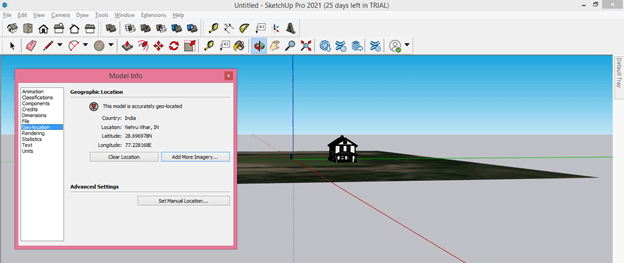
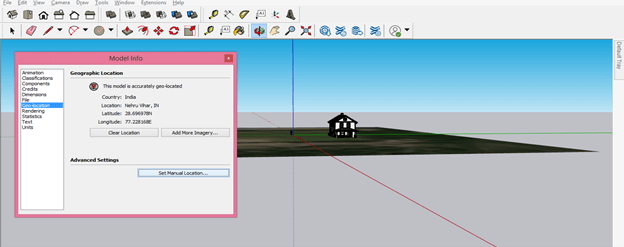
You can also set this location manually, and for that, you have to make click on the ‘Set Manual Location’ button of this Model Info dialog box.
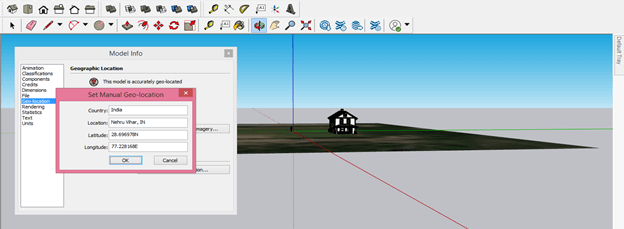
Once you click on this button, a new dialog box of ‘Set Manual Geo-location’ will be open. Here you can enter values according to your chosen location.
Geo Snapshot will come on your working screen like this.
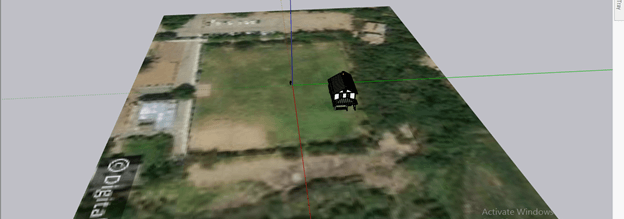
You can adjust your model according to the ground of this map.
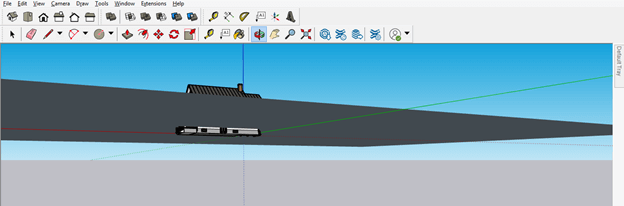
And for moving it up, I will take the Move tool from the tool panel then choose the moving axis along which I will move it.
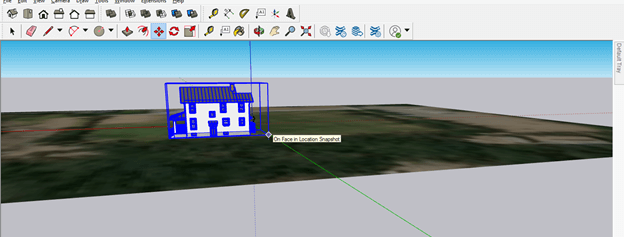
Now come to the Tags panel of the Default tray, and here you will find the Location Snapshot layer, which is the layer of this imported geo map.
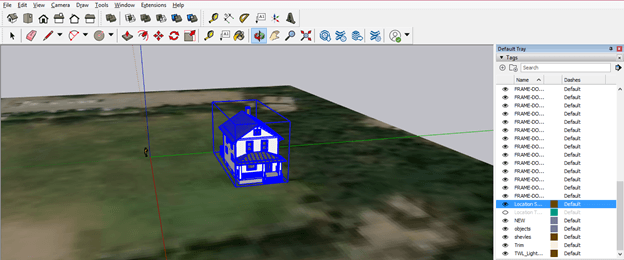
There is one more Layer of this snapshot: the Location Terrain layer, and by enabling it, you can see the terrain view of this geo-location snapshot.
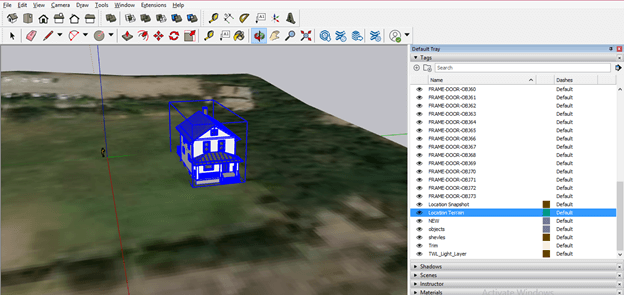
It will show you all the possible geography of that region.
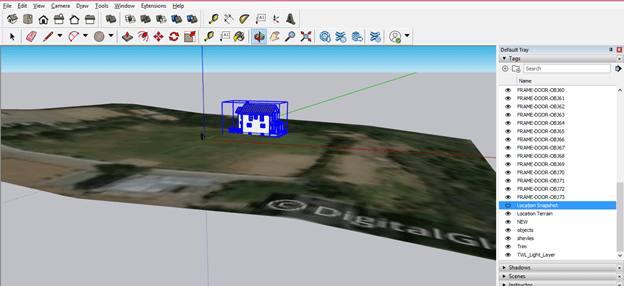
You can rotate your model according to in which direction you want to face it. For example, I want to rotate this model along with the green axis, so I will take the rotate tool and specify rotate axis for this model.
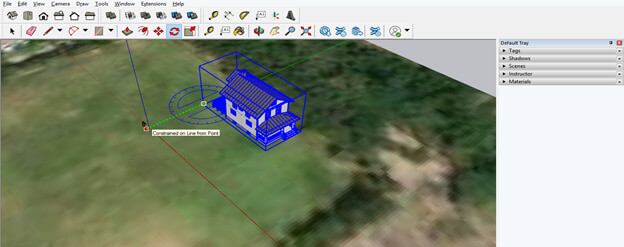
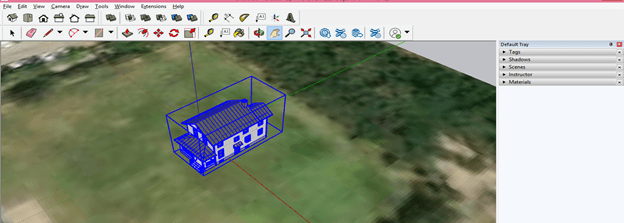
And then rotate it like this. You can set your model according to your location.
Let us come to the Default tray once again, and here you will have a Shadows panel through which you can understand the direction of the light source or sun according to time or date at that location.
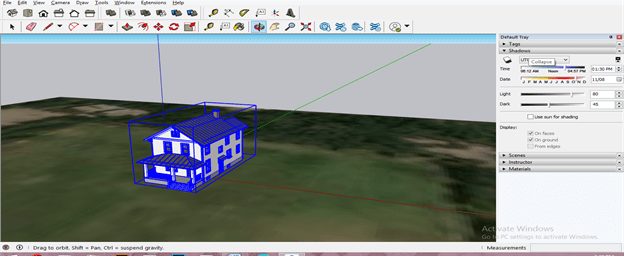
I will enable the ‘Use Sun for Shadow’ option from the panel of Shadow because it wants the sun as a light source and wants to see how the shadow will change according to the movement of the earth around the sun. In another word, it will show me how the sun list interacts with the model on this location.
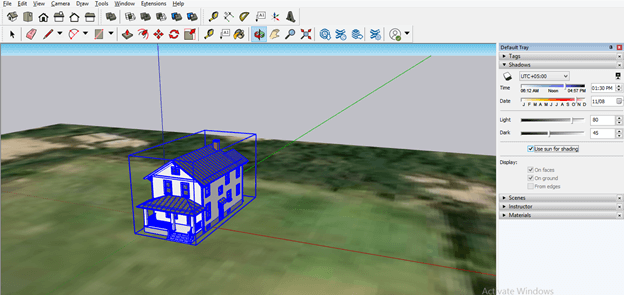
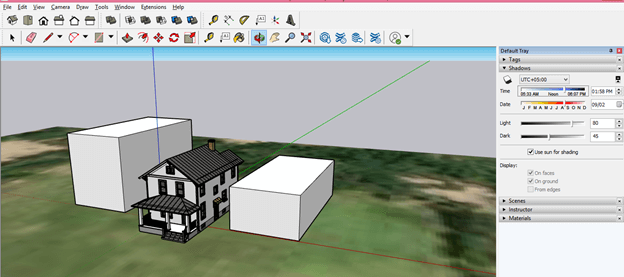
I will suppose there is two houses side by side this model, and for this, I have drawn two blocks on the side of this house model.
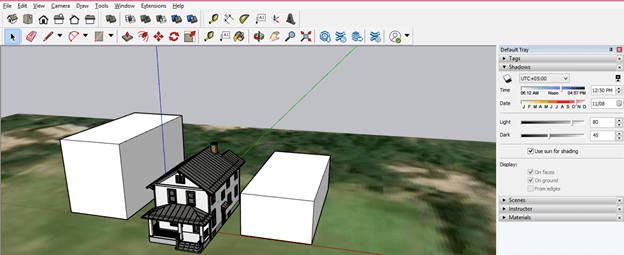
Now change the time at the Time slider of Shadows panel as I slid the slider at 9:31 AM, and you can see the effect of the sunlight on the house model. The sunlight will affect your model according to its geo-location.
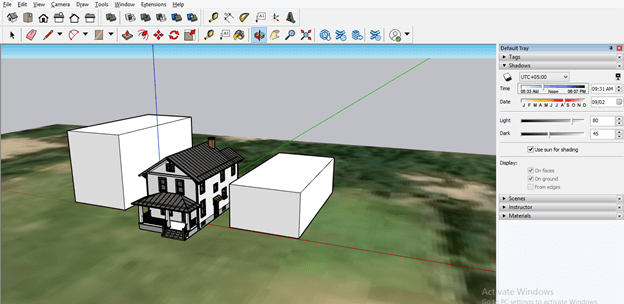
Now, if I change this time to 1:58 PM, then you can see the intensity of the sunlight, which is dropping on the house model, is something different from the previous one. You can also see the shadow effect by changing the Date on Date slider of the panel of Shadow.
This was all about geo-location about which you have to know for having a good understanding of this feature of SketchUp.
Conclusion
The geolocation feature of SketchUp will take no more an unknown term for you, and you can easily set it for locating the location of your model on which that will be constructed. You just have to fill in the exact address for your model’s geolocation and choose a region on which it will be; then, according to the environment around that location, you can set other things for your model, respectively.
Recommended Articles
This is a guide to SketchUp geolocation. Here we discuss How to work with Geo-location in SketchUP step by step in detail to understand this feature. You may also have a look at the following articles to learn more –

