


A PPT to video converter is useful only when a sales deck can stand on its own without the original presenter. If the recipient still needs a live walkthrough to understand the offer, the next action, or a number on a chart, converting the file does not create a usable video. It creates a recording of a meeting that never happened.
TapVid turns existing materials, including an approved PPT or PPTX sales deck, into a video that can explain one offer after the presenter leaves the room. The public product page states that the deck is treated as a reviewable source, approved wording stays verbatim, supplied assets match the right scene, and a later edit can rerun only the affected scene. That is a production claim about review and revision. It is not a reason to skip the first question: should this deck leave the presenter at all?
Check Whether the Sales Deck Can Leave the Presenter
Most sales decks are built for a conversation. The presenter decides which slide to skip, which number to emphasize, and which objection to answer. An email attachment, a CRM follow-up, or a buyer-committee forward does none of that. The viewer watches alone, often on a laptop or phone, and can leave at any moment.
Before you choose native export, recorded narration, or regenerated scenes, score the current deck against a presenter-independence checklist. Use the same deck the team already sends. Do not invent a cleaner version for the test.
Presenter-Independence Checklist
- Offer in one sentence: Can a new recipient name the product, the buyer, and the promised outcome without asking the sender?
- One job per slide: Does each slide ask the viewer to understand one claim, one comparison, or one next step?
- Self-contained numbers: Does every material figure include the unit, time period, and the condition that changes its meaning?
- Notes versus slides: If speaker notes were hidden, would the slide still make the same point?
- Readable proof: Can a chart, screenshot, or comparison table be understood at video size without a laser pointer?
A worked example helps make the checklist concrete. Call it Harborline Sensors, and treat it as a labeled sample rather than a customer story. If the deck fails four or more checklist items, do not buy a converter yet. Cut the recipient task first. A shorter, self-explaining deck is cheaper to update than a polished video of a presenter-dependent file.
A public-page inspection on September 6, 2026, reviewed TapVid’s PPT-to-video page, its sales-deck use case, and its stated review workflow. It did not include a private-account upload. Therefore, this article does not claim an observed generation time, measured output score, or successful export from that session.
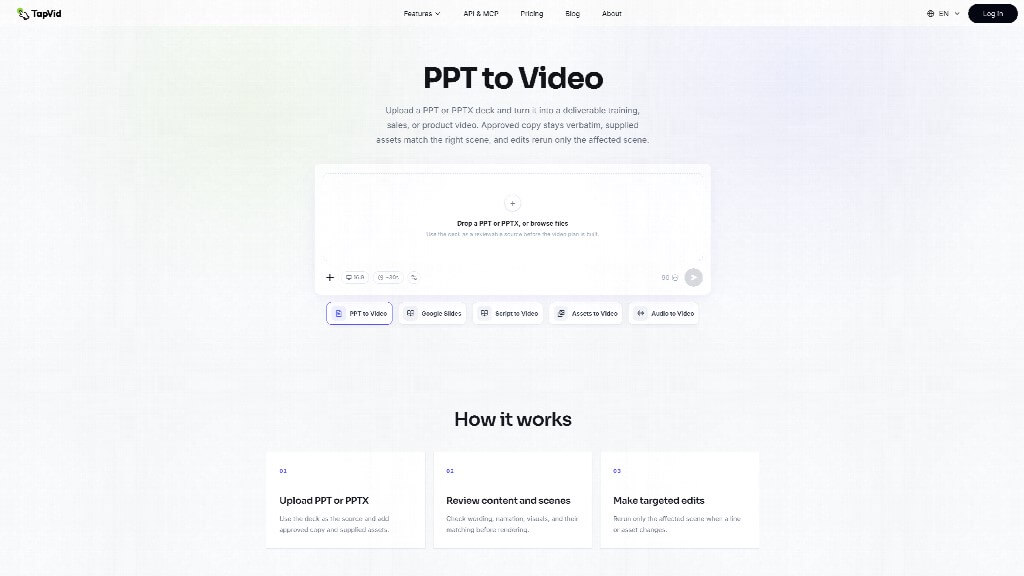
Figure: The public TapVid PPT to video page documents PPT or PPTX upload and review-before-render. It does not prove how any one private sales deck will render.
Compare Three PPT to Video Converter Paths for One Sales Task
The market often collapses the choice into “PowerPoint export versus AI.” That hides a third path that sales teams already use: recorded narration over the existing layouts. For an existing sales deck, keep all three paths on the table and judge them against the same recipient task.
Write that task in one line before you open a tool. Example: “Help a facilities buyer decide whether Harborline’s outdoor SKU fits a coastal install, then request a scoped quote.” If two people on the team cannot agree on that sentence, the video will inherit the disagreement.
Path A. Native Slide Export
Microsoft documents the built-in route as File, Export, Create a Video. You can include recorded timings and narration, or set a fixed number of seconds per slide. The default without recorded timing is five seconds per slide. Output can be MPEG-4 or Windows Media Video. Microsoft also lists what the export drops: some older linked media, QuickTime unless a compatible codec is present, macros, and OLE or ActiveX controls.
Path B. Narration on the Current Layouts
Narration keeps the slide designs and adds a spoken track. In PowerPoint, that is usually Record Slide Show, then export with recorded timings and narrations. Some teams record in a separate tool and place audio on each slide. The gain is human emphasis: the AE can name the SKU that matters and skip the rest.
Use narration when the layouts are already buyer-readable, and the missing piece is voice, not structure. A founder walkthrough for a short exclusive list can be the right object. The limitation is maintenance. A price change, a legal line, or a swapped screenshot usually means a new take. Voice also dates the file. If the AE leaves, the video still sounds like that person. Do not treat AI voiceover as a free upgrade on this path. If the slides still fail the checklist, a synthetic voice only reads the same gaps aloud.
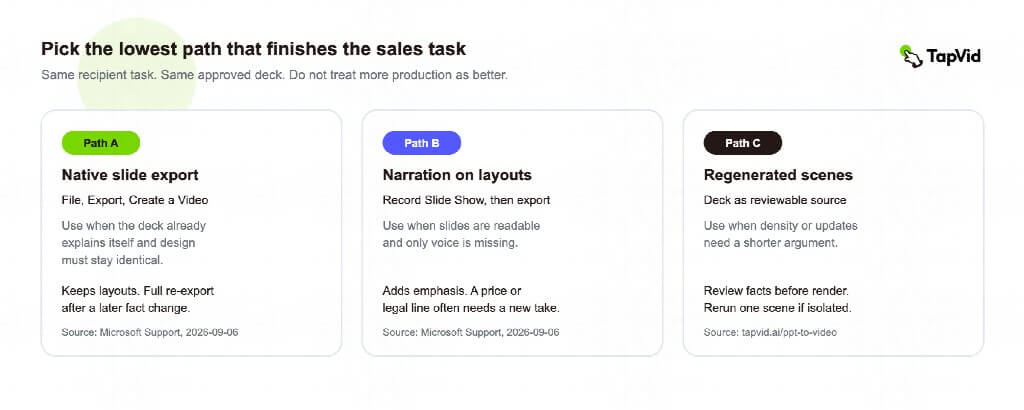
Figure: Choose the lowest path that lets a recipient finish one written sales task without the original presenter.
Path C: Regenerated Scenes
A more automated PPT to video converter approach can treat the presentation as source material rather than simply exporting every slide as-is. Instead of reproducing the deck slide by slide, the workflow can create individual video scenes around the information that matters to the recipient.
This approach is useful for dense decks, presenter-dependent content, or sections that need shortening for asynchronous viewing. The trade-off is fidelity. A regenerated video may not preserve every original animation, transition, or layout exactly as PowerPoint does. For teams that expect frequent updates, however, scene-level editing can be more valuable than perfect visual reproduction.
Handle Terms, Charts, and Speaker Notes Without Inventing Meaning
Sales decks break when you turn them into video at three predictable places: commercial language, proof visuals, and hidden notes.
- Terms: Product names, package names, service levels, and legal phrases should stay literal on screen or in voice. “Priority support” is not the same as “white-glove onboarding.” Native export is safer when the slide already shows the exact phrase, and you do not need a new scene.
- Charts: A comparison matrix that needs a pointer in the room will not become clearer at 1080p with a five-second hold. “Choose outdoor if the install is coastal; choose indoor if the unit stays climate-controlled” is a video sentence. An 8-by-6 feature grid is usually not.
- Speaker notes: Notes are often the real script. Some converters read them. That can help if the notes were written as buyer-facing speech. It can harm if the notes are internal: discount authority, competitor weaknesses, or “do not mention the Q3 delay.” Before any automated narration, mark notes as external, internal, or discard. If you cannot classify a note, it does not belong in a file that can be forwarded.
Cut the Deck to the Recipient’s Next Decision
A live sales deck often has four jobs: establish the company, teach the category, compare options, and ask for time. An asynchronous video should usually keep one job. The recipient already agreed to look. They need help choosing or help requesting the next artifact.
Use a recipient-task cut, not a slide-count target.
- Keep the decision: For Harborline, keep the coastal-versus-indoor rule, the one SKU that matches, the constraint that changes the quote, and the request for a scoped quote.
- Demote biography: Company history, office photos, and award slides can stay in the leave-behind PDF.
This cut is what owned how-to articles often skip because they start at conversion. It is also what PDF-to-video guest material treats as a fact-preservation problem. Here the object is different. You are not protecting a report’s footnotes. You are deciding which commercial argument the buyer can watch without you.
Compare Revision Costs Before Choosing a PPT to Video Converter
Sales decks change. Price lists move. A legal reviewer swaps one sentence. A product manager replaces a screenshot. The buying question is not “can this file become an MP4 once?” It is “what breaks the second time?” Use the same Harborline change set on each path. The numbers below are workflow classes, not measured hours from a TapVid account run.
Change: One list price
- Native export: Edit the slide, re-export the full file
- Narration on current layouts: Edit the slide, re-record or patch that beat, re-export
- Regenerated scenes: Replace the verbatim figure, rerun that scene if the tool isolates it
Change: One product screenshot
- Native export: Replace the image, re-export
- Narration on current layouts: Replace the image; audio may still fit
- Regenerated scenes: Replace the asset and confirm the spoken line still names the same SKU
Change: Legal wording
- Native export: Edit the slide; hope no one quoted the old MP4
- Narration on current layouts: Re-record the line; old voice takes remain in circulation
- Regenerated scenes: Change the approved line in review, then replace only that scene
Change: New closer
- Native export: Add or rewrite the last slide, re-export
- Narration on current layouts: New take for the ending
- Regenerated scenes: New scene, previous scenes stay
Two extra revision rules matter more than the table.
- Version identity: Name the video with the deck version, the date, and the offer owner. Buyers forward files. If the CRM still links last quarter’s MP4, a perfect converter will not save the deal.
- Scene isolation is a claim to verify: TapVid’s public page says a line or asset change can rerun only the affected scene. That is why you should consider regeneration. It is not proof until the team changes one approved figure in its own account and confirms that neighboring scenes, including the pricing table and the closer, stay put.
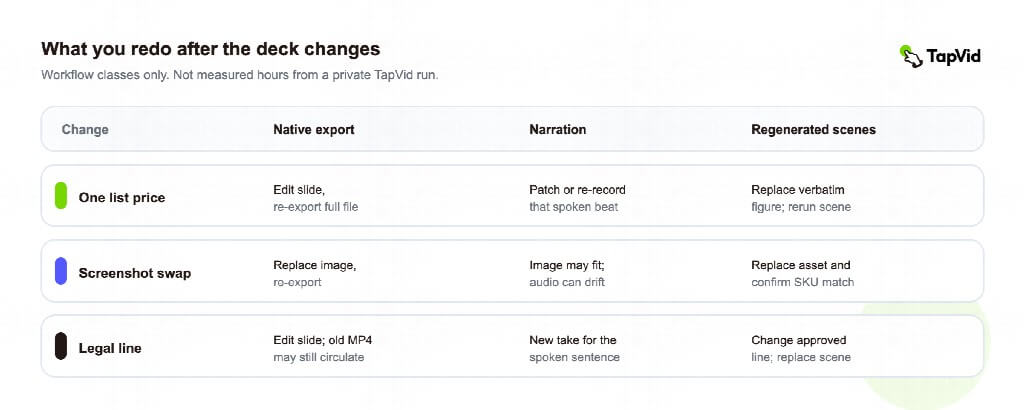
Figure: Compare what you must redo when a price, screenshot, or legal line changes. Do not buy a converter for a one-time export.
Frequently Asked Questions (FAQs)
Q1. Is a PPT to video converter better than PowerPoint’s own export?
Answer: Only when the deck fails as a self-explaining sales object, or when you expect frequent factual updates. Microsoft’s export is the documented way to turn an already-finished presentation into MP4 or WMV. A converter does a different job: it rebuilds a watchable argument from the deck. If the live talk is still doing the explaining, neither path is ready.
Q2. When is Recorded Narration the Right Middle Path?
Answer: Use narration when the layouts already pass the presenter-independence checklist and the missing piece is voice. It is a poor fit when speaker notes contain internal pricing or when the AE who recorded the track will not own inbound replies.
Q3. Do Speaker Notes Belong in the Video?
Answer: Only notes written for the buyer. Internal discount guidance, competitive asides, and “do not mention” lines should be stripped before any automated voiceover. If a tool reads notes by default, classify them first.
Q4. Can I Keep Every Animation and Still Change One Price Later?
Answer: Native export keeps PowerPoint animations and transitions. It also makes a later price change a full re-export. Regenerated scenes trade some layout fidelity for a reviewable script and, on tools that isolate edits, a smaller rerun. Choose the fidelity you will actually maintain.
Q5. What Should a Team Test Before Paying for Another Tool?
Answer: Use one bounded trial, not a homepage gallery. Fill the same worksheet for every candidate:
- Deck and version: The current sales file and its date, not a cleaned demo deck.
- Recipient task: One written sentence for what the viewer must decide or send back.
- Checklist score: How many presenter-independence items fail. If four or more fail, stop and cut the deck first.
- Path used: Native export, narration, or regenerated scenes.
- Forced revision: Change one list price or one legal line after the first output.
- Neighboring scenes: Did the pricing table and the closer stay put? Yes, no, or not verified.
- Decision: Keep this path, switch path, or do not buy.
Keep a record of the input, settings, output, and what had to be redone. The converter is not the first purchase. The first purchase is a deck that can leave the room. After that, native export, narration, or regenerated scenes are maintenance decisions, not taste decisions.
Recommended Articles
We hope this article on choosing the right PPT to video converter helps you create more effective and engaging sales videos. Check out these articles for more insights, tips, and strategies to improve your presentation and video content.

