

Updated March 23, 2023

Introduction to PowerShell Date
This article will cover the Get-Date cmdlet in PowerShell. It returns the current date. The default format of the date returned will be the same as the format of the date format maintained in the local system. There are multiple formats and different parameters that are associated with the Get-Date cmdlet which will be covered in the upcoming sections in the article. To know the current format of the date in the local system, (Get-Culture). DateTimeFormat can be used.
Syntax of PowerShell Date
The syntax of the Get-Date is as follows:
Get-Date

[[-Date] <DateTime>]
[-Year <Int32>]
[-Month <Int32>]
[-Day <Int32>]
[-Hour <Int32>]
[-Minute <Int32>]
[-Second <Int32>]
[-Millisecond <Int32>]
[-DisplayHint <DisplayHintType>]
[-Format <String>]
[<CommonParameters>]
Eg: Get-Date will return the below output
Input:
Get-Date
Output:

Let us understand in detail the various parameters that are associated with the Get-Date cmdlet
Parameters
1. Date: This is an optional parameter. Its data type is DateTime. It doesn’t accept wild characters and the default value is none. LastWriteTime is the alias name. It specifies a date and time.
Eg: Get-Date -Date “1/1/1920 12:30:22”
Output:

2. Day: This is also an optional parameter. It returns the day of the month whose date is specified. The default value is none and wild card characters are not accepted. It accepts a value from 1 to 31. In case if the number mentioned is greater than the number of days in the month, PowerShell adds it to the month.
E.g.: Get-Date -Month 11 -Day 19
Output:

3. Format: This specifies the date format. Its output is in a string object. Its type is a string. Default is none and wild card characters are not accepted.
4. Hour: This is used to denote the hour. Its type is int32 and the default value is none. The value should be within the range of 0 to 23. Wild card characters are not accepted.
5. Millisecond: This is used to denote the millisecond. Its type is int32 and the default value is none. The value should be within the range of 0 to 999. Wild card characters are not accepted.
6. Minute: This is used to denote the minute. Its type is int32 and the default value is none. The value should be within the range of 0 to 59. Wild card characters are not accepted.
7. Month: This is used to denote the minute. Its type is int32 and the default value is none. The value should be within the range of 1 to 12. Wild card characters are not accepted.
8. Second: This is used to denote the second. Its type is int32 and the default value is none. The value should be within the range of 1 to 12. Wild card characters are not accepted.
9. Year: This is used to denote the year. Its type is int32 and the default value is none. The value should be within the range of 1 to 9999. Wild card characters are not accepted.
Date Options in PowerShell
The following are the various date formats available.
- d: Denotes ShortDate
- D: Denotes LongDate
- f: Denotes long date, the short time
- F: Denotes long date, long time
- t: Denotes Short time format
- T: Denotes Long time formats,
- M: Month Day format
Examples of Various PowerShell Date
The examples of various date are given below:
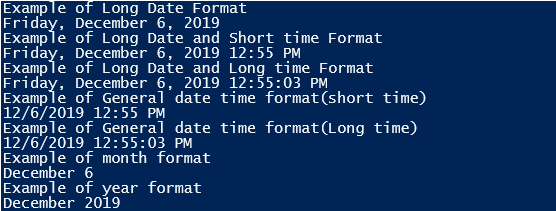
Example #1
Input:
Write-Host  "Example of Long Date Format"

Get-Date -Format D

Write-Host  "Example of Long Date and Short time Format"

Get-Date -Format f

Write-Host  "Example of Long Date and Longtime Format"

Get-Date -Format F

Write-Host  "Example of General date-time format(short time)"

Get-Date -Format g

Write-Host  "Example of General date-time format(Long time)"

Get-Date -Format G

Write-Host  "Example of month format"

Get-Date -Format m

Write-Host  "Example of year format"

Get-Date -Format y
Output:
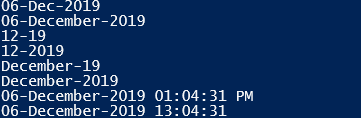
Example #2
Different year formats
Input:
Get-Date -Format dd-MMM-yyyy

Get-Date -Format dd-MMMM-yyyy

Get-Date -Format MM-yy

Get-Date -Format MM-yyyy

Get-Date -Format MMMM-yy

Get-Date -Format MMMM-yyyy

Get-Date -Format 'dd-MMMM-yyyy hh:mm:ss tt'

Get-Date -Format 'dd-MMMM-yyyy HH:mm:ss'
Output:
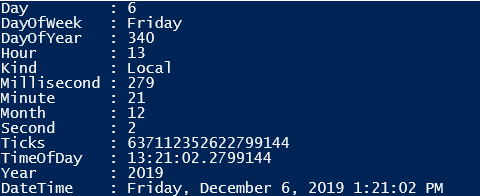
Example #3
Get-Date with Format-List
Input:
Get-Date | Format-List
Output:

Example #4
Find the day of the date in the year
Input:
(Get-Date -the Year 2090 -Month 10 -Day 02).DayOfYear
Output:

Example #5
Check for daylight saving
Input:
$date=Get-Date "12/12/2019"

$date.IsDaylightSavingTime()
Output:

Input:
$date=Get-Date "11/1/2019"

$date.IsDaylightSavingTime()
Output:

Examples #6
Input:
$date= Get-Date

#adding 100 days to the current date

$newdate=$date.AddDays(100)

Write-host "New Date is:" $newdate

#converting the current date to universal time

$utime=$date.ToUniversalTime()

Write-Host "Universal time is:" $utime

#add minutes to the current time

$newtime=$date.AddMinutes(35)

Write-Host "Altered time is:" $newtime
Output:

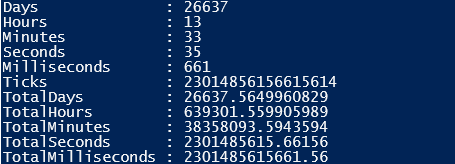
Example #7
Find the difference between two dates
Input:
$dateA= Get-Date

$dateB= Get-Date "1/1/1947"

$difference= $dateA- $dateB

$difference|Format-List
Output:
Conclusion
Thus, the article covered in detail in the various date time formats along with examples. The best way to learn about each format available is to try out each format and understand which is suitable for the script need. It is advisable to use the standard format.
Recommended Articles
This is a guide to PowerShell Date. Here we discuss the introduction, Date Options, Examples of Various PowerShell Date along with Syntax, parameters. You can also go through our other suggested articles to learn more–

