Introduction to Ping Tools
Ping tools are essential utilities used to verify whether a host is reachable over an IP network. They are included in almost every operating system and often serve as the first step in network diagnostics. Named after the sonar “ping” used in submarines, these tools help IT professionals and network administrators monitor latency, detect packet loss, and assess the availability of network devices.
Table of Contents:
Why are Ping Tools Important?
Ping tools play a vital role in:
- Diagnosing Connectivity Issues: Ping tools help determine if a device is reachable over a network, effectively indicating potential hardware, firewall, or routing issues.
- Measuring Network Latency: They measure the round-trip time for packets, helping identify delays or slow network response times between your device and target hosts.
- Identifying Packet Loss: Ping utilities detect packet loss, which can signal unstable connections, hardware failures, or congestion in the network path between endpoints.
- Monitoring Server Uptime: Regular ping checks help monitor if servers are online, enabling prompt response to outages or downtime events for critical infrastructure.
- Testing DNS Resolution: They verify if domain names correctly resolve to IP addresses, helping identify DNS misconfigurations or propagation delays across networked systems.
How Ping Tools Work?
Ping tools transmit echo request packets to the target host via the Internet Control Message Protocol (ICMP) and watch for echo answers.
The tool measures:
- Round-trip time (RTT) – how long it takes for the message to travel to the host and back.
- Packet loss – the proportion of packets that did not make it to their intended location.
- TTL (Time to Live) – a counter that indicates how many hops the packet can make in total before being discarded.
A typical ping command looks like this:
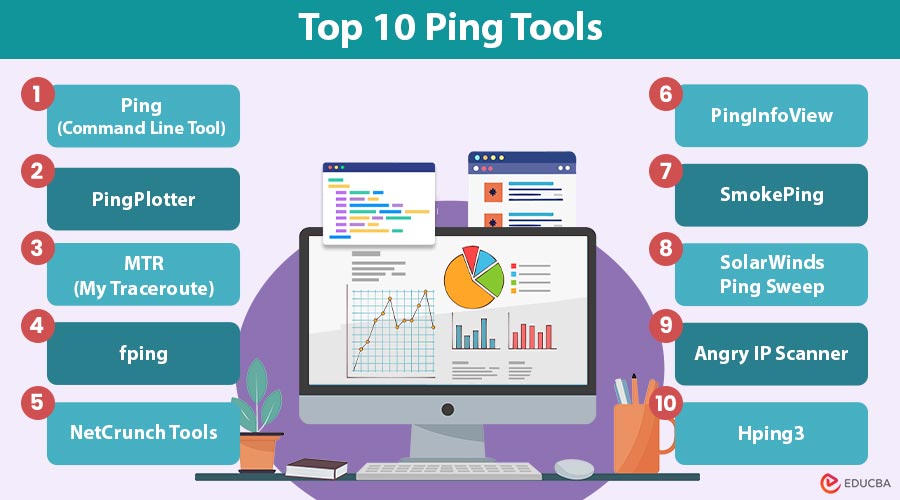
ping google.comTop 10 Ping Tools
Here are the top tools for monitoring network performance, diagnosing connectivity issues, and analyzing latency and packet loss.
#1. Ping (Command Line Tool)
A built-in network utility that sends ICMP echo requests to check connectivity, measure round-trip time, and detect packet loss between your device and a destination host.
Platform:
- Windows
- Linux
- macOS
Key Features:
- Sends ICMP packets
- Provides RTT and TTL
- Identifies packet loss
Pros:
- Built-in on all operating systems
- No installation needed
- Lightweight and fast
Cons:
- Limited information output
- No GUI
- No built-in logging or report generation
#2. PingPlotter
A graphical network diagnostic tool combining ping and traceroute to visualize latency, packet loss, and route performance over time using easy-to-understand graphs and historical tracking features.
Platform:
- Windows
- macOS
Key Features:
- Visual graph for latency and packet loss
- Historical data tracking
- Supports alerting and automation
Pros:
- Useful for identifying patterns over time
- Simplifies complex diagnostics with visual timelines
- Allows threshold-based notifications
Cons:
- Steeper learning curve for new users
- Advanced analysis requires a paid version
- Not intended for use on headless systems (no CLI mode)
#3. MTR (My Traceroute)
A command-line tool that continuously traces the route to a host and monitors the latency and packet loss at each hop, blending ping and traceroute functions.
Platform:
- Linux
- macOS
- Windows (WinMTR)
Key Features:
- Live path tracing
- Real-time latency and loss per hop
- Interactive output
Pros:
- Continuously updates path data in real-time
- Detects issues that static traceroutes miss
- It helps isolate bottlenecks across multiple hops
Cons:
- Can not export to graphical formats
- Interpretation may require networking knowledge
- Terminal-based output is not suitable for all users
#4. fping
A fast, command-line ping tool that allows pinging multiple hosts simultaneously, ideal for network administrators managing large numbers of devices or scanning IP address ranges efficiently.
Platform:
- Linux
- macOS
Key Features:
- Batch ping multiple IPs
- Very fast
- Script-friendly
Pros:
- Excellent performance in bulk host environments
- Can be scheduled easily via cron jobs
- Resource-efficient for large-scale testing
Cons:
- Output lacks visual clarity for trends
- No integrated alert system
- Not pre-installed on most systems
#5. NetCrunch Tools
A suite of GUI-based network utilities, including ping, traceroute, DNS tools, and port scanners, designed for real-time network diagnostics on Windows environments.
Platform:
- Windows
Key Features:
- Multi-threaded ping
- Visual UI
- Network discovery
Pros:
- Great for hands-on troubleshooting
- Bundles multiple network utilities in one tool
- Saves time compared to launching separate tools
Cons:
- Lacks command-line interface for scripting
- Resource-heavy on low-end systems
- Features not as robust as enterprise-grade tools
#6. PingInfoView
A Windows utility that allows batch pinging of multiple IPs or hostnames, displaying real-time results in a sortable table with logging and export options for easy reporting.
Platform:
- Windows
Key Features:
- Batch pinging
- Exportable logs
- Lightweight
Pros:
- Easy filtering and sorting of results
- Logs data for long-term comparison
- Quick deployment in portable environments
Cons:
- Not suitable for continuous monitoring
- You need to configure many hosts manually.
- Basic table view without charts or graphs
#7. SmokePing
An open-source latency monitoring tool that tracks and graphs network latency over time, helping visualize connection stability and detect intermittent or chronic performance issues.
Platform:
- Linux
Key Features:
- Long-term latency visualization
- Alerts and notifications
- Multi-target support
Pros:
- Tracks jitter and latency trends over weeks/months
- Flexible through plugin-based extensions
- Visualizes complex behavior like latency spikes
Cons:
- The setup process is time-consuming for non-admins
- The web interface may require manual tuning
- Not ideal for on-demand testing
#8. SolarWinds Ping Sweep
A commercial ping tool that scans entire IP address ranges identifies active hosts, and retrieves device information, often used for network audits and inventory in enterprise environments.
Platform:
- Windows
Key Features:
- IP range pinging
- Device details (MAC, hostname)
- Export options
Pros:
- Automates inventory management tasks
- Provides comprehensive host data in one scan
- Integrates smoothly with IT management suites
Cons:
- High cost for small businesses
- Not designed for casual or single-host use
- Updates tied to the broader SolarWinds ecosystem
#9. Angry IP Scanner
An open-source, cross-platform tool for scanning IP addresses and ports, displaying host status, hostname, and basic network info, widely used for lightweight network discovery tasks.
Platform:
- Windows
- macOS
- Linux
Key Features:
- IP and port scanning
- Export options
- Plugin support
Pros:
- Very easy to use for beginners
- Portable – no installation required
- Supports plugin customization
Cons:
- Lacks built-in diagnostics beyond status-checking
- Not built for enterprise-scale scanning
- Can not visualize data across time or hops
#10. Hping3
A command-line packet crafting tool that sends custom TCP, UDP, or ICMP packets to test firewalls, measure response behavior, and simulate various network scenarios for security assessments.
Platform:
- Linux
- macOS
- Windows (via Cygwin)
Key Features:
- Ping using TCP, UDP, or ICMP
- Packet crafting
- Firewall testing
Pros:
- Excellent for simulating attacks and probing defenses
- Supports scripting for automation in security tests
- Compatible with packet capture tools like Wireshark
Cons:
- Not designed for routine network testing
- Security systems could flag misuse as malicious activity.
- Limited documentation and community support
Final Thoughts
Ping tools remain an indispensable part of any network troubleshooting toolkit. From simple command-line utilities to advanced graphical dashboards, there is a ping tool for every scenario and user level. Whether you are diagnosing a slow internet connection or managing a data center’s infrastructure, these tools help you understand, measure, and optimize network health.
Frequently Asked Questions (FAQs)
Q1. Can I use ping tools on mobile devices?
Answer: Yes. Apps like PingTools Network Utilities (Android) and Network Analyzer (iOS) offer ping and traceroute functionality.
Q2. Are ping tools safe to use?
Answer: Yes, ping tools are safe and only send standard ICMP requests. However, excessive pinging can trigger firewalls or appear as a DDoS-like behavior in some networks.
Q3. What does TTL mean in ping results?
Answer: TTL stands for Time to Live, indicating how many hops (routers) a packet can pass through before being discarded.
Q4. Why do some hosts not respond to ping?
Answer: Some servers or firewalls block ICMP packets for security, so they may not respond even if they are online.
Recommended Articles
We hope that this EDUCBA information on “Ping Tools” was beneficial to you. You can view EDUCBA’s recommended articles for more information.