


How to Calculate the Percentage in Excel
Calculate Percentage in Excel must have at least two values. For example, if we have 2 numbers, then to find the percentage increase, we will first subtract the smaller number from a bigger number and then divide the obtained value with a smaller number among both the values. We may get the answer in decimal. Click the % symbol in the Home menu’s number section to convert this value into a percentage. The obtained percentage will increase the value from smaller to bigger.
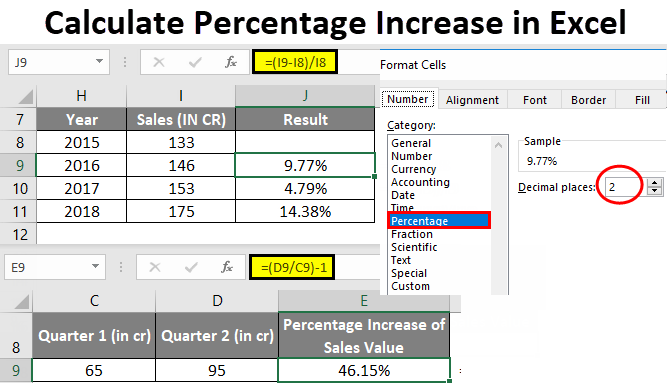
Calculate Excel Percentage Increase (Table of Contents)
Mathematical percentage calculation: (Part/Whole) *100 = Percentage
For example, suppose you had 30 pens and gave six pens to your best friends. If anybody asks you, how much did you give percentage-wise? To know the percentage of the pens you gave to your friends, the percentage calculator is a simple solution to the problem. Also, the formula mentioned above can calculate it. By performing a simple calculation =6/30*100, you get the answer as 20%.
This is how we usually calculate percentages everywhere and in everyday life. In Excel, the basic formula for calculating percentages is
Excel percentage calculation: Part/Total = Percentage
The only difference between Mathematical & excel percentage calculation is, In excel *100 is missing because in Excel when calculating a percent, you don’t have to multiply the resulting value fraction by 100 since Excel will automatically calculate it to or convert it to a percentage format, which will be applied to a cell.
Calculate a Percentage Increase in Excel
To increase the value or calculate the amount of percentage increase in Excel, you can use the following formulas:
- = Amount * (1 + %) or
- =(new_value/old_value)-1 or
- =(new value – old value)/old value
Struggling with calculations? Use TutorBin AI Homework Helper to solve percentage problems in Excel quickly and efficiently!
How to Calculate a Percentage Increase in Excel?
Calculating a percentage Increase in Excel is very simple and easy. Check out various available Excel options or formulas for calculating a percentage increase.
Example #1 – Calculate the Percentage Increase Between any two numbers in Excel
In the below-mentioned example, I have two quarterly sales values in the cell “C9” & “D9”, i.e. (First quarter sales value in cell C9 & Second-quarter sales value in cell D9)
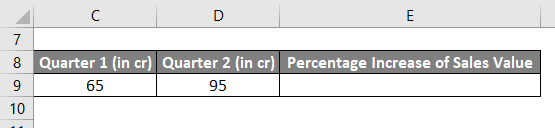
Here I need to calculate the percentage increase in Second-quarter sales compared to the First quarter sales value in Excel.
The below-mentioned formula is used to calculate the percentage increase value between two numbers or values in Excel.
=(new_value/old_value)-1
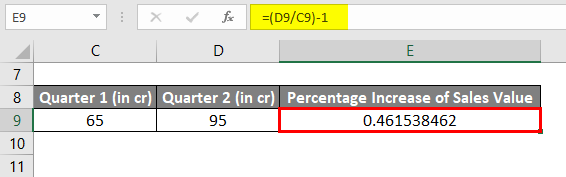
Select a blank cell where I need to enter the formula, i.e., I selected the cell E9 where I will enter =(D9/C9)-1, where “new_value” is 95, or I can enter cell reference, i.e., “D9” and “old_value” is 65 or I can enter cell reference, i.e. “C9”. These are the two numbers or values which I need to compare.
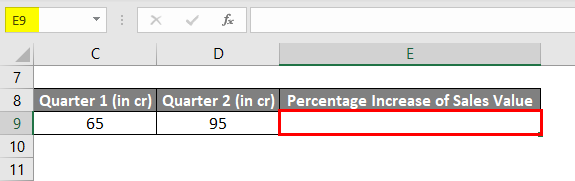
With the First-quarter sales value in cell “C9” & Second-quarter sales value in cell “D9”, I entered =(D9/C9)-1 in cell “E9” to find out the percentage increase in quarter 2.
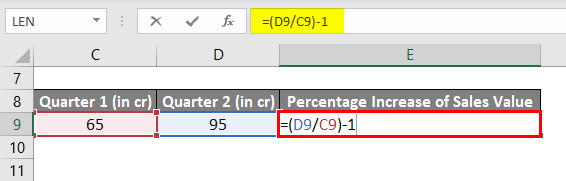
It results in a value of 0.46,
To convert the result value from decimal format to a percentage format, follow these steps:
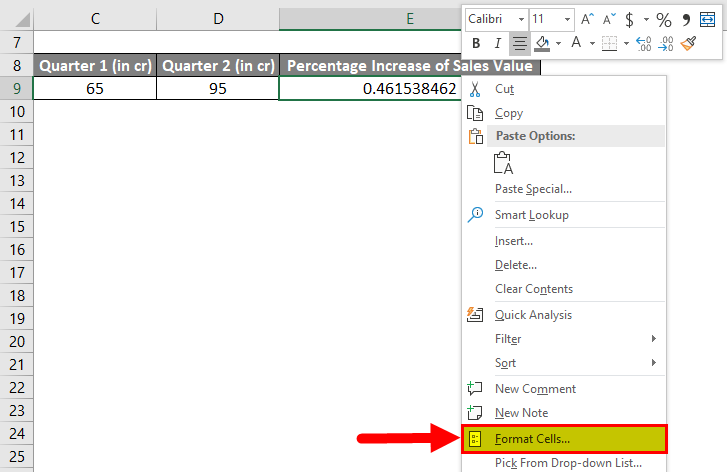
I need to select cell E9, Right-click on cell E9, and I need to select the Format Cells option to change the result from a decimal format to a percentage format.
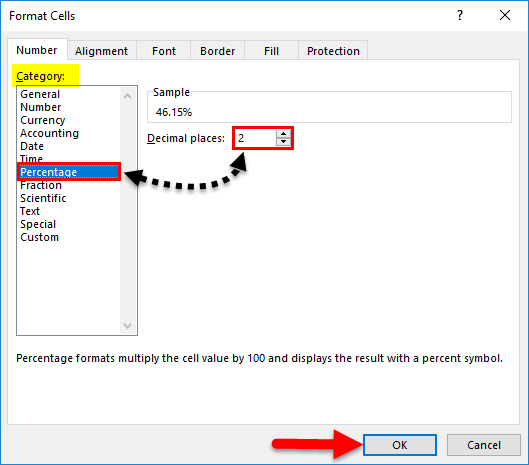
Format Cells window appears; in the category section, I need to select Percentage and decimal places; I need to choose two by clicking on a small arrow around decimal places and clicking OK.
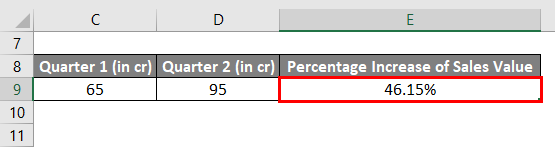
Now, In cell E9, you can check out where the decimal format gets converted to percentage format, i.e., 0.4615 to 46.15%
Example #2 – Calculate the Percentage Increase Between yearly sales data in Excel
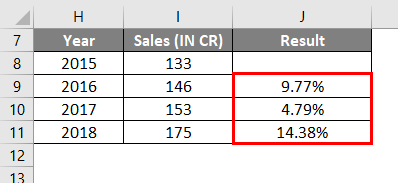
In the below-mentioned example, I have a yearly sales data table containing two columns, i.e., the Year & its sales values for the respective year.
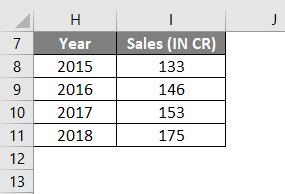
Here, in comparison with the previous year, I need to calculate a percentage increase in sales value in Excel. The below-mentioned formula can do it.
=(new value–old value)/old value
; I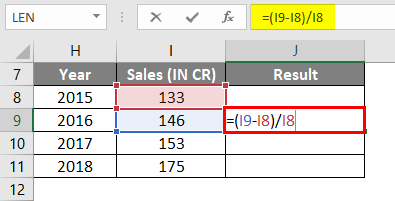
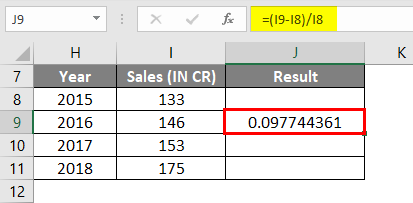
Which results in 0.097.
Simultaneously, this formula is applied to the whole range, i.e., from cell J9 to J11, by selecting cell J9 and dragging it to J11.
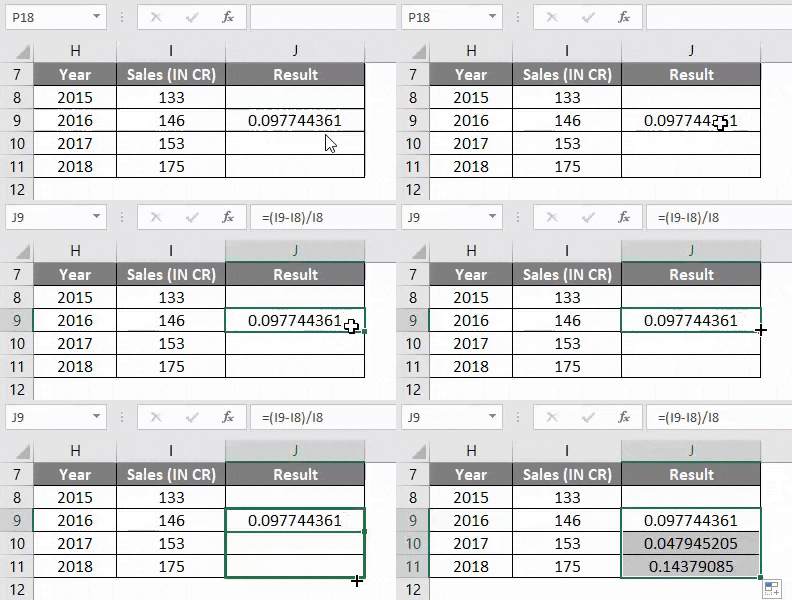
Usually, the result of percentage change appears in decimal format in Excel. Later it is converted to percentage format; the same procedure needs to be followed, which I have explained in the first example (Conversion of result value from decimal format to a percentage format)
Example #3 – Calculate to increase a number by a specific percentage in Excel
To increase value or number by a specific percentage, below mentioned formula is used:
=Amount*(1+%)
In the below-mentioned example, I have quarter two sales data in cell C14, where I need to increase it by 20%.
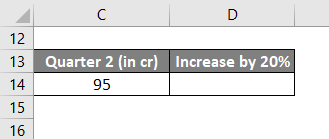
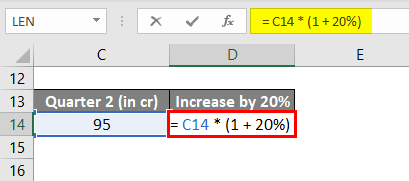
The below-mentioned formula is used to get the desired output.
=C14*(1+20%)
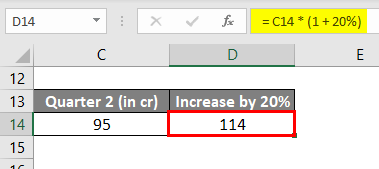
It results in or increases the sales value in cell D14 by 20%, i.e., 114.
Things to Remember
- Decimal format to a percentage format can also be done with the help of the shortcut key CTRL + SHIFT + % (Note: it applies the percentage format with no decimal places).
- Usually, Percentage value that occurs during the result in Excel are stored as decimal values or format; we have to convert them into percentage format.
- Decimal format to Percentage Format conversion can be done through the Ribbon Options or the Format Cells Dialog Box.
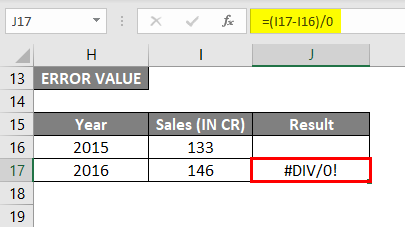
- #DIV/0! The error occurs if we try to divide by zero in percentage change Excel formula =(b-a)/0
Recommended Articles
This has been a guide to Calculate the Percentage in Excel. Here we discuss how to calculate a percentage increase in Excel, along with Excel examples and a downloadable Excel template. You can also go through our other suggested articles –

