
Introduction to Moon in Illustrator
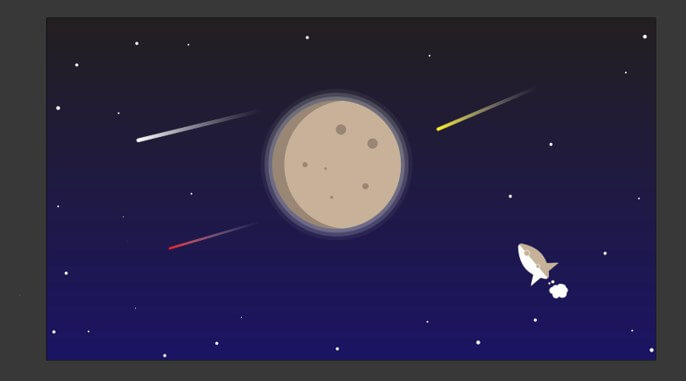
Adobe Illustrator is a vector drawing software and it is the most preferred graphic designing package for vector art by professionals. In this article, we are going to create a graphic design of the moon in adobe illustrator 2020 which will emphasize the use of shapes and fills with gradients. We will also use shape builder tools, pathfinder tools, and brush tools to get an extra effect and also a small rocket to get the perspective. The background of the moon will have the night sky with some stars from which some will be falling down.
How to Create a Moon in Illustrator?
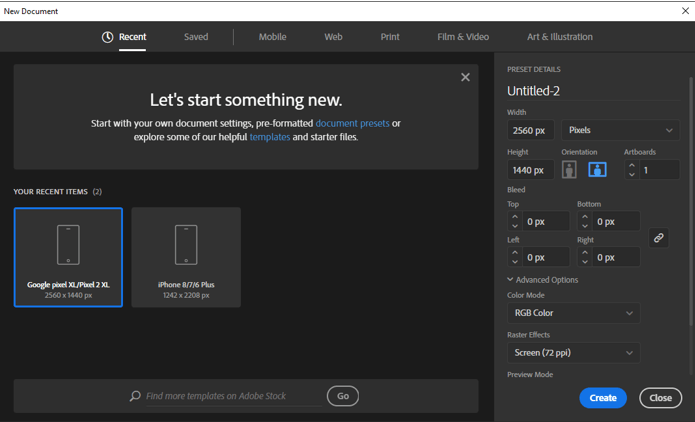
Step 1: We will create a new document with all the standard settings and set the width to 2560px and height of 1440px. Set the orientation to landscape and set the artboard to 1 also the bleed is 0 px with colour mode of RGB Color and there is another option of CMYK which is useful if we are using it to print. But since we are not printing, we leave it in RGB mode. Also, set the raster effect to screen as we are not using any raster effects like drop shadow, etc.
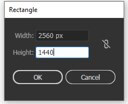
Step 2: Create a rectangle by selecting a rectangle tool or press M and then click on a blank canvas and set the same dimensions as the artboard.
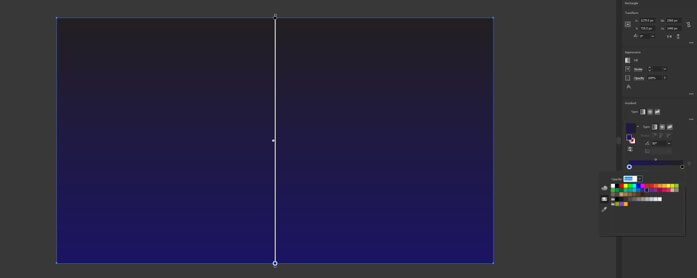
Step 3: Grab the rectangle using the selection tool and align with the artboard, then select the gradient tool or press G to create the background. Set the angle to 90 degrees for the linear gradient and set the white to dark blue color. Also, change the stroke to none.
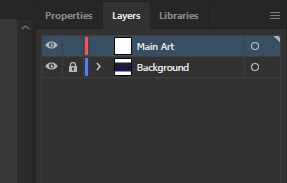
Step 4: Change the name of the current layer to “Background” so we do not change it accidentally and create a new layer and name it “Main Art” on which we will add other objects.
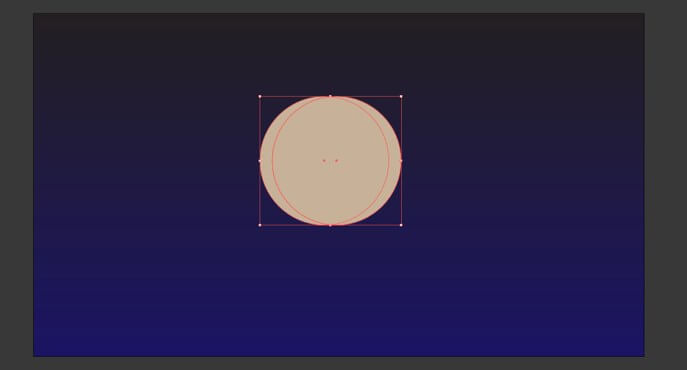
Step 5: Create two circles side by side as shown below and set the width and height to 540px.
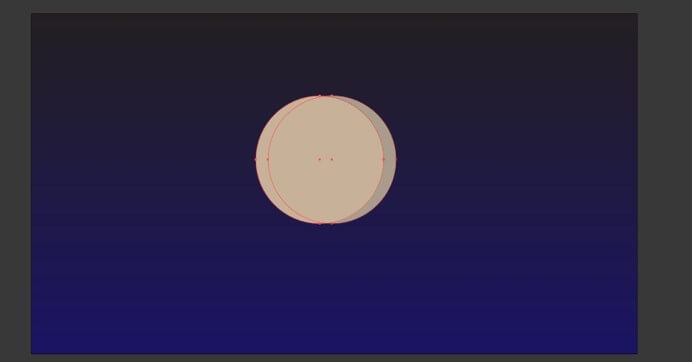
Step 6: Use shape builder tool or click shift + M to activate and remove the right part so we can create a show in the left part. To remove press alt and left click, then fill the first circle to create a shadow.
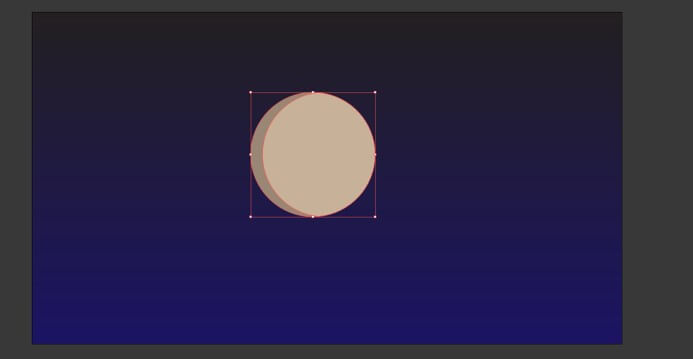
Step 7: Then using the ellipse tool creates spots on the face of the moon.
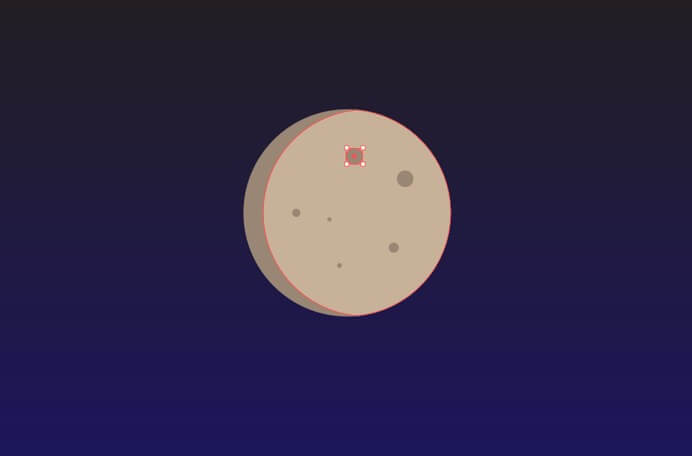
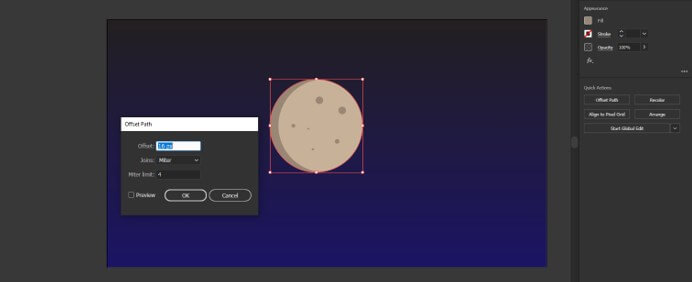
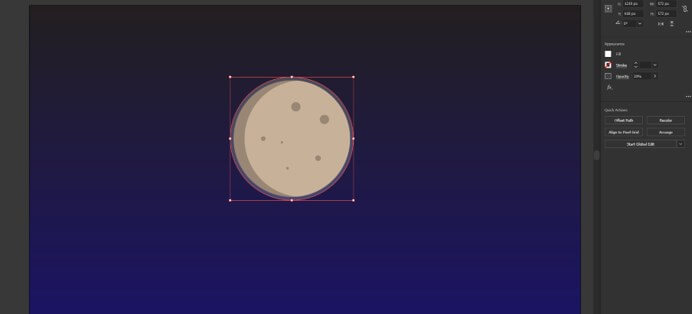
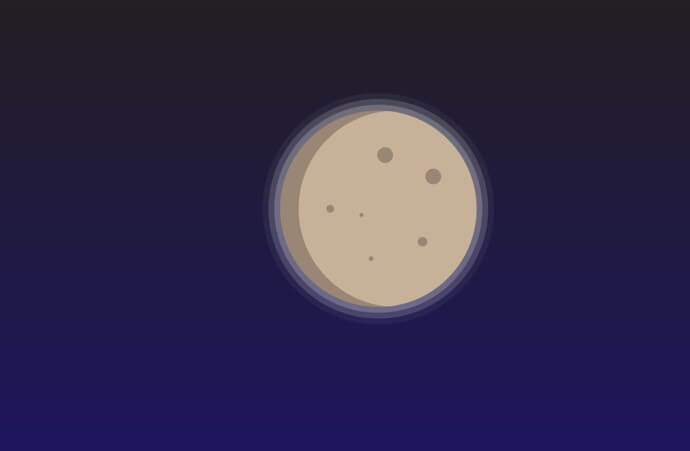
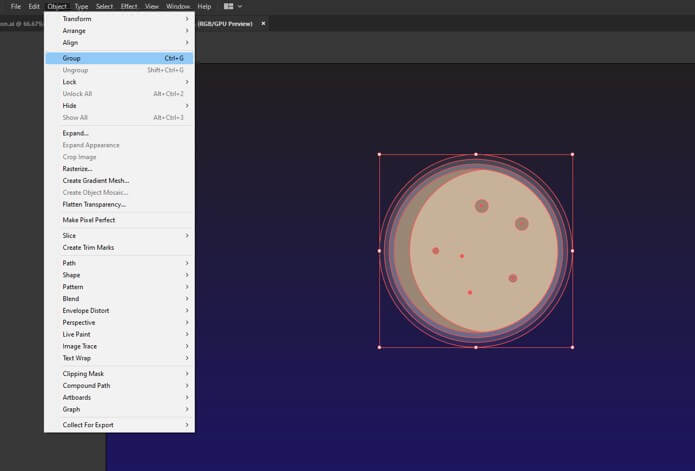
Step 8: Select the offset path in the quick actions section while selecting the circle and then set fill to white and opacity to 20%. Repeat this step 2 more times with opacity 15% and 5%. This will give a glow for the moon. After creating the moon select all and then group.
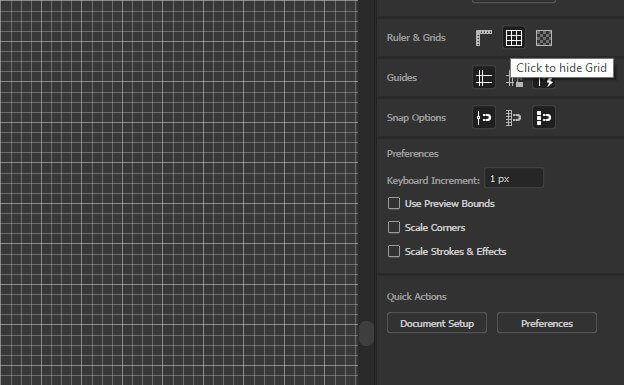
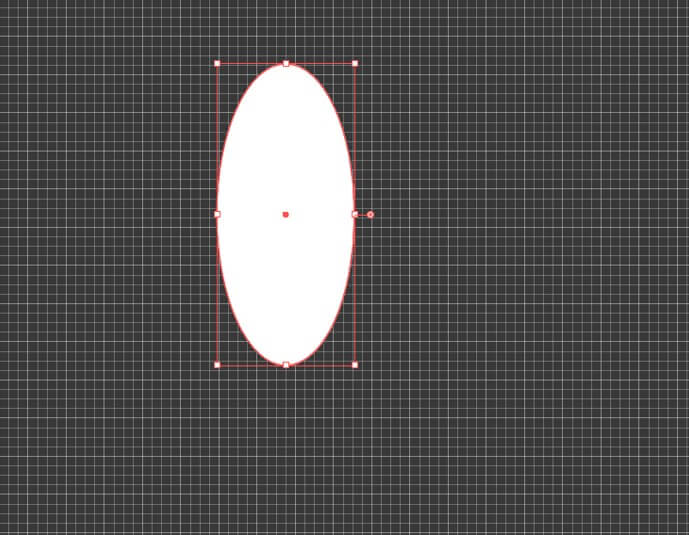
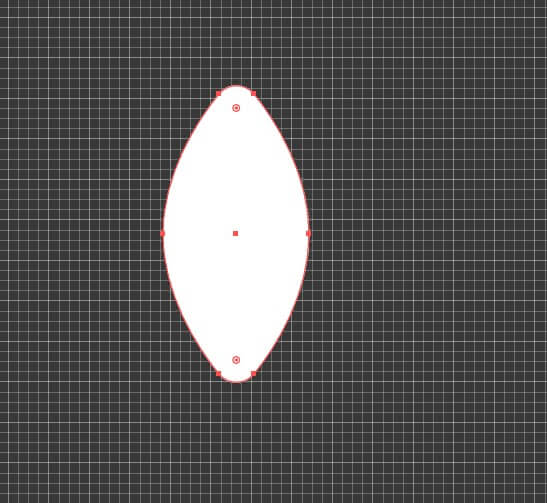
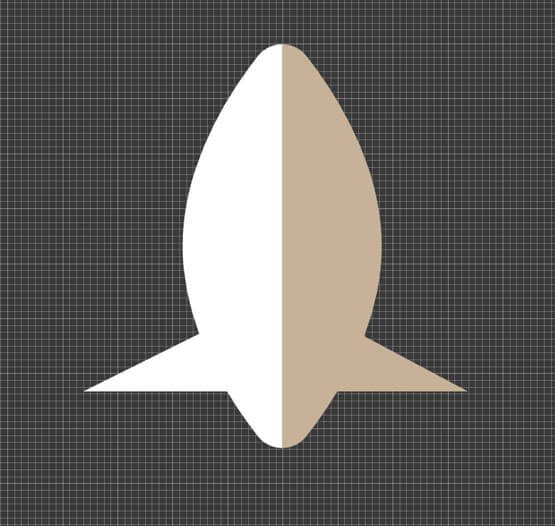
Step 9: Now we will create a small rocket to set the perspective. For that, we first enable the grid in the guide section and then create an ellipse with a width of 260px and a height of 570px.
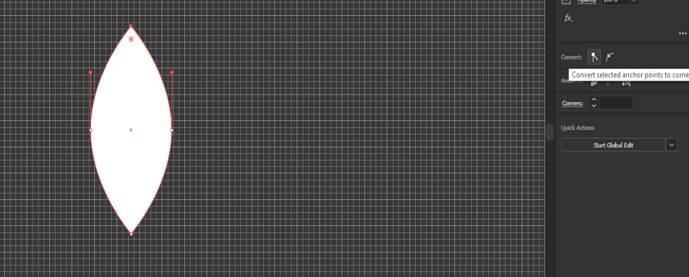
Step 10: We will use the direct selection tool to select the top and the bottom anchor and convert it into a corner anchor point. Then select the control handles to make a curve at the top and bottom.
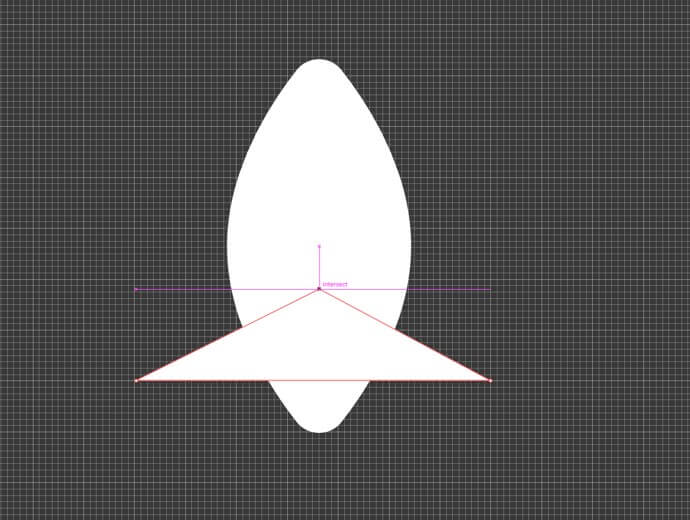
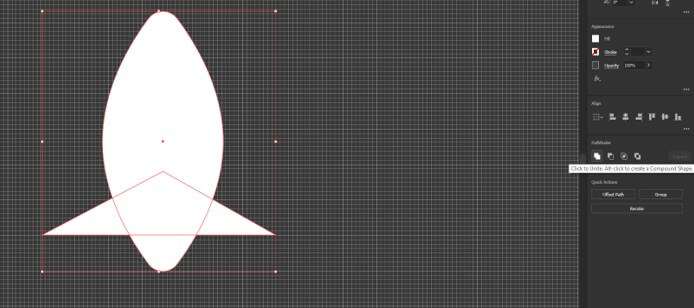
Step 11: Using the pen tool we will create a triangle and then unite the shapes using the pathfinder tool.
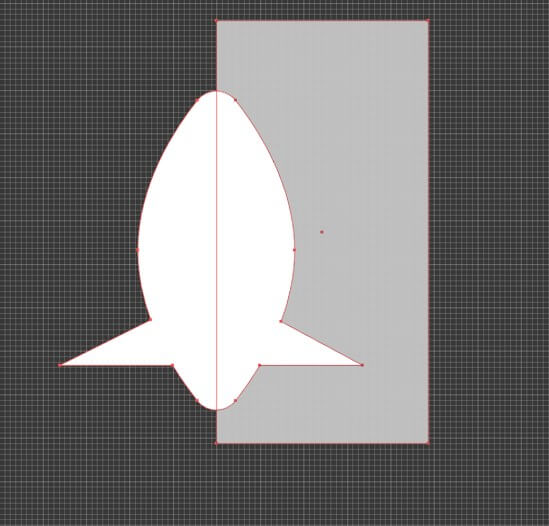
Step 12: Then create a rectangle and using the shape builder tool to remove the highlighted area with alt + click so we can create a shadow.
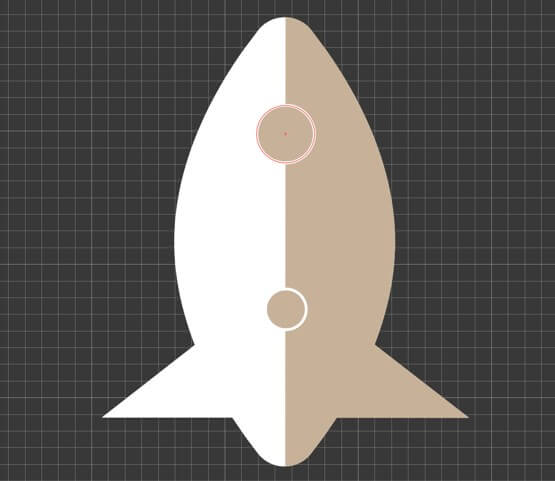
Step 13: Then we will create the windows of the rocket for which we will make two circles as shown and set the fill to the shadow color of the rocket and the stroke to white.
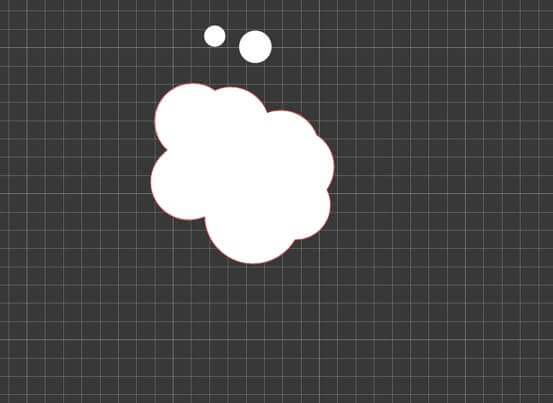
Step 14: Using ellipse we will make the smoke of the rocket and then combine using the pathfinder tool.
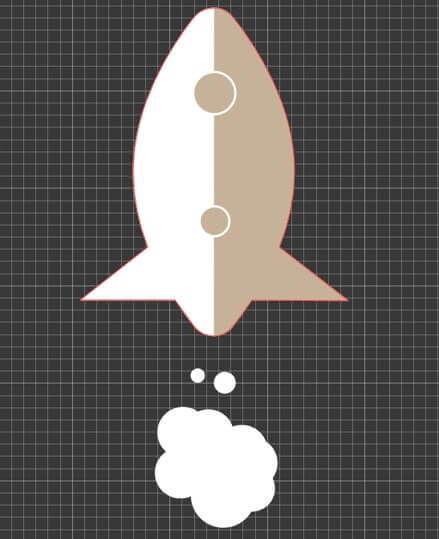
Step 15: Next select all and make a group (Ctrl + G) and then expand.
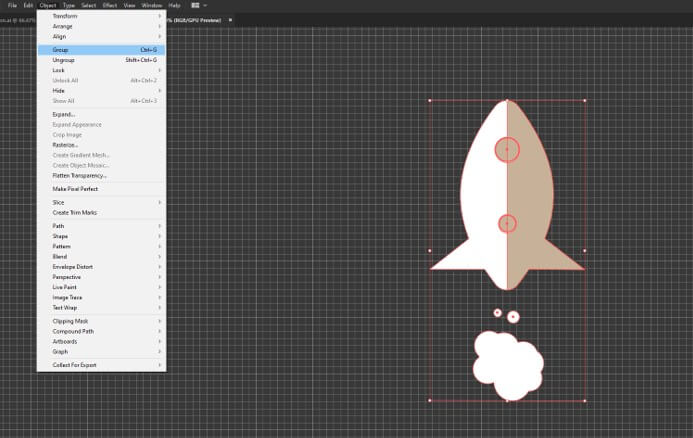
Step 16: Now resize and rotate the rocket and bring it into the main scene
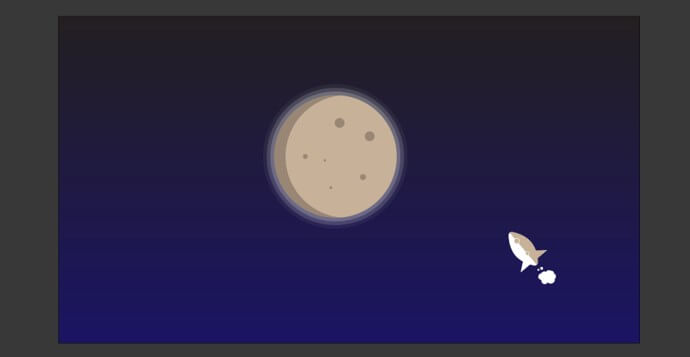
Step 17: Next we create stars and for this, we use the brush tool. Set the fill to none and stroke to white with opacity 100%. Create stars by varying the size of the brush from 1 to 5 points.
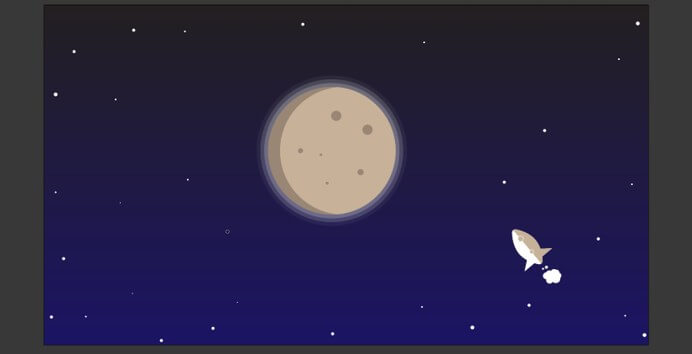
Step 18: Now will create some stars falling from the sky for this we will first create a rectangle strip. Round the corners using the direct selection tool and set the fill to a gradient.
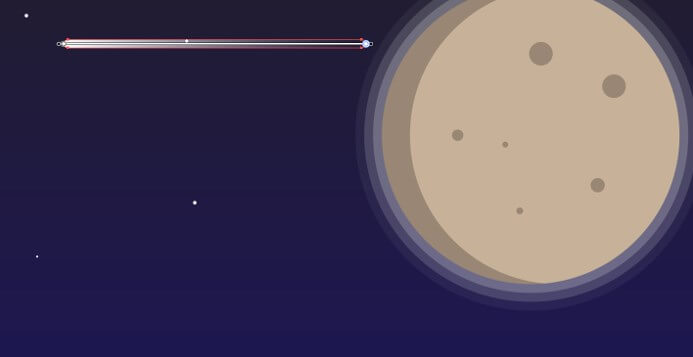
Step 19: Change the black part to white and change the opacity to zero
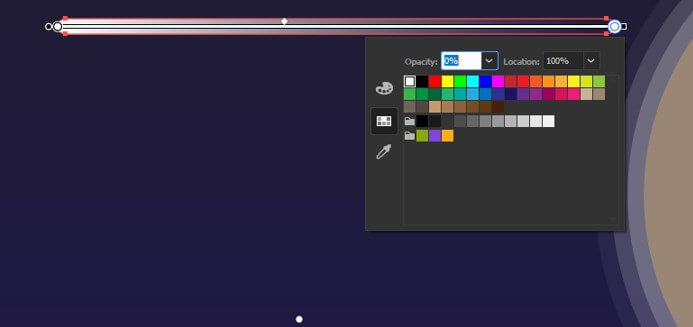
Step 20: Give appropriate rotation to make it look like it is falling from the sky
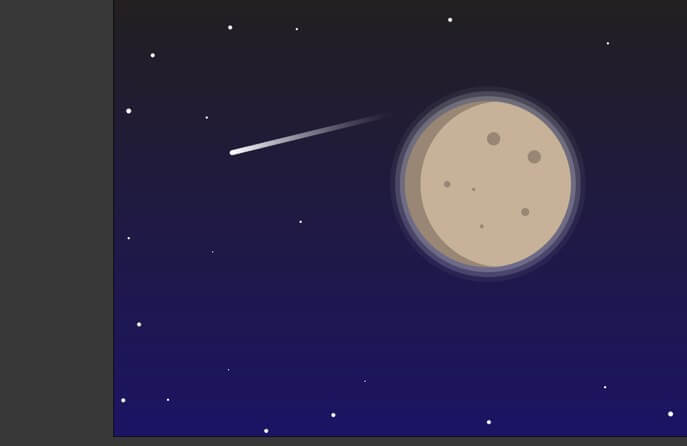
Step 21: Add a couple of more stars and change the size and rotation
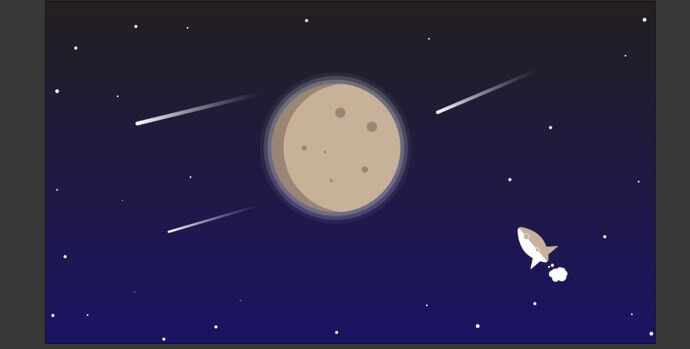
Step 22: Again, using gradient tools we change the color of the stars.
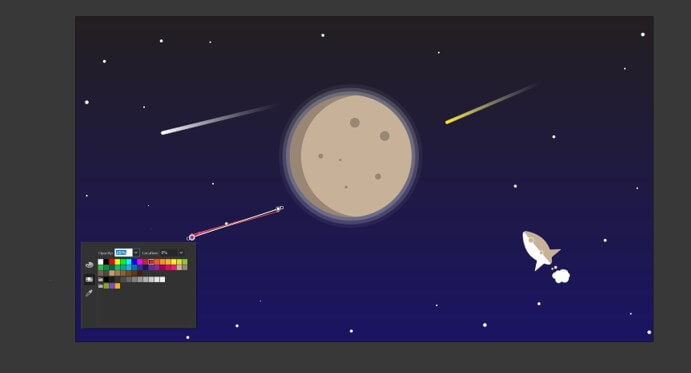
Step 23: So, we have completed the artwork, and below is the finished work.
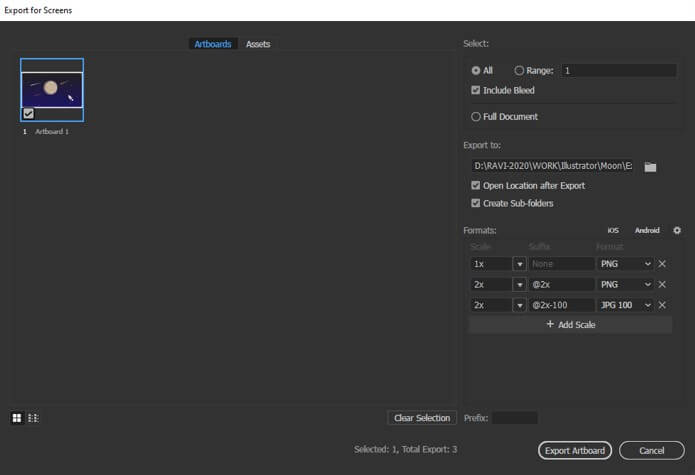
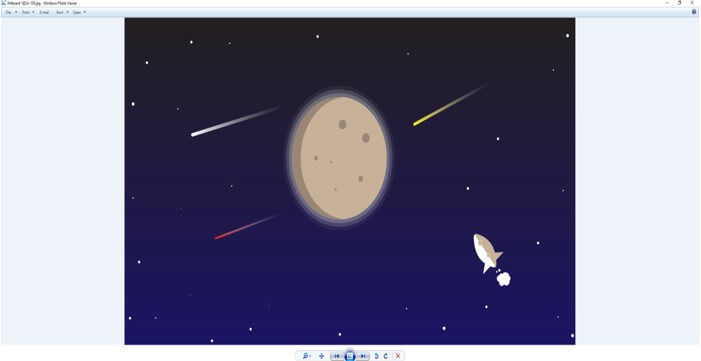
Step 24: Now it is time for the export as we can see below, we have the option to select the artboard and the location. Also, we can select which format we have to export. We have selected png and jpg 100 and the scale of 1x and 2x which will be double the size and click export.
Useful Tips and Shortcuts
- To change the fill and color press “X”. To change to default of white fill and black stroke press “D”
- If you want to fill a color press “<”, fill a gradient press “>” and the most important to set a no fill or no stroke press “/” as most of the time we want to remove it and we go in the menu and press no stroke or fill.
- A pathfinder tool is also a useful tool as we can merge shape and subtract as well. In recent versions, the shape builder tool is added which is very powerful and can be used instead of a pathfinder tool.
Conclusion
In this article, we have learned not only how to create a moon in Adobe illustrator but also learned the techniques of using various tools like shapes and gradients along with shape builder tool and pen tool to create an amazing artwork that will enrich your knowledge as well as your portfolio.
Recommended Articles
This is a guide to Moon in Illustrator. Here we discuss an introduction, how to create a moon in illustrator in a step by step manner. You can also go through our other related articles to learn more –

