


Updated May 3, 2023
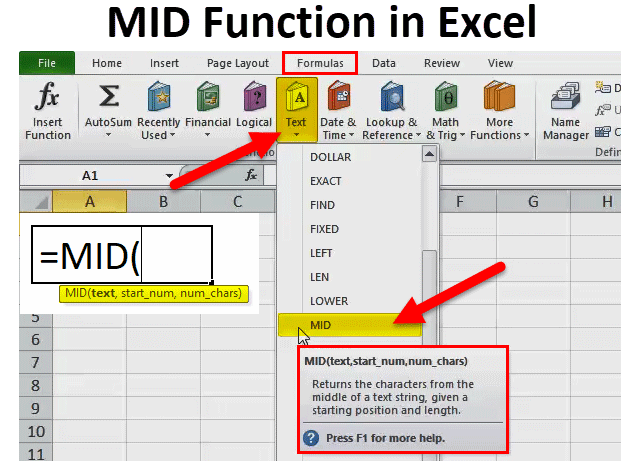
MID Function in Excel (Table of Contents)
MID in Excel
The MID function works in the same way as the Right and Left functions do. It is up to us what portion of the middle text we want to extract. For example, if a cell contains FIRST, then using the Mid function there, we can select the character position from which we want to remove the text and the number of characters till we want. We will get IRS as output if we want from 2 positions to the next 3 characters.
For Example:
MID (“Bangalore is the Capital of Karnataka”, 18, 7) In this formula, the MID function will return from the 18th character it will return 7 characters, i.e. “Capital”.
The MID function is also available in VBA too. We will discuss that at the end of this article.
MID Formula in Excel:
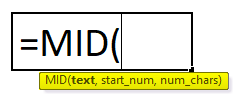
Below is the MID Formula in Excel.
Explanation of MID Formula in Excel:
The MID formula has three compulsory parameters: i.e.text, start_num, num_chars.
- text: From the text that you want to extract specified characters.
- start_num: Starting position of the middle string.
- [num_chars]: The number of characters you want to extract from the start-num.
Usually, the MID function in Excel is used alongside other text functions like SEARCH, REPLACE, LEN, FIND, LEFT, etc.
How to Use MID Function in Excel?
The MID function in Excel is very simple and easy to use. Both a spreadsheet function and a VBA function, the MID function has several uses. Let us understand the working of the MID function in Excel by some MID Formula examples.
Example #1
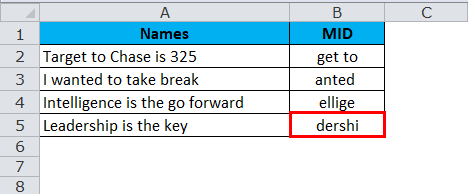
In this MID Formula in Excel example, we are extracting the substring from the given text string by using the MID formula.
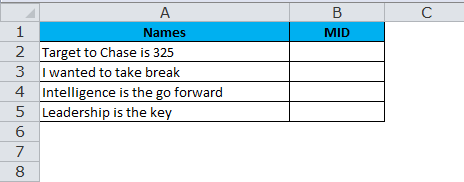
From the above table extract, characters from the 4th character extract are 6 characters.
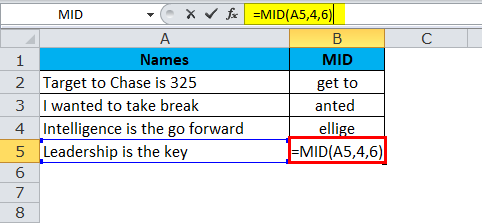
So the result will be :
Example #2
Using the MID function, we can extract First Name & Last Names. Look at the below example where we have full names from A2 to A15.
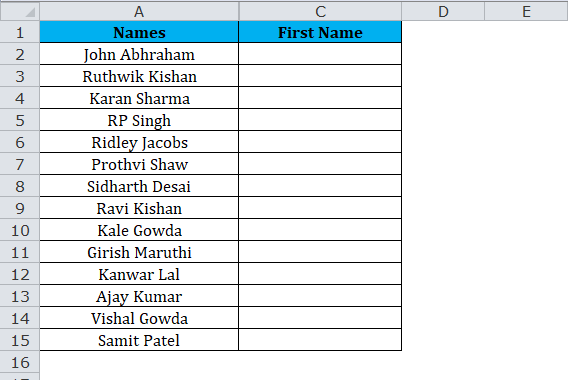
From the above table, extract the first names for all the names.
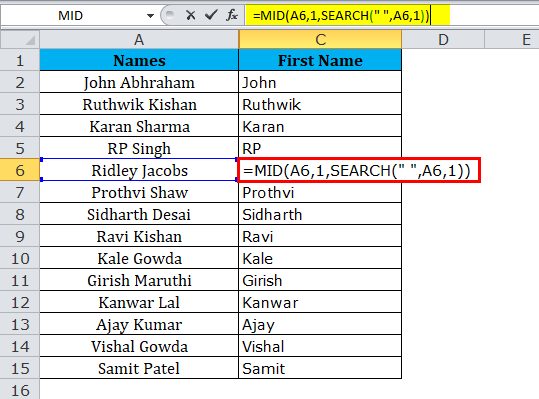
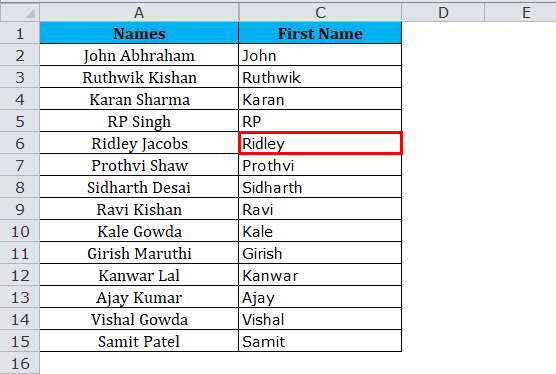
Result is :
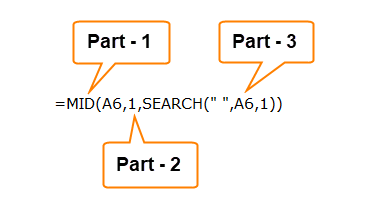
Part 1: This part determines the desired text that you want to extract from the characters.
Part 2: This determines the starting position of the character.
Part 3: The SEARCH function looks for the first space (““) in the text and determines the placement of the space.
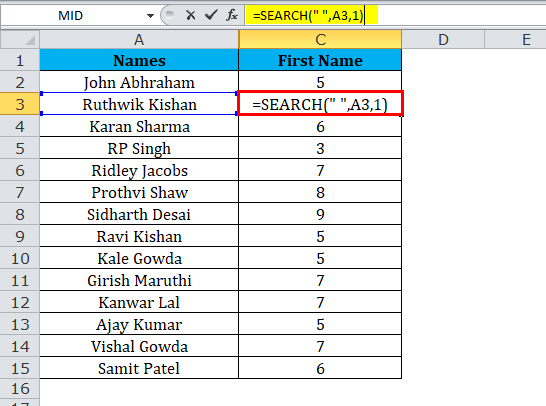
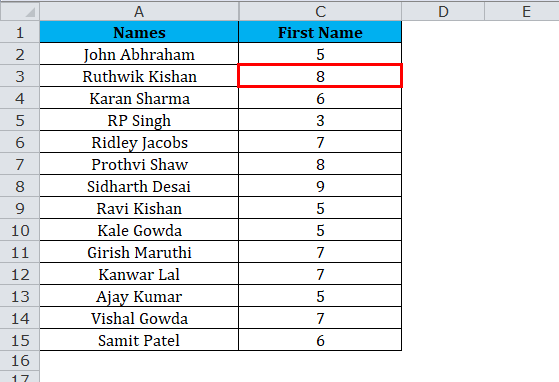
Here the SEARCH formula returns 5 for the first name, which means space is the 5th character in the above text. So now the MID function extracts 5 characters starting from 1st.
So the result will be :
Example #3
Below is the flight number list, and we need to extract the characters starting from Y till you find “ – “
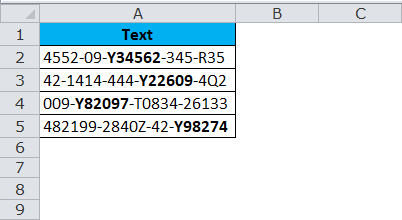
Look at the above example where the letters are in bold that we need to extract. It looks like one heck of a task. However, we can use MID alongside SEARCH or FIND functions. One common thing is all the bold letters start with Y, and it has 6 characters in total.
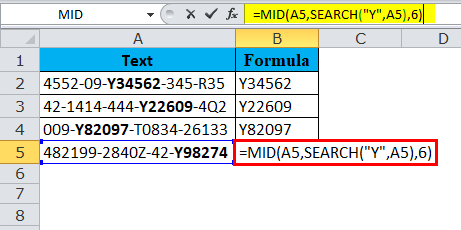
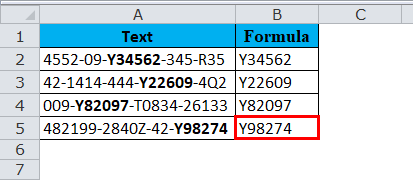
A SEARCH function will determine the starting character to extract, and from the starting point, we need to extract 6 characters.
So the Result is :
Example #4
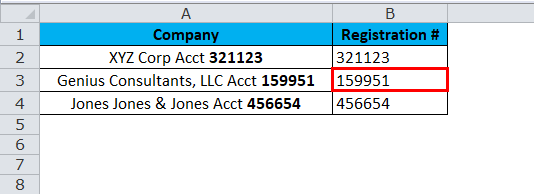
Below is the list of companies alongside their registration number. The task is to extract only the registration number from the list.
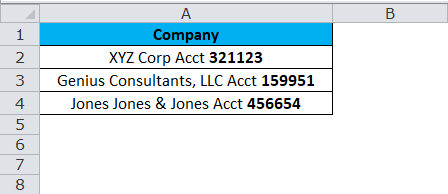
Closely look at the above list; one common thing before the registration number is the word Acct. This will be our key point to determine the starting point. In the previous example, we used SEARCH this time to look at the FIND function.
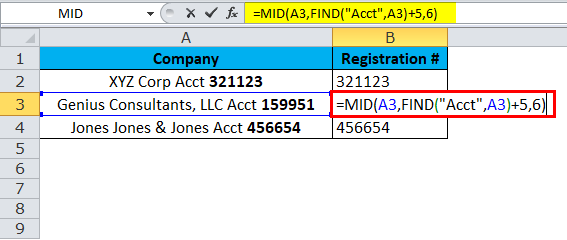
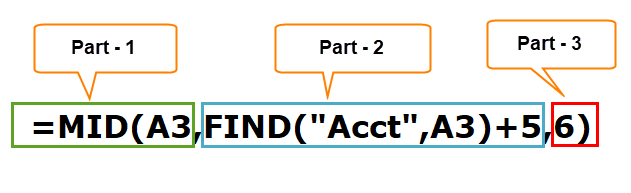
Part 1: This part determines the desired text that you want to extract from the characters.
Part 2: The FIND function first looks for the word “Acct” in the text, and from there, we need to add 5 more characters to the list, and that determines the starting position of the character.
We need to add 5 from Acct to the registration number; it is 5 characters, including space.
Part 3: Number of characters we need to extract.
So the result will be :
Example #5
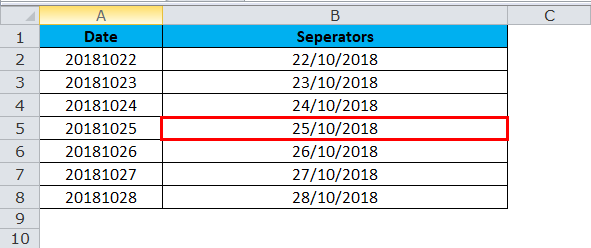
Now we will look at the combination of RIGHT, LEFT & MID functions in one example. We need to concatenate forward-slash (/) to separate Year, month & day.
Look at the below example where we have dates but no separators for a year, month, and day.
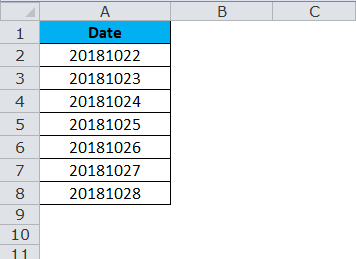
Now, we need to insert separators for the year, month, and day.
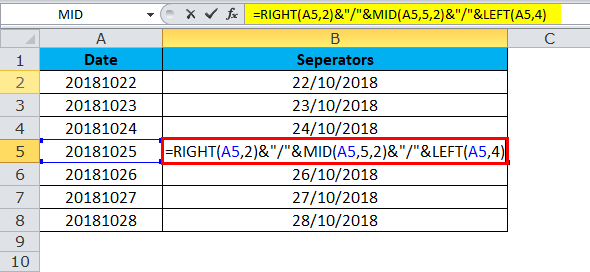
Firstly RIGHT function extracts 2 characters from the right and inserts one forward-slash (/), i.e. 25/
Now, we need to insert separators for the year, month, and day.
The second part is the MID function extracts 2 characters starting from the 5th character and inserts one forward-slash (/)
i.e. 25/10/
The final part is the LEFT function extracts 4 characters from the left-hand side and inserts one forward slash (/)
i.e. 25/10/2018
So the result will be :
VBA Code to use MID Function
Like in Excel, we can use the MID function in VBA code also. The below code illustrates the usage of the MID function in VBA macros.
Sub MID_Function_Example
Dim Middle_String as string
Middle_String = Mid (“Excel can do wonders”, 14, 7)
Msgbox Middle_String
End Sub
If you run the above code message box will display wonders as your result.
Things to Remember
- Number formatting is not part of a string and will not be extracted or counted.
- It is designed to extract the characters from any side of a specified text.
- If the user does not specify the last parameter, it will take 0 as default.
- Num_chars must be greater than or equal to zero. If it is a negative number, it will throw the error as #VALUE.
- In the case of complex data sets, you need to use other text functions like SEARCH and FIND Num_chars parameters.
- Use the MID function to extract text from inside a text string based on location and length.
- The MID function returns empty text if the start_num is greater than the length of a string.
Recommended Articles
This has been a guide to MID in Excel. Here we discuss the MID Formula in Excel and how to use the MID Function in Excel along with practical examples and downloadable Excel templates. You can also go through our other suggested articles –

