


Updated May 15, 2023
Excel Merge Cells
Merge cells in Excel are used for merging more than one cell. This is quite useful when assigning one value of the cell to 2 or more cells. To merge the cells in Excel, select those cells, and from the home menu tab, select Merge & Center from the alignment section. This will combine both of those selected cells, but it will keep only the first value to be seen, and others will be eliminated.
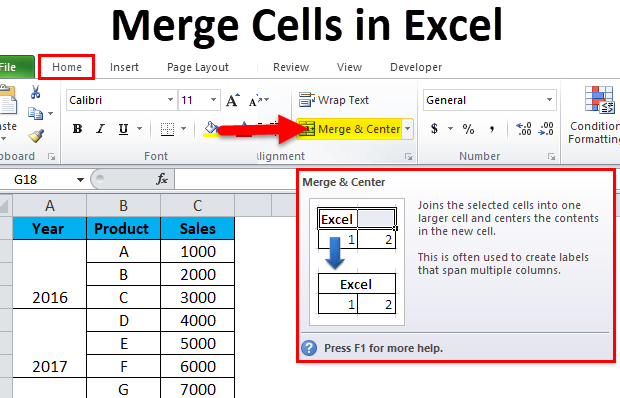
Merge Cells in Excel Using Merge & Center Option
Merging essentially means having the combined values of multiple cells in one. Perhaps the most used and one of the simplest ways to achieve this is using the “Merge & Center” option available in the Home ribbon.

There is, however, a drawback with this method of merging. If we have some data in cells A1 and B1, this form of merging will result in the retention of the left-hand value and the overwriting of the right-hand value.
Let us look at an example to understand this drawback better.
We have a list where the first column (A) contains the first names, and the second column (B) has the last names. If we wish to merge the contents of “First Name” and “Last Name,” this method fails as it takes only the left-hand value, completely overwriting the right-hand values.

Step 1: We must select the cells we wish to merge together. In this scenario, we shall select cells A2 and B2.

Step 2: Next, click on the “Merge & Center” option on the Home ribbon.

Step 3: The moment we click on “Merge & Center”, we get a dialogue box pop-up showing a warning, mentioning that only the left-hand value would be considered, and the right-hand value would be discarded.
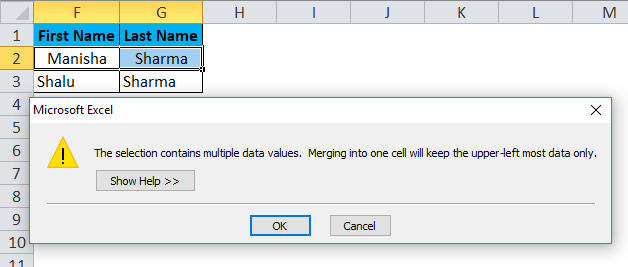
Step 4: Click on “OK”
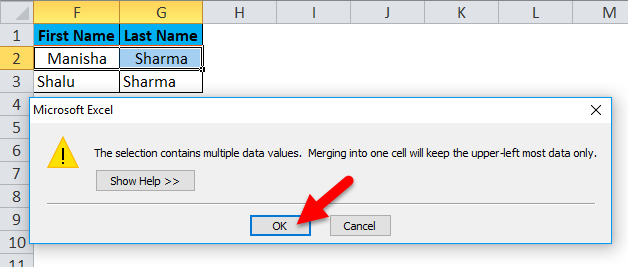
Step 5: Once we click on “OK”, we shall get the following result

So, what happened here is that Excel merged the two cells instead of the cell values. Due to this, we got a merged cell but lost the “Last Name” in the process. This is the main drawback of using the “Merge & Center” option.
Now we shall discuss the two best ways to merge cells in Excel.
Best Ways to Merge Cells in Excel
So you might have the question – What is the correct and most effective way to merge cells in Excel? Here’s the answer to that.
- Concatenation formula
- Ampersand (&) Operator
Let us see what each of these options is in detail.
Merge cells Using CONCATENATE.
As we have seen by now that Excel has a vast array of formulas for various needs. The CONCATENATE formula can merge the contents of multiple cells into one cell. Using this method, we can successfully merge the “First Name” and the “Last Name” without losing any data. However, the result would be available in a new cell.
Step 1: First, we shall select Cell C2.

Step 2: Next, we shall apply the CONCATENATE formula as shown below.
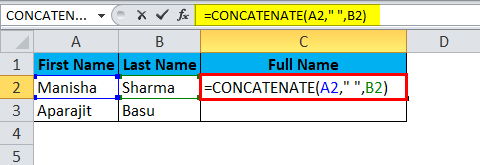
On applying this formula, we shall now get the correct results:

Similarly, We will Get Other Results.

Now, if we look at the breakup of the formula:
A2 = The first cell that we wish to merge.
“= The space between the First Name and the Last Name.
B2 = The last cell that we wish to merge.
We can merge multiple cells into one using this method, but it will be in a different cell.
Merge Cells Using Ampersand (&) Operator
Similar to how we merged two cells using the CONCATENATE function, we shall use the ampersand (&) operator. The only difference will be that we shall use the “&” operator instead of the CONCATENATE function.
Step 1: First, we shall select cell C2:

Step 2: Next, we shall apply the formula as shown below.
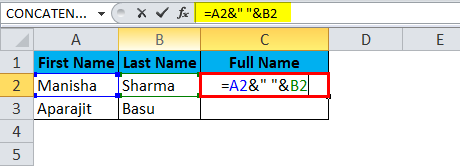
This would give us the following result:
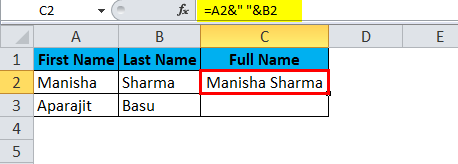
Similarly, We will get another Result.

Merge Option
Let us briefly discuss the different options in the “Merge” option mentioned earlier.
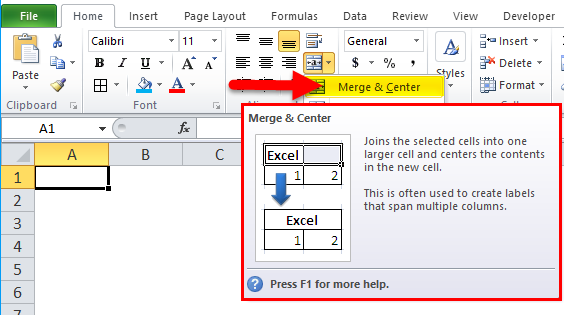
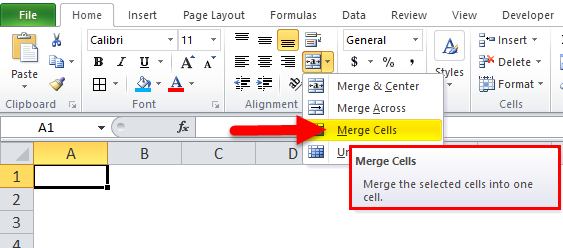
- Merge & Center: This option will merge the selected cells by keeping only the left-hand value and making the text alignment the center.
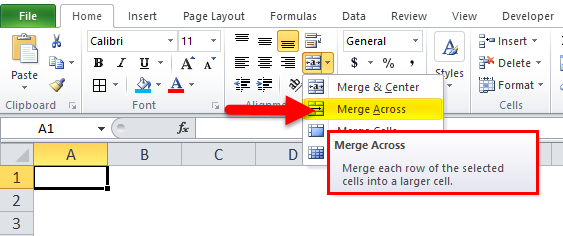
- Merger Across: “Merge Across” would merge the selected cells but not change the alignment.
- Merge Cells: This is perhaps the simplest option – It would just merge the selected cells.
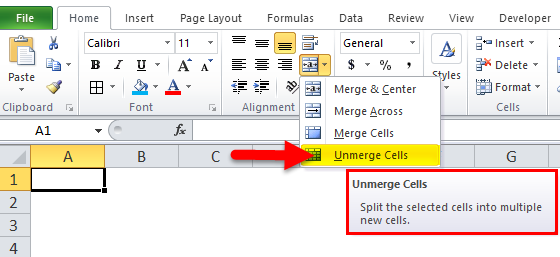
- Unmerge Cells: “Unmerge Cells” is the exact opposite of Merge. It unmerges the cells.
So now that we have covered how to merge cells in Excel, perhaps it is interesting to know that we can also “Unmerge” cells!
How to Unmerge cells in Excel?
Suppose we have the same set of merged cells that we had seen earlier with the “Merge & Center” option.

To unmerge these cells, we will need to again go to the Home ribbon, navigate to the “Merge & Center” option, and click on the drop-down arrow at the side to open up the underlying options.

Here, we shall select the “Unmerge Cells” option to unmerge the selected cells.

Hence the merged cells have been “unmerged” by using this option.

The Trick to Quickly Merge Multiple Cells in Excel
Suppose we have to merge multiple cells in Excel. Our objective here is to merge all the cells for a “Year” for all entries for a particular year.
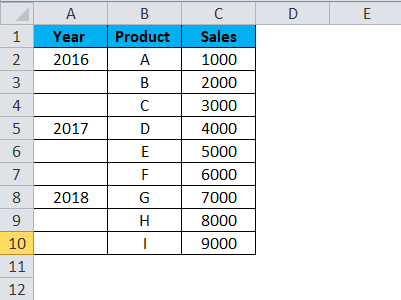
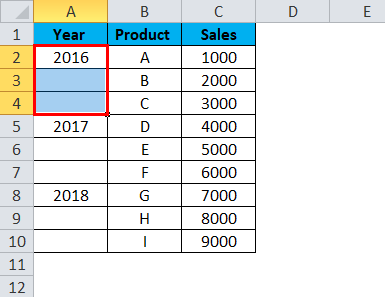
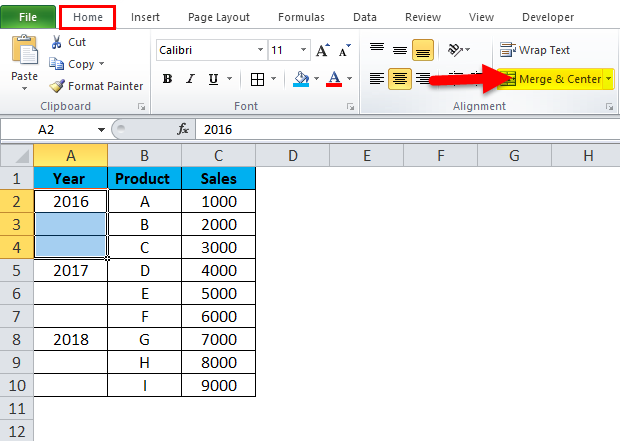
Step 1: We shall proceed with selecting cells A2 to A4.
Step 2: Next, we go to the Home ribbon and click “Merge & Center.”
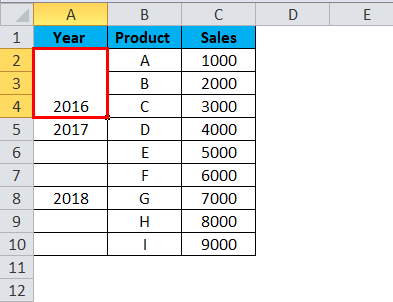
As we see in the below screenshot, the cells A2, A3, and A4 have been successfully merged.
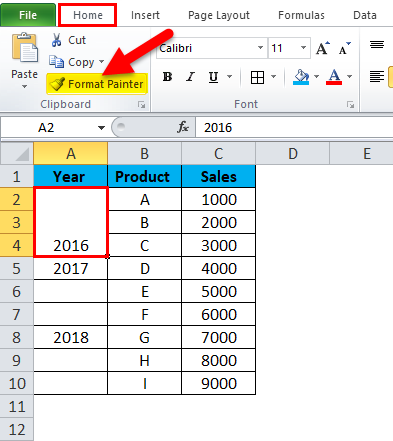
Step 3: Now, we shall click on this merged cell and then click on “Format Painter” in the Home Ribbon.
This causes the selected cells to be highlighted, as shown below.
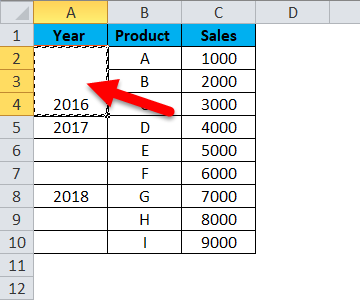
Step 4: Next, we shall select and drag cells A5 to A10.
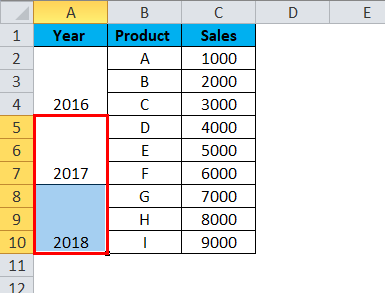
As we can see, the merging has been carried out for the rest of the years by simply clicking on “Format Painter.” The format Painter essentially copies the same format from the source cells(s) and applies it across all the destination cells.
Things to Remember About Merge Cells in Excel
- Sorting data over merged cells in Excel is not possible.
- Navigating through merged cells can become complex and cumbersome.
- It is advisable to use the merge cells option only for headings.
- The merge option is limited to merging cells and not the cell values.
- If we merge the cell values, we must use the CONCATENATE function or the Ampersand (&) Operator.
- There is a shortcut to merge cells in Excel: Alt + H + M + U. This combination of key presses merges and unmerges the cells selected in the Excel sheet.
Recommended Articles
This has been a guide to Merging Cells in Excel. Here we discuss how to Merge Cells in Excel, practical examples, and a downloadable Excel template. You can also go through our other suggested articles –

