


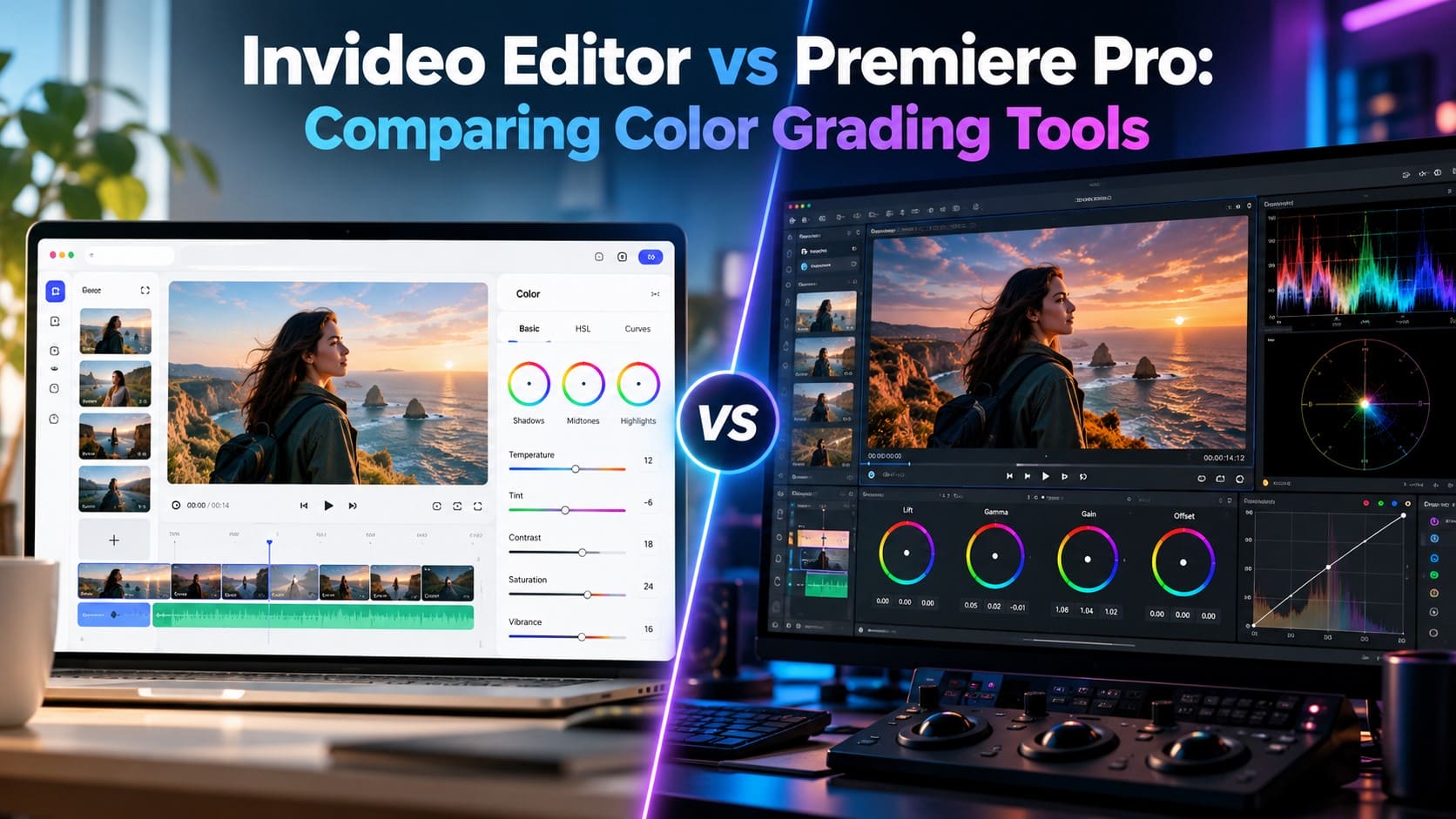
Invideo Editor vs Premiere Pro compares two professional video editing tools that take different approaches to color grading. Invideo Editor runs its grading tools in the browser, with an AI agent that can apply a look from a plain-language description or a reference image. Premiere Pro’s grading lives in Lumetri Color, and in 2026 Adobe introduced Color Mode, a new interface built specifically to modernize that workflow. This comparison looks at what each toolkit actually includes and where each one currently leads.
How Invideo Editor vs Premiere Pro Were Compared?
The comparison focuses on four color-grading-specific areas. First, the depth of manual controls, including wheels, curves, and targeted correction tools. Second, how each tool analyzes footage through scopes such as waveform, vectorscope, and RGB parade. Third, the role of AI in simplifying or accelerating the grading process. Fourth, collaboration, since color grading often involves shared reviews and multiple versions rather than a single editor working alone.
Comparison Table
| Category | Invideo Editor | Premiere Pro |
| Manual Wheels | Lift, Gamma, Gain, Global | Lumetri color wheels, plus new Color Mode’s bi-directional controls |
| Curves | RGB, luminance, and four Hue/Saturation/Luminance curves | RGB and luminance curves in Lumetri |
| Targeted Correction | HSL qualifiers, circle/rectangle/gradient masks | HSL secondary, object masking with AI-assisted edges |
| Scopes | Waveform, RGB parade, vectorscope, histogram | Waveform, vectorscope, RGB parade, histogram |
| AI-Assisted Grading | Describe a mood or share a reference image, agent grades to match | Auto Tone one-click correction, with more AI grading tools in Color Mode is beta rollout |
| Collaboration | Real-time shared grading timeline, agent can duplicate a timeline into multiple graded versions | Standard project collaboration, no live shared color timeline |
Invideo Editor: AI-Directed Grading on a Collaborative Timeline
Invideo Editor’s color grading toolkit includes Lift, Gamma, Gain, and Global wheels; six curve types; HSL qualifiers; and masks with feather, invert, and combine controls, plus four scopes: waveform, RGB parade, vectorscope, and histogram. Custom LUTs import directly and can be adjusted for strength.
What sets it apart is the AI agent layered on top: describe a mood like “warmer and more nostalgic,” or share a reference image, and the agent applies a matching grade that stays fully editable afterward. The timeline is also collaborative, so that multiple people can grade together, and the agent can duplicate a timeline into several graded versions to compare side by side before picking one.
- Best for: teams that want to describe a look in plain language or match a reference image quickly, then fine-tune manually, without leaving a browser-based, collaborative timeline.
- Where it falls short: it is a newer grading toolkit than Premiere’s, without decades of professional workflow refinement, a plugin ecosystem, or camera-specific color science tools like Lumetri and Color Mode.
- Pricing: Starts at $20/seat/month on the Starter plan, with the full timeline but limited agent access. It scales up to $150/seat/month on the Max plan, or $100/seat/month billed annually.
Premiere Pro: A Major Grading Overhaul in 2026
Premiere Pro’s grading has run through Lumetri Color for years, with wheels, curves, HSL secondary correction, and the standard set of scopes. In 2026, Adobe added Color Mode, a new grading interface currently in public beta, built around bidirectional mouse controls, real-time scopes and numerical feedback on every adjustment, and a more modern grading workflow than Lumetri’s original panel design.
Color Mode’s beta also adds HSL qualifiers, skin tone reference lines, auto color and auto balance tools, and film emulation presets, plus Lumetri’s existing Auto Tone one-click correction. Object masking also adds AI-assisted edge detection for faster, targeted corrections. None of this runs as a conversational agent like Invideo Editor’s, so grading stays a manual, tool-driven process even with the new automation shortcuts.
- Best for: editors and colorists who want the deepest, most established manual grading toolkit, especially now that Color Mode is modernizing the workflow further.
- Where it falls short: it has no equivalent to describing a mood in plain language or automatically matching a reference image, and Color Mode is still in public beta rather than a finished, stable release.
- Pricing: Starts at $22.99/month on the Premiere Pro Single App plan. It scales up to roughly $69.99/month on the Creative Cloud All Apps bundle, following a price increase in February 2026.
Which One Should You Use?
For Invideo Editor vs Premiere Pro, the right choice depends on the grading workflow you need.
- Want to describe a mood or match a reference image automatically → Invideo Editor.
- Want the deepest, most established manual grading toolkit → Premiere Pro.
- Grading collaboratively with a team on one shared timeline → Invideo Editor.
- Working with a colorist who wants scopes, curves, and precision masking refined over years of use → Premiere Pro.
- Comparing multiple graded versions of the same shot quickly → Invideo Editor’s agent can duplicate a timeline into several graded versions at once.
Frequently Asked Questions (FAQs)
Q1. Does Invideo Editor’s AI grading replace manual color tools?
Answer: No. The agent applies an initial grade from a description or reference image, and every wheel, curve, and mask stays available afterward for manual refinement.
Q2. Which tool has deeper manual color grading controls?
Answer: Premiere Pro’s Lumetri and Color Mode offer a more established toolkit, refined over many years and now actively being modernized. Invideo Editor has manual controls that cover the same core categories but are newer.
Q3. Can I grade collaboratively with a team in either tool?
Answer: Invideo Editor supports a real-time shared grading timeline, and the AI agent can also duplicate the project into multiple graded versions for comparison. Premiere Pro supports standard project collaboration but does not have a live, shared color-grading timeline.
Recommended Articles
We hope this comprehensive guide to Invideo Editor vs Premiere Pro helps you understand their color grading tools and choose the right workflow for your video projects. Check out these recommended articles for more insights and strategies to improve your video editing and creative workflows.

