

Introduction to Inkscape text to path
Inkscape Text to Path can understand as converting any text or letter of text into a path so that we can edit the letter of text as we edit any shape with the Edit Node tool of Inkscape. For converting text into the path we just have to go through some options as well as a tool of tool panel and after converting the text will be not editable as text because that will work as the path of shape only. You can change color and apply effects, gradient to the converted text path same as we do in other vectors shape. The one more important thing is that path will be a vector shape. So let us discuss it.
How to Convert Text into Path in Inkscape?
Converting text into the path is as simple as we convert stroke to the path but you should keep some points in your mind during doing this for different purposes. So let us find what are these points that help us in properly working with the text path?
To type a text or letter is will take the Text tool from the tool panel of this software which is at the left side of the working screen. You can simply press T as its shortcut key.
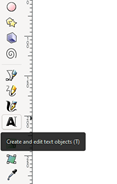
I will type Letter E which I will convert into the path.
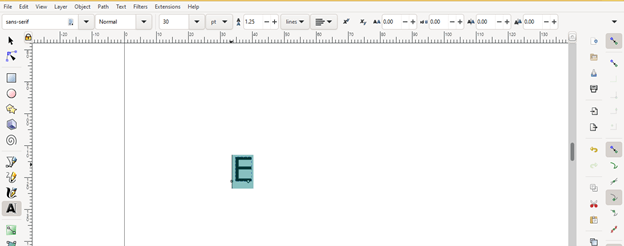
Before converting it into a path we should keep in mind that what we will do after converting it and according to that choose your desired font type from the Font type panel of the text tool. Because once you convert it into a path then it will not editable as text after that, it means you cannot change font type, font style, also typed letter or text, and other properties related to the text.
So I will choose my desired font type from the font type list.
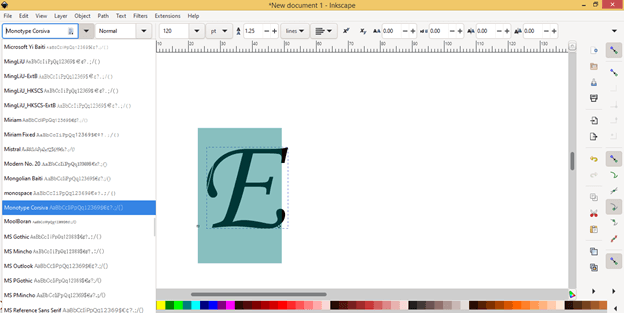
You can also change font style such as regular, italic, or bold. Here my chosen font has only italic style so I will go with it.
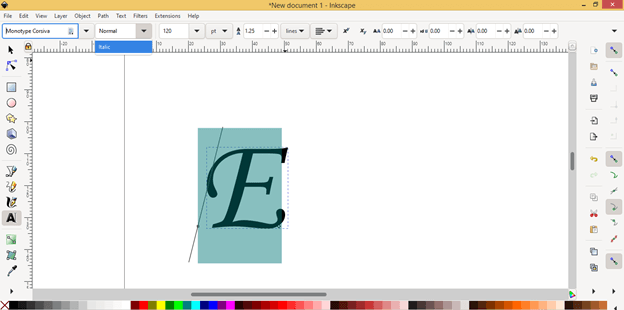
You can resize text after converting it into the path or can take size from the font size list before converting, it depends on you.
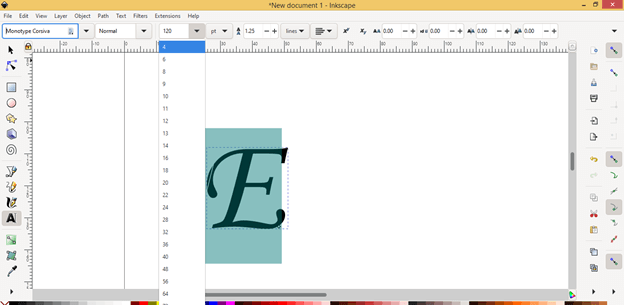
Now I will take the Select and Transform Object tool from the tool panel.
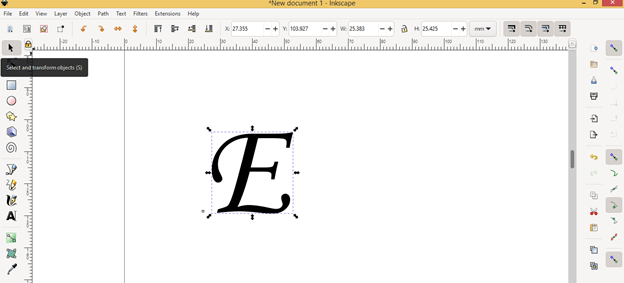
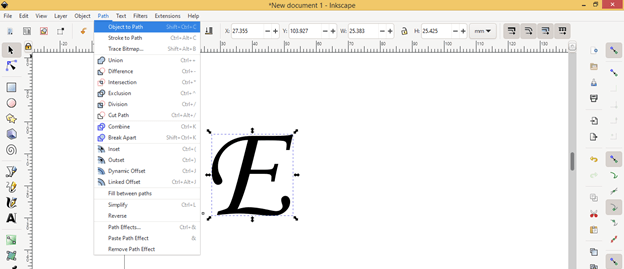
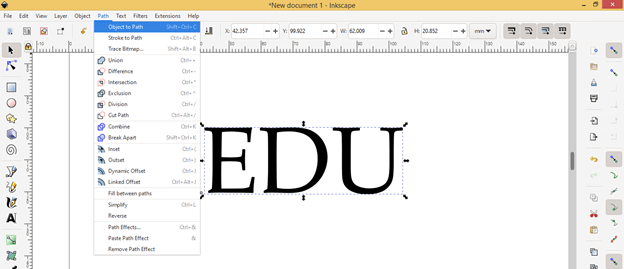
After selecting your desired text go to Path. Here a scroll-down list will be open. In this list, you will find the Object to Path option so click on it. You can also press Shift + Ctrl + C as its shortcut key.
And it will convert your selected text or letter into the path. Now if you select this path with the Select tool then you cannot determine any difference between the previous text letter E and the converted letter E. Both look the same.
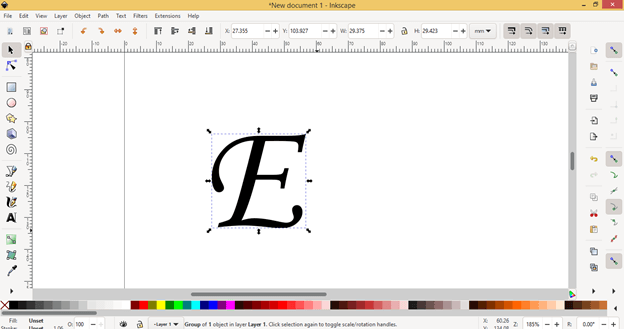
And if you Text tool again and try to edit it as a text for replacing it with other text or for changing its style or font type then you can see it is not editable, in fact, the text tool cursor blinks on a new place for typing other text.
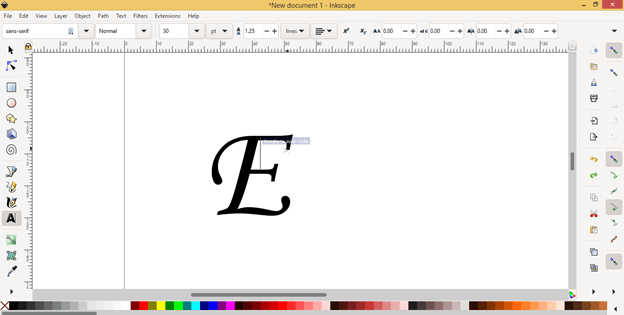
So it is clear that this letter E is now a path and you can edit it with the Edit nodes tool. So I will take the Nodes tool.
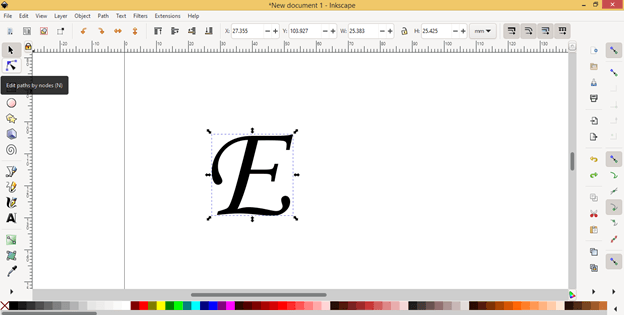
And once you select this letter E with the Node tool by clicking on it you can see there is a number of nodes on the path of this letter.
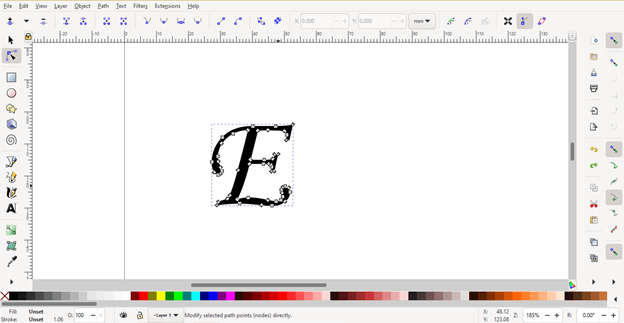
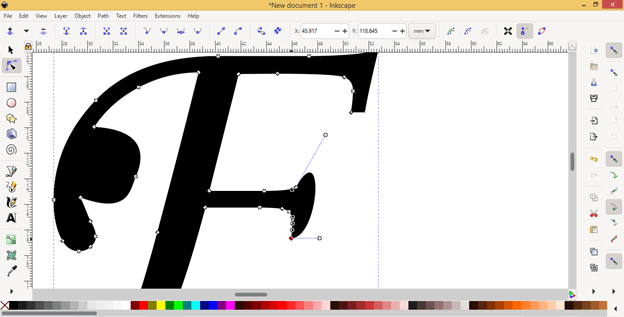
You can edit any node of this path with the help of this Edit Node tool for having a different transformations in the shape of this letter E and it will give this letter a creative look such as I want to stretch this node in the outer direction of this path so I will select this node and drag it in outer direction with the help of Node tool.
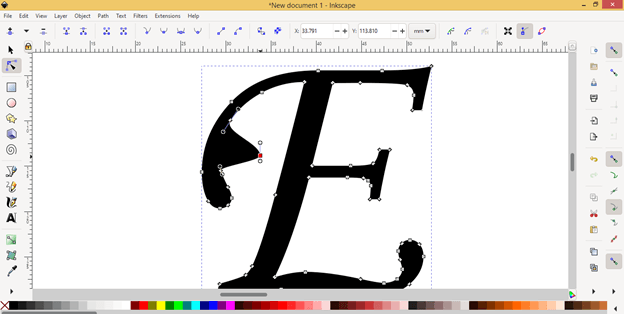
Not only nodes you can also make curves by adjusting node handle like this.
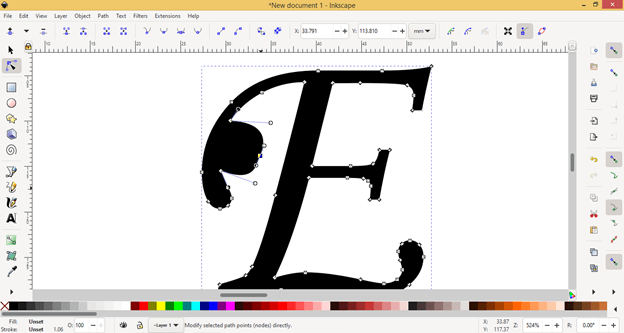
If you want you can also delete the undesired node points from the path and for that just select your desired node which you want to delete and then press the Delete button on the keyboard.
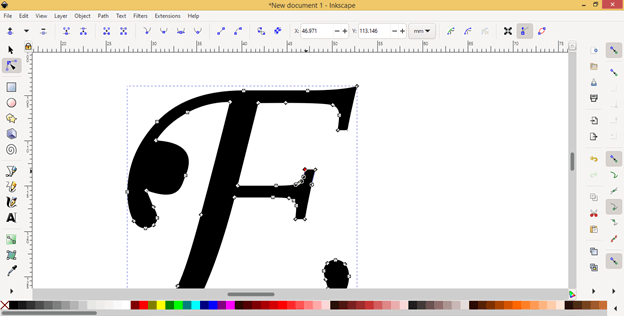
And by deleting nodes you can also make changes in the shape of the path of the converted letters.
Not only one letter but you can also convert the whole word of any text into the path. So let us see what will happen if we convert a word or combination of letters into a path? For this purpose, I will type EDU as a word with the same text tool.
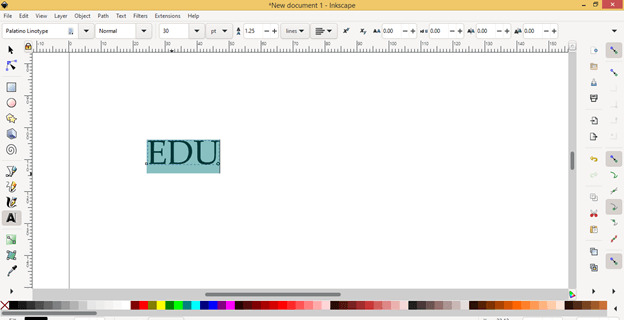
And increase its size with the select tool by holding the shift + Ctrl button of the keyboard so that it maintains the proportion of this text.
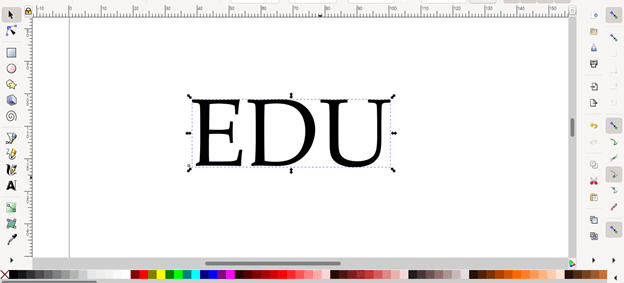
And after selecting this text I will again go to the Path menu and click on the Object to Path option it.
And you can see if we select it with the Node tool the letter of this text has a number of nodes.
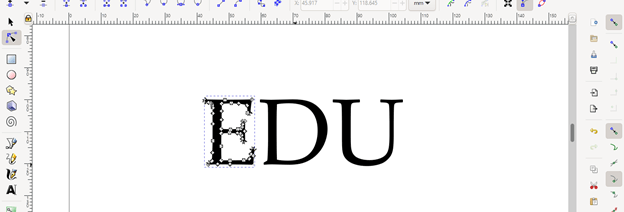
There is one thing that you should notice that each letter of any text has its own separate path if you select them one by one with Node tools.
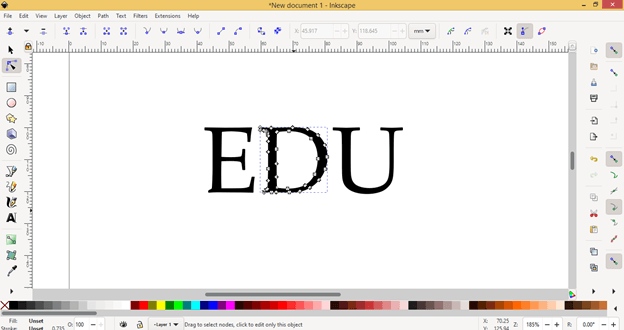
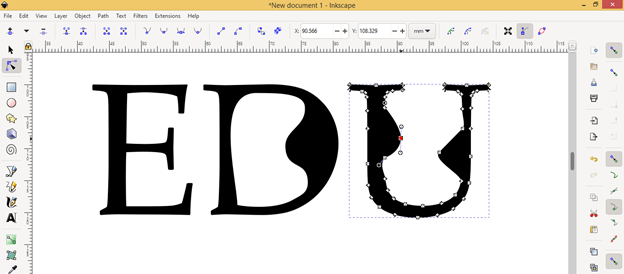
And you can edit them separately that means the path of another letter of text will be unaffected by the editing of the path on one letter.
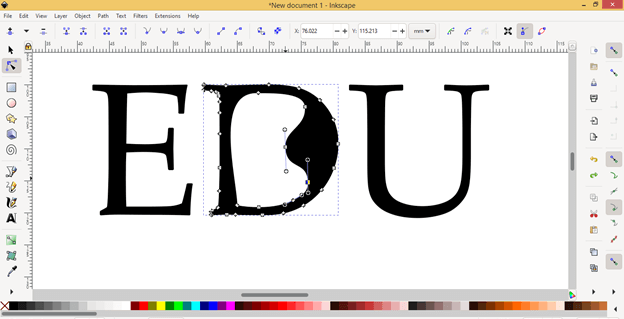
Just edit nodes of your desired letter and then you can start editing another letter.
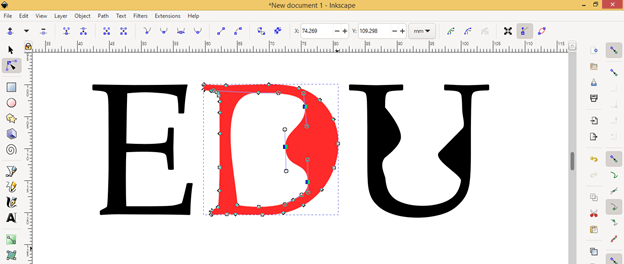
You can also change the color of any letter the same as we do with any shape.
But if you select this text again with the Select tool then it will select the whole text path not any letter path separately.
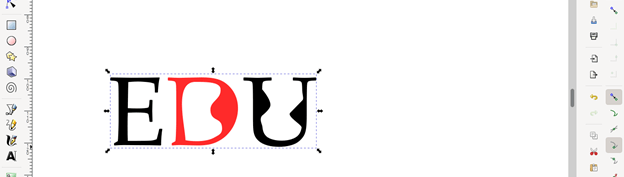
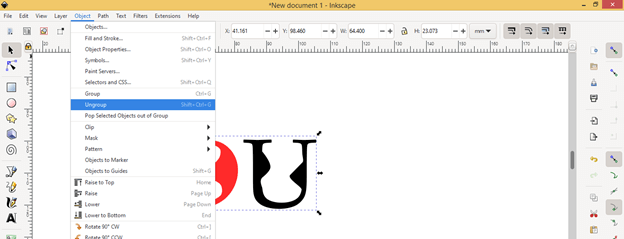
If you want to separate each letter path then ungroup them and for that go to the Object menu and click on Ungroup option.
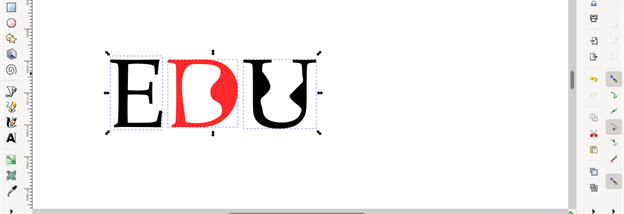
And you can see each text is in a separate form and you can select them individually.
Conclusion
Now you can convert any text or letter of text into a path very quickly for making a different type of creative work with them and you also have knowledge about what are the major parameters on which you have a command for properly converting text into path. Just start converting text and you will have more and more knowledge about it.
Recommended Articles
This is a guide to Inkscape text to path. Here we discuss How to Convert Text into Path in Inkscape in step by step detail. You may also have a look at the following articles to learn more –

