
Introduction to InDesign newsletter templates
The following article provides an outline for InDesign newsletter templates. Most of the industries and organizations prefer Adobe InDesign or Adobe Photoshop to create newsletters and publish them accordingly. However, inDesign being a Publishing and broadcasting program, is the most efficient software in creating newsletters, books, magazines and many similar artworks. A newsletter is an electronically shared information or news that business firms and Industries create to circulate and publicize their projects, achievements, and Future endeavors. The newsletter is created on a monthly or yearly basis.
How to Create and Use Newsletter Templates in Indesign?
In this article, we shall learn more about creating a basic newsletter template and how we can use the same template for multiple purposes.
Considering, Adobe InDesign is an extension to the Page Maker program. It is developed to create publishing and printing artworks and benefits with minimal effort and great accuracy. Content creators and magazine or book designers mostly prefer Adobe InDesign for its smooth user interface and inbuilt simple yet perfect tools to create content artworks.
In Adobe InDesign, the user can either create their own Newsletter template starting from scratch or download editable newsletters from the internet and edit them on InDesign accordingly.
Creating a comprehensive newsletter is time-consuming as it depends on the number of pages, type of content, and artwork required to make a full-fledged newsletter. Also, many organizations that publish their newsletters monthly or bi-monthly may require a readymade template that can be edited each month effortlessly.
How to create a Newsletter template in Adobe InDesign
In this method, we will create a sample newsletter template starting from the very 1st step of creating a new document. Further, we shall understand and perceive the various tools and functions that are used to create a single newsletter.
Following are the steps to create the newsletter:-
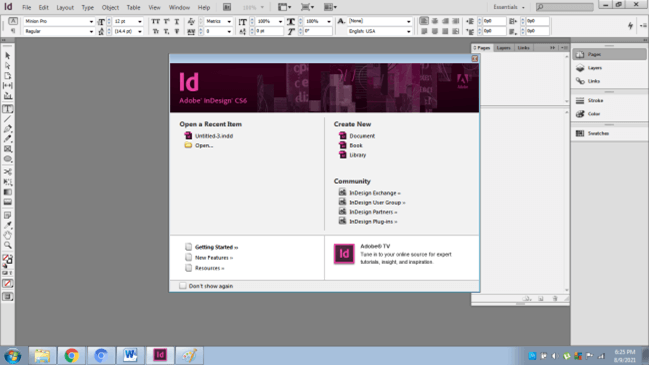
- Launch InDesign
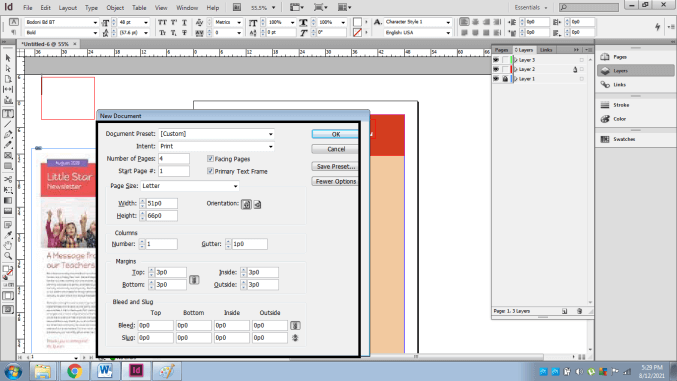
- Create a new document. The size of the file should be Letter size, and select the number of pages you want to add. We add 4 pages for the sample. Also, the check box for Facing Pages should be turned on. Finally, make sure all the settings such as Gutter, Width, Height, and margins are adjusted according to the file.
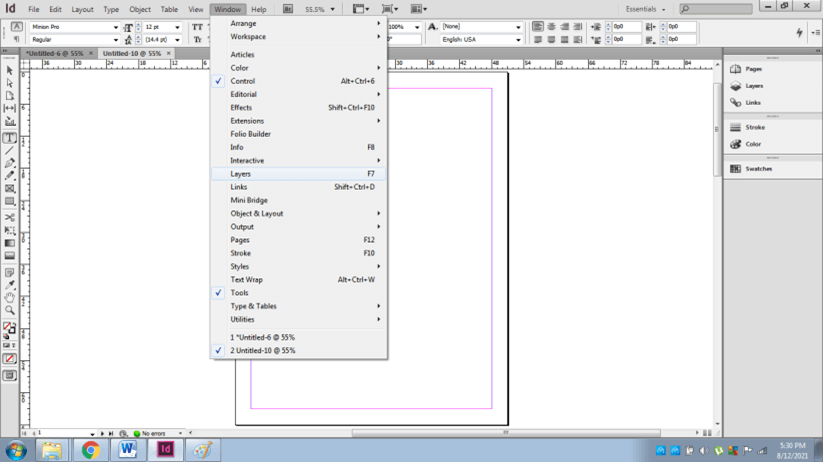
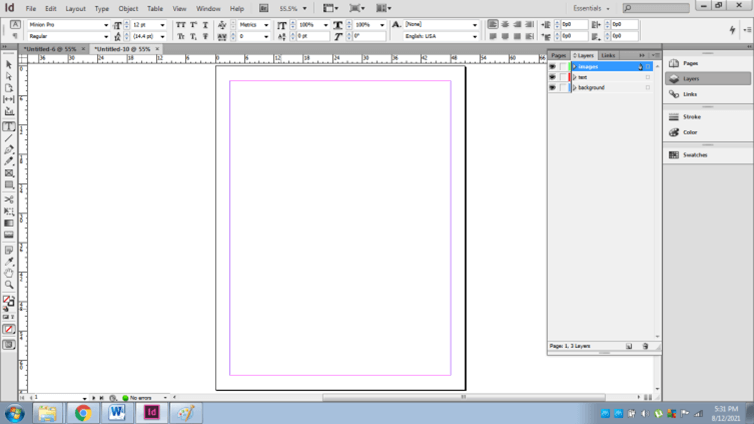
- Next, we start working with layers. Go to Windows > Layers to see the Layers panel.
- Create three new layers named Background, Text and Images as shown in the Image below-
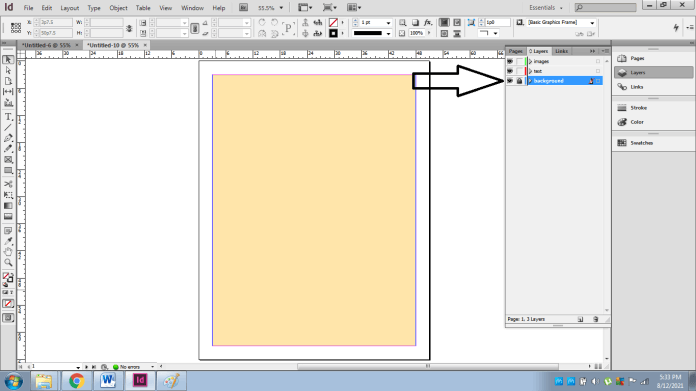
- Lock the Background layer and start with the help of the color tool; fill color as shown below-
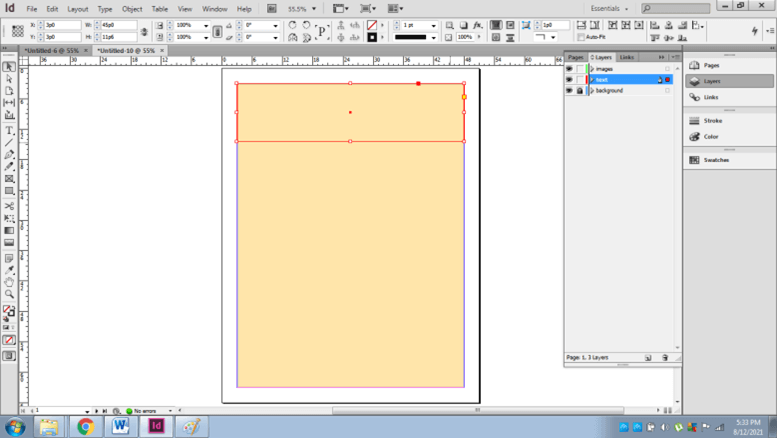
- Now, we will start working on the Text Layer. Create a rectangle on this layer, as shown below
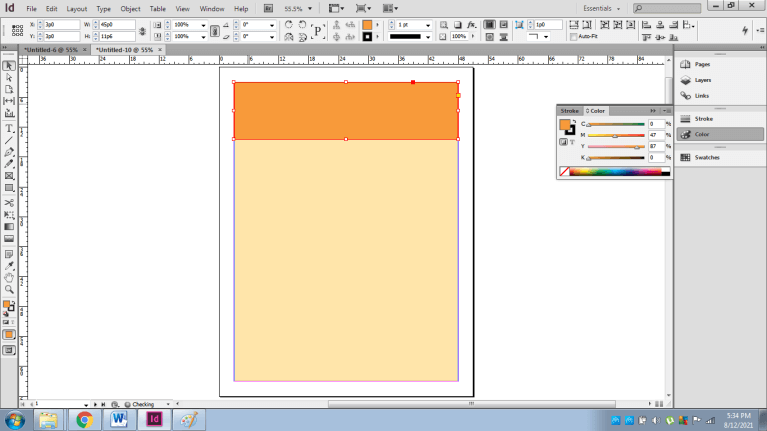
- Fill in a color with the help of the color tool.
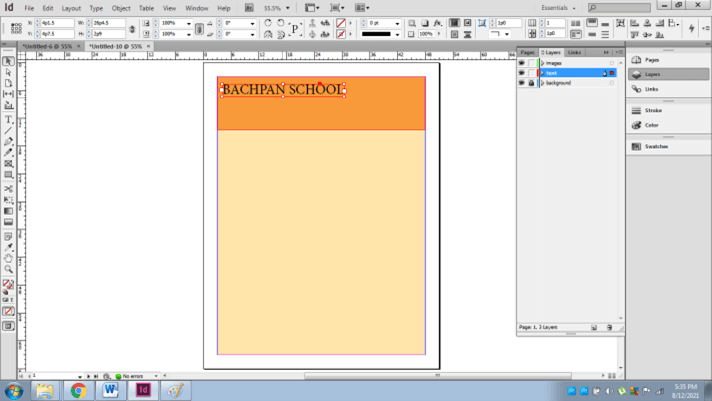
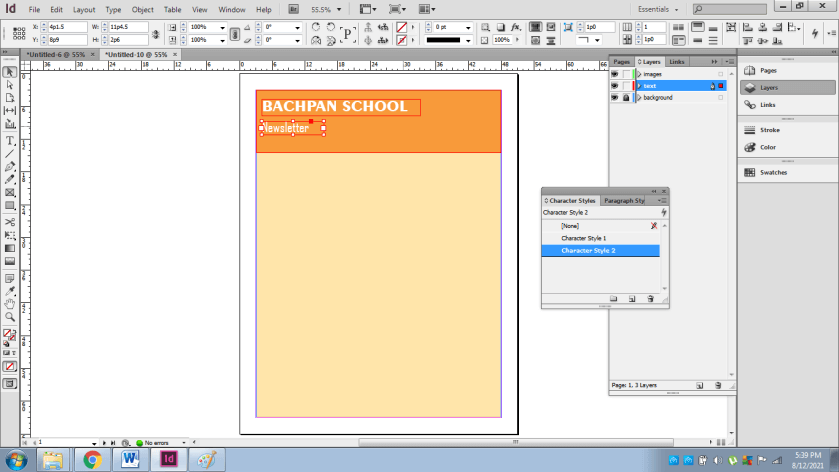
- Go to the Type tool and write text as BACHPAN SCHOOL
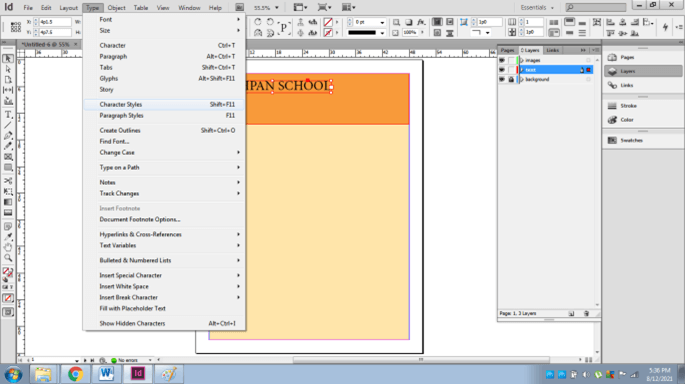
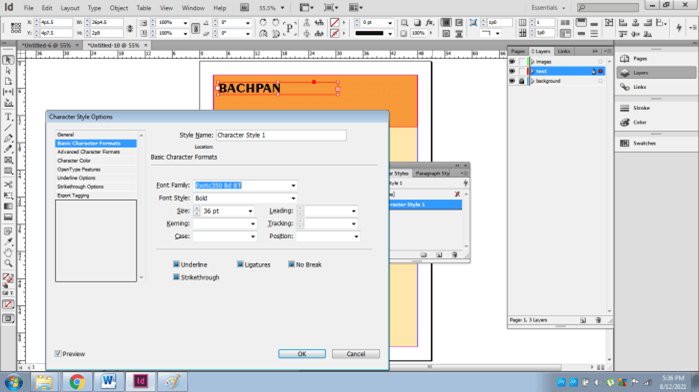
- Go to Type> Character Styles. Double click on the character style 1 and select a style for the text. We can also click on Preview to view the edits simultaneously. Creating a character style will help the user in maintaining a similarity between multiple texts on a page.
- Now, similarly, create another text below the above text and write a NEWSLETTER on the same.
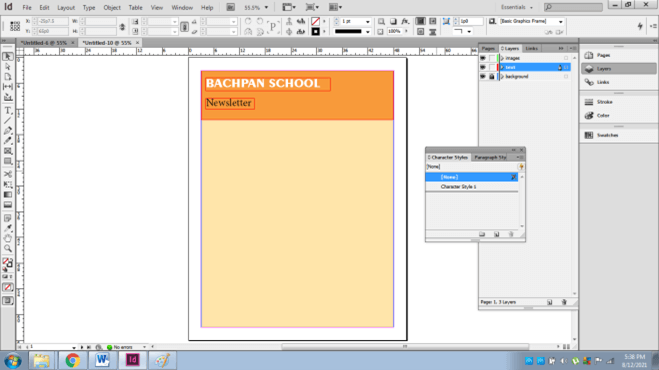
- Create another character style for this text. As it happens to be in a different font style and size.
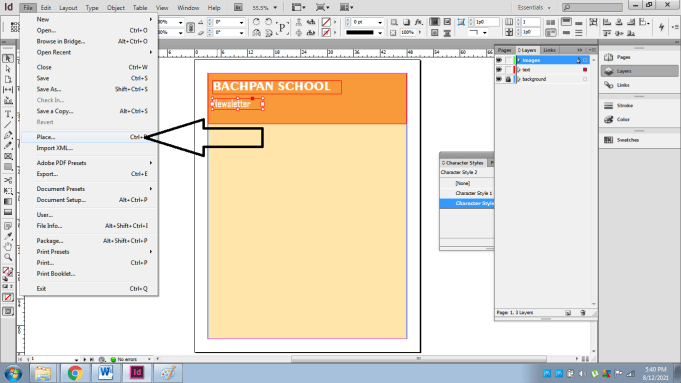
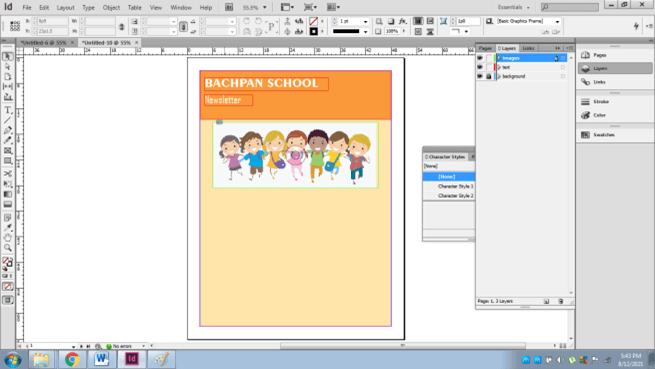
- Further, we now add an image which can be downloaded from the internet.
- Place the image as shown below. Then, go to File> Place and select the source of the image.
- Now, we create another layer named as Main Content.
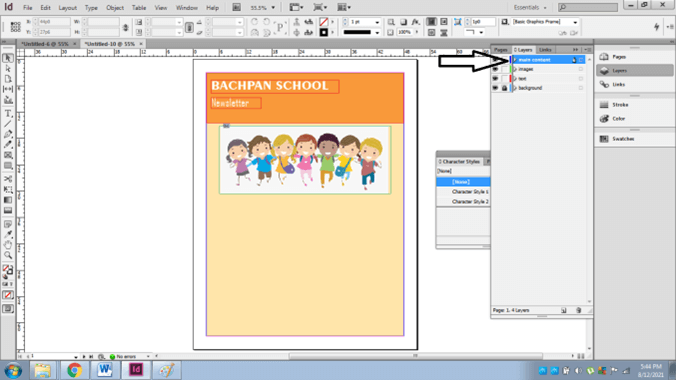
- In this layer, create a rectangle and fill it with White color.
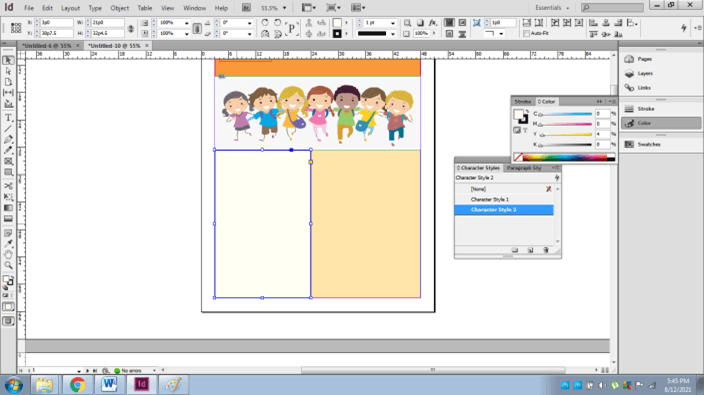
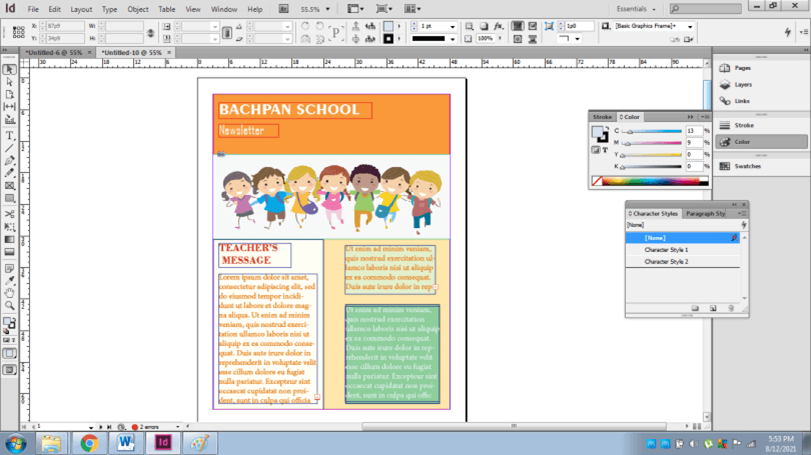
- Now, create a text frame and write the text as shown below.
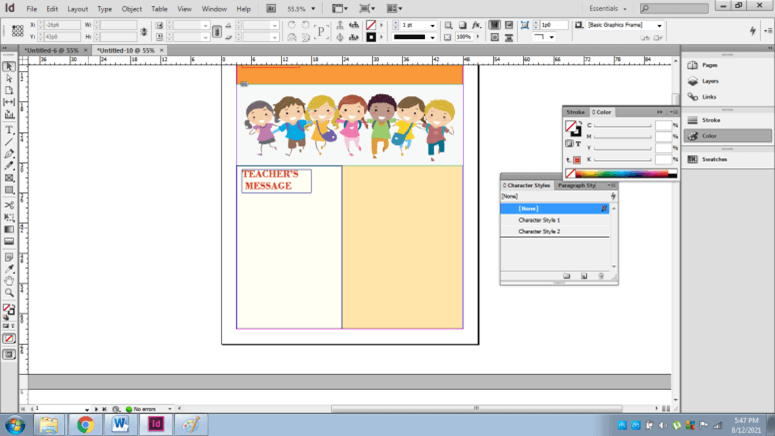
- Again, create a text frame and write the sample text as shown below
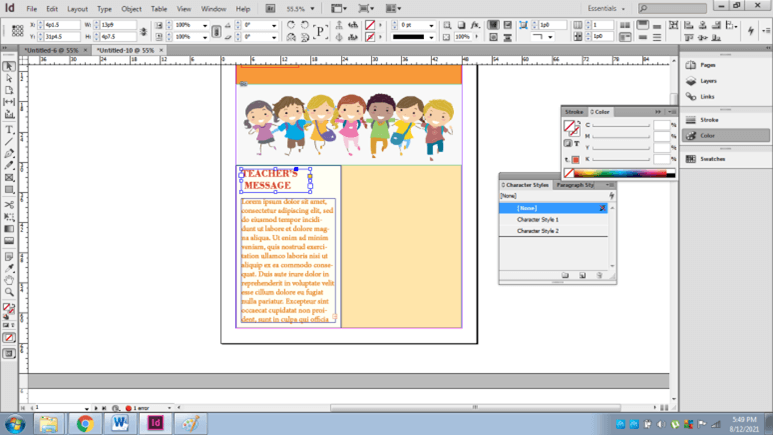
- Now, create a text frame and right-click on the text frame to see TEXT FRAME OPTIONS.
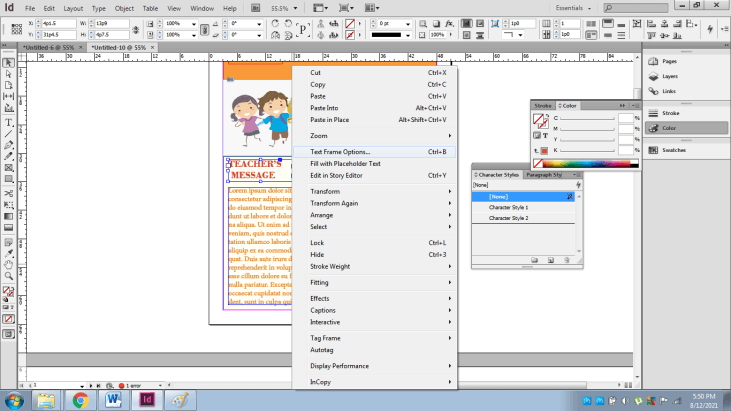
- Similarly, we Create a rectangle and text frames to complete the 1st page of the newsletter.
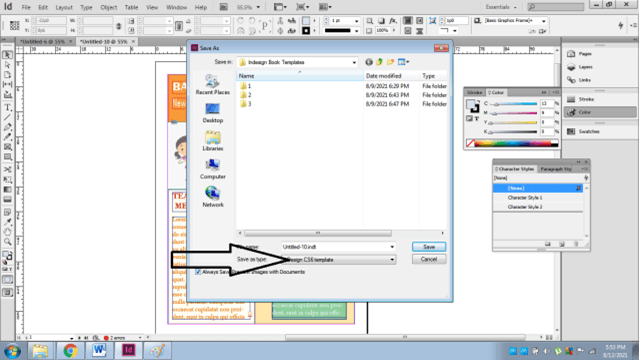
- Finally, to save the template, we go to File> Save as and save in the Adobe InDesign Template format.
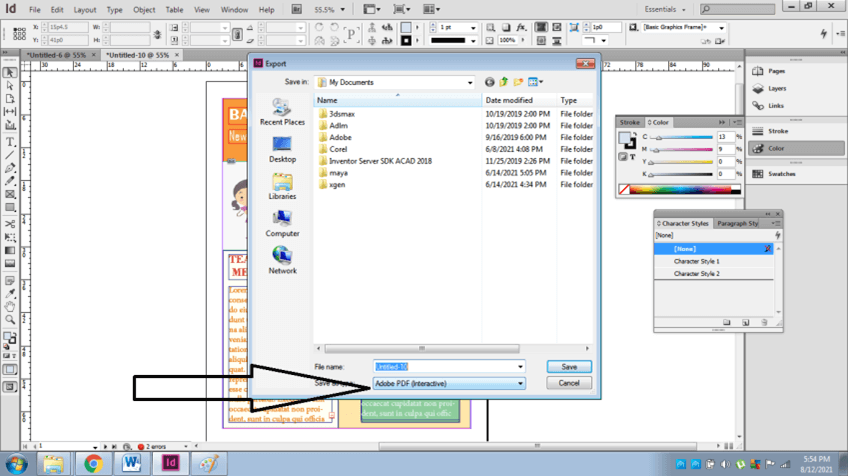
- Also, remember to export the template once completed in the PDF format for high-quality printing.
In the above sample example, we could also use columns and Gutter instead of creating rectangles and text frames. A gutter is a tool where we create a gap between two or more columns or pages. In a similar manner, we design and create the rest of the pages of the newsletter.
In a related way, we can download a readymade InDesign Newsletter Template from the internet and edit the same in whatever way we require. The procedure is similar to the above example explained.
Conclusion
Concluding the above article, we would like to mention that Creating and designing Newsletter Templates can take a long duration of time and effort.
But, by using Adobe InDesign, the user can minimize the efforts from their end as everything they require is certainly available on the interface without any inhibitions.
Recommended Articles
This is a guide to InDesign newsletter templates. Here we discuss How to create a Newsletter template in Adobe InDesign along with the steps. You may also have a look at the following articles to learn more –

