
Introduction to GIMP Layers
Whatever you add in the document area of GIMP creates a layer in the layers panel of this software which means layers can be defined as slices of any paper of a project book that has a different document on each layer. In GIMP we can have an imported image layer, document layer, and shape layer & everything which we draw or create in this software will have a layer in the layers panel. You will learn some essential parameters of the individual layer from this article so that you can understand the mechanism of having a layers panel with a number of layers in this software.
How to use Layers in GIMP?
We can use layers for making adjustments to different features as well as in making changes in the parameters of the object of that layer. That object may be an image, document, shape, or any design. Before learning about how we can use layers let us have look at the location and recovery of the layers panel.
By default, you will find the layers panel on the right side of the User screen.
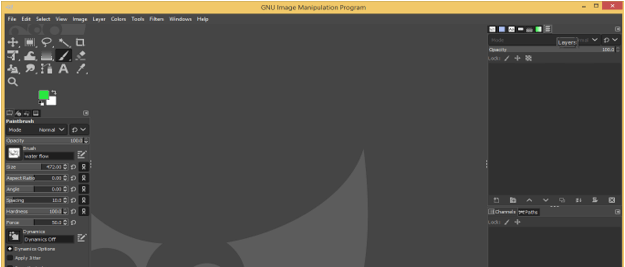
Because of the dockable panel, you can place it anywhere in the user screen.
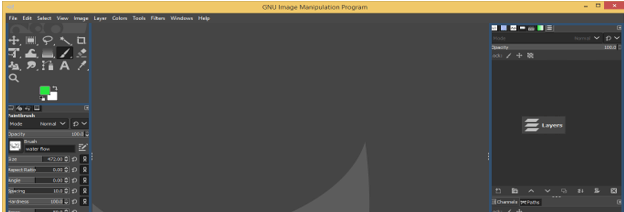
Or you can move it like this according to your suitability.
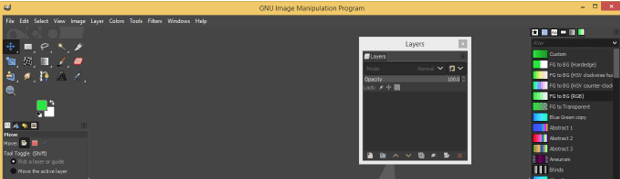
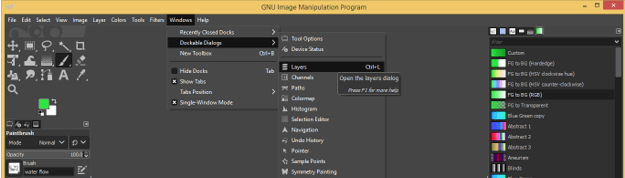
If you closed the layers panel by mistake then don’t worry, just go to the Windows menu and click on it. Go to Dockable Dialogs and click on the Layers option of the new list or press Ctrl + L as a shortcut key.
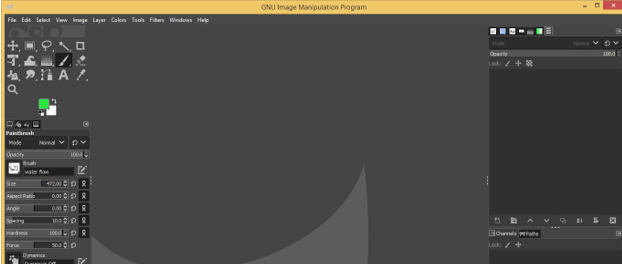
If you have nothing in the document area of GIMP then your layers panel will be empty and there will be no layer.
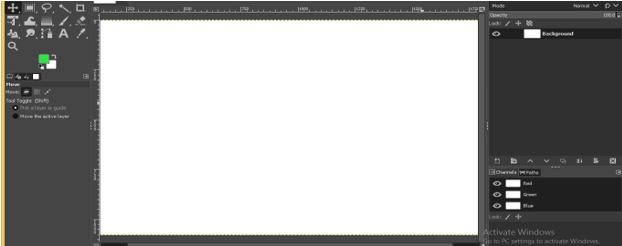
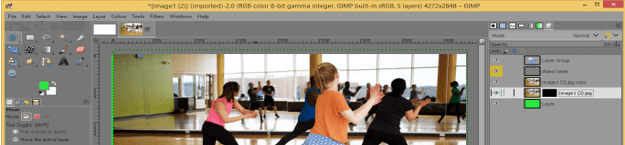
Now let us create a new document and once you create it, a layer of this document will add in the layers panel as a background layer. You can have a number of layers in layers panel because GIMP has limitless capacity having a layer in the layers panel and it just depends on your computer capacity.
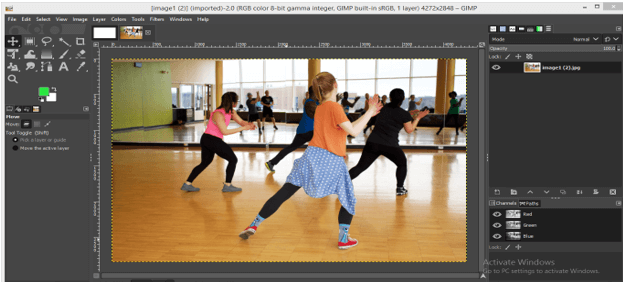
Same as if you open any image in GIMP it also has its layer in the layers panel.
You can change the name of any layer, just make double-click on the name of the layer and write your desired name.
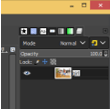
Let change the theme of the interface to grayscale for understanding the next option of the layers panel. Here we have to layers in the layers panel and you can see if you selected any layer it becomes highlighted.
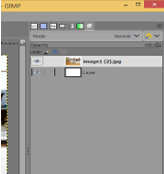
You will see the layer first which is top in layer sequence. Here we have the girl layer at the top so we can see this only and the layer below it can only see when there is any gap or the upper layer has less opacity value.
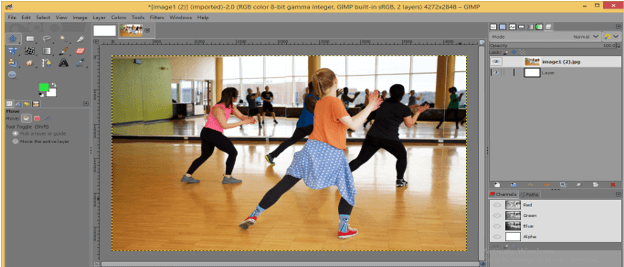
You can click on eye button of any layer for making it invisible.
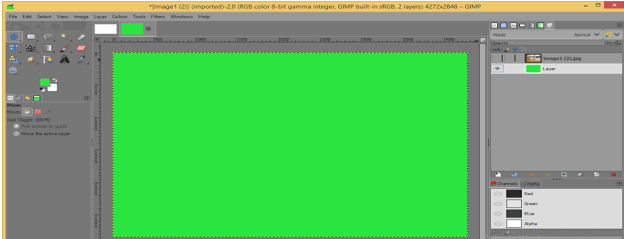
Next is Link button if you enable it on both layer by click on it.
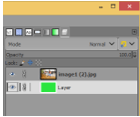
Then any transformation or change which you apply on any one of images will be applied on both layers. For example, I scale down this green layer.
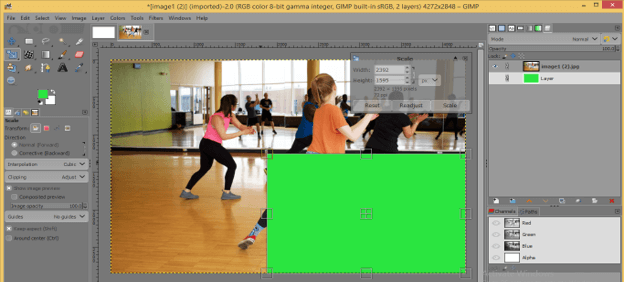
And when I press enter for applying this scale transformation it will be applied on both layers.
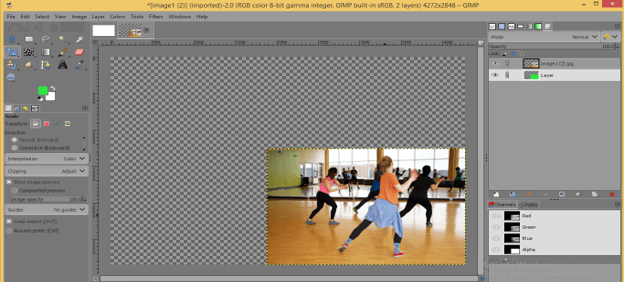
But if the link button is enabled on only one layer then it will lock that layer and you can make changes only on the unlinked layer. For example, I enabled the link button on the girl layer and then changed the scale of the green layer.
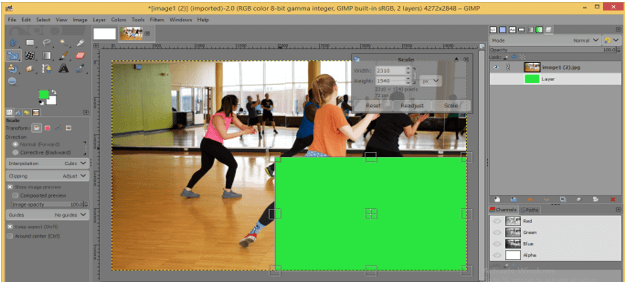
And after making enter there is scale transformation on the green layer only.
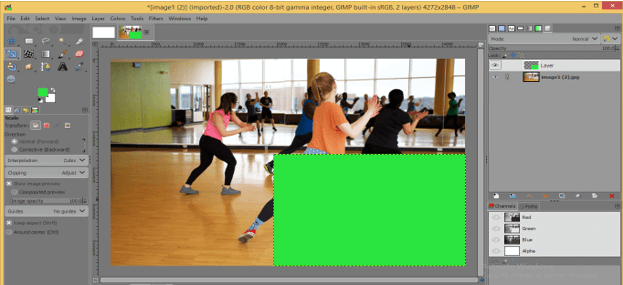
Next is the Lock pixels button.
I take a Paint Brush tool and draw this star on the girl layer.
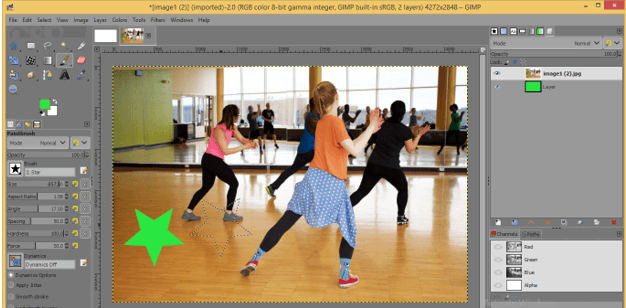
Now make the Lock pixel button enable and again draw the star with the brush tool on the girl image. You will find you cannot draw it. So if you enable the lock pixel button then you cannot draw anything on your selected layer.
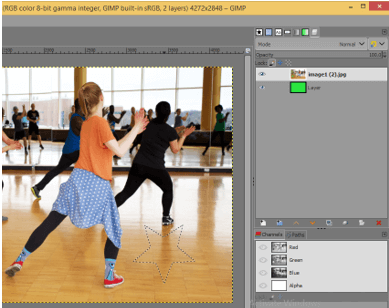
Next is the Lock Position and Size button. By enabling this button you will not able to move or resize your selected layer.
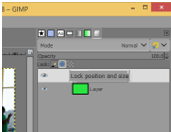
Now place the green layer above this girl layer by moving it with a mouse click.
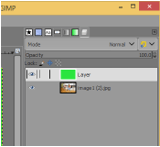
We have the Mode option here in the layer panel. Choose any one of the mode from this list. I will choose the Soft light option.
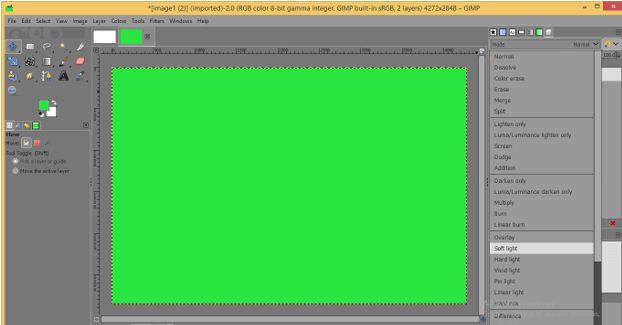
And your upper layer will blend with the below layer and give you a blending effect like this.
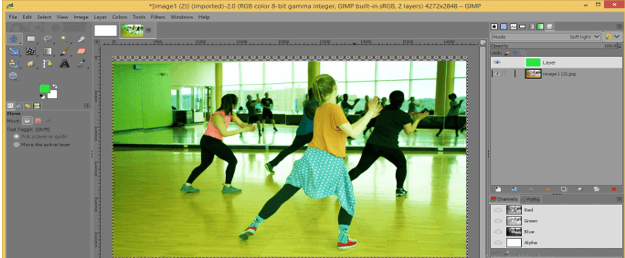
You can increase or decrease the opacity of any layer by changing the opacity value through the opacity option. Does opacity mean how opaque any particular thing is?
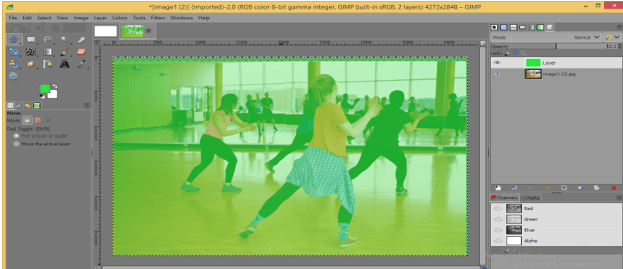
Move tool works on the upper layer first no matter which layer is selected in the layers panel. For example, if you select the bottom layer and then use the move tool for moving this layer.
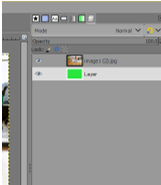
Then it moves the upper layer by selecting it itself.
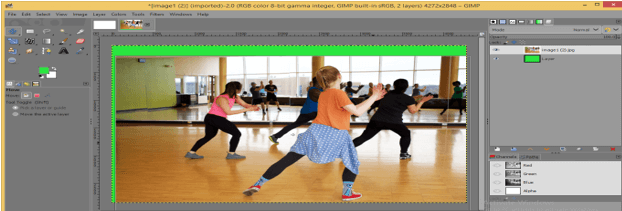
And once you did it automatically back your selection on your originally selected layer.
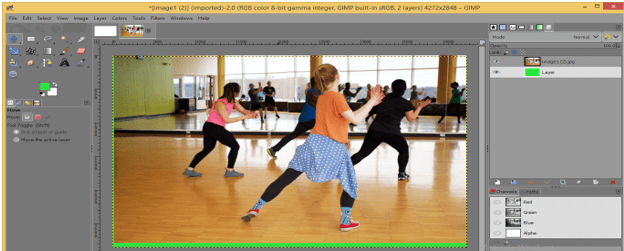
We have some tab or button at the bottom of the layers panel so let us discuss them too. The first tab is for creating a new layer.
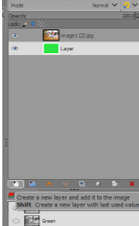
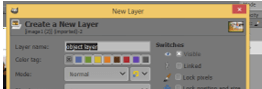
Once you click on this tab you will have this dialog box. Here you can name your layer.
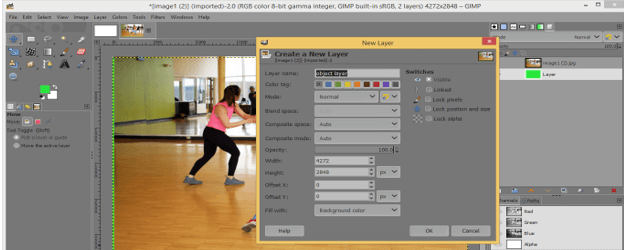
Choose the tag color of your layer by the Color tag option.
You can set the size of the layer here also according to your requirement during your work.
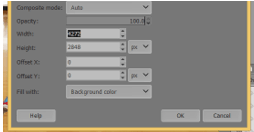
You can fill the layer with a different options. You can choose foreground color, background color, White color, any pattern or transparency for filling purposes.
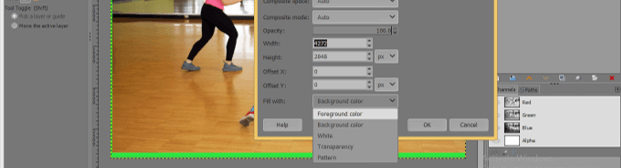
I will choose the Transparency option for having a transparent layer and hit Ok.
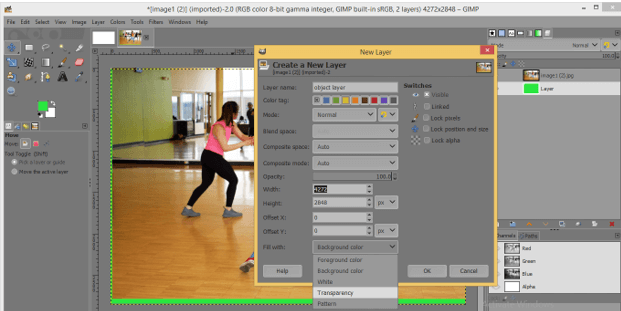
And you will have a new layer with your desired setting in the layers panel.
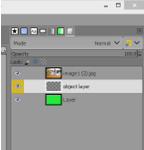
This is a transparent layer.
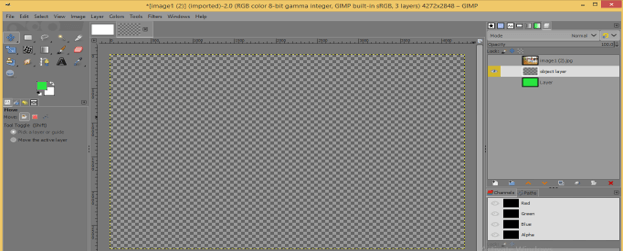
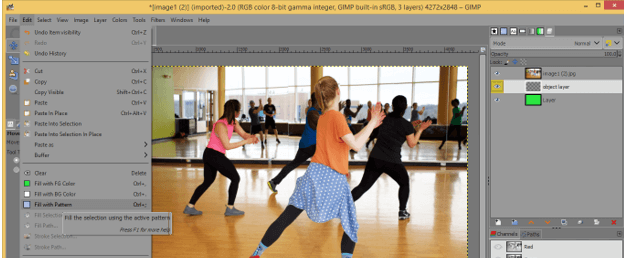
If you want to fill color in it then go to the Edit menu and click on any filling option.
If you want to make a duplicate copy of any layer then click on this button.
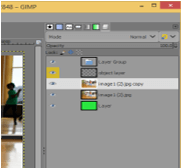
And you will have a copy of your selected layer.
For adding a mask to any layer click on this button.
Once you click you will have this dialog box, make your desired settings here, and click on the Add button.
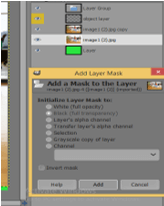
And mask will add to your selected layer.
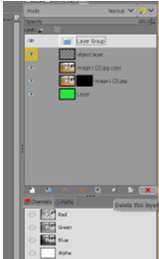
You can delete any layer just select that layer and click on the delete button.
Conclusion
We have discussed all the important parameters and features of the layers panel of GIMP software and now you can understand how much it is important to understand the layers panel of GIMP. Now you can easily use the function of layers panel for handling your work in better ways.
Recommended Articles
This is a guide to GIMP Layers. Here we discuss the introduction and How to use Layers in GIMP?. You can also go through our other related articles to learn more –

