

Updated August 22, 2023
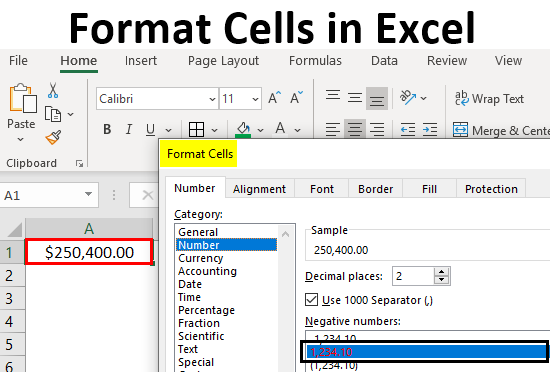
Definition of Format Cells
A format in Excel can be defined as the change of appearance of the data in the cell the way it is, without changing the actual data or numbers in the cells. That means the data in the cell remains the same, but we will change how it looks.
Different Formats in Excel
We have multiple formats in Excel to use. To see the available formats in Excel, click on the “Home” menu in the top left corner.
General Format
In General format, there is no specific format; whatever you input, it will appear similarly; it may be a number, text, or symbol. After clicking on the HOME menu, go to the “NUMBER” segment to find a drop of formats.

Click on the drop-down where you see the “General” option.
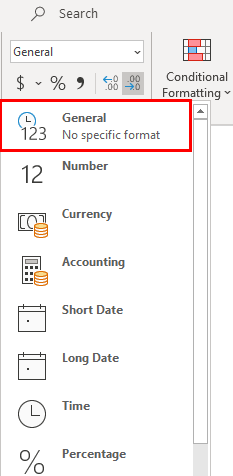
We will discuss each of these formats one by one with related examples.
1. Number Format
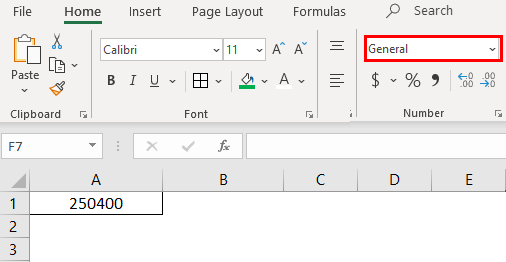
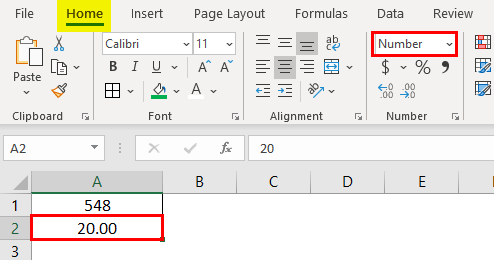
This format converts the data to a number format. When we input the data initially, it will be in General format; after converting to Number format only, it will appear in number format. Observe the below screenshot for the number in General format.
Now choose the format “Number” from the drop-down list and see how the appearance of cell A1 changes.
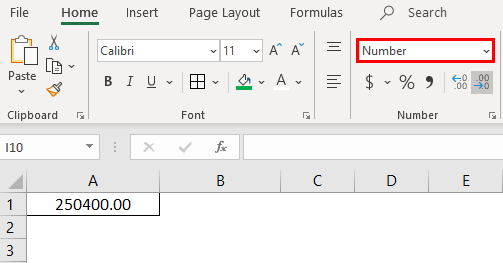
That is a difference between the General and Number formats. If you want further customizations to your number format, select the cell that you want to do customization and right-click the below menu will come.
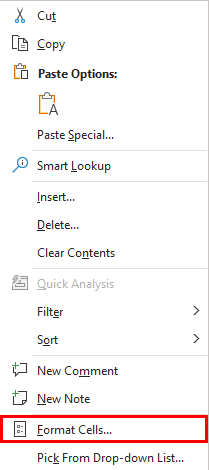
Choose the “Format Cells“ option to get the window below.
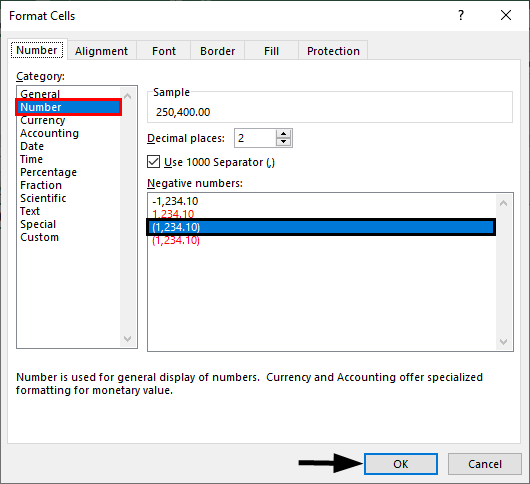
Choose “Number” under the “Category” option then you will get the customizations for the Number format. Choose the number of decimals you want to display. Tick the “Use 1000 separator” checkbox for separating 1000s with a comma (,).
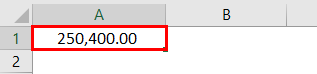
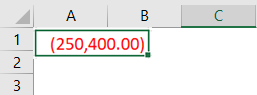
Choose whether you want to display the negative number format with a negative symbol, brackets, red color, nd red col, etc.
2. Currency Format
Currency format helps to convert the data to a currency format. We can choose the type of currency as per our requirements. Select the cell you want to convert to Currency format and choose the “Currency” option from the drop-down.
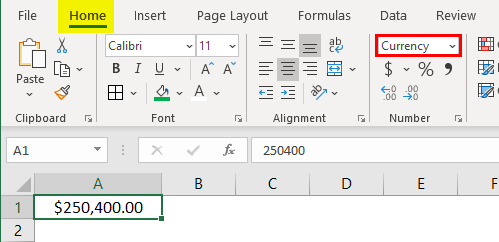
Currently, it is in Dollar currency. We can change by clicking on the drop-down of “$” and choosing your required currency.
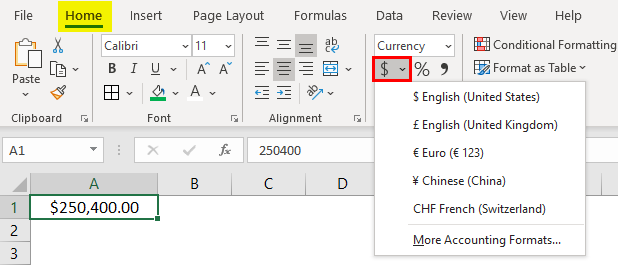
In the drop-down, we have a few currencies; if you want the other currencies, click “More Accounting formats”, which will display a pop-up menu as below.
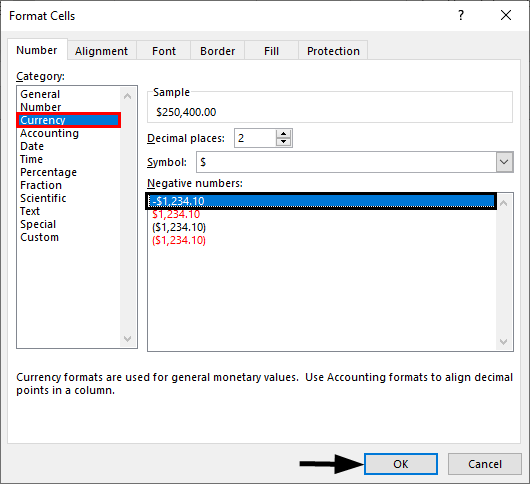
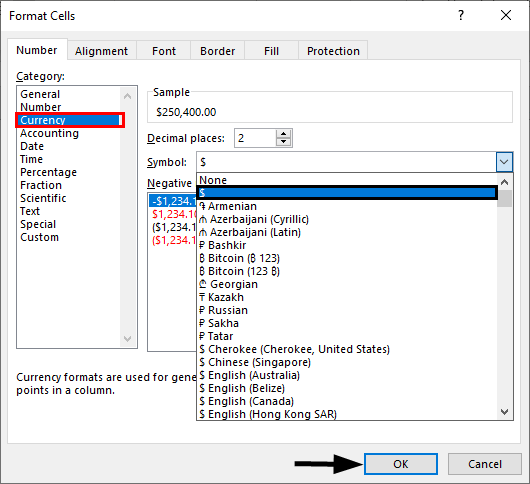
Click on the drop-down “Symbol” and choose the required currency format.
3. Accounting Format
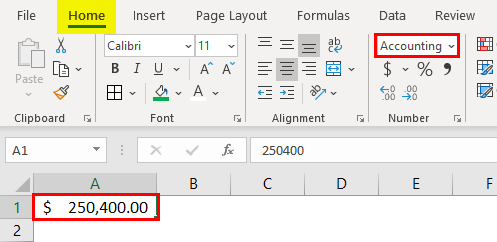
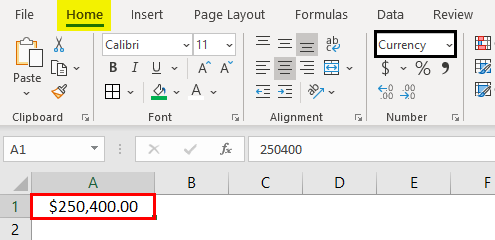
As you all know, accounting numbers are all related to money; converting any number to an accounting format will add a currency symbol. The difference between currency and accounting is currency symbol alignment. Below are the screenshots for reference.
4. Accounting Alignment
5. Currency Alignment
6. Short Date Format
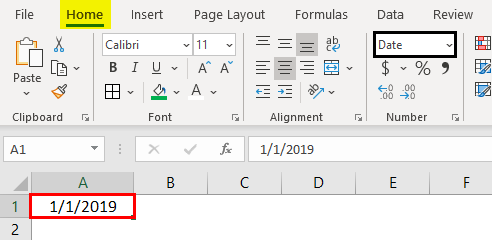
A date can represent in a short format or a long format. When you want to represent your date in a short format, use the short date format. E.g., 1/1/2019.
7. Long Date Format
The long date represents our date in an expandable format, like the screenshot below.
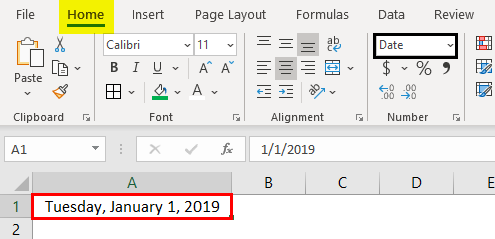
We see the short date format, and long date format have multiple formats to represent our dates. Right-click and select “Format Cells” as we did before for “numbers”, then we will get the window to select the required formats.
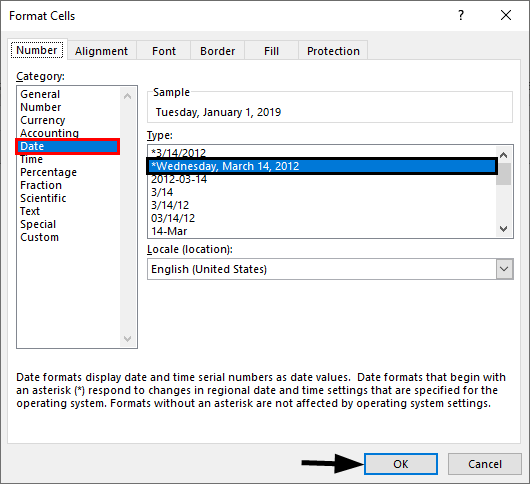
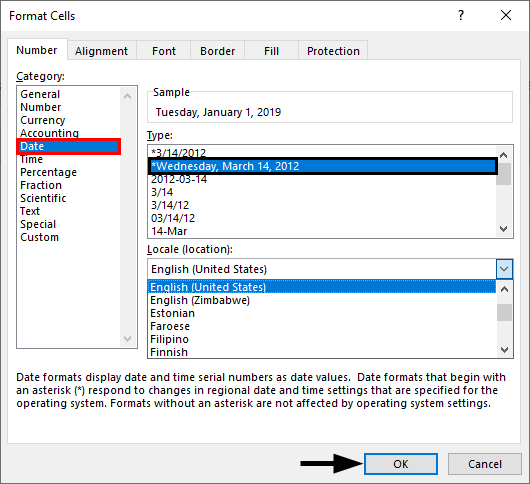
You can choose the location from the “Locale” drop-down menu.
Choose the date format under the “Type” menu.
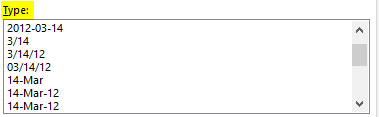
We can represent our data in any of the formats from the available formats.
8. Time Format
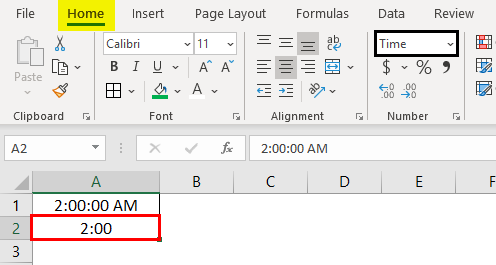
This format is used to represent the time. If you input time without converting the cell into time format, it will show normally, but if you convert it into time format and input, it will represent the time. Find the below screenshot for the differences.
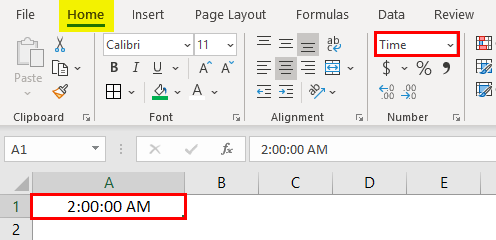
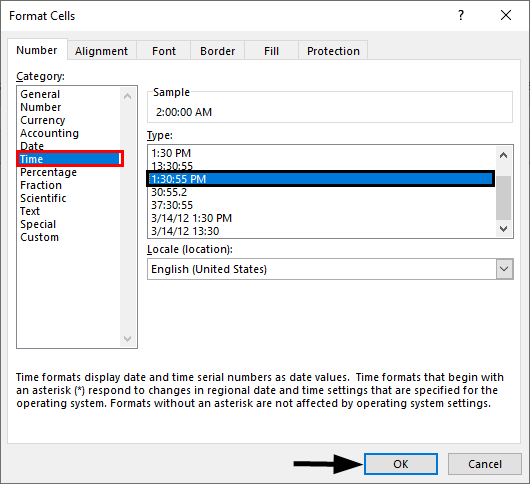
If you still want to change the time format, change it in the format cells menu, as shown below.
9. Percentage Format
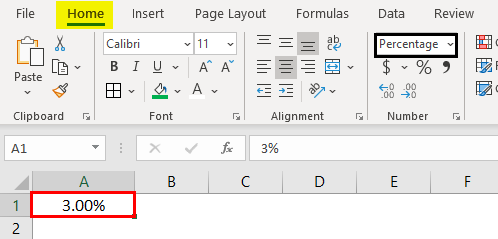
Suppose you want to represent the number percentage. Use this format. Input any number in the cell and select that cell and choose the percentage format. Then, the number will convert into a percentage.
10. Fraction Format
When we input fraction numbers like 1/5, we should convert the cells into Fraction format. It will show as a date if we input the same 1/5 in a normal cell.
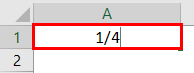
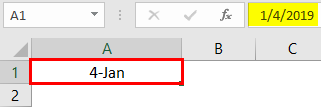
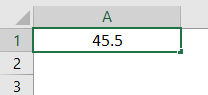
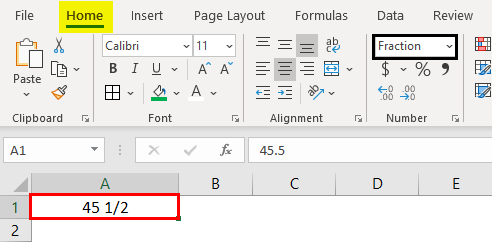
This is how the fraction format works.
11. Text Format
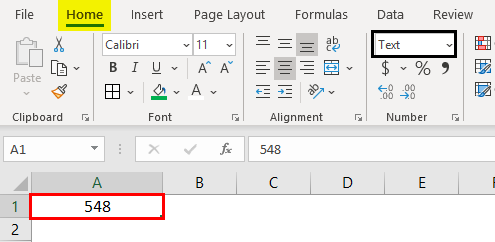
When you input the number and convert it to text format, it will align to the left side. It will consider as text only, not the number.
12. Scientific Format
When you input the number 10000 (Ten thousand) and convert it into a scientific format, it will display as 1E+04. Here, E means exponent, and 04 represents the number of zeros. If we input the number 0.0003, it will display as 3E-04. Try different numbers in Excel format, and check you will get a better idea to understand this better.
13. Other Formats
Apart from the explained formats, we have other formats like Alignment, Font, Border, Fill, and Protection.
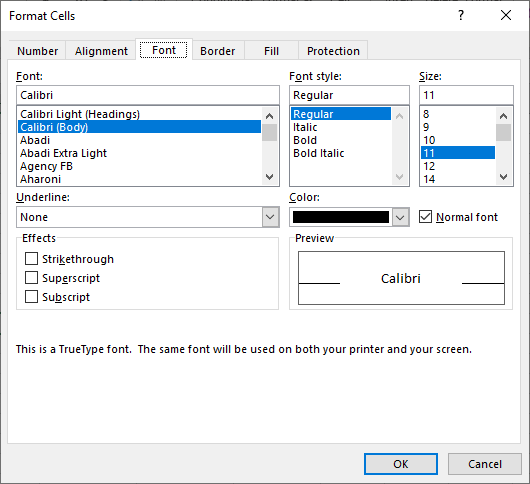
Most of them are self-explanatory; hence I am leaving and explaining protection alone. When you want to lock any cells in the spreadsheet, use this option. But this lock will enable only when you protect the sheet.
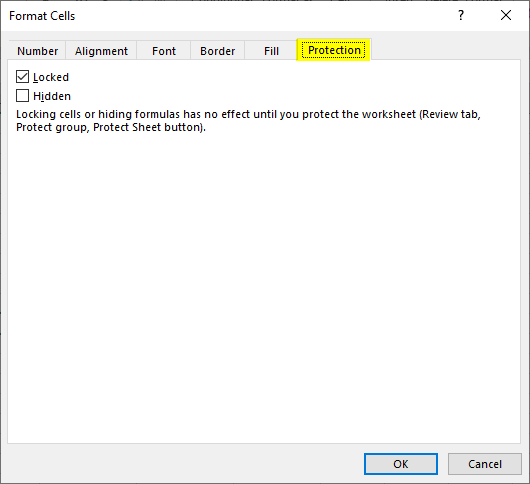
You can hide and lock the cells on the same screen; Excel has provided instructions on when it will affect you.
Things to Remember About Format Cells in Excel
- One can apply formats by right-clicking and selecting the format cells or from the drop-down as explained initially. Their impact is the same; however, you will have multiple options when you right-click.
- When you want to apply a format to another cell, use format painter, select the cell, click on formatted painters, and choose the cell you want to apply.
- Use the option “Custom” when you want to create your own formats as per requirement.
Recommended Articles
This is a guide to Format Cells in Excel. Here we discuss how to format cells in Excel, practical examples, and a downloadable Excel template. You can also go through our other suggested articles to learn more–

