


Updated May 5, 2023
List Box in Excel
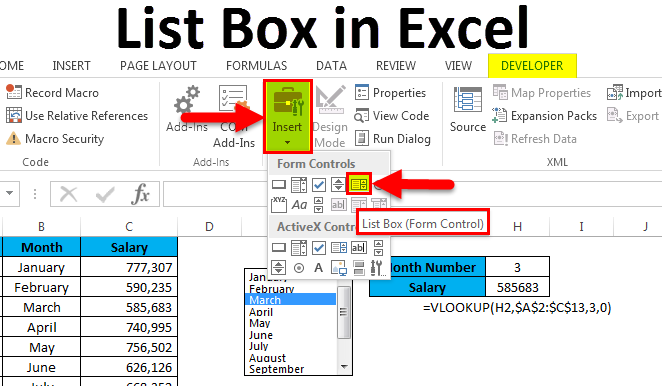
List Box in Excel is used to create a list inside the box and choose them. We select the values from the dropdown. List boxes are available in the Insert option in the Developer menu tab. We can use List boxes with VBA macro and also Excel cells. Whatever values we select can be seen in the list box, and once we select any value that will be reflected, the cell is linked to List Box.
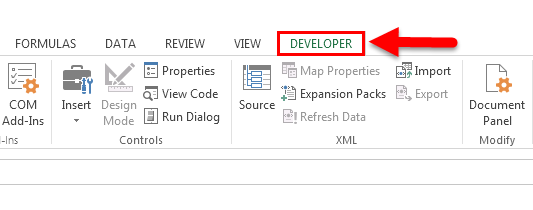
The list Box is located under Developer Tab in Excel. You may not see this DEVELOPER tab in your Excel if you are not a VBA macro user.
Follow the below steps to unleash the Developer Tab.
If the Developer tab is not showing, then follow the below steps to enable the Developer tab.
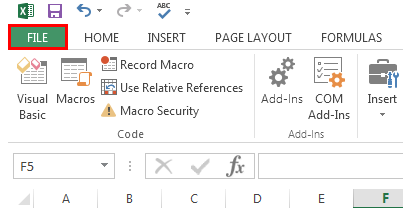
- Go to the FILE option (top of the left-hand side of the Excel).
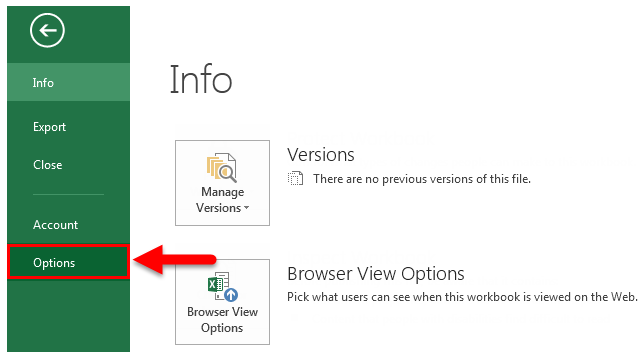
- Now go to Options.
- Go to Custom Ribbon and click on the Developer tab checkbox.
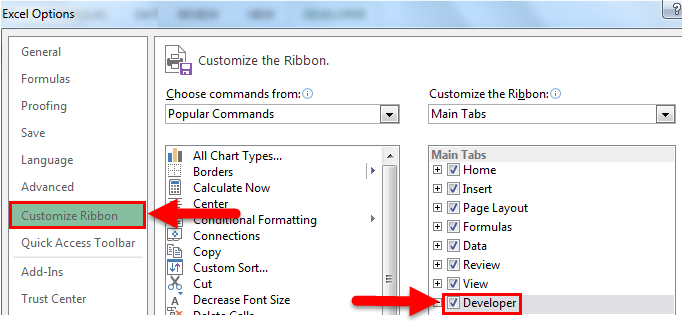
- Once the Developer Tab is enabled, you can see it on your Excel ribbon.
How to Create a List Box in Excel?
Follow the below steps to insert the List box in Excel.
Step 1: Go to Developer Tab > Controls > Insert > Form Controls > List Box.
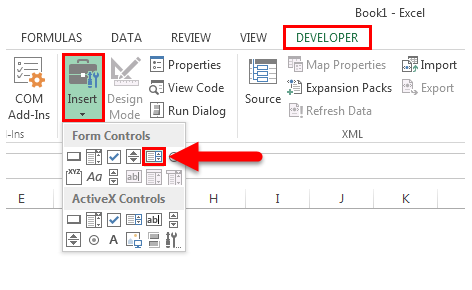
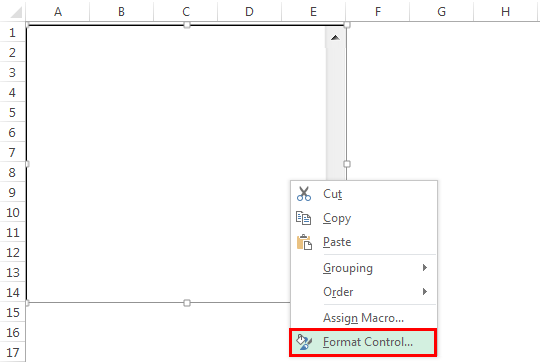
Step 2: Click on List Box and draw in the worksheet; then Right-click on the List Box and select the option Format Control.
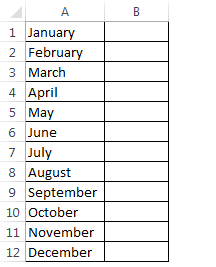
Step 3: Create a month list in column A from A1 to A12.
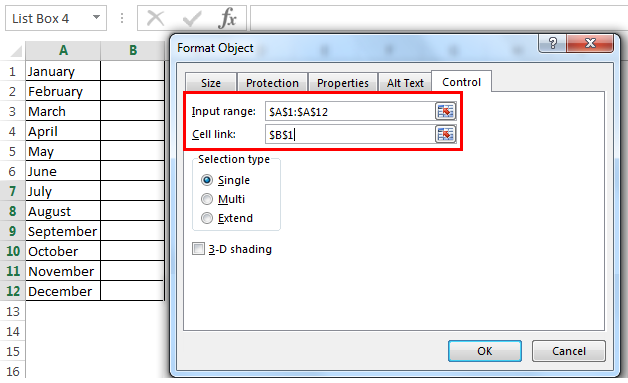
Step 4: Once you have selected Format Control, it will open the below dialog box; go to the Control tab in the input range and select the month lists from A1 to A10. In the cell link, give a link to cell B1.
We have linked our cell to B1. Once the first value has been selected, cell B1 will show 1. Similarly, if you select April, it will show 4 in cell B1.
Examples of List Box in Excel
Let’s look at a few examples of using Lise Box in Excel.
Example #1 – List Box with Vlookup Formula
Now we will look at the way of using List Box in Excel.
Assume you have salary data month-wise from A2 to A13. Based on the selection made from the list, it has to show the value for the selected month.
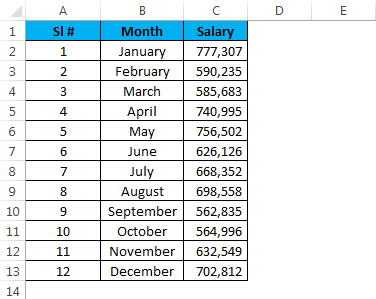
Step 1: Draw a List Box from the developer tab and create a list of months.
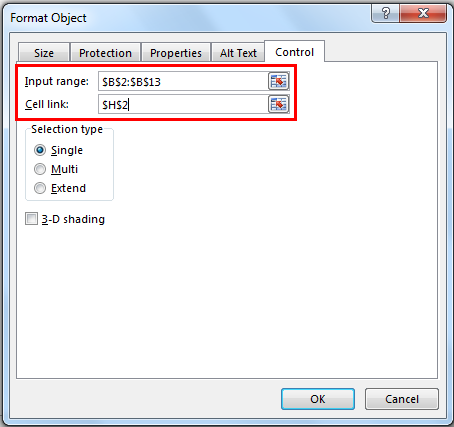
Step 2: I have given a cell link to H2. In G2 and G3, create a list like this.
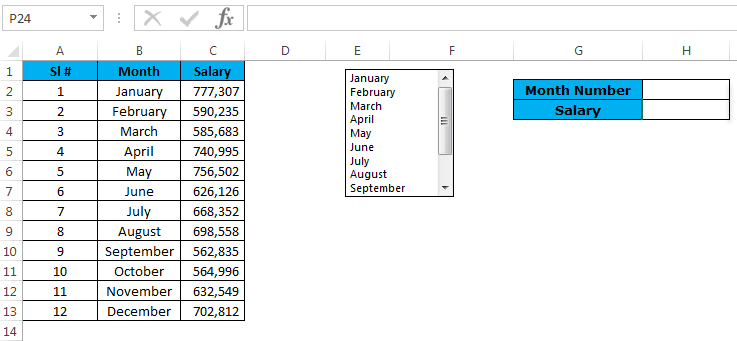
Step 3: Apply the VLOOKUP formula in cell H3 to get the salary data from the list.
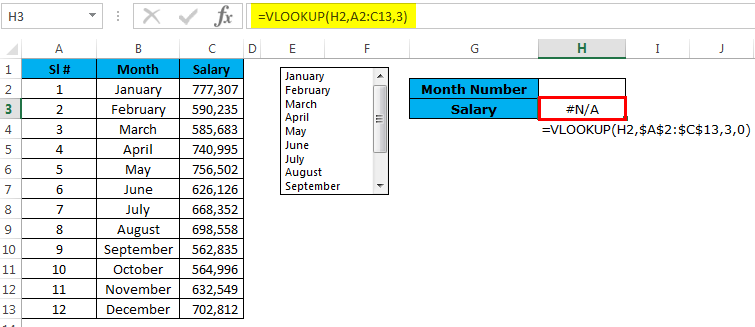
Step 4: Right now, it is showing an error as #N/A. Please select any of the months; it will show you the salary data for that month.
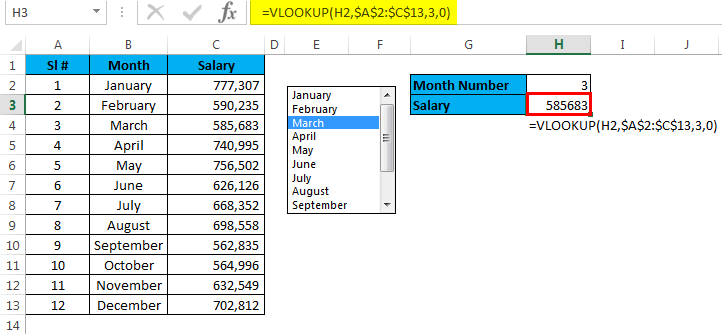
I have selected March month, and the number for March month is 3, and VLOOKUP shows the value for number 3 from the table.
Example #2 – Custom Chart with List Box
I will explain how to create a custom chart using List Box in this example. I will take the same example that I have used previously.
Step 1: Create a table like this.
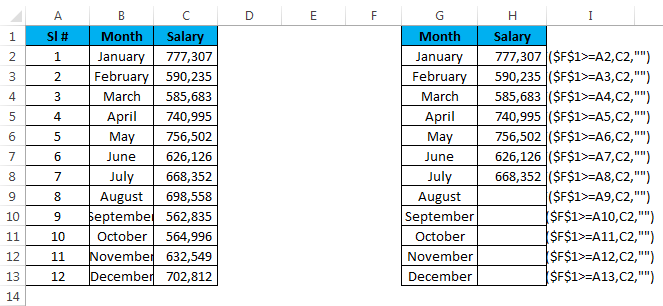
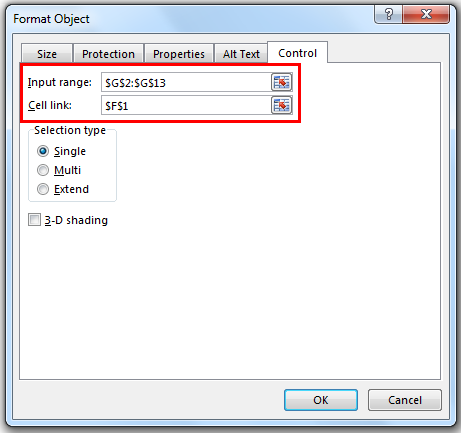
Step 2: Insert List Box from the Developer tab. Go to Format Control and give a link to the month list and a cell link to F1.
Step 3: Apply the IF formula in the newly created table.
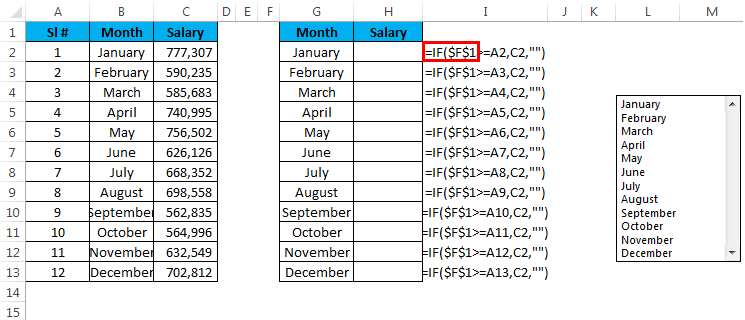
I have applied the IF condition to the table. If I select the month March, the value in cell F1 will show the number 3 because March is the third value in the list. Similarly, it will show 4 for April, 10 for October, and 12 for December.
If the condition checks if the value in cell F1 is greater than or equal to 4, it will show the value for the first 4 months. If the value in cell F1 is greater than or equal to 6, it will only show the value for the first 6 months.
Step 4: Now apply the chart for the modified table with the IF condition.
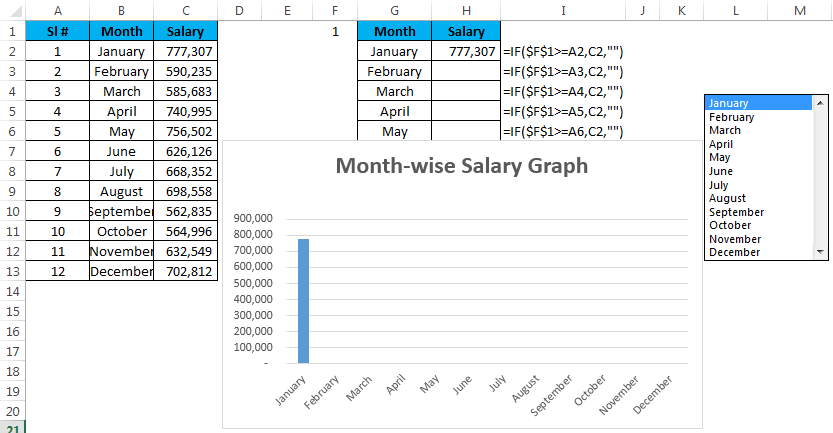
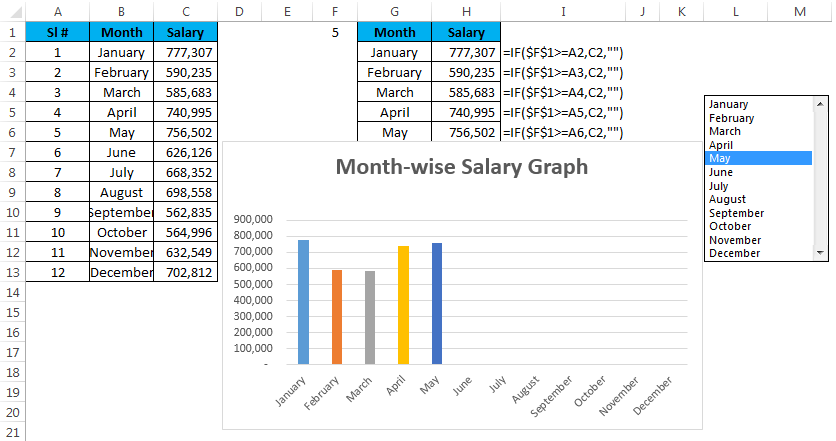
Step 5: Now, it shows the empty graph. Select the month to see the magic. I have selected the month of May, which is why it shows the graph for the first 5 months.
Things to Remember
- There is one more List Box under Active X Control in Excel. This has mainly used in VBA macros.
- The cell link indicates which item from the list has been selected.
- We can control the user to enter the data by using List Box.
- We can avoid wrong data entry by using List Box.
Recommended Articles
This has been a guide to the List box in Excel. Here we discuss the List box in Excel and How to create the List box in Excel, along with practical examples and a downloadable Excel template. You can also go through our other suggested articles –

